Use the Send, Stay and Hold Buttons on Your POS
Last updated: Sep 17, 2026, 9:16 AM
- Video: Using the Send, Stay, and Hold Buttons
- Use the Send Button
- Use the Stay Button
- Use the Hold Button
- Enable Send, Stay, and Hold Buttons for Quick Order Mode
- Inventory Counts with Stay, Send, and Hold
Video: Using the Send, Stay, and Hold Buttons
Using the Send, Stay, and Hold buttons on your POS.
Use the Send Button
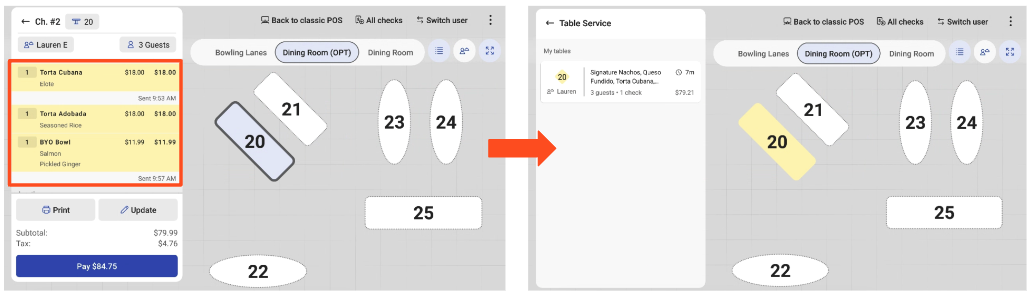
The Send button sends the items highlighted on the ticket to the kitchen or bar for preparation. Once the order is sent, the screen returns to the Table Service screen.
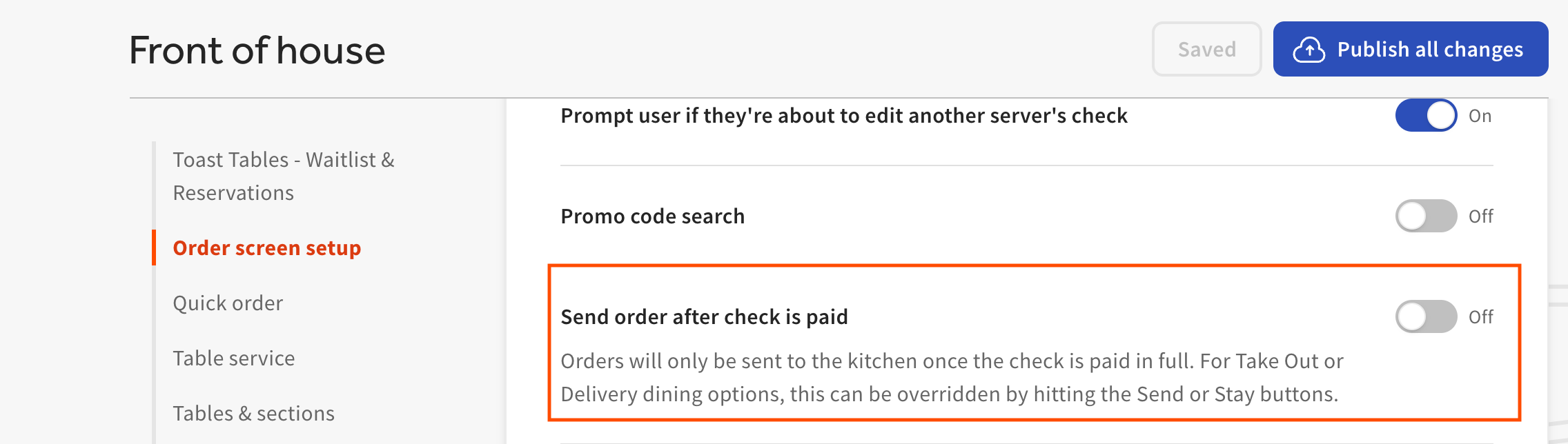
If the Send button is missing from your order screen, navigate into your Toast Web settings to Front of house > Order screen setup > Send order after check is paid and ensure this is toggled off (if you do toggle off, be sure to Save and Publish all changes).
If a table has an open check with all sent items, then the table will appear in yellow on the Table Service screen.
Use the Stay Button
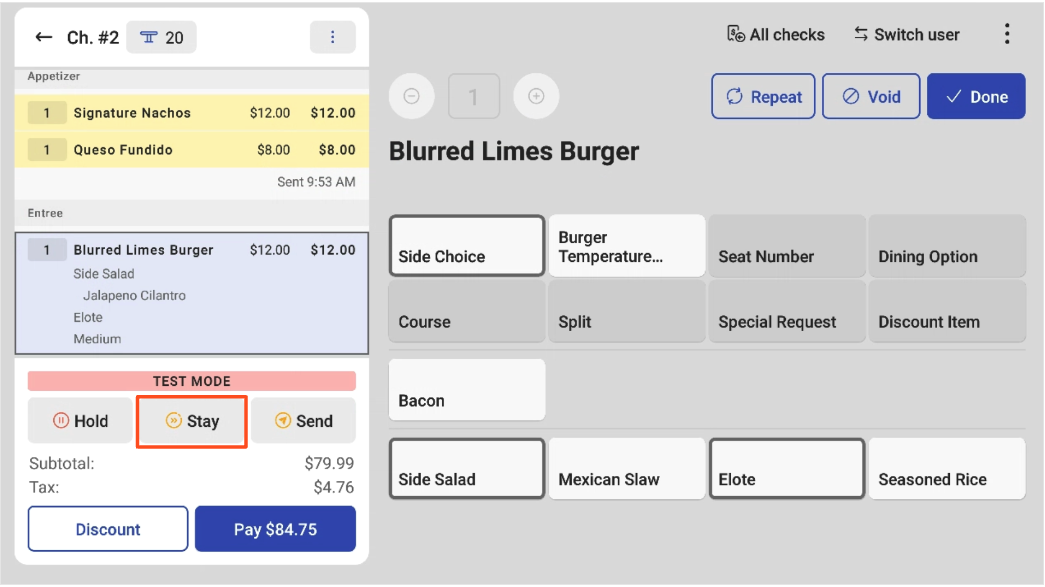
The Stay button is used when you have items on the check that are ready to be sent to the kitchen but you still want to be able to add more items to the check. This is helpful if your guests want to place drinks or appetizer orders at the same time as their entrees. This button keeps you on the order screen while sending food that has already been entered into the kitchen.
Use the Stay button to enter the first round of drinks or appetizers, which should be immediately started. You can add more to the order later.
Selecting Stay, or choosing certain items and selecting Stay, will send those items while keeping you on the order screen. However, if, for example, you have five items on the order, select two of the items, and hit Stay, the two items will be sent while the other three items will be automatically held.
Use the Hold Button
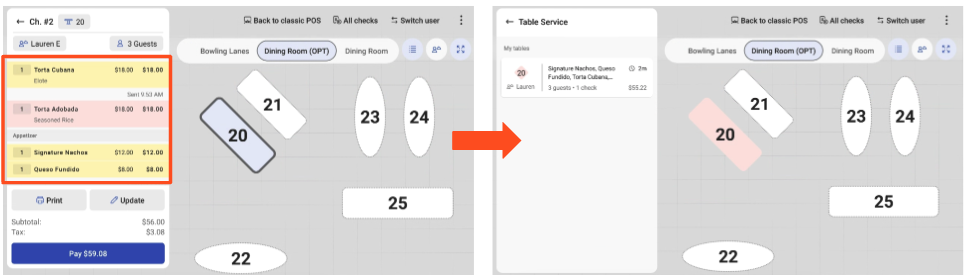
The Hold button is used when you've added items to a check, and you still need to be ready to send them to the kitchen, but you are not ready to fire. This feature is useful if you just placed an appetizer order and have received the entrees order, but want to avoid ringing in the entrees later.
If a table has items on hold, it will appear in red on the Table Service screen. This function saves you time by allowing you to ring in everything that has already been ordered while allowing send flexibility.
Note: Make sure to navigate to Toast Web > Kitchen > Pacing > Meal pacing > Held Tickets and choose how you'd like to display your held tickets: Show at both expediter and prep stations or Show at expediter only. To enable held tickets on your Kitchen Display, you must select Show at both expediter and prep stations for the Held Tickets setting, and select the checkbox next to Include held items in all day view and production item counts for the All day view with held items setting.
Want to practice? Select the button below! For an optimal interactive experience, we suggest accessing with a computer.
Enable Send, Stay, and Hold Buttons for Quick Order Mode
Send, Stay, and Hold buttons will be available in Table Service mode by default. To enable them in Quick Order mode, follow these steps:
- In Toast Web, navigate to Front of house > Order screen setup > UI options.
- Then, scroll down to Order Screen > Show Send/Hold/Stay Buttons (Quick Order only). Here, you can select the buttons that you wish to enable.
- Save and publish your changes.
Note: The Send, Stay, and Hold buttons cannot be removed from Table Service mode at this time.
Back to top
Inventory Counts with Stay, Send, and Hold
If you track inventory at your restaurant, that's something you want to consider if using server item firing.
If you're using inventory counts, know that when you place an item or modifier in a Hold state that the Toast system will still deduct it from your inventory count at the time that the order is placed on Hold. It will not wait for the order to be fired to the kitchen. For example, If there are 20 New York Strip Steaks in the system and one NY Strip is placed on hold, Toast automatically changes the quantity to 19 and places the item on Hold. If the item is Voided then the count will return back to 20. This is also the case if you send an item and then void it after.
Check out the article Set a Count on Menu Items for more information.