Digital Menu Board Content and Schedule
Last updated: Sep 17, 2026, 11:45 AM
Question
- How can I check if my content is scheduled properly in my digital menu board?
- I'm seeing default media playing on my playlist. How can I fix that?
Answer
If you are seeing the default media page, this is how to check that your content is properly scheduled.
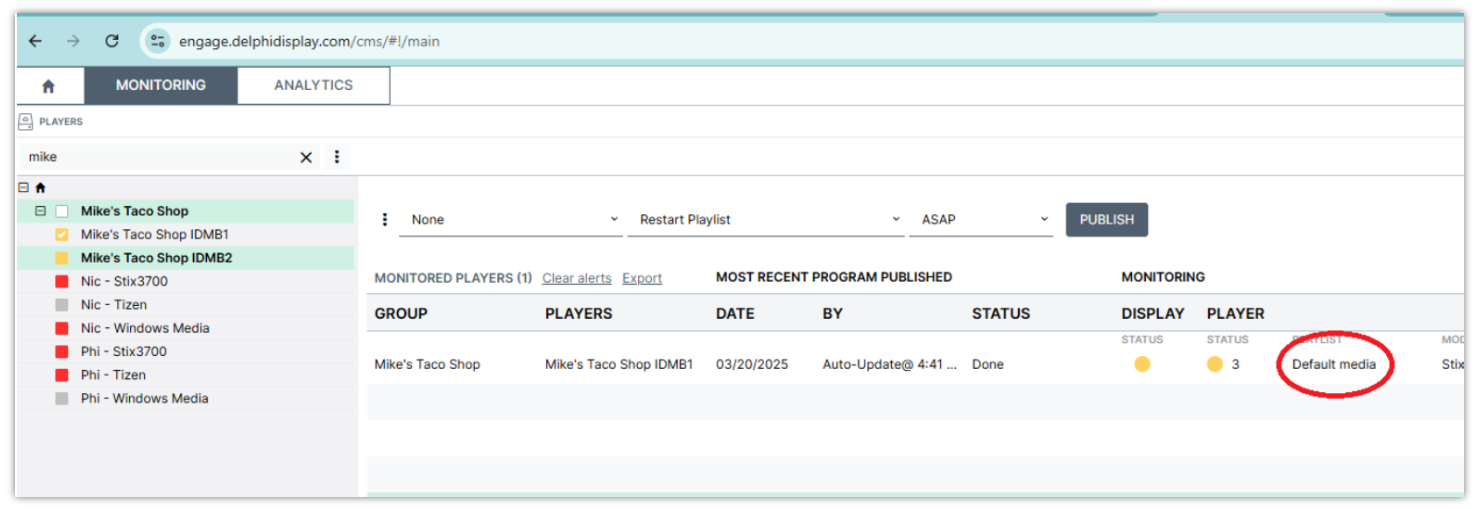
- Select the Home button on the top right.
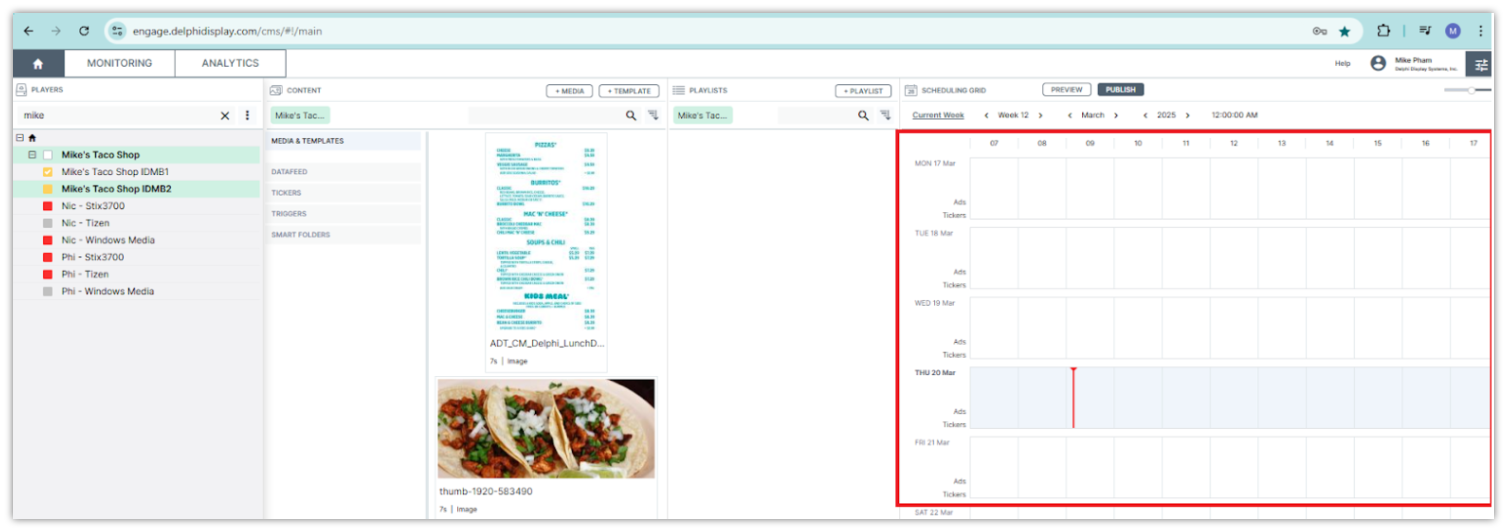
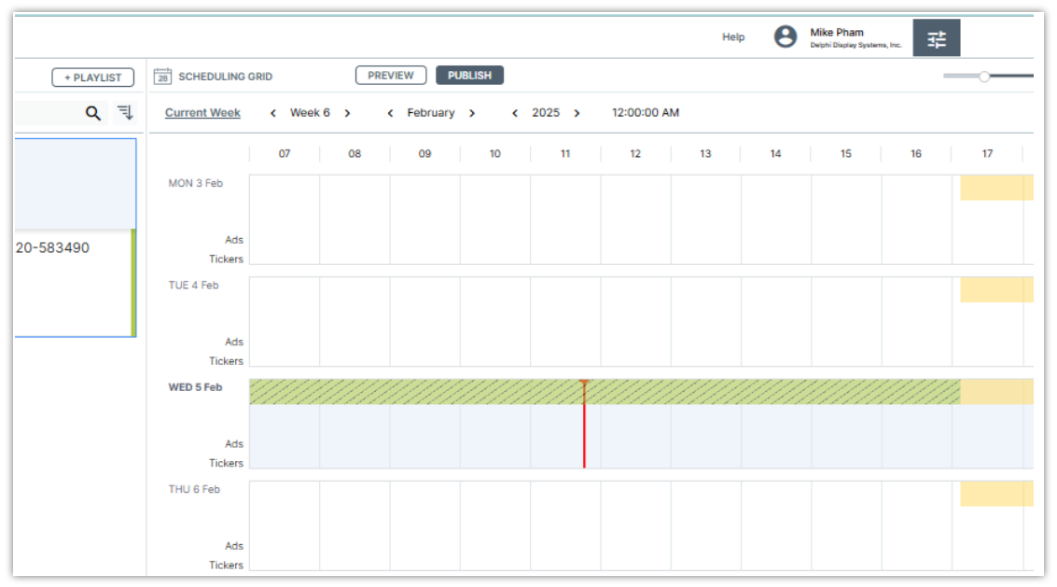
- Check the schedule on the right. If it looks like the following, you do not have any content scheduled.
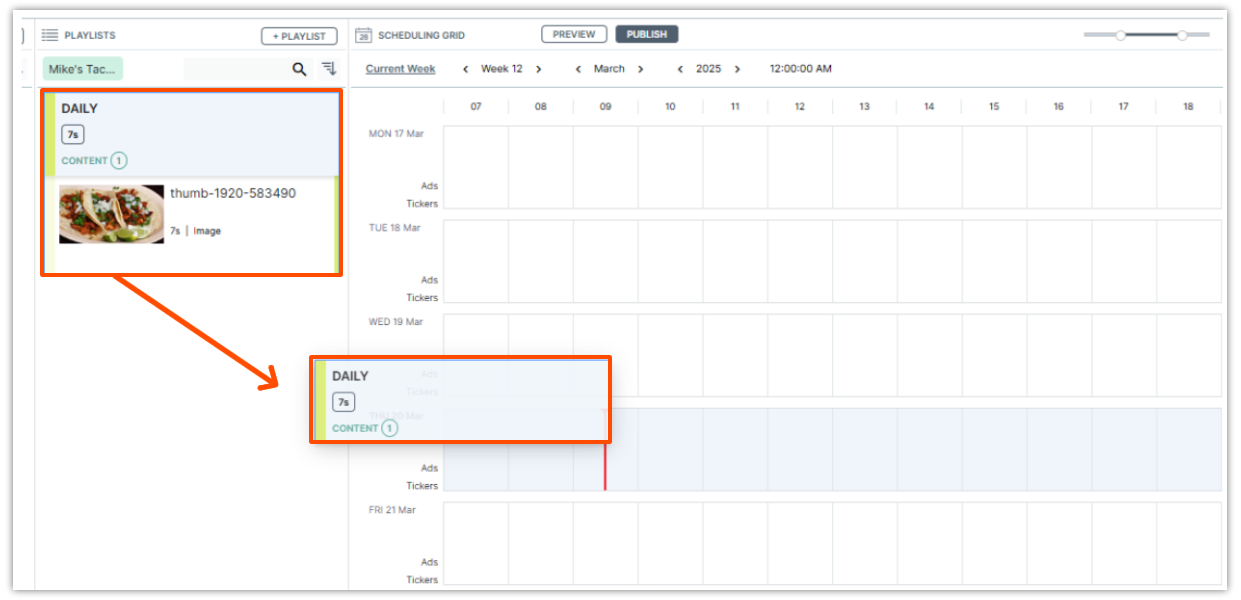
- Drag and drop your playlist onto the Scheduling pane.
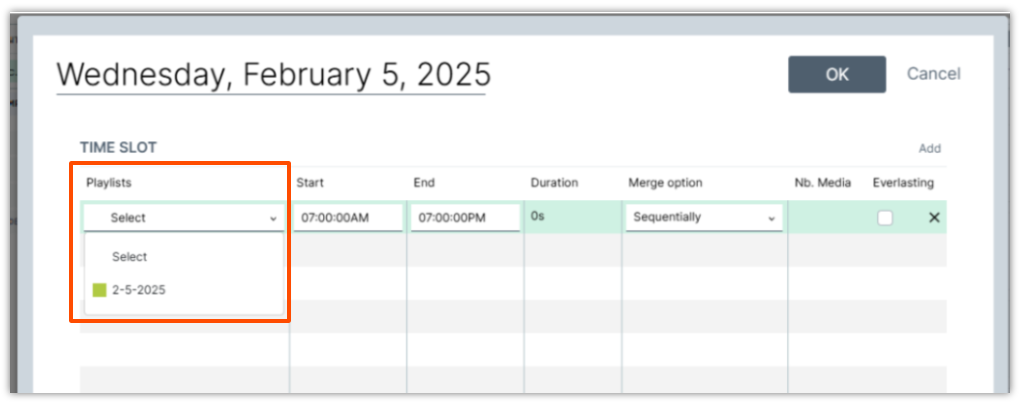
- Select the Playlist drop-down box and select the Playlist you would like to use.
- Set the Start and End times or select Everlasting if you want this Playlist to play at all times. The picture below shows that the Playlist is scheduled for one day.
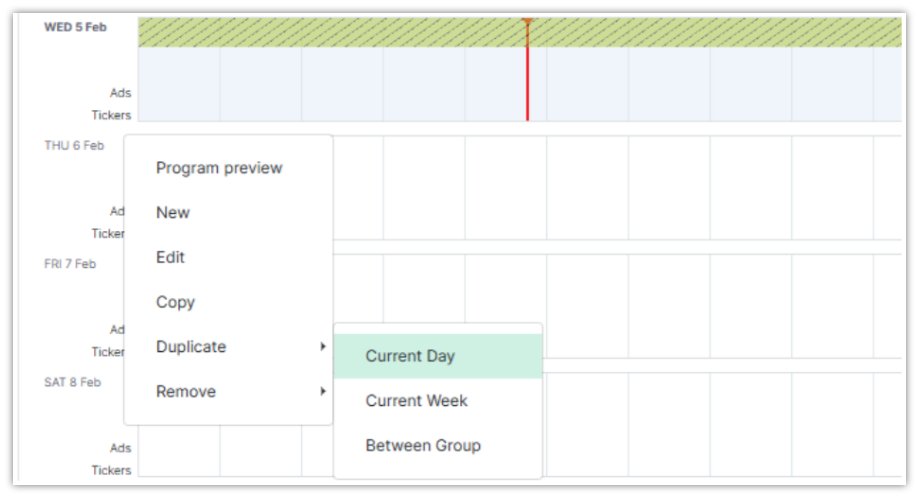
- You can now copy the schedule to multiple days by right-clicking on the Scheduling menu options button and selecting Duplicate.
- Typically, you will select the Current Day. You can now specify a From and To date for the duplication. Select OK and wait for the message to clear.
- Note: Do not set longer than two years; this may cause the copy process to take a long time. Below is a Schedule that shows that the content is properly scheduled.
- Select PUBLISH at the top right to instantly send updates to the selected players.
Note: If no players are selected, the update will not be sent.