Discount Items and Checks
Last updated: Sep 17, 2026, 12:53 PM
- Before You Begin
- Discount an Item on a Check
- Discount an Entire Check
- Apply One Discount to Multiple Items
- Remove a Discount
- Discount After Taking Payment
- Frequently Asked Questions
- Related Articles
Before You Begin
Applies to: Toast POS, Toast Web
Permissions needed:
- 3.1 Discounts (to apply or comp discounts on the POS, or to enter a manager passcode when one is required)
What you'll accomplish: Apply a preconfigured discount to an item or a whole check on the POS, remove a discount, and resolve a discount that won't apply.
Note: An employee must have the 3.1 Discounts permission to apply the discounts described below. If an employee without that permission tries to apply a discount, they will be prompted to enter a manager passcode. Discounts themselves are created in Toast Web. To set them up, see Get Started With Discounts.
Discount an Item on a Check
You can discount a single item directly from the ordering screen. There are two ways to do this, and both reach the same discount options.
Video overview of using discounts on the POS.
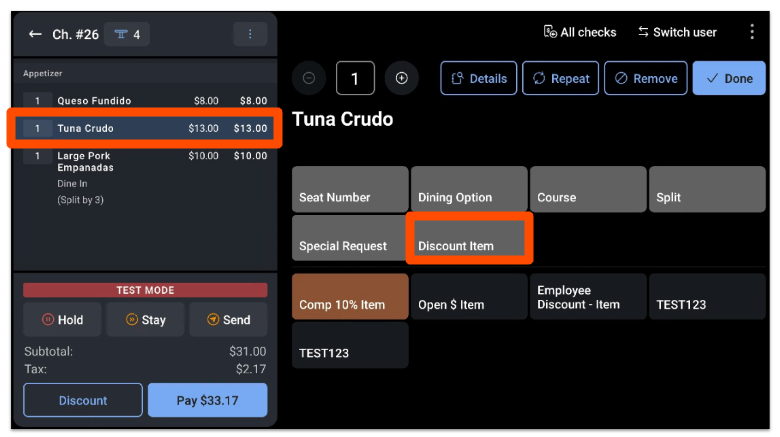
To discount an item using the Discount Item button:
- Select the item you want to discount, then select Discount Item.
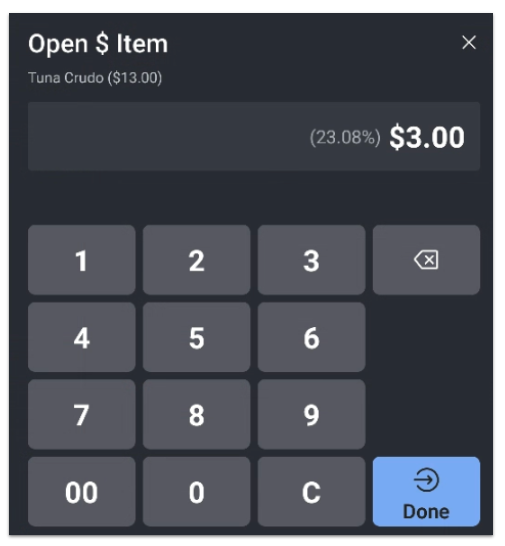
- Select the discount you want to apply. If the discount is an open dollar or open percent, enter the amount you want to discount on the next screen.
For example, to take $3.00 off a $13.00 item, applying an open dollar discount of $3.00 shows as a 23.08% discount on the check.
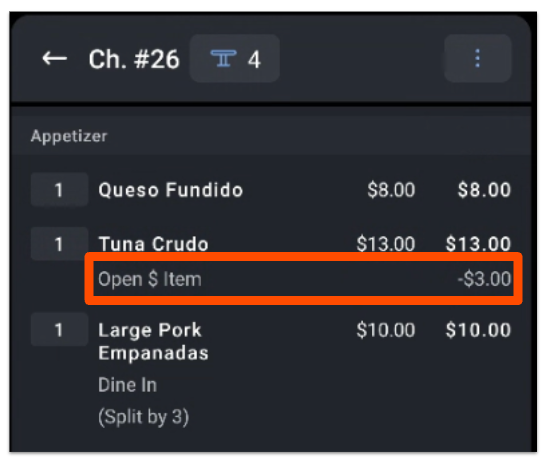
If the discount requires a manager passcode, you are prompted to enter it. Otherwise, the discount applies and appears as a line item below the discounted item on the ordering screen.
To discount an item using the Discount button on the check:
- On the check, select the item you want to discount, then select Discount at the bottom of the check details, next to the Pay button.
- Select the discount you want to apply, following the same steps above.
Expected outcome: The discount appears as a line item directly below the discounted item on the ordering screen.
Discount an Entire Check
You can apply a discount to a whole check from the ordering screen.
- Add all the items to the check, then select the overflow menu (the three vertical dots) in the top right corner of the check.
- Select Discount.
- On the discount options screen, choose whether to apply the discount to the Entire check or to Select Items.
- Select the discount you want to apply. If the discount is an open dollar or open percent, enter the amount you want to discount on the next screen.
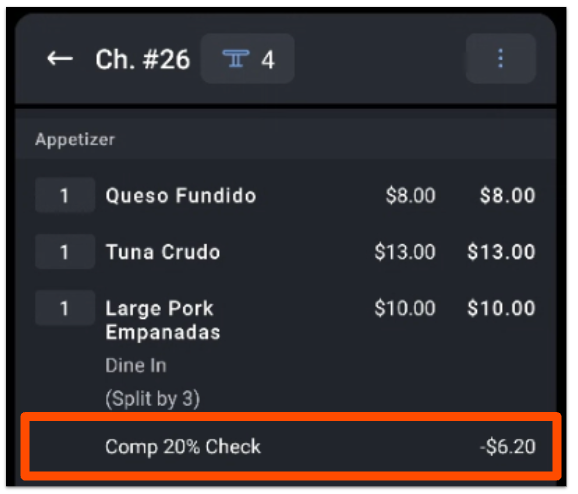
If the discount requires a manager passcode, you are prompted to enter it. Otherwise, the discount applies and appears as a line item on the ordering screen.
Expected outcome: The discount appears on the check, and the check total updates to reflect it.
Note: Discounts apply to the pre-tax total. For example, if a check is discounted to $50 — whether through an item or a check discount — tax is then calculated on the $50 total.
Apply One Discount to Multiple Items
To apply a discount to more than one item on the same check, use the Select Items option instead of discounting each item individually.
- Add all the items to the check, then select the overflow menu (the three vertical dots) in the top right corner of the check.
- Select Discount, then select Select Items.
- Choose the items you want to discount, then select the discount you want to apply.
Expected outcome: The discount applies to each item you selected, and each shows the discount as a line item on the check.
Note: Whether two or more discounts can be combined on the same check is a configuration setting. To allow it, see the Apply Multiple Discounts section of Get Started With Discounts.
Remove a Discount
To remove a discount from an item, select the item that has the discount applied, then select the same Discount button on the right side of the screen. The discount disappears from the check.
Expected outcome: The discount line item is removed and the item returns to its original price.
Discount After Taking Payment
To apply a discount after a payment has already been taken, see the Negative Balance is Due on a Check section of Get Help With Checks That Will Not Close on POS.
Frequently Asked Questions
Why does my discount apply as $0 or show "items included cannot be discounted"?
A discount applies as $0 or shows an "items included cannot be discounted" error when one or more items on the check are set not to be discountable. Each menu item has a Can be discounted? setting, and if it is set to No, a discount will not reduce that item's price. In Toast Web, navigate to Menus > Bulk management > Advanced properties, set Can be discounted? to Yes for the affected items, then save and publish. Resync the POS and apply the discount again.
Also asked as:
-
- Why is my discount showing $0?
- Why does it say items cannot be discounted?
- My manager comp won't apply to an item
Why does applying a discount change the tax on the check?
Applying a discount changes the tax because discounts apply to the pre-tax total, and tax is recalculated on the new, lower price. For example, if a $30 discount lowers a check, the tax is then calculated on the reduced total rather than the original amount. This is expected behavior. If you need to collect tax on the original full price, a post-tax discount must be configured in Toast Web — see the Create a Post-Tax Discount section of Get Started With Discounts.
Also asked as:
-
- Why does my discount remove the tax?
- Why did the tax go down when I added a discount?
Can I apply more than one discount to a single item or check?
Whether you can apply more than one discount depends on how the discount is configured. By default, item-level discounts cannot be combined. To allow multiple discounts on a check, the discount must be set up to allow it in Toast Web. See the Apply Multiple Discounts section of Get Started With Discounts.
Also asked as:
-
- Can I stack discounts?
- How do I add two discounts to one check?
Why isn't my discount showing up on the POS?
A discount may not show up on the POS because it is inactive, outside its scheduled availability, or restricted by permission level. To find and fix the cause, see Troubleshoot Discount Availability. If a discount isn't applying, verify that the item on the check matches the exact item number configured in the discount settings. If a duplicate or copied version of the item was added to the discount setup instead of the one rung up on the POS, the discount will not populate.
Also asked as:
-
- My discount button isn't on the POS
- Why can't I see my discount?
- Discount isn't appearing for some employees
Related Articles
- Get Started With Discounts
- Troubleshoot Discount Availability
- Create a Fixed Discount
- Create an Open Discount
- Get Help With Checks That Will Not Close on POS