Get Started With Discounts
Last updated: Sep 24, 2026, 11:41 AM
- Before You Begin
- Create a Discount
- Choose a Discount Type
- Create a Post-Tax Discount
- Set Discount Availability
- Set Discount Rules and Auto-Apply
- Combine and Consolidate Discounts
- Add Discount Reasons
- Create a Promo Code
- Apply a Promo Code on the POS
- Use Promo Codes Online
- End or Pause a Promo
- If Your Discount or Promo Code Is Not Working
- Frequently Asked Questions
- Related Articles
Before You Begin
Applies to: Toast Web, Toast POS
Permissions needed:
- 3.1 Discounts
- 6.1 Discount Setup
What you'll accomplish: Create a discount or promo code, control when and where it applies, and apply it to a check on the POS or online.
Create a Discount
By default, your restaurant has three standard discounts: Comp (100%) check, Comp (100%) item, and Open item dollar amount. To create a new custom discount, follow the steps below.
- In Toast Web, navigate to Finance > Related > Settings > Discounts & promo codes.
- Select + Add a Discount.
- Enter a name for your discount. This name appears on your POS and on the guest receipt.
- Select your discount type, applicable dining options, value, and usage rules (Applies to) on the discount details page.
- To apply the discount to a specific item or group, select Specific item/group and enter the item or group name or number in the Items search bar.
- To find the correct item or group, enter the menu item or group name as it appears on your menu, or enter the menu item or group number from the Menu details page.
- In the Advanced Settings section, set a Point of Sale (POS) name if it should differ from the receipt name, choose a button color, and assign a permission level that decides whether any user can apply the discount or whether a manager code is required.
- Select Save, then Publish.
Expected outcome: The discount defaults to active and appears as a button on the POS. You can deactivate or reactivate it later from the Discounts page.
Note:
- You can select multiple dining options per discount (for example, dine-in only, or takeout and delivery, or all dining options). Button colors can be used to group similar discounts, separate employee and guest discounts, or mark discounts that need manager approval.
- Discounts only work on the new kiosk experience through promo codes, so set up a promo code if you want guests to use a discount at a kiosk. To configure an item discount for online ordering, consider using time-specific pricing.
Choose a Discount Type
Toast offers four discount types. Each has its own setup article.
- Fixed discounts deduct a set dollar or percentage amount from a check or item. See Create a Fixed Discount.
- Open discounts let users enter any dollar or percentage amount when discounting an item or check. See Create an Open Discount.
- Combo discounts set multiple items at one combined price, or assign a single item a specific dollar value. See Create a Combo Discount.
- BOGO (Buy One Get One) discounts let guests buy one or more items and get an additional item at a set dollar or percentage discount. See Create a BOGO (Buy One Get One) Discount.
Create a Post-Tax Discount
All discounts configured in Toast adjust the price of an item first, and then tax is recalculated on the new price. In some cases you may need a post-tax discount so you can collect tax on the original full price of the item.
To create a post-tax discount, create an Other payment option and set the Treat as Discount setting to Yes. For full instructions, see Set Up Other Payment Options.
Set Discount Availability
You can make a discount available only on specific days or at specific times.
- Navigate to Finance > Related > Settings > Discounts & promo codes.
- Select an existing discount to edit, or select + Add a Discount to make a new one.
- Expand the Availability settings and set your time restrictions. You can customize the date range, days of the week, and time of day. Select + Add hours to add additional time ranges.
Expected outcome: The discount button is only available on the POS during the times you set. If the current time is outside the discount's availability, the button does not appear.
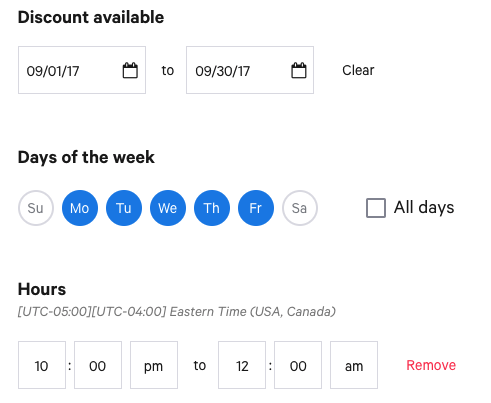
Note: Each discount can use only one date range. For example, you cannot set one discount for both January 1–5 and January 15–20. You can, however, set a discount to be available every Tuesday in January from 10:00 a.m. to 12:00 p.m. and again from 5:00 p.m. to 8:00 p.m.
Set Discount Rules and Auto-Apply
Discount rules are set in the Advanced Settings section of a discount's details page.
Minimum or maximum rules can be applied to item-level or check-level discounts to require a minimum or maximum value before the discount applies. For example, a guest must spend $30 to get a free slice of pizza, or a 50% employee discount cannot apply to a check over $50.
BOGO and fixed item-level discounts (for example, $5.00 off nachos) can apply automatically. When the check meets all conditions, the discount applies once a user selects send, stay, hold, or pay. Select the Auto apply discount setting to enable this.
Auto-apply has the following rules:
- It does not work for manager-approved discounts. Auto-apply must be assigned to any user, which means any user can apply the discount.
- It does not work for discounts that use promo codes.
- It can only be set for item-level discounts. A discount set to Entire check does not offer this option.
Note: Discounts and promo codes cannot be applied to third-party partners. Only one promo code or discount can be applied to a single check.
Note: Toast Retail items support the same discounts as menu items, including discount rules and auto-apply. Some retailers also expect discounts that a brand or manufacturer funds and applies automatically. Toast does not support brand- or manufacturer-applied discounts today, and additional retail discount options are still in development.
Combine and Consolidate Discounts
To apply more than one discount to a single check, adjust the Advanced Properties section of the discount.
- Navigate to Finance > Related > Settings > Discounts & promo codes.
- Select the edit pencil next to the discount you want to edit.
- Expand the Advanced Properties settings at the bottom of the page.
- Select the checkbox under Allow with other discounts.
- Select Save, then Publish.
Expected outcome: You can now combine multiple discounts on a single check.
Note: The Allow with other discounts setting is only available when the discount type is fixed check, open check, or BOGO. Item discounts cannot be combined.
If you have the Consolidate Menu Items setting selected under your UI Options, you can use the Consolidate Discounts setting to stack multiple discounts on one line item. For example, if all draft beer has a $2 discount on Tuesdays and a guest orders two beers, both beers appear as one line item with a single $4 discount. Without Consolidate Discounts selected, the same two beers show as one line item but receive only a $2 discount, because the discount applies per line item.
Note: Consolidate Discounts only works with fixed currency discounts. For all other discount types, disable Consolidate Menu Items if the discount can apply to multiple quantities of the same item on the check.
Add Discount Reasons
Discount reasons let you track why discounts are applied in your restaurant.
To create a discount reason:
- Navigate to Finance > Related > Settings > Discount & food waste reasons.
- Select + Add Discount Reason.
- Enter a Name and a Description for the reason.
- The Active and Waste settings are enabled by default. Disable Waste, since this reason is not for tracking food waste.
- Select Save, then Publish.
To assign a discount reason to a discount:
- Navigate to Finance > Related > Settings > Discounts & promo codes.
- Select the edit pencil next to the discount.
- Expand the Advanced Settings section.
- For the Discount Reasons setting, select + Assign Reason.
- Use the checkboxes to select the reasons for this discount, then select Save.
- Once reasons are assigned, the Prompt discount reasons on POS setting appears. If selected, users are asked to choose a reason every time the discount is applied.
- Select Discount reason required to always require a reason.
- Select Comment required to always require a comment with the reason.
- Select Save, then Publish.
Expected outcome: When the discount is applied on your Toast device, users are prompted to select a reason (and add a comment, if required). If reasons are optional, a No reason button appears.
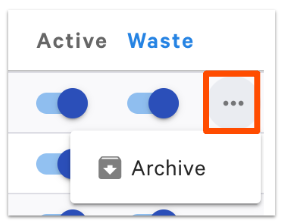
To deactivate or archive a discount reason, navigate to Finance > Related > Settings > Discount & food waste reasons. and use the Active toggle. To archive a reason, select the three-dot overflow menu to the right of the toggle and choose Archive.
Create a Promo Code
A promo code automatically applies its associated discount to an item or check, so staff does not have to scroll through discount buttons to find a guest's coupon. To add a promo code to a discount, follow the steps below.
- Navigate to Finance > Related > Settings > Discounts & promo codes.
- Select the edit pencil next to the discount you want to edit, or select + Add a Discount.
- Scroll to the Promo Codes section at the bottom of the screen and select + Add Promo Code.
- Enter a promo code in the Code field using letters and/or numbers. To activate the discount with a barcode scanner, enter the barcode in the Code field instead.
- Add a description of your promo code.
- Select Single-use if the code can only be used once per guest. Single-use codes work on the POS and through online ordering and are tracked by customer phone number.
- Optional: Add a Start Date and End Date to set an eligibility period for the code.
- Select Save, then Publish.
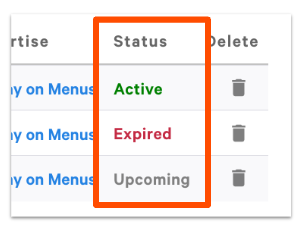
Expected outcome: The promo code is saved to the discount and can be applied on the POS or online. The code's status displays as Active, Upcoming, or Expired based on the date range you set.
Note: Both a Start and End date must be selected for the eligibility period to apply. If all promo codes on a discount are ineligible based on their dates, the discount cannot be applied. To make a code eligible for one day only, set the same date for both the start and end. To remove the dates, select Clear Date. Make sure the promo code's start and end dates do not conflict with the discount's scheduled availability dates.
Apply a Promo Code on the POS
To apply a promo code to an item or an open check on your Toast device, follow the steps below.
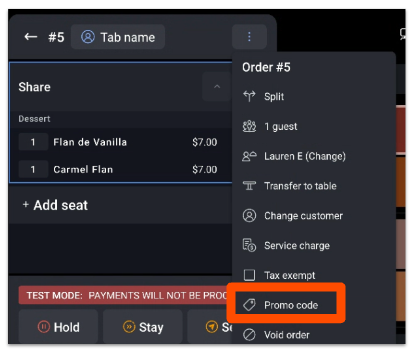
- Select the three dots in the upper-right corner and select Promo Code.
- Enter the promo code in the text box and select Apply Code. If a non-manager enters a code for a discount that requires manager approval, they are prompted for a manager passcode. The manager must have the 3.1 Discounts permission for their passcode to work.
Expected outcome: The promo code applies its associated discount to the eligible item or check.
To apply a promo code that uses a barcode, select Discount, choose the discount, and scan the barcode. If the barcode is attached to a specific item, select the line item and scan the barcode.
Note: Toast does not create QR codes for discounts, but a QR code or barcode value can be entered in the Code field when you set up the promo code in Toast Web. A USB scanner acts as a physical keyboard. To enable it, navigate to Android Settings > Language & Input, and under Keyboard & Input Methods, select Default and disable the setting for the hardware (physical) keyboard.
To make promo code search available on the POS, navigate to Front of house > Order screen setup > UI options, set Enable Promo Code Search to Yes, and then select Save and Publish.
Use Promo Codes Online
Guests using Toast Online Ordering and Toast Mobile Order & Pay® can enter promo codes during checkout. Promo codes are supported online for select discount types that do not auto-apply, do not require manager approval, and do not contain an open discount value.
To set up a code specifically for online orders, see Set Up a Discount Code for Online Orders. For the full list of discounts that can be applied by promo code online, see Supported Discounts for Toast Online Ordering.
End or Pause a Promo
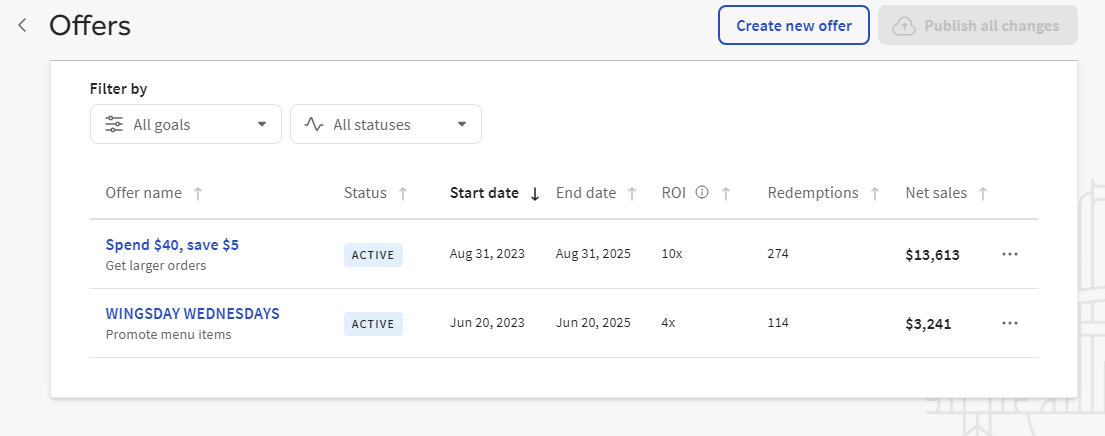
To stop or discontinue a promo code, navigate to the Offers page in Toast Web, select the three horizontal dots, and choose Complete or Archive.
If Your Discount or Promo Code Is Not Working
If a new discount or button does not appear on the POS, the most common causes are an unpublished change, the discount being inactive, or the device not yet receiving the update. Confirm you selected Publish after saving, check that the discount is active on the Discounts page, and confirm the current time falls within the discount's availability. For full troubleshooting steps, see Get Help With Discounts Not Appearing on POS and Troubleshoot Discount Availability.
If a promo code is not applying, confirm the code's start and end dates are current, that the discount type is supported for the channel you are using, and that only one discount or promo code is being applied to the check. If the discount requires manager approval, a manager passcode is needed to apply it.
Note: Priced modifiers that are not discountable will still be discounted if the attached item is discounted. This is because the modifier affects the total price of the item and the discount applies at the item level.
If you have confirmed these settings and the discount or promo code still does not work, contact Toast Customer Care.
Frequently Asked Questions
How do I create a single-use promo code?
To create a single-use promo code, add a promo code to a discount and select the Single-use setting. Single-use codes can be used once per guest, work on the POS and through online ordering, and are tracked by customer phone number.
Also asked as:
- Can I make a promo code that's only good for one use?
- How do I create a one-time use code for a customer?
- How do I make a unique promo code per guest?
How do I make a promo code that is not shown online?
A promo code that is not advertised online is created the same way as any other promo code, and it only applies when a guest enters it at checkout, so it is not displayed on your online menu. Add the code to a discount and share it only with the guests you want to use it.
Also asked as:
- How do I make a hidden promo code?
- How do I keep a promo code exclusive to people who have it?
- How do I make a code that isn't advertised online?
Where do customers enter a promo code in person?
Customers do not enter promo codes themselves in person; a staff member enters the code on the POS. Select the three dots in the upper-right corner of the check, select Promo Code, enter the code, and select Apply Code.
Also asked as:
- Where does a server enter a promo code on the POS?
- How do guests redeem a promo code in store?
- Where do I type in a discount code on the POS?
Can I apply more than one discount to a check?
Yes, you can apply more than one discount to a check if each discount has the Allow with other discounts setting enabled in its Advanced Properties. This setting is only available for fixed check, open check, and BOGO discounts; item discounts cannot be combined. Only one promo code can be applied per check.
Also asked as:
- Can I stack discounts on one check?
- How do I combine two discounts?
- Why won't a second discount apply?
Why is my discount asking for a promo code when I didn't set one up?
Your discount is asking for a promo code because a promo code is attached to it, and a code is required to apply the discount. Open the discount in Finance > Related > Settings > Discounts & promo codes, scroll to the Promo Codes section, and remove the code if you want the discount to apply without one.
Also asked as:
- Why does my discount require a code I didn't create?
- How do I stop my discount from requiring a promo code?
Can I create a promo code for gift card purchases?
Discounts and promo codes do not always apply to gift card sales the way they do to menu items. If you are setting up a promo or discount for physical or eGift card purchases and it is not applying, contact Toast Customer Care.
Also asked as:
- Why can't I apply a discount to a gift card purchase?
- How do I make a promo code for eGift cards?
Related Articles
- Create a Fixed Discount
- Set Up a Discount Code for Online Orders
- Get Help With Discounts Not Appearing on POS
- Troubleshoot Discount Availability
- Redeem Promo Codes
- Report on Discounts and Promo Codes