Last updated: May 15, 2026, 11:25 AM
Applies to: Toast POS, Toast Web
Permissions needed:
The 6.3 Payments Setup access in Toast Web (typically held by Admin or Manager roles) to access the Payments > Payment methods > Other payment options, or Finance > Related > Settings > Other Payment Options.
What you'll accomplish: A new Other Payment Option (sometimes called a non-cash tender) configured in Toast Web, available on the POS payment screen, and visible in the Payments report.
Use an Other Payment Option when you need to accept a payment that is not cash and not a credit or debit card, and you want it tracked as its own line in reporting. Toast supports an unlimited number of Other Payment Options.
Common reasons to add one:
Use a different payment method instead when:
| What you need | Where to go |
|---|---|
| Connect a third-party delivery or reservation platform end-to-end (orders flow into Toast, payouts sync) | Set up a Toast Partner Integration - see Get Started With the Grubhub Integration, Get Started With the OpenTable Integration, or the relevant partner article. An Other Payment Option only records the tender; it does not connect the platform. |
| Let a guest charge a tab and pay later (with optional invoicing) | Use House Accounts — see Get Started With House Accounts |
| Sell or redeem a digital Toast Gift Card | Use the Gift Card payment method, not Other Payment Options - see Get Started With Toast Gift Cards |
| Run a Buy X, Get Y eGift card promotion | Use the Gift Card promo flow - see Set Up and Manage Buy X, Get Y Gift Card Promotions |
| Adjust tipping percentages shown to guests |
Expected outcome: You know whether an Other Payment Option is the right tool for your situation.
Expected outcome: The new option appears on the POS payment screen the next time the POS device receives the publish (typically within a few minutes). If you set Show on POS to No, the option is still saved and reportable but does not appear on the POS button list.
Each Other Payment Option has the following settings. The first three (Name, Description, Show on POS) cover the basics. The rest control behavior on the check.
| Setting | What it does | When to enable |
|---|---|---|
| Name | The label that appears on the POS payment screen | Always - required |
| Description | Internal note, not shown on the POS | Optional |
| Show on POS | Whether the option appears as a button on the POS payment screen. Starting with Toast app version 2.67, default is Yes. | Set to No for options that are only used by an integration (for example, a Grubhub tender consumed by the Grubhub integration), so staff don't accidentally select it manually. |
| Require Manager Approval | Prompts for a manager's passcode on the POS before the option can be applied | Enable for high-trust tenders (comps, hotel charges, large gift certificates). |
| Allow Paid Check Status | When applied, the check status changes from open to paid; the total can still be adjusted to add a tip; when finalized, status changes from paid to closed | Enable for hotel room charges, where the final charge amount is settled later |
| Treat as Discount | A partial payment with this tender does not reduce taxes due, and a receipt with the remaining balance prints | Enable when this tender behaves like a discount applied to the check (for example, a comp or promo voucher), and you want the remaining balance to still owe full tax |
| Tax Exempt | Removes tax from the entire check when this tender is applied | Enable for third-party order and delivery services that handle tax on their end (Grubhub, DoorDash, Uber Eats, Groupon vouchers). Important: This removes tax from the entire check, not just the portion paid with this tender. |
| Tips Enabled | Allows a tip to be added to this tender — via the tip line on a printed receipt or a digital receipt prompt | Enable when the customer adds a tip (hotel room charges, paper gift certificates with cash tips). Disable for comps and tenders where a tip would distort reporting. |
| Thank You Dialog | When digital receipts are enabled, shows the guest a thank-you screen after the tender is applied | Enable for guest-facing tenders where you want the digital receipt experience |
| Show Receipt Dialog | When digital receipts are enabled, lets the guest choose how to receive their receipt (printed, emailed, texted, or none) | Enable for guest-facing tenders |
| Allow Rewards Program | Permits this tender to earn points in your Toast Loyalty rewards program | Enable when the tender represents a real payment that should earn loyalty points |
Expected outcome: You have set the configuration that matches your use case. If you are unsure which settings to enable, see Common Use Cases below for examples.
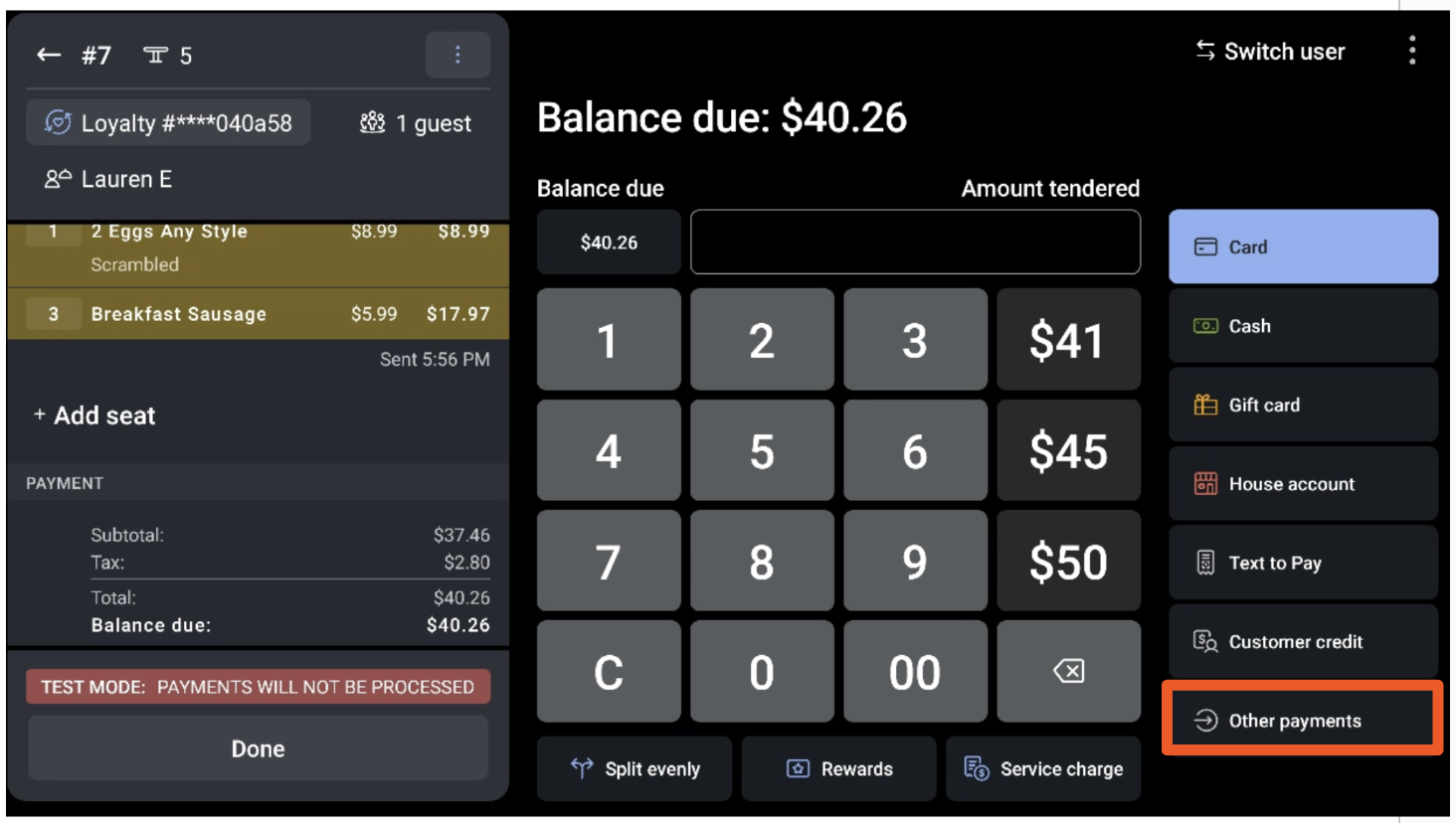
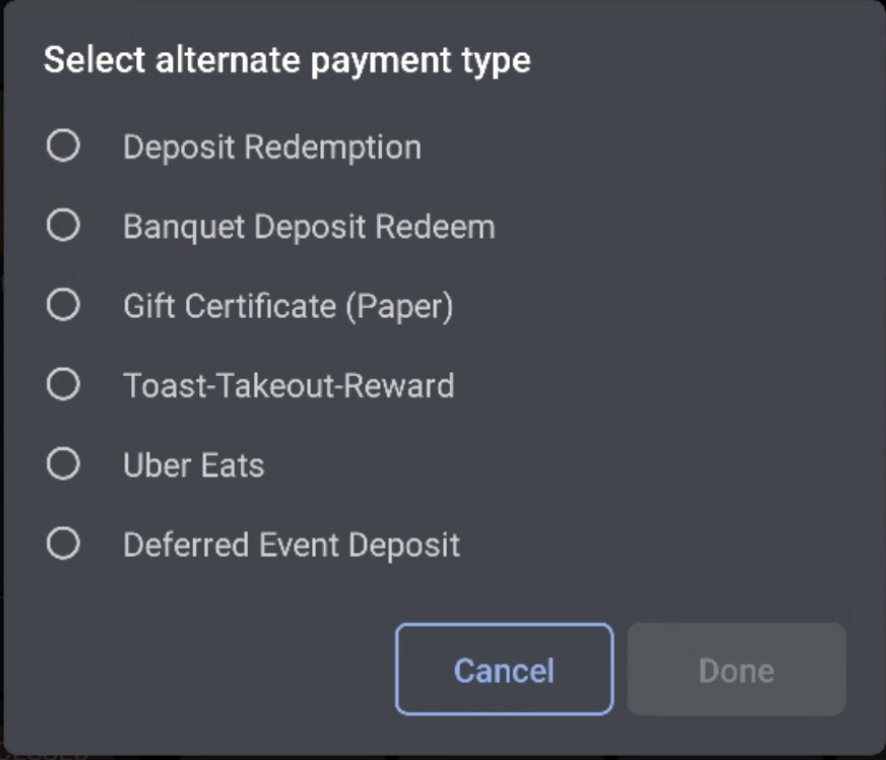
Once an Other Payment Option is published, staff can apply it on the POS.
Expected outcome: The tender is recorded against the check. The check closes if the full balance is covered; otherwise the remaining balance stays open for additional payment.
Note: Partial payment with a paper gift certificate: If a guest wants to apply part of a paper gift certificate, enter the amount they want applied before selecting the gift certificate option, then take the remaining balance with any other tender. If the certificate has no barcode or serial number, you are responsible for tracking the remaining balance manually (for example, by signing and dating the physical certificate).
For more on POS payment workflows, see Take Payments on the POS.
If an Other Payment Option is no longer used in-store but you do not want to delete its historical reporting data, hide it from the POS instead.
Expected outcome: The option no longer appears on the POS payment screen, but past transactions remain visible in reports under the same name.
Every Other Payment Option you configure shows up by name in the Payments report.
Expected outcome: Each transaction lists the exact Other Payment Option name you configured (for example, Paper Gift Cert, Grubhub, OpenTable Deposit) in the Other Type column.
For more on payments reporting, see Sales Reports Overview.
The recommended settings below cover the scenarios that come up most often. Adjust to fit your specific operation.
For paper gift certificates a guest brings in to redeem against their check. (This is different from a Toast Gift Card or eGift card — see Frequently Asked Questions.)
| Setting | Recommended value |
|---|---|
| Name | Paper Gift Cert (or similar wording your staff will recognize) |
| Show on POS | Yes |
| Require Manager Approval | Optional — enable if you want a manager to confirm large redemptions |
| Treat as Discount | No (the guest is paying with the certificate; tax is still owed on the portion they pay another way) |
| Tax Exempt | No |
| Tips Enabled | Yes, if the guest can leave a cash or card tip on top |
Expected outcome: When the guest presents the certificate, staff select Other payments > Paper Gift Cert, enter the amount the certificate is worth, and either close the check or take the remaining balance with another tender.
For more, see Set Up Physical Gift Certificates.
Use this when you want a tender that records third-party delivery transactions as their own line in the Payments report. This is typically used by the integration to close orders programmatically — it does not connect the platform itself.
Important: Setting up an Other Payment Option named Grubhub does not connect your restaurant to Grubhub. To connect the platform end-to-end (so orders flow into Toast), you need a Toast Partner Integration. See Get Started With the Grubhub Integration, Get Started With the Uber Eats Integration, or the article for the platform you are setting up.
| Setting | Recommended value |
|---|---|
| Name | Grubhub (or the platform name) |
| Show on POS | No — the integration uses this tender behind the scenes; setting No keeps it off the staff-facing payment screen |
| Require Manager Approval | No |
| Tax Exempt | Yes — the third party usually handles tax. Important: this removes tax from the entire check, so only use this tender on checks that came from the third-party platform. |
| Tips Enabled | Per the third party's process |
Expected outcome: Orders closed via the third-party integration are recorded with the Grubhub (or equivalent) tender name in the Payments report, and tax is excluded from those checks.
Use this when a guest has prepaid a reservation deposit through OpenTable, SevenRooms, or a similar platform, and you need to apply that deposit toward their check at the restaurant.
Important: This setup tracks the deposit as a tender. It does not connect your reservations or sync OpenTable data into Toast. For end-to-end reservation integration, see Get Started With the OpenTable Integration.
| Setting | Recommended value |
|---|---|
| Name | OpenTable Deposit (or the platform name) |
| Show on POS | Yes |
| Require Manager Approval | Optional |
| Tax Exempt | No, in most cases — the prepaid deposit usually covers a portion of a fully taxable check. Confirm with your accountant. |
| Tips Enabled | No (the deposit itself usually does not include a tip) |
Expected outcome: When a guest with a prepaid reservation deposit arrives, staff select Other payments > OpenTable Deposit, enter the deposit amount, and take the remaining check balance with the guest's preferred tender.
Use this for hotel restaurants where a guest charges their meal to their room and the final amount (with tip) is settled later by the hotel.
| Setting | Recommended value |
|---|---|
| Name | Room Charge |
| Show on POS | Yes |
| Require Manager Approval | Recommended |
| Allow Paid Check Status | Yes — this is the setting that lets the check close as paid while leaving the tip adjustable until the hotel settles |
| Tips Enabled | Yes |
Expected outcome: When a guest charges to their room, the check status moves from open to paid when the tender is applied. The final amount can be adjusted to add a tip; once finalized, the status moves from paid to closed.
Use this when a guest pays with a personal paper check or a money order, and you will deposit it into your bank account yourself (similar to how you handle cash).
| Setting | Recommended value |
|---|---|
| Name | Paper Check or Money Order |
| Show on POS | Yes |
| Require Manager Approval | Recommended |
| Tax Exempt | No |
| Tips Enabled | Optional — depends on whether you allow tips to be written on the check |
Expected outcome: Staff record the tender on the POS. You are responsible for physically depositing the check into your bank account.
The Gift Certificate (Paper) option is for paper certificates issued by your restaurant — not Toast Gift Cards.
Toast Gift Cards and eGift cards are sold and redeemed through the dedicated Gift Card payment method on the POS, which checks the card's stored balance.
Paper gift certificates are pre-printed certificates your restaurant issues, with no digital balance. They are an Other Payment Option and you track remaining balances manually.
If you sold a Toast Gift Card but it was rung up as Gift Certificate (Paper), the gift card report will be off by that amount. To learn more about Toast Gift Cards, see Get Started With Toast Gift Cards.
Also asked as:
To find sales for a specific Other Payment Option (for example, voucher or gift certificate sales for a date range), use the Payments report.
For more on sales reports, see Sales Reports Overview.
Also asked as:
If your Other Payment Option is removing tax from the entire check, the Tax Exempt setting is enabled for that option. This setting was designed for third-party services that handle tax themselves (like Grubhub), and when enabled it removes tax from the whole check, not just the portion paid with that tender.
To fix this for a paper gift certificate:
Expected outcome: Future checks paid with this tender retain tax. Past transactions are not adjusted automatically.
Also asked as:
If the option does not appear on the POS payment screen, check these three things in order:
If all three are correct and the option is still missing, contact Customer Care.
Yes. On the Other Payment Option, enable Require Manager Approval, then Save and Publish your changes. On the POS, when staff select this option, the device prompts for a manager passcode before applying the tender.
If staff are still able to apply the tender without a passcode prompt after enabling this setting, confirm that the change was published in Toast Web and that the POS device has received the publish. If the issue persists, contact Customer Care.
Also asked as:
Toast can support an unlimited number of Other Payment Options. Many restaurants create a separate option for each third-party platform, each comp category, and each specialty tender to keep reporting clean.
The recommended approach is to set Show on POS to No rather than delete the option, so that historical transactions remain reportable under the original name. See Hide an Other Payment Option From the POS above. Full deletion is not supported.