Take Payments on the POS
Last updated: Sep 17, 2026, 10:57 AM
Take cash, credit or debit, gift card, prepaid, mobile wallet, and other payment types on the Toast POS — and recognize what each payment status tag means after the sale.
- Before You Begin
- Take Cash Payments
- Take Credit Card or Debit Payments
- Take Gift Card Payments
- Take Prepaid Credit Card Payments
- Take Mobile Wallet Payments (Apple Pay, Google Pay, Samsung Pay)
- Take Other Payment Types
- Understand Payment Status Tags After the Sale
- Frequently Asked Questions
- Related Articles
Before You Begin
Applies to: Toast POS on Toast Flex terminal, Toast Go® 2, Toast Go® 3, and Toast Tap® (on-counter or direct-attach).
Permissions needed:
- 1.1, Table Service Mode and/or 1.2, Quick Order Mode, and 1.6, Apply Cash Payments
What you'll accomplish: Take a payment on the POS using cash, a credit or debit card, a gift card, a prepaid credit card, a mobile wallet, or another configured payment type — and recognize what each on-screen payment status means after the sale.
Take Cash Payments
How to take cash payments on the POS.
- Navigate to the check you want to take a cash payment on.
- Select Pay ($) or Fast cash (Fast $$) on the ordering screen.
- On the payment screen, take the cash payment in one of these ways:
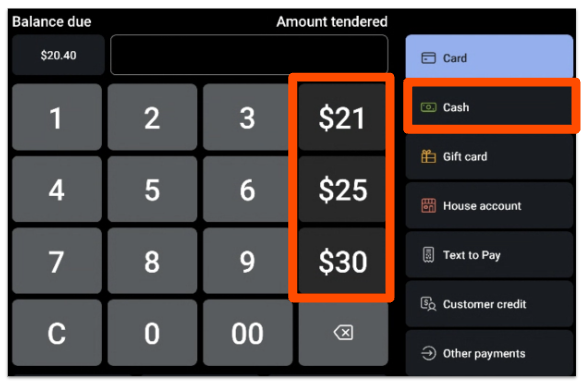
- Use the keypad to enter the cash amount the customer gave you, then select Cash. You can also select Cash first and then enter the amount.
- Select one of the quick cash options on the right of the keypad. Quick cash buttons are always based on the balance due — for example, you might see $21, $25, or $30 for a $20.43 check.
- Select the receipt type to close the check.
Expected outcome: The cash payment is applied to the check, the check closes, and the receipt prints or sends per your restaurant's setup.
Note: The Fast cash (Fast $$) button has to be enabled before it appears on the payment screen. To enable it in Toast Web, navigate to Toast Web > Front of house > Quick order and enable the Fast cash button setting. See Configure Cash Payments for the full setup walkthrough.
Take Credit Card or Debit Payments
How to take a card payment on the POS.
- Navigate to the check you want to take a credit or debit card payment on.
- Select Pay ($).
- Take the card in one of these ways:
- Swipe the card.
- Insert the chip (also called EMV).
- Tap the card or device (contactless / Toast Tap®).
- Select Card to key in the card number manually.
- If you are keying in the card number, select Key in card number and fill in the card details. A prompt for the billing ZIP code appears next — completing it helps reduce the risk of a chargeback.
- Depending on your restaurant configuration, the guest selects the tip and receipt options on the device, or a standard receipt prints.
Expected outcome: The card payment is applied to the check, the check closes, and the receipt prints or sends per your restaurant's setup.
Note: Toast recommends cleaning your card readers monthly to keep swipes reading reliably. See Get Help With Your Card Reader for cleaning and troubleshooting steps.
Take Gift Card Payments
How to take gift cards and alternate payment types on the POS.
- Navigate to the check you want to take a gift card payment on.
- Select Pay ($).
- On the payment screen, select Gift card on the right.
- On the Enter Gift Card Number screen, key in the gift card number, swipe the card with the card reader, or select Scan to use the tablet's front-facing camera to read the QR code on the card (if applicable).
- On the confirmation screen, review the available balance on the card, the amount being charged, and the remaining balance after the charge. If everything looks right, select Charge.
- Select the receipt type to close the check.
Note: On Elo V3 devices, the front-facing camera cannot be used to scan a gift card or loyalty QR code — you'll see a device not supported message. Key in the gift card number manually instead, or scan it with a Toast Go® handheld device or Toast-issued scanner. This is expected behavior, not a defect.
Expected outcome: The gift card payment is applied to the check, the available balance updates by the charged amount, and the check closes.
Note: You can adjust gift card behavior in Toast Web — including allowing tips on gift cards, accepting gift cards for gift card purchases, and allowing discounts on gift cards. See Get Started With Toast Gift Cards for setup steps.
Take Prepaid Credit Card Payments
Prepaid credit cards — such as Visa or Mastercard gift cards — can be used as payment in Toast POS. They behave like credit cards in some ways and differ in others.
How prepaid cards are like credit cards:
- They are branded and supported by major credit card processing networks.
- You can select Card and swipe, insert, tap, or key in a prepaid card to take it as payment.
How prepaid cards differ:
Prepaid cards have a limited balance, and every purchase reduces that balance. If you apply a prepaid card to a check that has less available value than the total due, Toast POS runs a partial authorization. The screen shows that the card has insufficient funds and prompts you to Pay Remaining Balance with another payment method.
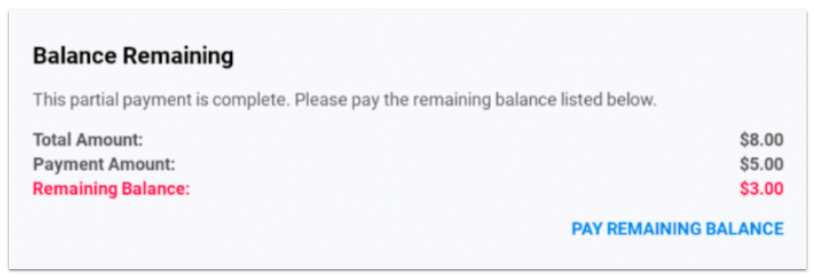
Important: A traditional credit card with insufficient available credit is declined outright, and the guest has to provide a different form of payment. A prepaid card with insufficient funds is treated differently — the available balance is taken as a partial payment, and you collect the rest with another payment method.
After the full balance on a prepaid card is used, no additional amounts can be authorized. If a tip adjustment goes above the remaining balance, the card provider does not pay the extra tip. Most prepaid cards also do not accept money back, so they typically cannot process a void or refund — you may have to refund the customer in cash or with a different payment method.
Take Mobile Wallet Payments (Apple Pay, Google Pay, Samsung Pay)
Apple Pay, Google Pay, and Samsung Pay work with Toast POS without any extra setup.
Devices that accept mobile wallet payments:
- Toast Go® 2
- Toast Go® 3
- Toast Tap® (on-counter or direct-attach)
Devices that do not accept mobile wallet payments:
- Toast Go® 1
- The Toast tablet (the Toast Flex / older POS terminal that uses the Magtek eDynamo reader)
These older devices use the Magtek eDynamo reader, which does not support Near Field Communications (NFC) — the technology mobile wallets need.
To take a mobile wallet payment on a supported device:
- Navigate to the check you want to take the payment on.
- Select Pay ($).
- Ask the guest to tap their phone or watch on the card reader's NFC zone.
Expected outcome: The mobile wallet payment is applied to the check, the check closes, and the receipt prints or sends per your restaurant's setup.
Note: To install or troubleshoot Toast Tap® hardware, see Toast Tap™ (On-Counter) Installation Guide or Toast Tap™ (Direct-Attach) Installation Guide.
Take Other Payment Types
Toast supports an unlimited number of additional non-cash, non-credit payment types — for example, third-party delivery channels like Grubhub, coupon and deal sites like Groupon and LivingSocial, and paper gift certificates. Each one has to be set up in Toast Web first. See Set Up Other Payment Options for setup steps.
To apply an other payment type to a check:
- Navigate to the check you want to take the payment on.
- Select Pay ($).
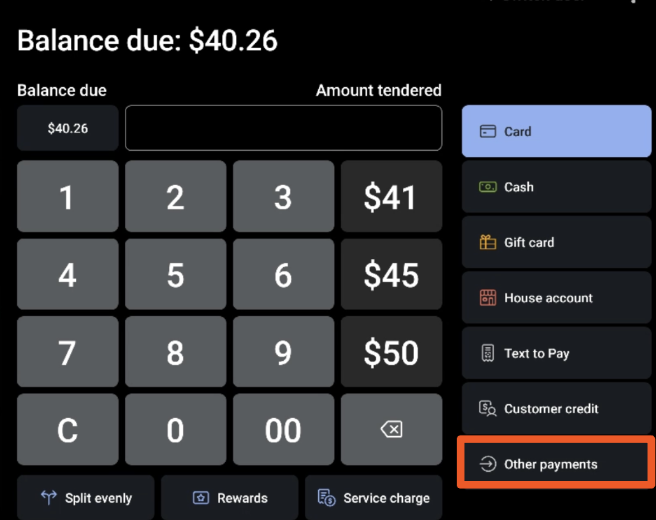
- On the payment screen, select Other payments.
- Select the alternative payment type from the list, then select Done. The available options depend on what is configured in Toast Web — examples include deposit redemption and paper gift certificates.
- Depending on your restaurant configuration, the guest selects the tip and receipt options on the device, or a standard receipt prints.
Expected outcome: The other payment type is applied to the check, the check closes, and the receipt prints or sends per your restaurant's setup.
Understand Payment Status Tags After the Sale
After a payment is taken, the POS shows a status tag on the check. The tag tells you what is happening with the payment in the background. Most checks move from Authorized → Captured without any action from you. Some payments, especially in spotty Wi-Fi, take a different path and show a different tag.
Common status tags you will see on the POS:
- Authorized — The card was approved for the amount, but the transaction has not been finalized yet.
- Captured — The payment is fully processed and funds are settled to your account.
- Backgrounded payment — The POS is still trying to authorize the card with the processor — usually because of slow or dropped internet. The customer's receipt should print with "Pending" on the auth line.
- Declined — The processor turned the card down. Ask the guest for a different payment method.
- Processing void — A void is in progress or has been completed.
- Refunded — A refund has been issued on this payment.
- Yellow Pending and Red Pending — The transaction is waiting on additional processing; do not delete the POS app or wipe device memory while these are showing.
For the full list of status tags and what each one means, see POS Payment Status Tags.
Important: A payment that printed a "Pending" auth line can still come back as declined later, sometimes after the guest has signed and left. This is called a backgrounded payment decline and almost always traces back to a Wi-Fi or internet drop at the time of sale. If you see a card payment switch from Pending to Declined after the guest has gone, see Why Did a Payment Show as "Declined" at Close Out? for recovery steps.
Frequently Asked Questions
A card was accepted but later shows as declined. What do I do?
A card that was accepted but later shows as declined was most likely a backgrounded payment (processed in offline mode) — the POS could not reach the processor in real time and tried to finalize the charge after the guest had signed and left. To recover, see Why Did a Payment Show as "Declined" at Close Out?. Ask the guest for another payment method on the open check.
Also asked as:
-
- Ticket was closed out, tipped the server, now it's back on the screen saying declined
- Payment accepted then declined 15 minutes later
- Backgrounded payment declined after guest left
Can I disable cash payments on the POS?
Yes — you can disable cash payments on a specific POS device or disable cash permissions for an employee. Both are done in Toast Web. For the full walkthrough, see the Disable Cash Payments on a Device and Disable Cash Permissions for an Employee sections in Configure Cash Payments.
Also asked as:
-
- How do I avoid a cash payment
- Remove cash as a payment option
Can a guest swipe a card to open a tab?
Yes — Toast POS supports swiping a card to open a tab. The exact setup depends on your environment and whether you're using Toast Tables. See Start a Tab.
Also asked as:
-
- Swipe a credit card to start a tab
- Swipe and keep an open tab for the bar
My customer wants to use Apple Pay. Will it work on my device?
Apple Pay works on Toast Go® 2, Toast Go® 3, and Toast Tap® (on-counter or direct-attach). It does not work on Toast Go® 1 or the older Toast tablet that uses the Magtek eDynamo reader, because those devices do not support Near Field Communications (NFC). Google Pay and Samsung Pay have the same device support.
Also asked as:
-
- Does Apple Pay work on my POS
- Tap to pay not working on handheld
- Contactless payment not working
A guest left and their card came back declined. Can I run it again later?
Captured card payments cannot be modified after the fact, and a fully declined payment cannot be re-run on a closed check without the original card on file. If the check is still open from yesterday, see Adjust Credit Card Payment on Open Check From Yesterday for what you can and cannot adjust. If the guest left a card on file (e.g., a preauthorized tab), Customer Care can help you recover the payment.
Also asked as:
-
- Customer left and their credit card is declined can we run it again
- What do I do if someone left without closing their tab and their card was declined
Why does a large bar tab get declined?
Tab service in Toast preauthorizes the card for a default amount when the tab opens and then captures the final amount when the tab closes. If the final check is much larger than the preauth, the processor may decline the close attempt because the available authorization is too low. See Preauthorized Cards Decline When Closing for two ways to reduce this — accepting the card after items are on the check, and increasing the default preauthorization amount.
Also asked as:
-
- Large bar tab declined
- $2K+ tab declined
- Always have to split into smaller payments
Related Articles
- Configure Payment Options — set up which payment methods appear on the POS
- Configure Cash Payments — enable Fast Cash, set up Quick Cash buttons, and disable cash on a device or for an employee
- Set Up Other Payment Options — create non-cash, non-credit payment types like Grubhub, Groupon, and paper gift certificates
- POS Payment Status Tags — reference for every payment status tag the POS shows on a check
- Card Payments FAQ — answers to common card-payment questions (processor, transaction limits, international cards, card fees)