Get Help With Toast Card Reader
Last updated: Jul 21, 2026, 3:23 PM
Learn how to quickly diagnose issues if your card reader isn't working, and discover simple steps to test different USB ports to find a solution.
- Before you begin
- Overview steps
- Quick fix
- Check physical connections and lights
- Test the card reader with the Card Reader Support app
- Clear cache and restart the terminal
- Swap USB ports
- Reset USB detection
- Enable EMV for a new BBPOS Chipper 2X
- Resolve "Searching for BBPOS" error messages
- Resolve dual reader conflicts (Toast Tap™ with swipe reader)
- Frequently asked questions
- Before you contact Customer Care
- Related articles
Before you begin
Note: For card reader issues on a Toast Go® handheld, see Get Help With Your Toast Go® 2 Handheld, Get Help With Your Toast Go® 3 Handheld, or Toast Go® Handheld Card Reader / Payment-Blocking Issue.
Applies to: Toast Flex terminals; Toast Tap™ (Direct Attach) card reader; Toast Tap™ (On-Counter) card reader; BBPOS Chipper 2X (USB) card reader; MagTek Dynamag and Elo magnetic stripe (swipe) readers
Permissions needed: Group 7 permissions - Device Setup
What you'll accomplish: Identify why your Toast card reader isn't working and resolve common issues—connection errors, payment failures, offline readers, and dual reader conflicts—without contacting Customer Care.
Overview steps
If your card reader is not working—including "Searching for BBPOS" messages, payment errors, no lights, or it keeps going offline—work through these high-level steps in order. Most card reader issues resolve in the first two steps:
- Check physical connections, USB connector condition, and reader lights
- Test the reader using the Card Reader Support app
- Clear the cache and restart the Toast Flex terminal
- Swap USB ports on the Toast Flex terminal
- Reset USB detection in Android Settings
- Enable EMV in Device Setup if you are setting up a new BBPOS Chipper 2X
- Address specific error messages ("Searching for BBPOS Chipper," "Searching for BBPOS MSR")
- Resolve dual reader conflicts when a Toast Tap™ and swipe reader are connected at the same time
If none of these steps resolve the issue, see Before you contact Customer Care.
Quick fix
Find the symptom that matches what you are seeing, then follow the linked branch.
| Symptom | Most common cause | Quick fix | Self-service? |
| Card reader has no lights at all | Loose or damaged USB connection | Check physical connections and lights | Yes |
| USB connector is bent or broken | Physical damage | Card reader needs replacement—see Before you contact Customer Care | No |
| Card reader is not working on POS 1 (or a specific terminal) | USB port issue or cache issue on that terminal | Clear cache and restart the terminal, then Swap USB ports | Yes |
| "Searching for BBPOS Chipper" or "Searching for BBPOS Chipper 2X" message on screen | Card reader not detected, often a USB or cable issue | Resolve "Searching for BBPOS" error messages | Yes |
| "Searching for BBPOS MSR" message when swiping a card | Swipe (MSR) reader not detected | Resolve "Searching for BBPOS" error messages | Yes |
| Toast Tap™ stops working (blue light off) when a swipe reader is also connected | Dual reader conflict—known issue with some swipe readers | Resolve dual reader conflicts | Yes |
| Card reader is offline; have to manually enter card numbers | Internet connection issue or reader needs to resync | Clear cache and restart the terminal; if the issue persists, verify your internet connection | Yes |
| Card reader passes the test but still won't take payments in the Toast app | Card Reader Support app left open in the background | Force close the Card Reader Support app—see Test the card reader with the Card Reader Support app, step 7 | Yes |
| Setting up a new BBPOS Chipper 2X but EMV won't enable in Device Setup | Card reader update has not been installed | Enable EMV for a new BBPOS Chipper 2X | Yes |
| Card reader passes all tests but still does not work in the Toast app, after force-closing the test app | Card reader may need replacement | Before you contact Customer Care | No |
Check physical connections and lights
Start here for every card reader issue. A loose cable or damaged USB connector is the most common cause of a card reader not working.
Inspect the USB connection and cable
- Confirm that your Toast Tap™ card reader is firmly connected on both ends of the cable if Toast Tap On Counter. A loose cable is often the fix. Toast Tap Direct Attach or swipe readers do not have a cable.
- Examine the USB connector on the card reader (the part that plugs into the terminal). Look for bent pins, breaks, or other physical damage.
- If the USB connector appears bent or broken, do not continue troubleshooting. The card reader needs to be replaced. See Before you contact Customer Care.
Expected outcome: The card reader is securely plugged in and the USB connector is undamaged.
Inspect the card reader lights
A working card reader has two lights. Match what you see on your card reader to the descriptions below.
| Light | Where to look | What it means |
| Small green pinhole light | Bottom of the reader | The reader has power |
| Blue light (solid or flashing) | Top of the reader | The reader is trying to communicate with the Toast Flex terminal |
| Red light | Top of the reader | A guest's recent card was declined or repeatedly failed. Ask the guest to try a different card. |
If you see no lights:
- Confirm the card reader is firmly plugged into the Toast Flex terminal.
- Check the USB connector for damage.
- If the connector is intact but no lights appear, continue to Test the card reader with the Card Reader Support app.
Expected outcome: You can identify whether the card reader has power and whether it is communicating with the terminal.
Test the card reader with the Card Reader Support app
The Card Reader Support app runs a test of the card reader's three payment methods—tap, dip, and swipe—without charging a card. Use it to confirm whether the card reader hardware is working.
- Verify your terminal has an internet connection. The Toast Flex terminal must be online for the card reader to work. To learn more, see Verify Your Internet Connection.
- On the Toast Flex terminal, select the gray circle at the bottom of the screen to return to the device's home screen.
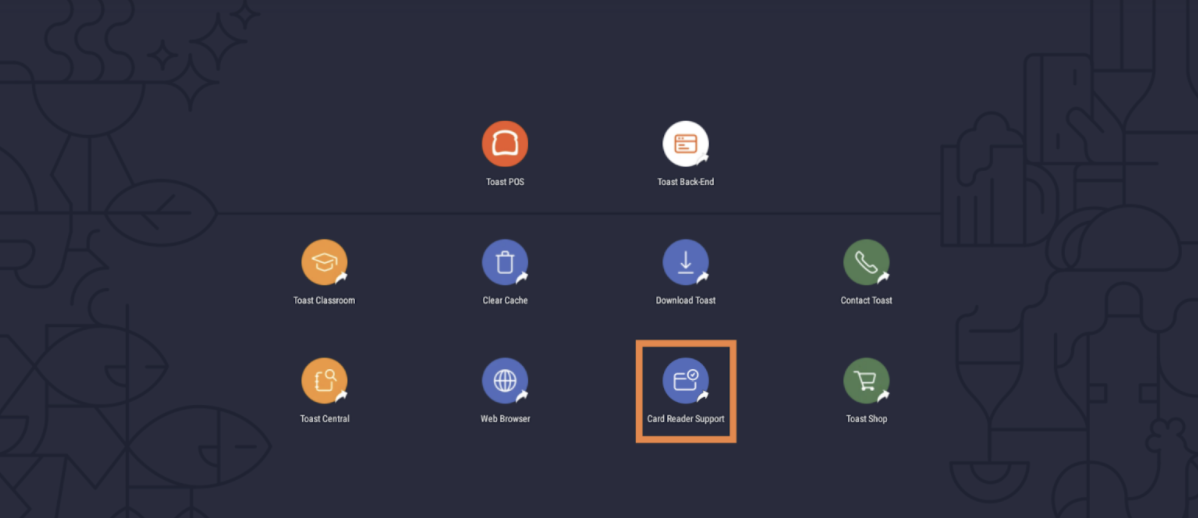
- Select Card Reader Support to open the app.
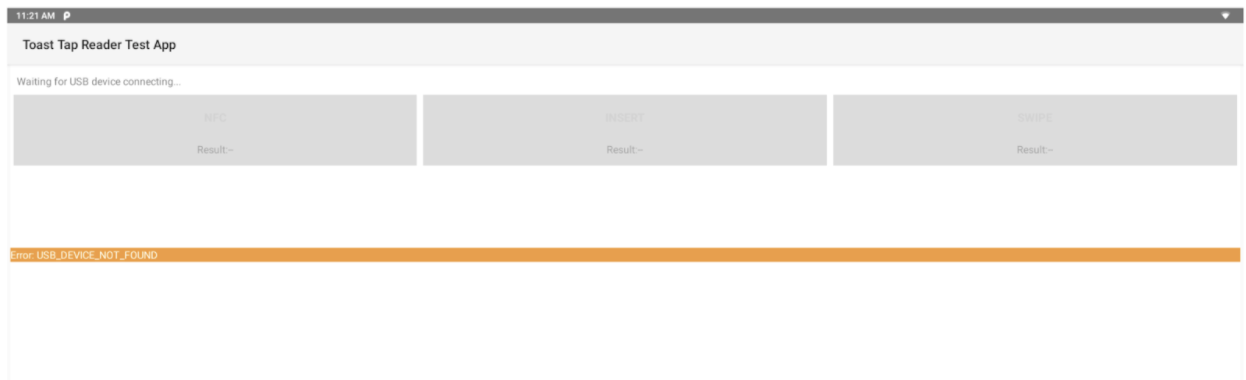
Note: If the Card Reader Support app fails to initialize and an orange banner appears, see Swap USB ports.
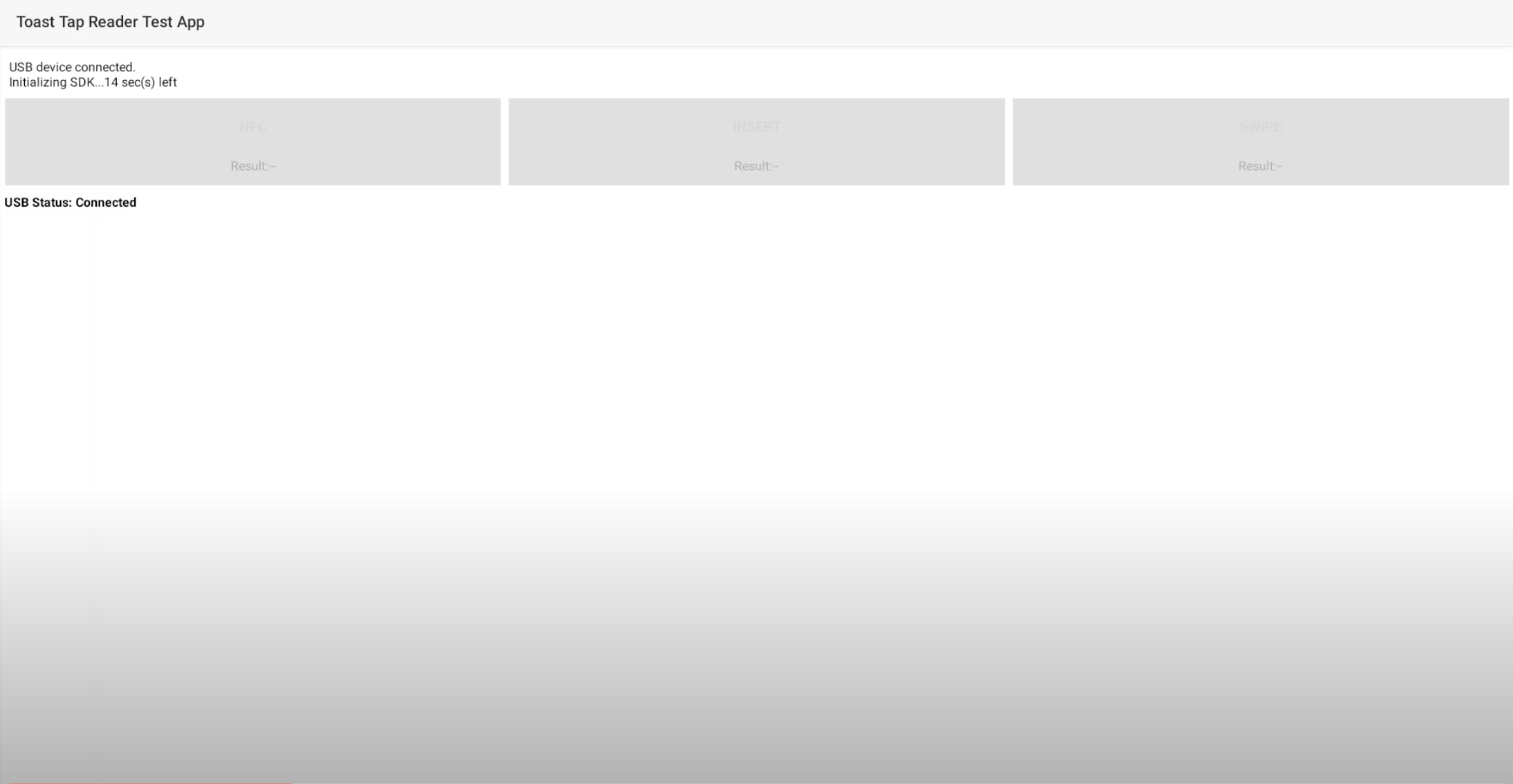
- Wait for the app to initialize. When you see USB Status: Connected, the reader is ready for testing.
- Test all three payment methods using an NFC-enabled credit card (the card will not be charged). NFC-enabled cards display a sound wave icon.
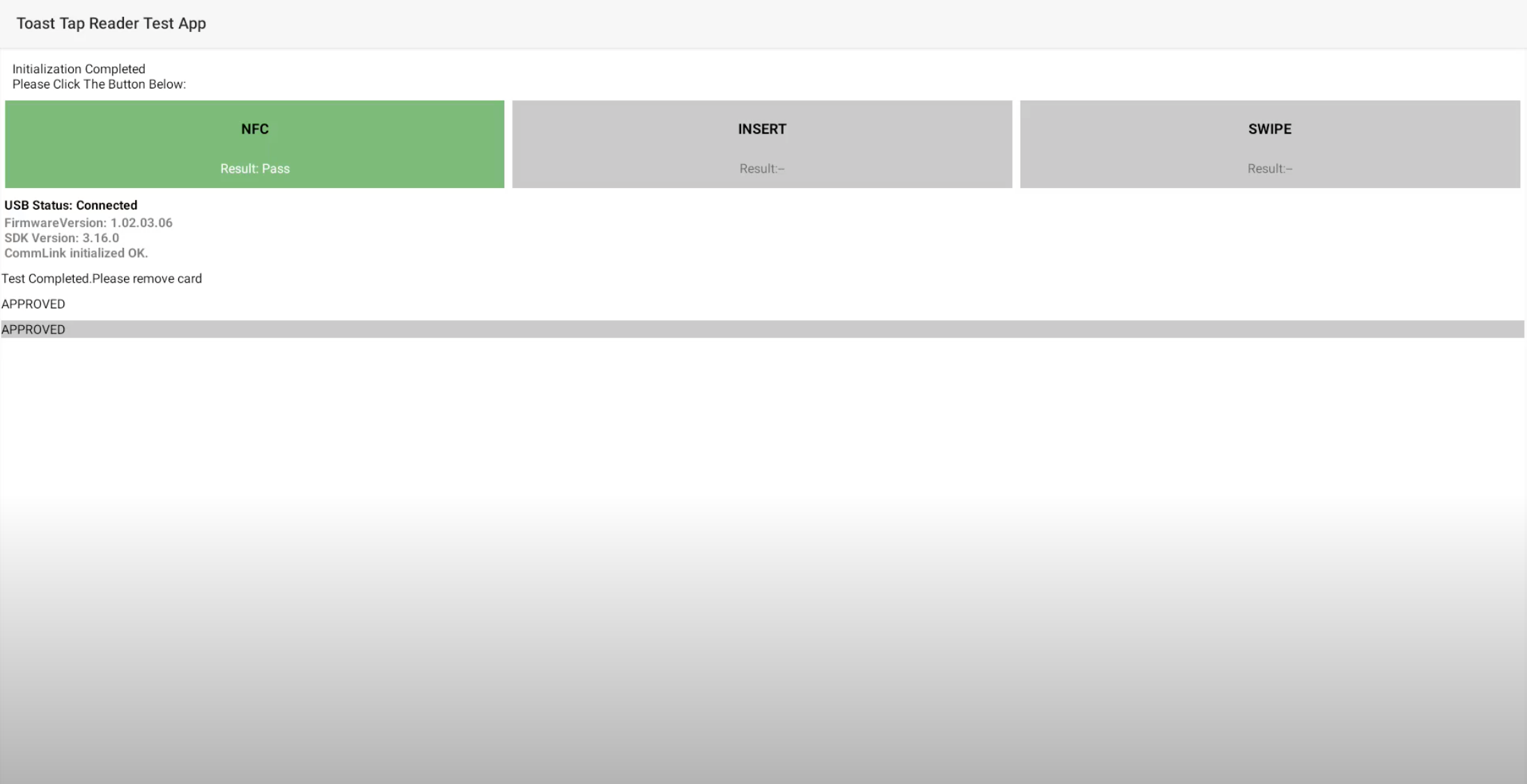
- Select NFC, then tap the card on the reader.
- Select Insert, then dip the card into the chip slot.
- Select Swipe, then swipe the card through the swipe slot.
- Review the result for each method:
- If green (Result: Pass) - that payment method is working.
- If orange (Result: Failed) - that payment method failed. Repeat the test with a different card. If it still fails, the card reader hardware is faulty and needs replacement. See Before you contact Customer Care.
- Force close the Card Reader Support app. Select the gray square at the bottom of the device's screen, then swipe up on the Card Reader Support window to close it.
Important: If you skip this step, the card reader will not function in the Toast app. This is the most common reason a card reader passes the test but won't take payments in the Toast app.
- Open the Toast app and attempt a credit card payment to confirm the reader is working.

Expected outcome: You know whether the card reader hardware is working. If all three tests pass and the Card Reader Support app is closed, the card reader should work in the Toast app.
Clear cache and restart the terminal
Clearing the cache and restarting the Toast Flex terminal resolves many connection and recognition issues, including readers that keep going offline.
- Force quit the Toast app. Select the gray square at the bottom of the screen, swipe all the way to the left, and select Close All.
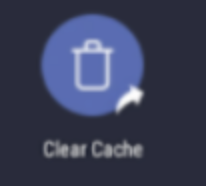
- Clear the terminal's cache. Navigate to the home screen and select the Clear Cache icon, then select Clear Cache at the top right of the screen.
Note: For a more comprehensive cache clear, navigate to Settings > Apps > Toast POS > Storage and select Clear Cache.
- Power cycle the Toast Flex terminal. Press and hold the power button to shut down the terminal, wait 30 seconds, then press the power button again to restart it.
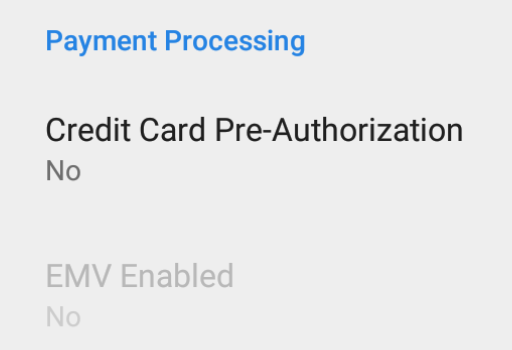
- After the terminal restarts, verify EMV is enabled. To learn more, see Enable EMV for a new BBPOS Chipper 2X.
- Open the Toast app and attempt a credit card payment.

Expected outcome: The card reader connects and processes payments in the Toast app.
Swap USB ports
If your Toast Tap™ shows a blue light but still won't process payments, or if the Card Reader Support app fails to initialize, switching to a different USB port often resolves the issue.
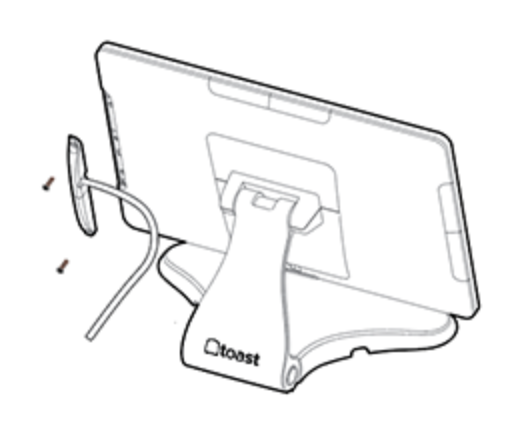
- If your Toast Tap™ is secured to its USB port with screws, carefully unscrew and detach the card reader.
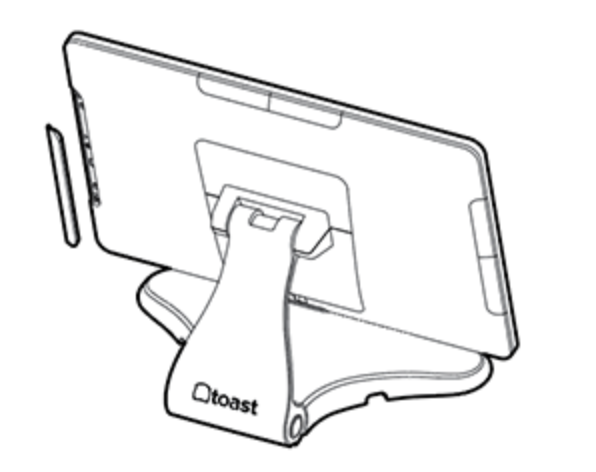
- The Toast Flex terminal has multiple USB ports on the left, right, and top of the stand. Choose an available port. You may need to remove a small cover plate to access it.
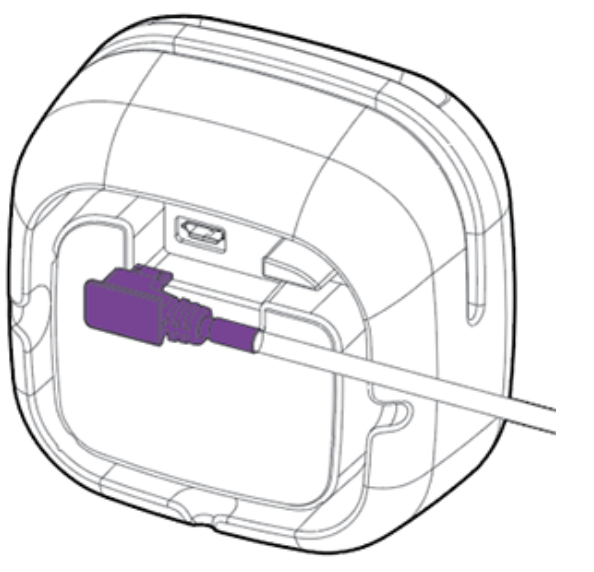
- Take the Micro-USB cable attached to your Toast Tap™ and plug it firmly into the new USB port.
- If your Toast Tap™ or its cable has a mounting plate, screw it securely to the terminal to keep the connection stable.
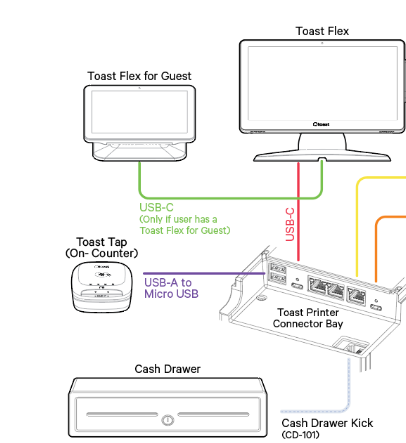
- For Toast Tap™ (On-Counter): also verify the cable is securely plugged into the port on the bottom of the Toast Tap™ device.
- Try to process a payment to confirm the new port works.
Note: If you also use a Toast Printer or Toast Hub, you can try connecting the Toast Tap™ (On-Counter) to a USB port on one of those devices as an alternative.
- If the Toast Tap™ still shows a solid blue light but won't take payments or pass test payments, repeat the steps above with any remaining USB ports. A specific port may be the cause.
Expected outcome: The card reader is detected on the new USB port and processes payments in the Toast app.
Reset USB detection
If the card reader is plugged in but not detected by the Toast Flex terminal, reset USB detection to refresh all USB port connections.
- On the Toast Flex terminal, swipe up from the bottom and navigate to Settings > About device > USB Detection.
- Confirm your Toast Tap™ card reader appears in the list. The reader is identified by its serial number, found on a label on the bottom of the device.
- If your card reader is not listed:
- Unplug the card reader from the USB port, wait a few moments, then plug it back in. Check the USB Detection list again.
- If still not listed, select Reset All in the USB Detection screen. This refreshes all USB port connections and is safe to use.
- If still not listed, try a different USB port on the terminal. To learn more, see Swap USB ports.
- Restart the Toast Flex terminal after resetting USB detection.
Expected outcome: The card reader appears in the USB Detection list and the Toast app recognizes it.
Enable EMV for a new BBPOS Chipper 2X
If you are setting up a new BBPOS Chipper 2X (USB) card reader, EMV must be enabled before the reader can accept chip dips or contactless taps. EMV (Europay, MasterCard, Visa) is the chip-card payment standard.
- On the Toast Flex terminal, navigate to the main menu of the Toast app. If you are on an order screen, select the back arrow in the top-left corner to reach the main menu.
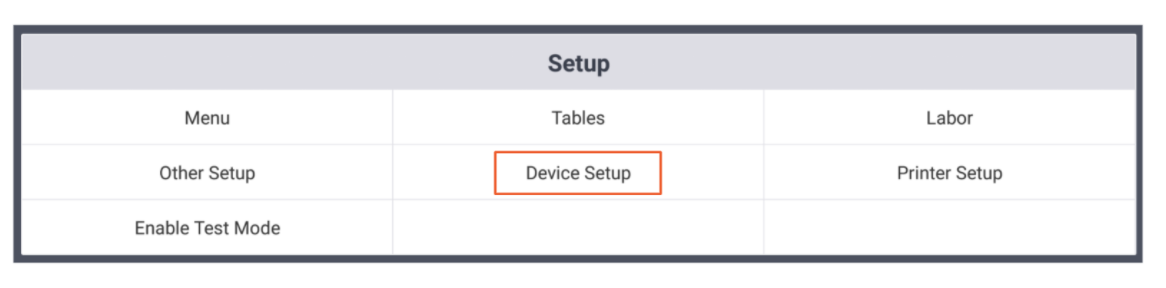
- Under the Setup section, select Device Setup.
- Scroll to the Card Readers section.
- Select the card reader.
- Select Check for Updates to look for card reader updates.
- If an update is available, select Install Update. The update normally takes a few minutes.
Note: If you decline the update, EMV will not enable.
- If no update appears, skip to the next step.
- If an update is available, select Install Update. The update normally takes a few minutes.
- After the update completes, select Yes for the Enable EMV chip read setting.
- Select Continue to confirm.
Expected outcome: EMV Enabled is set to Yes in Device Setup, and the card reader can now accept chip dips and contactless taps.
Note: If the EMV update fails or shows an error, wait a few minutes and try again. Do not let your session log out during the update.
Resolve "Searching for BBPOS" error messages
The "Searching for BBPOS Chipper" and "Searching for BBPOS MSR" messages mean the Toast app is trying to connect to a card reader it cannot detect. The fix depends on which message you see.
"Searching for BBPOS Chipper" or "Searching for BBPOS Chipper 2X"
This error means the Toast Tap™ (BBPOS Chipper 2X USB) reader is not detected. Work through these steps in order:
- Check the physical connection and lights. To learn more, see Check physical connections and lights.
- Clear the cache and restart the terminal. To learn more, see Clear cache and restart the terminal.
- Reset USB detection. To learn more, see Reset USB detection.
- Swap USB ports. To learn more, see Swap USB ports.
- Run a test payment with the Card Reader Support app to confirm the hardware is working. To learn more, see Test the card reader with the Card Reader Support app.
If the error persists after all five steps, see Before you contact Customer Care.
Expected outcome: The "Searching for BBPOS Chipper" message clears and credit card payments process normally.
"Searching for BBPOS MSR"
This error means a magnetic stripe (swipe) reader is not detected—for example, when swiping a manager card or processing a payment via the swipe reader.
- Verify the swipe reader is securely plugged into the Toast Flex terminal.
- If your setup includes both a Toast Tap™ and a swipe reader, see Resolve dual reader conflicts (Toast Tap™ with swipe reader). This error is often a symptom of a known dual reader issue.
- Restart the Toast Flex terminal. To learn more, see Clear cache and restart the terminal.
- For detailed troubleshooting of the swipe reader itself, see Get Help With Your Magnetic Stripe Card Reader.
Expected outcome: The "Searching for BBPOS MSR" message clears and swipe payments process normally.
Resolve dual reader conflicts (Toast Tap™ with swipe reader)
If you use a Toast Tap™ and a swipe (magnetic stripe) reader together—for example, the swipe reader for employee or manager cards and the Toast Tap™ for guest payments—and the Toast Tap™ stops working (blue light off) when the swipe reader is connected, you may be experiencing a known issue with some swipe readers.
Identify a faulty swipe reader
- Unplug all card readers from the Toast Flex terminal.
- Close the Toast app completely. To learn more, see Clear cache and restart the terminal, step 1.
- Open the Card Reader Test app on the terminal.
- Plug in only the swipe card reader.
- Watch for the result:
- If you see the error FAIL_TO_START_USB in bootloader mode, the swipe reader is faulty and needs to be replaced.
- If you see no error, the swipe reader is working—continue troubleshooting the Toast Tap™ separately.
Expected outcome: You can confirm whether the swipe reader is faulty.
Work around the issue until replacement arrives
While waiting for a replacement swipe reader:
- Unplug the faulty swipe reader from the Toast Flex terminal.
- Plug the Toast Tap™ back in.
- Confirm the Toast Tap™ blue light is on and that it can process payments.
Expected outcome: Tap and dip payments continue working on the Toast Tap™ while you wait for a replacement swipe reader.
To request a replacement, see Before you contact Customer Care.
Frequently asked questions
What does "Searching for BBPOS Chipper" mean?
The "Searching for BBPOS Chipper" or "Searching for BBPOS Chipper 2X" message means the Toast app is trying to find your Toast Tap™ card reader (technically named BBPOS Chipper 2X USB) but cannot detect it. The reader is either unplugged, plugged into a faulty port, has a damaged cable, or needs the terminal restarted. To resolve, see Resolve "Searching for BBPOS" error messages.
Also asked as:
- What does "searching for BBPOS Chipper" mean?
- What it's mean searching for BBPOS?
- What it means searching for BBPOS?
Why does my card reader keep going offline?
A card reader that keeps going offline is usually caused by an unstable internet connection or a USB port issue. First, verify your internet connection—see Verify Your Internet Connection. If your internet is stable, clear the cache and restart the terminal (see Clear cache and restart the terminal), then swap USB ports if the issue continues (see Swap USB ports).
Also asked as:
- My card reader goes offline and I have to manually enter the card number.
- Card reader keeps disconnecting.
My card reader passes the test but still won't take payments in the Toast app. What do I do?
The most common cause is that the Card Reader Support app is still open in the background. The Toast app cannot use the card reader while the Card Reader Support app has control of it. Force close the Card Reader Support app: select the gray square at the bottom of the terminal screen and swipe up on the Card Reader Support window. Then open the Toast app and try a payment. If it still does not work, the card reader hardware may need replacement—see Before you contact Customer Care.
Also asked as:
- Card chipper isn't taking payments but when I run the test it says it works.
I'm setting up a new BBPOS Chipper 2X but EMV won't enable. How do I fix it?
EMV cannot enable until the card reader update has been installed. In the Toast app, navigate to Device Setup > Payment Processing > EMV Enabled, then select Check for Updates and Install Update. After the update completes, you will be able to select Yes for Enable EMV chip read. For full steps, see Enable EMV for a new BBPOS Chipper 2X.
Also asked as:
- I'm setting up a new BBPOS Chipper 2X (USB). Under Device Setup it doesn't allow me to enable EMV.
My card reader is not working on just one terminal. What should I try?
If only one terminal's card reader is affected, the issue is typically with that terminal's USB port or cache, not the card reader itself. First, clear the cache and restart that terminal (see Clear cache and restart the terminal). If that does not resolve it, swap to a different USB port on that terminal (see Swap USB ports). To confirm whether the card reader hardware is at fault, try plugging it into a different terminal—if it works there, the original terminal's USB ports need attention.
Also asked as:
- My card reader is not working on POS 1.
- Card reader not working on this specific terminal.
Before you contact Customer Care
Most card reader issues are resolved by the steps above. Contact Customer Care if any of the following are true:
- The USB connector on the card reader is bent or broken (replacement required)
- One or more tests in the Card Reader Support app fail with a different card (hardware fault)
- You see FAIL_TO_START_USB in bootloader mode when testing a swipe reader (swipe reader replacement required)
- You have completed every step in this article and the card reader still does not work
- The card reader adapter is overheating, melting, or shows other physical damage
Before contacting Customer Care, have ready:
- The serial number of the card reader (on the label on the bottom of the device)
- The result of the Card Reader Support app test (which payment methods passed or failed)
- A list of the troubleshooting steps you have already tried
For warranty information, see Card Readers Device Warranty. For replacement requests, see Replace Faulty Hardware (RMA). To contact Customer Care, see How to Contact Customer Care.
Related articles
- Identify Your Card Reader Type
- Get Help With Your Magnetic Stripe Card Reader
- Toast Tap™ (Direct Attach) Installation Guide
- Toast Tap™ (On-Counter) Installation Guide
- Get Help With Toast Flex Terminal Error Messages