Edit Cash Declared Tips on Closed Shifts
Last updated: Sep 16, 2026, 1:21 PM
Question
How do you edit cash declared tips on closed shifts in Toast Web? How do you edit cash declared tips on the POS?
Answer
In some cases, you may need to update the declared cash tips after a shift is closed. You will only be able to edit declared cash tips for a shift if you are within the same business week as the shift you are attempting to edit.
To edit a declared cash tip on Toast Web, follow these steps:
- In Toast Web, navigate to Reports > Labor > Labor summary.
- From the View bar, use the drop-down to select the date range needed and then select Update.
- The report will show all time entries for that day. Select the time entry for the shift you need to edit.
- On the Update Time Entry pop-up window, edit the Cash Tips Declared field.
- Select Submit to finalize your changes.
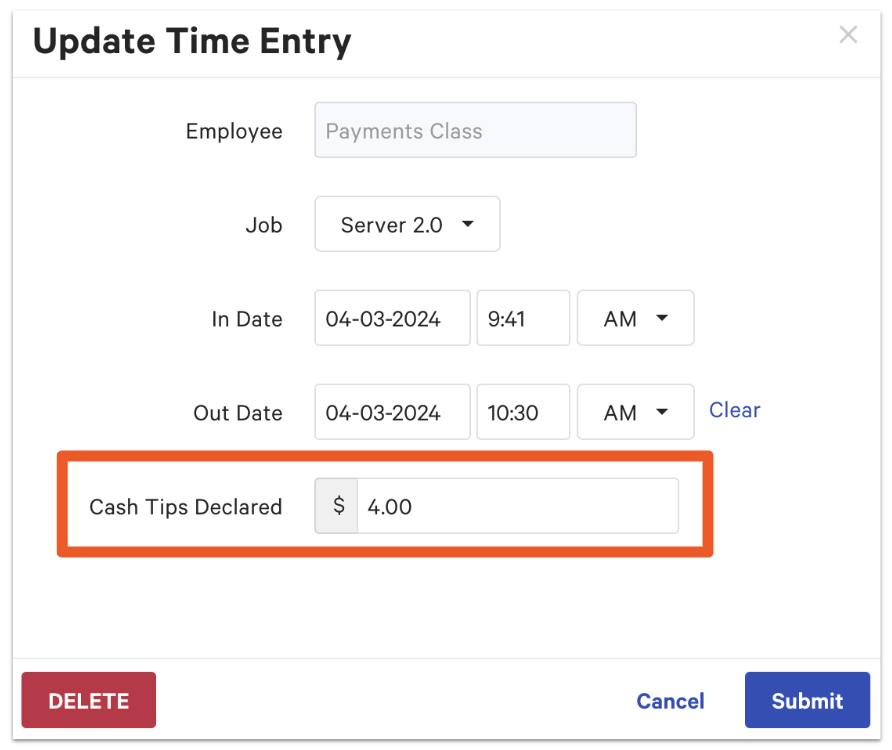
Note: You cannot edit the tip out for the Non-Cash Tips from this box. To do this, you will need to reopen the shift. You can find steps on reopening a shift in this Support Center article, Shift Review Overview.
Managers can reopen employee shifts for the current work week to edit declared cash tips directly on the POS by navigating to the main menu of the Toast app and selecting Review Employee Shifts under the Manager Activities section.
Note: Shifts created in Toast Web instead of on the POS will not appear in the Review Employee Shifts function on your POS.
For a full description of how to use the Review Employee Shifts function, see the Update Time Entries on the POS section of this Support Center article, Edit Employee Time Clock Entries.