Edit Existing Orders on the POS
Last updated: Sep 15, 2026, 2:42 PM
Change the Dining Option on an Order
There are three dining options to choose from when placing an order:
- Dine-in
- Takeout
- Delivery (See Get Started with Toast Delivery Services® for more info)
A manager or owner can configure a default dining option to be automatically selected when you open a new check. This may not always be the dining option you want to select.
You can quickly change the dining option from the order screen by navigating to the overflow menu within the check details and selecting Dining option.
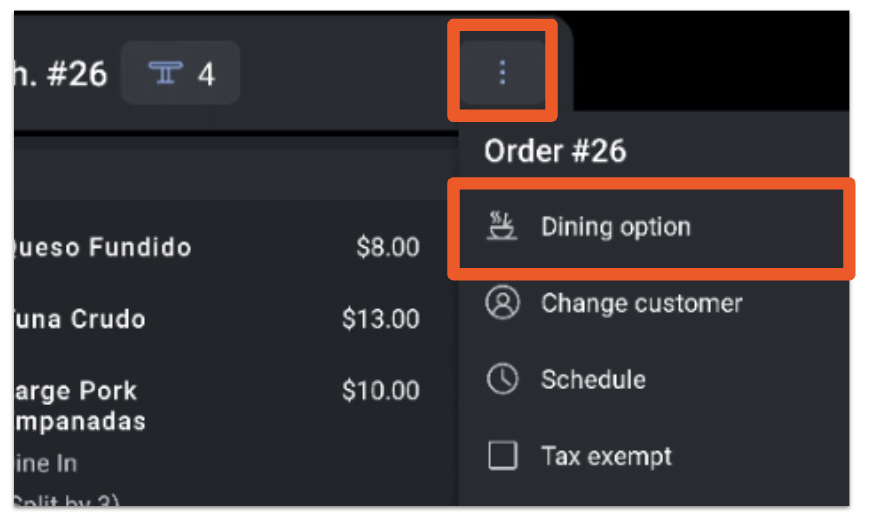
Then, select the appropriate dining option. If you change the Dining option on an order that has already been sent to the kitchen, you will be notified of this and ask you to confirm your decision.
Back to top
Edit an Order's Guest Count
Guest count can be adjusted on a check in Table Service mode by selecting the guest count button/icon on the check details. To learn more about what lives the check details, check out New POS: Manage Tables. In the example below, we can see there are 5 guests on this check.
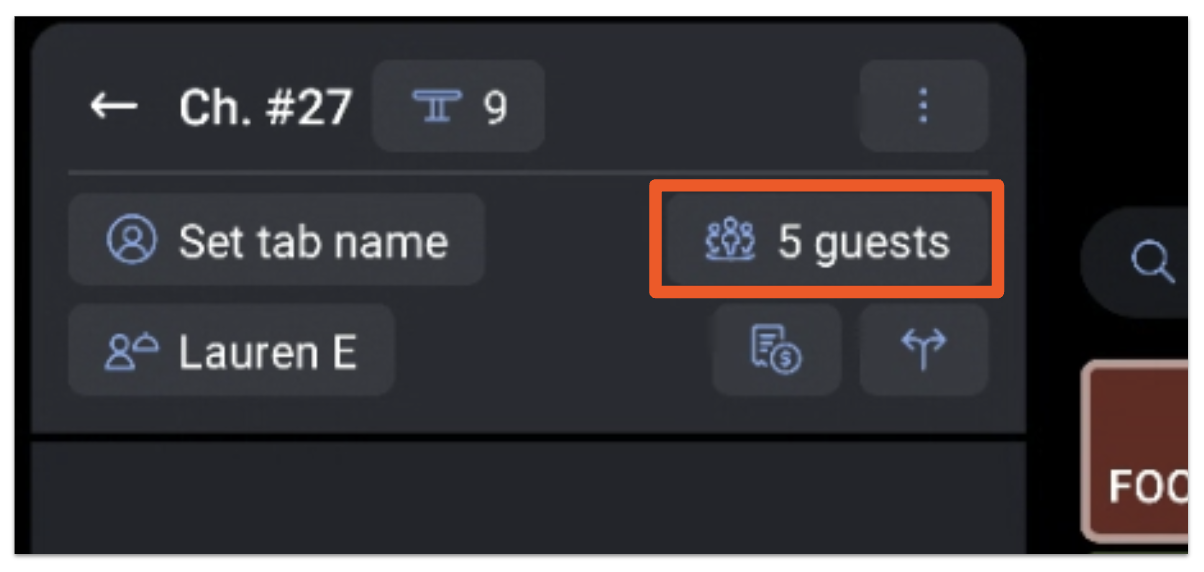
Adjust the current number to your desired guest count and select Done.
Back to top
Edit Other User's Check
In some restaurant operations, you may only want one person at a time touching a check. This way, there is less room for fraud or even just general mistakes about who owns what aspect of the order.
In other operations you may want a manager to have full access to other people's checks, to help add items during busy times. These operations require that multiple servers work as a team to make sure that the items are entered for the kitchen, the drinks and food are sent to the table and guests are given water. In this case, it is required that more than just the server is touching the check.
- To edit this configuration, navigate to Front of house > Order screen setup > UI options in Toast Web.
- For the Edit other employees' checks confirmation, select your desired setting:
- Prompt user when editing another server's check
- Don't prompt
- Save and publish any changes.