Manage Modifier Group Display Order
Last updated: Oct 20, 2026, 8:51 AM
Modifier Group Ordering
Settings in Toast Web for each modifier group determine the order in which the modifier groups appear on the POS and other channels. This means that the order of modifier groups might appear differently on the POS than they appear in Toast Web, based on whether the group is required or not and whether it applies to a menu group or an individual item.
Generally, modifier groups are displayed in this order:
- Menu group-level, required modifier groups
- Item-level, required modifier groups
- Menu group-level, optional - force show modifier groups
- Item-level, optional - force show modifier groups
- Menu group-level, optional modifier groups
- Item-level, optional modifier groups
For a quick reminder on the difference between required, optional - force show, and optional modifier behaviors, check out this Support Center article: Configure Modifier Behavior.
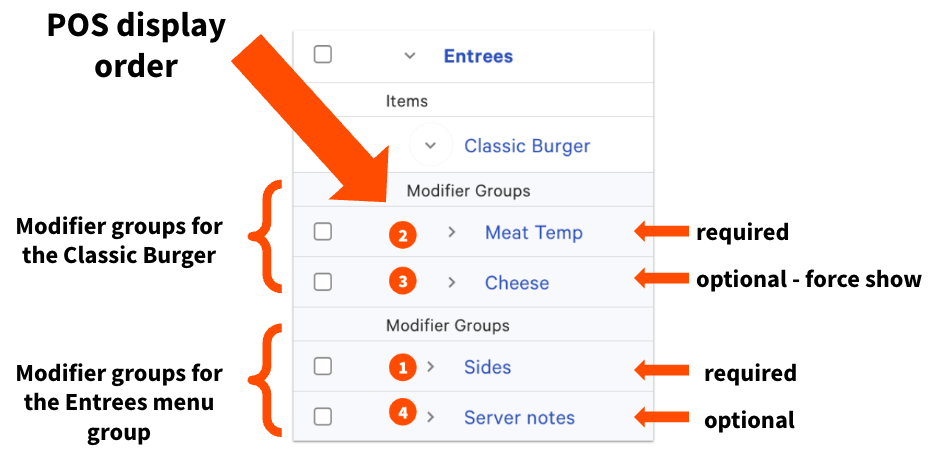
Let's take a look at an example of modifier group order. The restaurant below has a menu group called Entrees, with a required modifier group for Sides and an optional modifier group for Server Notes. Within the menu group, there's a Classic Burger menu item. The Classic Burger has a required modifier group for Meat Temp, and an optional - force show modifier group for Cheese.
As such, the modifier groups will appear in the following order on the POS:
- Sides
- Meat Temp
- Cheese
- Server notes
Edit Modifier Group Display Order
If you need to exercise even more control over the ordering of your modifier groups, you can use the Display Ordering Priority setting. Let's say you'd like the modifier group called Server notes to appear first. To ensure that the group appears first in the order:
- In Toast Web, navigate to the modifier group details page by selecting the name of the modifier group.
- Scroll down to the Properties section, and enter the number 1 for the Display Ordering Priority setting.
- Save and publish your changes.
- Navigate to Front of house > Order screen setup > UI options.
- In the Order Screen section, scroll down to the Modifier Ordering Priority and turn it On.
- Save and publish your changes.
In this example, since the modifier group for Sides is required, staff members will immediately be required to make a selection from that modifier group, even though Server notes will show up first on the POS.
If you want to view and edit the modifier ordering priority for all of your modifier groups, you can do so by navigating to advanced properties (Menus > Bulk management > Advanced properties) and using the Show/Hide drop-down to ensure that Modifier Order Priority is displayed next to each modifier on the advanced properties page.
To learn how to change the way individual modifier options are displayed on your POS, see Configure Modifier Display Options. To learn more about adding new modifiers, see Create and Manage Modifier Groups and Modifier Options.