Get Help: Fix Bulk Menu Import Failure
Last updated: Mar 31, 2026, 1:35 PM
Resolve common bulk menu import error messages.
Bulk Menu Import Error Message Overview
There are two types of failures that can occur when importing data with the bulk import tool: data validation failures and import operations failures.
When it attempts to import a CSV file, the Toast platform first validates the data in the CSV file to make sure it conforms to the acceptable values described in Fill Out a Bulk Menu Import Spreadsheet section in the Use the Menu Bulk Import Tool article. If any of the rows fail this validation step, the Toast platform displays the Errors found in the import file page to notify you of the data validation failure:
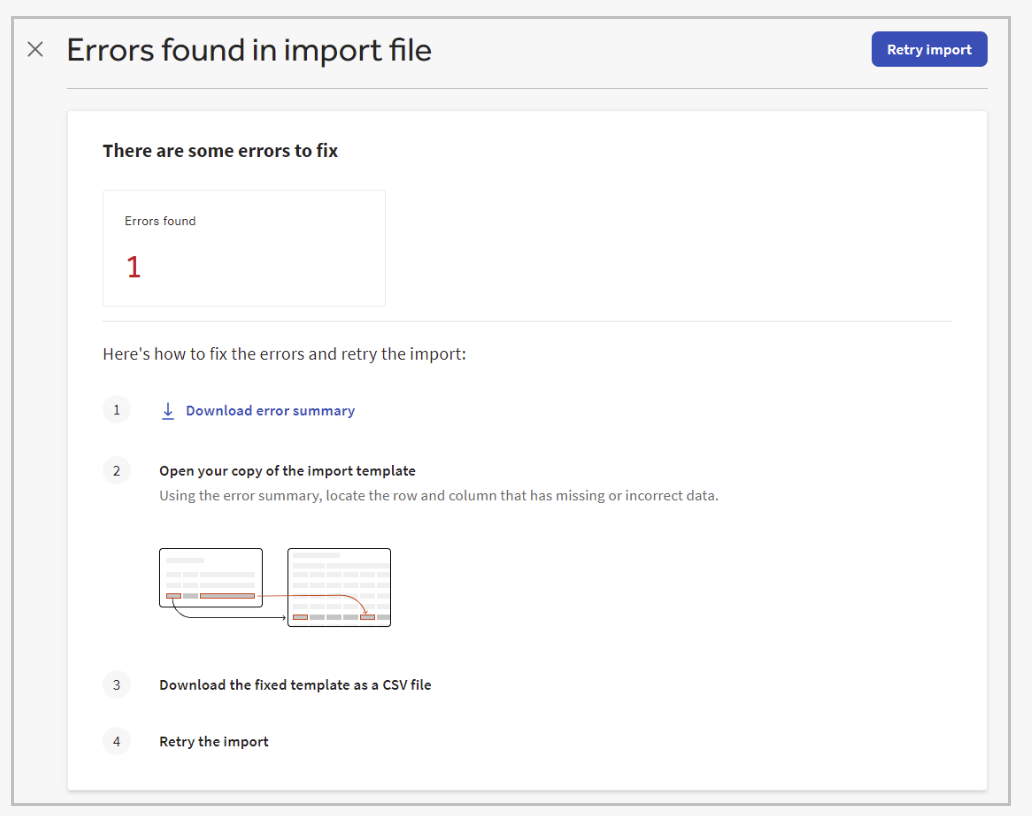
If an import file passes the data validation step, the Toast platform starts importing the rows in the file. If there is a problem importing a row, the Toast platform skips that row and continues with the rest of the import file. For example, a row that attaches a modifier group to a menu item must specify the Toast GUID for that menu item. If the GUID provided doesn't match an existing menu item GUID in the Toast platform, the ATTACH operation fails and the Toast platform moves on to the next row. This type of failure is an import operation failure.
After it has finished processing an import file that has import operation failures, the Toast platform displays the Incomplete import page. This page has a summary of the number of successful and failed operations, and also an import ID for the import attempt to help you distinguish it from other import attempts on the Import history tab.
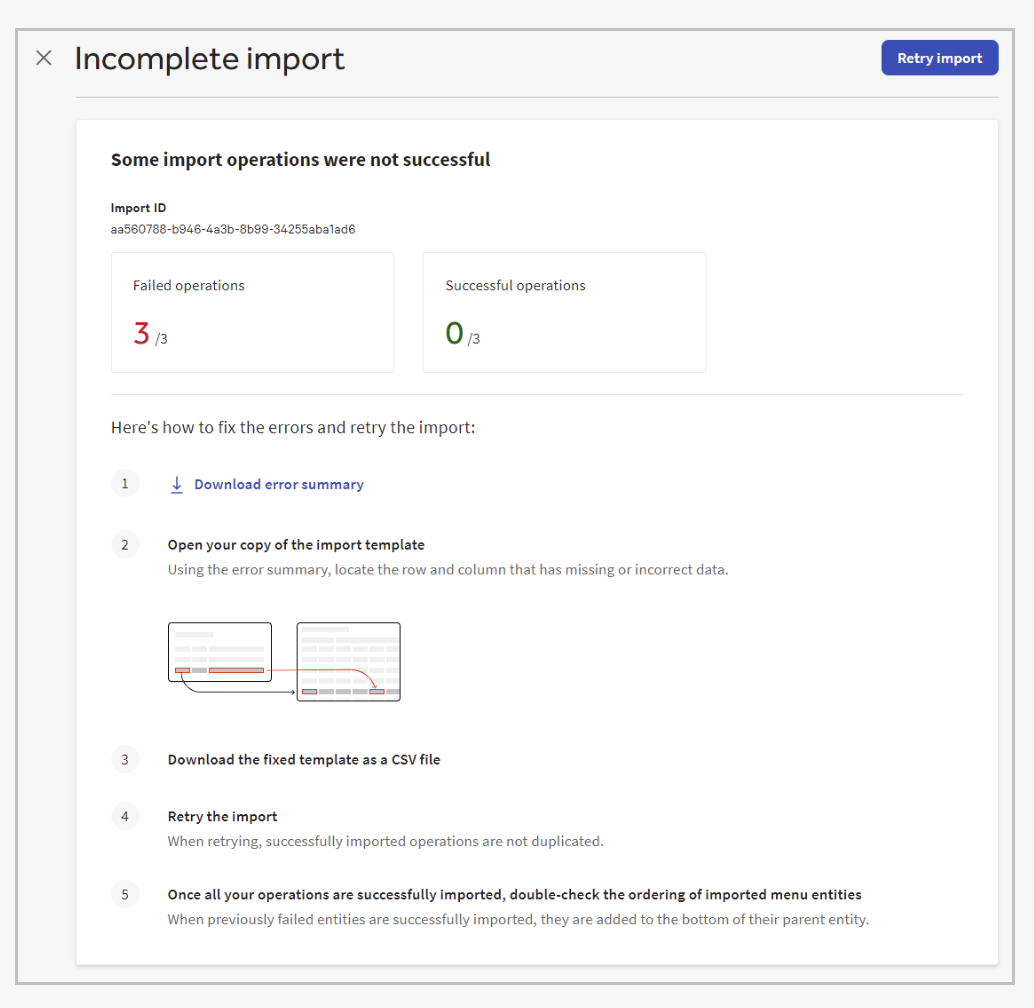
Both the Errors found in import file and the Incomplete import page have a Download error summary link. You use this link to download a CSV file that contains information about the errors in the import file. The CSV contains a row for each error encountered during the import attempt.
The name of the error summary file for an import attempt that has import operation failures is error_summary_<importId>.csv. The <importId> part of the file name allows you to match the error summary CSV file with the incomplete import attempt on the Import history tab. The name of the error summary file for an import attempt that has data validation errors is error_summary.csv. This filename does not contain an <importId> because data validation errors caused the import to fail before any portion of it was imported, therefore, no import ID was generated.
Fix and Re-Import a Bulk Import CSV File
The following procedure describes how to fix data validation and import operation errors and retry the import attempt. These instructions start from the point that you have submitted a bulk import CSV file and have been notified that there are failures.
- On the Errors found in import file page or the Incomplete import page, select Download error summary to get an error report for the failures that need to be fixed.
- Specify where you want to save the error summary and select Save.
- Open the error summary CSV file in a spreadsheet editor and inspect it for the errors that need to be fixed.
- Open the original copy of your import spreadsheet in a spreadsheet editor and fix the rows that have import issues. Do not edit rows that were successfully imported. Doing so causes the re-import to fail.
- Download the repaired spreadsheet as a CSV file.
- Return to the bulk import tool and select Retry import.
- Select the Upload file button, locate and select the repaired CSV file, and select Open. Alternatively, you can drag and drop the repaired CSV file to the box with the dashed outline on the Upload template page.
- Select the Yes! I agree to upload with file with [X] changes to my menu that cannot be undone box.
- Select Submit. For partially complete imports, repaired rows are re-imported and rows that were already successfully imported are not duplicated.
- After the CSV file is imported successfully, you are redirected to the Import history tab and notified that the import was successful. A new entry is also added to the Complete imports table for the import you just completed.
- If the re-import was to fix a partially complete import, you may also need to to use Toast Web to re-order the imported menu entities. For more information, see Fix the Order of Re-Imported Menu Entities below.
Fix the Order of Re-Imported Menu Entities
After fixing a partially complete import, you may also need to use Toast Web to re-order the imported menu entities. This is because previously failed entities are added to the bottom of their parent entities when they are re-imported.
Consider an import file that creates three menu items (Menu Items A, B, and C) and attaches them to the same menu group (Menu Group X). If, during the import process, the row for menu item B fails, then the initial import looks like this:
- Menu Group X
- Menu Item A
- Menu Item C
(Import error summary: Menu item B import has failed)
After you fix the row for Menu Item B and re-import, the order of menu items is:
- Menu Group X
- Menu Item A
- Menu Item C
- Menu Item B
Return to An Incomplete Report for Bulk Menu Update
It is possible to leave the Incomplete import page without fixing and retrying the failed import (you can leave the Incomplete import page by selecting the close icon (X), or navigating to another page in Toast Web, or closing Toast Web altogether). If you do leave the Incomplete import page with a failed bulk import in progress, then the next time you visit the Bulk import tool page, you see a notification on the Getting started tab, telling you that you have one or more import attempts that need attention. This notification remains on the Getting started tab until you resolve the issue with the failed bulk imports.
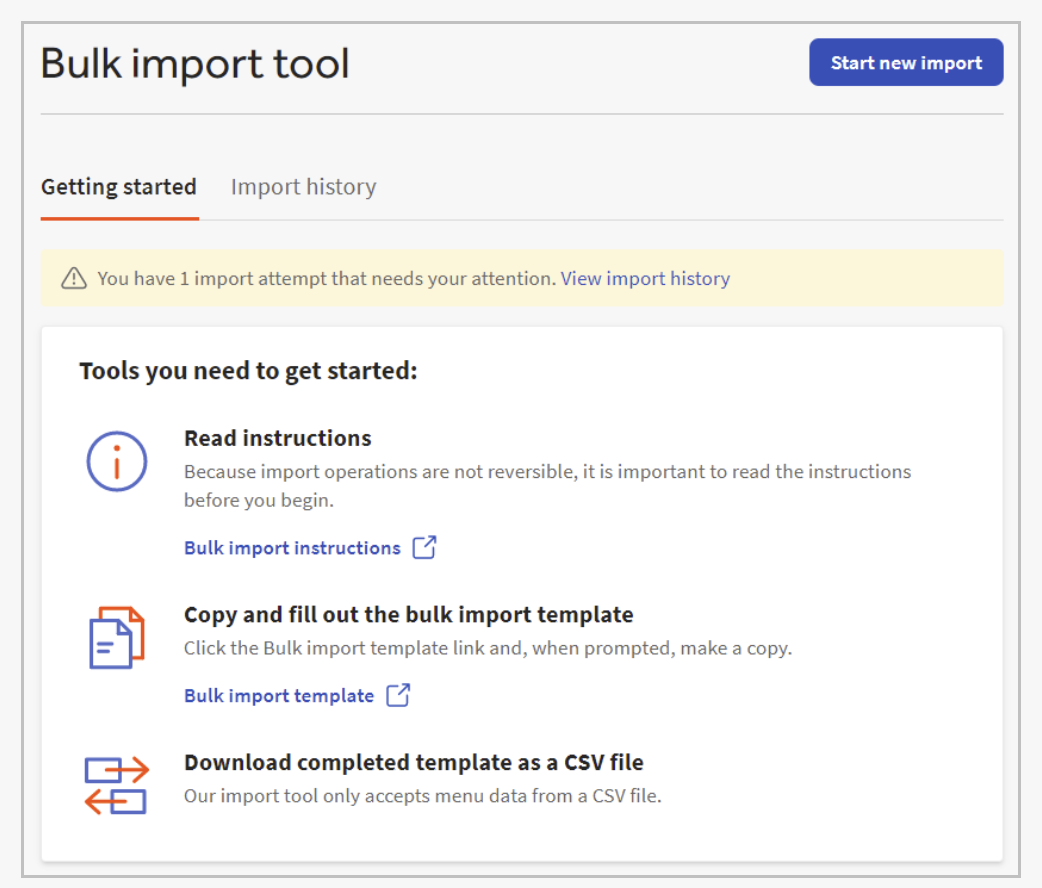
You can quickly restart the re-import process by selecting the View import history link in the notification or by going to the Import history tab. Any failed imports are listed in the Incomplete imports table. Select the Fix and retry link for a failed import to re-open the Incomplete import page for the import and continue with the procedure provided above.
Additional Resources