Use the Menu Bulk Import Tool
Last updated: Sep 18, 2026, 10:58 AM
- Review Bulk Menu Import Tool Overview
- Fill Out a Bulk Menu Import Spreadsheet
- Review Available Templates for Bulk Menu Imports
- Upload the Bulk Import CSV File for Bulk Menu Imports
- Understand the Operation ID for Bulk Menus
- Specify Toast Identifiers for Bulk Menu Imports
- Pricing Strategy or Method for Bulk Import Menus
- Menu Item and Modifier Alcohol Labeling
Review Bulk Menu Import Tool Overview
| Changes made using the bulk import tool are not reversible. Your restaurant must have the Restaurant Management Essentials, Restaurant Management Pro, or Restaurant Management Enterprise package, or the multi-location module, to access the bulk menu import feature. See the Toast Suites Overview for more information. Note: You must be logged in to view. |
The bulk import tool allows you to use a comma-separated values (CSV) file to import menu changes in bulk to Toast Web. The process to complete a bulk menu import is:
- Make a copy of a bulk import spreadsheet template.
- Fill out a row in the template for each import operation.
- Download the completed template as a CSV file.
- Upload the CSV file into the Toast platform using the Bulk import tool in Toast Web.
Fill Out a Bulk Menu Import Spreadsheet
The process for completing a bulk menu import follows this workflow:
- Choose a bulk import template (basic, item update, or advanced) and make a copy of it.
- Fill out a row in the copied template for each import operation.
- Download the completed template as a CSV file.
- Import the CSV file into Toast using the Bulk Import tool in Toast Web.
Make a Copy of a Bulk Menu Import Template
Follow the instructions below to make a copy of a bulk import template to use as the starting point for your own bulk import spreadsheet.
- Access Toast Web.
- Navigate to Menus > Bulk management > Bulk import tool.
- Select the link for the template you want to use. The template opens in a Google Sheets™ window.
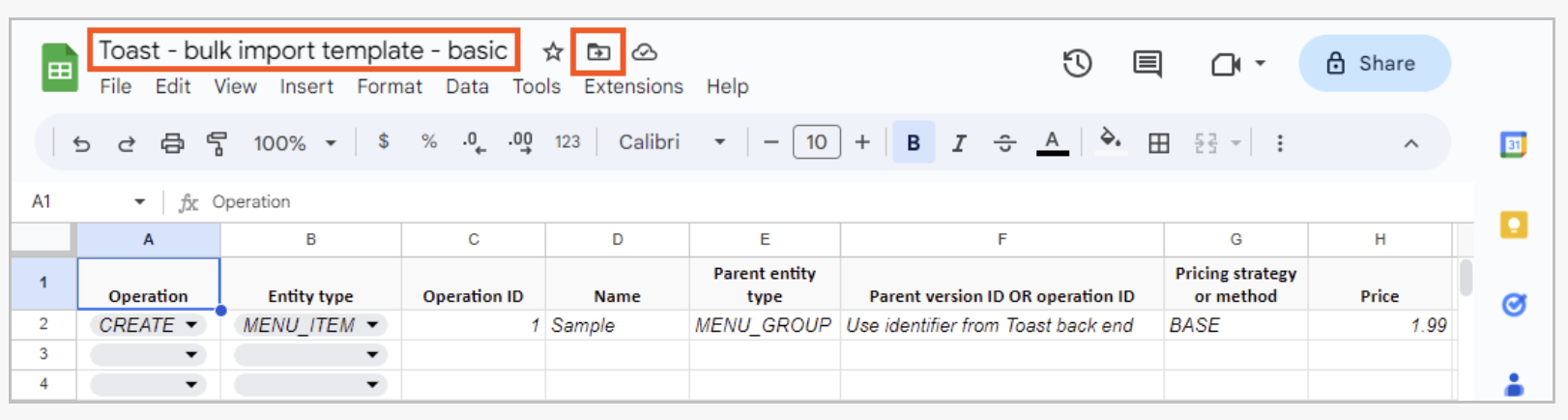
- Select USE TEMPLATE. A copy of the template is saved to the top-level of your Google Drive.
- Select the template's name and rename it with your own descriptive name. Optionally, select the move icon to move it to another location.
Back to top
Review Available Templates for Bulk Menu Imports
The tool includes three import spreadsheets to choose from.
Basic Template:
Use the basic template to quickly create menu items, modifier groups, and modifiers with the minimum required information (name, pricing strategy, price, and parent menu entity).
-
- Menu items and modifiers created with the basic template must use the BASE pricing strategy.
- With the exception of the Price column, all of the columns are required when creating new menu entities using the basic template.
| Column name | Description |
| Operaton | A drop-down menu where you can choose the type of operation to be performed. For the basic template, the Operation is always CREATE. |
| Entity Type | A drop-down menu where you can choose the type of menu entity to create. Options are:
|
| Operation ID | A unique ID for the import operation associated with this row in the import spreadsheet. Must follow these rules:
Toast support recommends entering an operation ID of 1 for the first import operation in the spreadsheet and then incrementing by 1 for each additional operation, so that the operation ID of the second import operation is 2, the operation ID of the third import operation is 3, and so on. For more information, see Understand the Operation ID. |
| Name | The name of the menu entity to create. Must follow these rules:
Note: The import process does not prevent you from creating menu entities that use the same name as existing entities. |
| Parent entity type | Use this column to attach the entity created in this row to its parent.
|
| Parent version ID or operation ID | Use this column to attach the entity created in this row to its parent.
|
| Pricing strategy or method | The pricing strategy or method for the menu entity being created is case insensitive. Acceptable values for the Pricing strategy or method column depend on the type of entity being created in the row.
Note: You cannot create a modifier group with the bulk menu import tool that doesn't charge for its modifiers.
|
| Price | A string representing the menu entity's price. This is the only optional column in the basic template.
Price strings must follow these rules:
Examples of valid price strings: null
Examples of invalid price strings: "$100" |
Item Update Template
Use the item update template to update the name, POS name, kitchen name, item description, price, PLU, or SKU of existing menu items.
- To update the price of an existing menu item using the item update template, it must use the BASE pricing strategy. You cannot use the item update template to update the prices of menu items that use other pricing strategies.
- For UPDATE operations, the bulk import tool does not support applying a blank or empty value to an existing value. This means that if an UPDATE row for a menu item contains a blank value or spaces in a field, that field will not be updated and will retain its original value.
| Column name | Description |
| Operation | A drop-down menu where you can choose the type of operation to be performed. For the item update template, the Operation is always UPDATE. |
| Entity type | The type of menu entity to update. For the item update template, the Entity type is always MENU_ITEM |
| Operation ID | A unique ID for the import operation associated with this row in the import spreadsheet. Must follow these rules:
Toast support recommends entering an operation ID of 1 for the first import operation in the spreadsheet and then incrementing by 1 for each additional operation, so that the operation ID of the second import operation is 2, the operation ID of the third import operation is 3, and so on. For more information, see Understand the Operation ID. |
| Version ID | A valid Toast GUID for the menu item to be updated. For more information, see Specify Toast Identifiers. |
| Name | The name of the menu item. Must follow these rules:
Note: The import process does not prevent you from creating menu items that use the same name as existing items. |
| POS name | The name of the menu item as displayed on a Toast POS device. Must follow these rules:
|
| Kitchen name | The name of the menu item as displayed on kitchen tickets or on a kitchen display system device. Must follow these rules:
|
| Item description | A description of the menu item. Must follow these rules:
|
| Price | Optional. A string representing the menu item's base price. Note: The item update template is limited to updating the prices of menu items that use the BASE pricing strategy. You cannot use it to update prices for menu items that use any of the other pricing strategies. Price strings must follow these rules:
Examples of valid price strings: null
Examples of invalid price strings: "$100" |
| PLU | The price look-up (PLU) code for the menu item. Must follow these rules:
|
| SKU | The stock-keeping unit (SKU) code for the menu item. Must follow these rules:
|
| Sales category multiLocation ID | The multilocation ID for the sales category that applies to this menu item. If you update the sales category ID for a menu item that had previously been set to inherit its sales category from a parent menu group, the item is reconfigured so that it no longer inherits its sales category from that group. The menu item now has its own sales category. Example of a sales category ID:
|
| Prep station multiLocation IDs | The multilocation IDs for the prep stations to which this menu item should be sent when it is ordered. If you need to specify a single prep station, you can just provide the ID. If you need to specify multiple prep stations, separate their multilocation IDs with commas and encapsulate the entire string in double quotes. Example of a single prep station ID:
Example of multiple prep stations IDs:
For more information, see Specify Toast Identifiers. |
| Guest count | Note: This feature is in limited release with select customers. Specifies the guest count associated with the menu item. For example, a small pizza could have a guest count of 1, while a large pizza has a guest count of 2. You can enter decimal values for Guest count, but the Toast platform rounds them to 2 decimal places. |
Advanced Template
Each row in the advanced template represents an import operation such as creating a new menu item, updating the attributes of a menu item, or attaching a modifier to a modifier group. Every row has the same set of columns. The way you fill out the columns in any given row depends on the import operation you are defining in that row. Not all columns are used for every operation.
Use the information in the table below to fill out your copy of the advanced template. The Required for/Used for column in the table:
- Identifies which spreadsheet columns are required for a given operation type and which spreadsheet columns are used for operations of a given type but are not required.
- Indicates if a spreadsheet column can be omitted. A column that is marked as "Column can be omitted from spreadsheet if empty for all rows" may be omitted from the spreadsheet altogether if you have not filled out the column for any of the rows in the spreadsheet.
| Column name | Description | Required for/Used for |
| Operation | A drop-down menu where you can choose the type of operation to be performed. Values include:
| Required for all operations For CREATE operations, use CREATE For UPDATE operations, use UPDATE For ATTACH operations, use ATTACH |
| Entity type | A drop-down menu where you can choose the type of menu entity. Values include:
For a CREATE operation, choose the type of entity you want to create. For example, to create a menu item, enter MENU_ITEM as the Entity type. For an UPDATE operation, MENU_ITEM is the only supported entity type. For an ATTACH operation, choose the type of entity you want to attach. For example, to attach a modifier to a modifier group, enter MODIFIER as the Entity type. (The parent entity type is specified using the Parent entity type column.) | Required for all operations For CREATE operations for menu items, use MENU_ITEM For CREATE operations for modifier groups, use MODIFIER_GROUP For CREATE operations for modifiers, use MODIFIER For UPDATE operations, use MENU_ITEM For ATTACH operations for menu items, use MENU_ITEM For ATTACH operations for modifier groups, use MODIFIER_GROUP For ATTACH operations for modifiers, use MODIFIER |
| Name |
Note: The import process does not prevent you from creating menu entities that use the same name as existing entities | Required for CREATE operations Used for UPDATE operations Empty for ATTACH operations |
| Version ID or operation ID | An identifier for the menu entity to be attached. The value of this field depends on whether the menu entity you want to attach already exists or is being created in this same import spreadsheet.
For more information, see SpecifyToast Identifiers. | Required for ATTACH and UPDATE operations Empty for CREATE operations |
| Operation ID | A unique ID for the import operation associated with this row in the import spreadsheet. Must follow these rules:
Toast support recommends entering an operation ID of 1 for the first import operation in the spreadsheet and then incrementing by 1 for each additional operation, so that the operation ID of the second import operation is 2, the operation ID of the third import operation is 3, and so on. For more information, see Understand the Operation ID. | Required for all operations |
| POS name | The name of the menu entity as displayed on a Toast POS device. Must follow these rules:
| Used for CREATE and UPDATE operations Empty for ATTACH operations The column can be omitted from the spreadsheet if empty for all rows |
| Kitchen name | The name of the menu entity as displayed on kitchen tickets or on a kitchen display system device. Must follow these rules:
| Used for CREATE and UPDATE operations Empty for ATTACH operations The column can be omitted from the spreadsheet if empty for all rows |
| Item description | Only used for menu items. Description of the menu item. Must follow these rules:
| Used for the CREATE operations where Entity type is MENU_ITEM and for UPDATE operations Empty for all other operations The column can be omitted from the spreadsheet if empty for all rows |
| Button color | A drop-down menu where you can choose the button color for the menu entity on a Toast POS device. For a diagram that shows the possible button colors, see Button colors. If you generate your import spreadsheet programmatically, the Button color column can contain either a color's name or its hex value. Color names must be in all capitals and can be found in this article: Button Colors for the Menu Bulk Import Tool Advance Template. | Used for CREATE operations Empty for UPDATE and ATTACH operations The column can be omitted from the spreadsheet if empty for all rows |
| Pricing strategy or method | A drop-down menu where you can choose the pricing strategy or method for the menu entity being created. Values include:
The value you choose for the Pricing strategy or method column depends on the type of entity you are creating.
If you pick this pricing strategy, you must also provide the location-specific price in the Price field of the menu item's CREATE row. For modifier groups:
While not required, you should also consider supplying prices in the Price fields of the CREATE rows for the individual modifiers contained in the modifier group. | Required for CREATE operations Empty for UPDATE and ATTACH operations |
| Price | Optional: A string representing the menu entity's price. For menu items:
For modifier groups:
For modifiers:
Price strings must follow these rules:
Examples of valid price strings: null Examples of invalid price strings: "$100" | Used for: CREATE operations where the entity type is MENU_ITEM. CREATE operations where:
CREATE operations where:
Empty for ATTACH operations |
| Location-specific price target ID | The Toast GUID of the target location group or location that the location-specific price applies to. Used when the row creates a new menu item or modifier and the Pricing strategy or method is set to LOCATION_SPECIFIC. Note that the target for the location-specific price must be the same as or an ancestor of the target assigned to the menu item or modifier itself. The target for the menu item or modifier is defined in the Target ID field. Must be empty for all other operations. For more information, see Specify Toast Identifiers.
|
Used for CREATE operations where the Entity type is MENU_ITEM or MODIFIER and Pricing strategy is LOCATION_SPECIFIC Empty for all other operations The column can be omitted from the spreadsheet if empty for all rows
|
| PLU |
| Used for CREATE operations where Entity type is MENU_ITEM or MODIFIER and the Pricing strategy is LOCATION_SPECIFIC Empty for all other operations Column can be omitted from spreadsheet if empty for all rows |
| SKU | The stock-keeping unit (SKU) code for the menu item or modifier option. Must follow these rules:
| Used for CREATE operations where Entity type is MENU_ITEM or MODIFIER, and for UPDATE operations Empty for all other operations Column can be omitted from spreadsheet if empty for all rows |
| Prep station multiLocation IDs | The multilocation IDs for the tax rates that apply to this menu item or modifier. If you specify a single tax rate, you can just provide the ID. If you need to specify multiple tax rates, separate their multilocation IDs with commas and encapsulate the entire string in double quotes. If you don't provide a tax rate ID when you create a menu item or modifier, the menu item or modifier inherits the tax rates assigned to its parent menu entity. Example of a single tax rate ID: 500000000139746504 Example of multiple tax rates IDs: "500000000139746504,500000000959646504" | Used for CREATE operations where Entity type is MENU_ITEM or MODIFIER, and for UPDATE operations Empty for all other operations Column can be omitted from spreadsheet if empty for all rows |
| Tax rate multiLocation IDs | The multilocation ID for the sales category that applies to this menu item or modifier. If you don't provide a sales category ID when you create a menu item or modifier, the menu item or modifier inherits the sales category assigned to its parent menu entity. Example of a sales category ID: 500000000032822323 | Used for CREATE operations where Entity type is MENU_ITEM or MODIFIER Empty for all other operations Column can be omitted from spreadsheet if empty for all rows |
| Sales category multiLocation ID | Note that the target must be:
For more information, see Specify Toast Identifiers. | Used for CREATE operations Empty for UPDATE and ATTACH operations Column can be omitted from spreadsheet if empty for all rows |
| Target ID | The Toast GUID of the owner location group or location for the menu entity. Note that the owner must be:
For more information, see Specify Toast Identifiers. | Used for CREATE operations Empty for UPDATE and ATTACH operations Column can be omitted from spreadsheet if empty for all rows |
| Owner ID | A drop-down menu where you can choose whether the menu entity is visible on Toast POS devices. Values include:
If you set either the Visible to Kiosk, Toast Order and Pay field or the Visible to Toast Online Ordering, Toast Takeout App field to TRUE, you must also set this field to TRUE. | Used for CREATE operations Empty for UPDATE and ATTACH operations Column can be omitted from spreadsheet if empty for all rows |
| Visible to POS | A drop-down menu where you can choose whether the menu entity is visible on Toast Kiosk devices or in the Toast Order and Pay app. Values include:
Note:
| Used for CREATE operations Empty for UPDATE and ATTACH operations Column can be omitted from spreadsheet if empty for all rows |
| Visible to Kiosk, Toast Order and Pay | A drop-down menu where you can choose whether the menu entity is visible in the Toast Online Ordering website and the Toast Takeout (Toast Local) app. Values include:
Note:
| Used for CREATE operations Empty for UPDATE and ATTACH operations Column can be omitted from spreadsheet if empty for all rows |
| Visible to Toast Online Ordering, Toast Takeout App | A drop-down menu where you can choose whether the menu entity is visible on online ordering sites that integrate with the Toast platform using the orders API. Values include:
| Used for CREATE operations Empty for UPDATE and ATTACH operations Column can be omitted from spreadsheet if empty for all rows |
| Modifier name | If the menu item the row is specifying will be used as a modifier option's item reference, you can override the item reference's name with a name that is used for the modifier option only. Must follow these rules:
For more information, see Create modifiers with the advanced template. | where Entity type is MODIFIER and you want to override the item reference name Empty for all other operations Column can be omitted from spreadsheet if empty for all rows |
| Modifier target ID | If the menu item the row is specifying will be used as a modifier option's item reference, you can override the item reference's target location group GUID with one that is used for the modifier option only. For more information, see Creating modifiers with the advanced template. For more information, see Specify Toast Identifiers. | Used for CREATE operations where Entity type is MODIFIER and you want to override the item reference target Empty for all other operations Column can be omitted from spreadsheet if empty for all rows |
| Modifier owner ID | If the menu item the row is specifying will be used as a modifier option's item reference, you can override the item reference's owner location group GUID with one that is used for the modifier option only. For more information, see the advanced template in this article. For more information, see Specify Toast identifiers. | Used for CREATE operations where Entity type is MODIFIER and you want to override the item reference owner Empty for all other operations Column can be omitted from spreadsheet if empty for all rows |
| Default modifier | For rows that create a modifier, this field allows you to specify that the modifier is a default modifier. Set this field to TRUE if the modifier should be a default modifier. If the modifier should not be a default modifier, you can either leave the field blank or set it to FALSE. Note: When using the bulk import spreadsheet, you are limited to specifying one modifier as the default modifier in any given modifier group. If you need to specify more than one modifier as a default modifier for a modifier group, you must do so on the modifier group's details page in Toast Web. | Used for CREATE operations where Entity type is MODIFIER and you want the modifier to be a default modifier Empty for all other operations |
| Parent entity type | Use this column to attach the entity created or modified in this row to its parent. A drop-down menu where you can choose the type of menu entity that will be the parent for the entity created in this row of the import file. Values include:
| Required for all operations
|
| Parent version ID or operation ID | Use this column to attach the entity created or modified in this row to its parent. An identifier that specifies the parent menu entity for the entity being created or attached in this row. The value of this field depends on whether the parent menu entity you want to attach to already exists or is being created in this same import spreadsheet.
For more information, see Specify Toast identifier. | Required for all operations |
| Contains alcohol | Defines whether the menu item contains alcohol or not. When creating a new menu item, this column can contain the values YES or NO, or it can be empty to indicate that the Contains alcohol configuration is not specified for the menu item. When updating an existing menu item, this column must contain either YES or NO. It cannot be empty when updating an existing menu item. For more information, see Menu item and modifier alcohol labeling in this article. | Used for CREATE operations where Entity type is MENU_ITEM and for UPDATE operations
|
| Guest count | Note: This feature is in limited release with select customers. Specifies the guest count associated with the menu item. For example, a small pizza could have a guest count of 1 while a large pizza has a guest count of 2. You can enter decimal values for Guest count but the Toast platform rounds any decimal values to two places. | Used for CREATE operations where Entity type is MENU_ITEM and for UPDATE operations
|
Upload the Bulk Import CSV File for Bulk Menu Imports
Once you have filled out your copy of a bulk import spreadsheet and downloaded it as a CSV file, you can upload the CSV file to the Toast platform. This section provides instructions for uploading the CSV file. It is important to note that changes made using the bulk menu import tool are not reversible.
It is possible that some rows in a bulk menu import file have validation issues and cannot be imported. This does not cause the entire import process to fail. Instead, the Toast platform imports rows that have no validation issues and notifies you of rows that need to be fixed. For more information, see Get Help: Fix Bulk Menu Import Failure.
- Log in to Toast Web.
- Choose Menus > Bulk management > Bulk import tool.
- Select Start new import. You see the Upload template page.
- Select the Upload file button, locate and select the CSV file you've prepared, and select Open. Alternatively, you can drag and drop the CSV file into the box with the dashed outline on the Upload template page.
- Select the Yes! I agree to upload with file with [X] changes to my menu that cannot be undone box.
- Select Submit.
- If all rows in the spreadsheet were imported successfully, you are redirected to the Import history tab, and you see a "Your import was successful " message. A new entry is also added to the Complete imports table for the import you just completed.
- If you see the Errors found in import file page instead of the Import history tab, it means that the import file has data validation failures. In this case, the entire import file has failed, and no rows were imported.
- If you see the Incomplete import page instead, it means that some rows in the import file were imported successfully, but others experienced import failures.
For more information about resolving data validation and import operation failures, see Get Help: Fix Bulk Menu Import Failure.
Understand the Operation ID for Bulk Menus
You must provide a unique operation ID for every row in a bulk import spreadsheet. A row's operation ID allows other rows in the spreadsheet to attach to it. For example, consider a row that creates a new menu item called Baked Haddock. Another row creates a new modifier group called Sides that needs to attach to the Baked Haddock menu item. Attachments are done by specifying the Toast GUID of the parent menu entity to be attached to, but because the Baked Haddock menu item doesn't exist in the Toast platform yet, it does not have a Toast GUID associated with it. Instead, the Sides modifier group row must use the operation ID for the Baked Haddock row as the ID of the parent menu entity to attach to.
Example import spreadsheet showing where operation IDs are specified and referenced.

Toast support recommends entering an operation ID of 1 for the first import operation in a spreadsheet and then incrementing by 1 for each additional import operation, so that the operation ID of the second import operation is 2, the operation ID of the third import operation is 3, and so on. Operation IDs must be unique within a single import spreadsheet but they do not have to be unique across spreadsheets.
Specify Toast Identifiers for Bulk Menu Imports
To complete a bulk import spreadsheet, you may need one or more Toast identifiers for the following entities:
- Menu entities
- Prep stations
- Sales categories
- Tax rates
- Location groups (formerly called restaurant groups)
- Individual restaurant locations
Identifiers for Menu Entities for Bulk Menu Imports
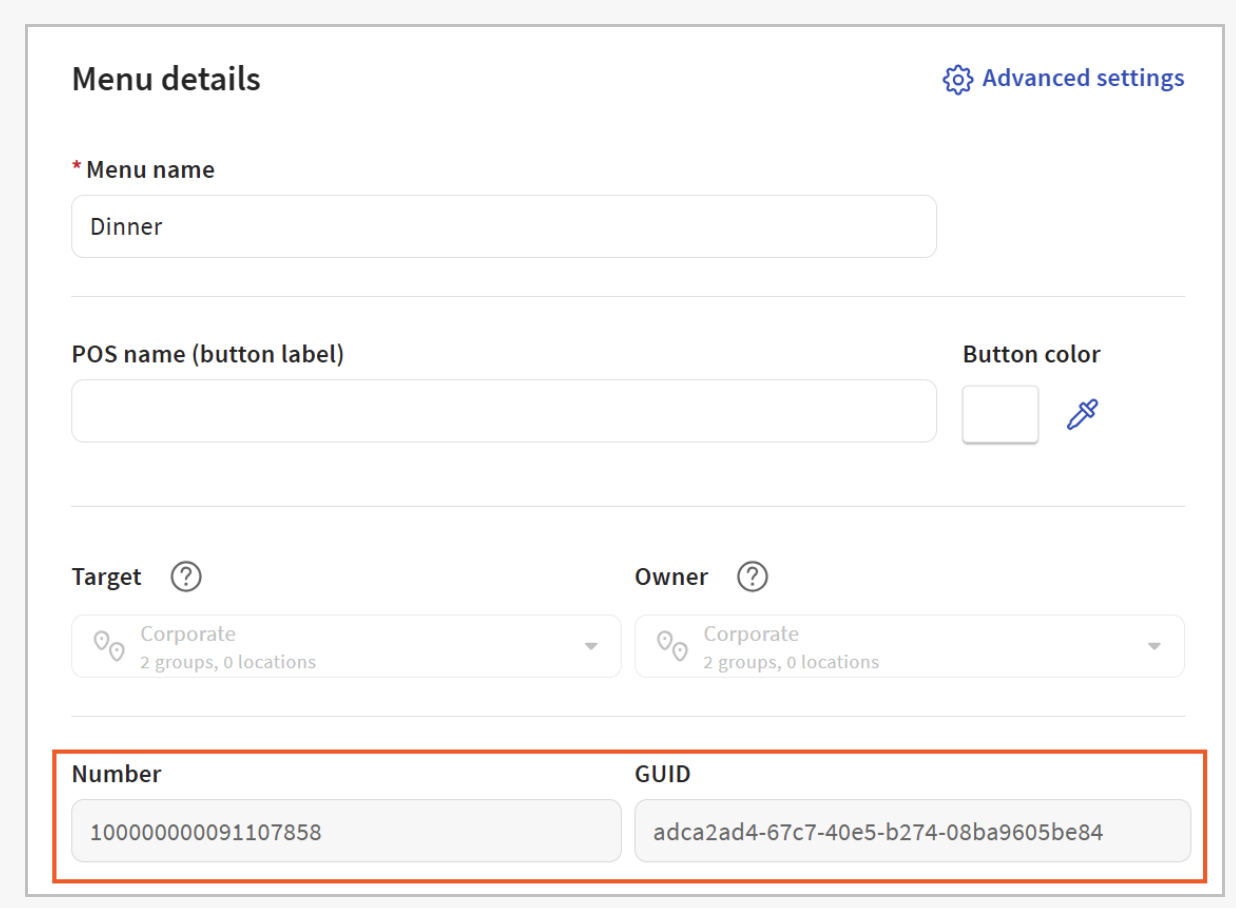
To see identifiers for menu entities, Toast support must enable the Order API product module for your restaurant. With this module enabled, you can see a menu entity's identifiers on its details page. The GUID field corresponds to the menu entity's versionID. The Number field corresponds to the menu entity's multiLocationId.
Identifiers for Prep Stations, Sales Categories, and Tax Rates
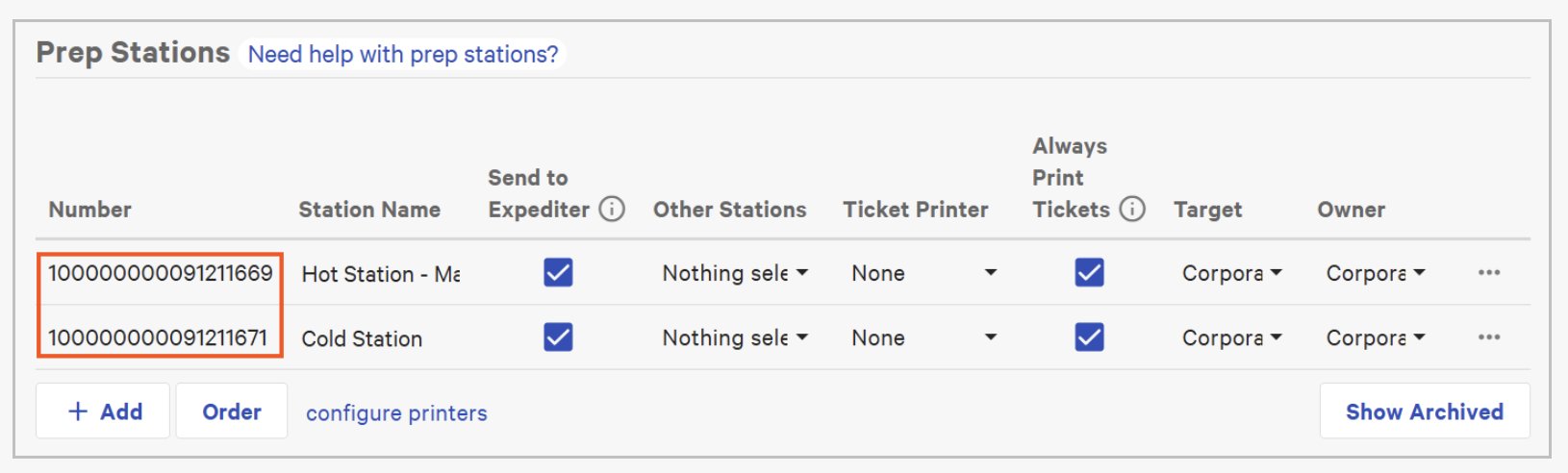
To see identifiers for prep stations, sales categories, and tax rates, Toast support must enable the multi-location management product module for your restaurant locations. When this module is enabled, a Number column is added to the listing page for each entity type that contains the multiLocationId for the entity. For example, this illustration shows the Number column on the Prep Stations page. If you don't provide a prep station ID when you create a menu item or modifier, the menu item or modifier inherits the prep station assigned to its parent menu entity. The same is true for sales categories and tax rates.
Identifiers for Location Groups and Individual Locations
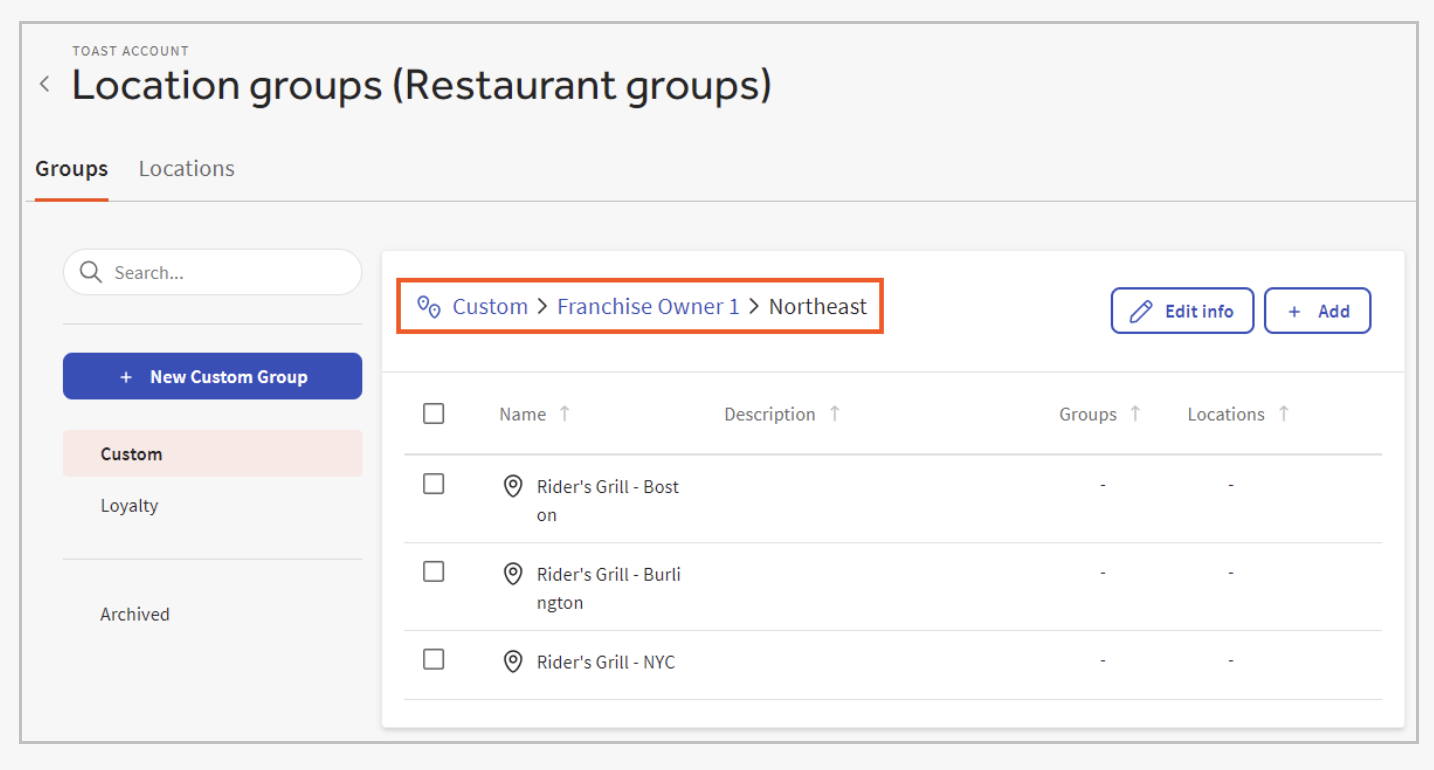
To see identifiers for locations and location groups (formerly called restaurant groups), Toast support must enable the multi-location management product module for your restaurant locations. When this module is enabled, the Toast account > Business and location management > Location groups (Restaurant groups) page becomes available in Toast Web. You can retrieve a location or a location group's identifier from this page, using the instructions below.
To retrieve a location group's identifier:
- Log in to Toast Web and navigate to Toast account > Business and location management > Location groups (Restaurant groups).
- On the Groups tab, search for or navigate to the location group that you need an identifier for. Its name should be listed at the top of the location group card.
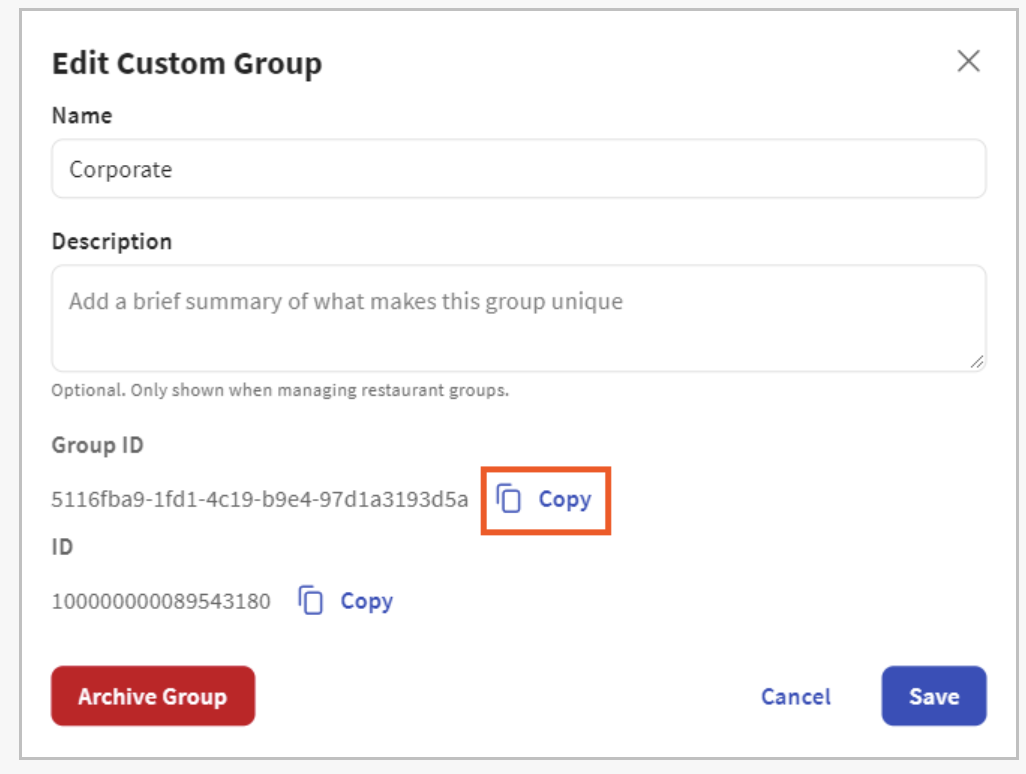
- Select Edit info. The Group ID field contains the Toast GUID for the location group. This is the identifier that the bulk menu import tool uses.
- Select Copy next to the Group ID field to copy the ID and paste it into your bulk import spreadsheet.
To retrieve a single location's identifier:
- In Toast Web, navigate to Toast account > Business and location management > Location groups (Restaurant groups).
- Select the Locations tab.
- Search for or scroll to the location you need an identifier for and then select the arrow at the end of its row.
- The location's page opens and the URL in the browser's address bar is updated with the location's GUID at the end of URL, after /locations. You can copy the GUID and paste it into your bulk menu import spreadsheet.

Pricing Strategy or Method for Bulk Import Menus
Base Price for Bulk Menus
Applies to: Menu groups, menu items (including modifier item references)
A base price is a constant price for a menu group or item that does not change based on other conditions (such as the time the order is placed).
To create a base price for a menu group or menu item:
- In the Pricing Strategy section of the menu group or item's details page, select Base Price.
- Enter the price in the Base Price field.
- Save your changes.
- If you are done editing prices for your menus, publish your changes.
To edit a base price after it has been created, you can either return to the menu group or menu item's details page and edit it there, or edit it on the Price editor page. For a menu item, you can also go to the details page for a menu group that contains the menu item and create or edit the item's base price in the Items grid.
Location-Specific Price for Bulk Import Menus
Applies to: Menu items (including modifier item references)
Location-specific pricing only applies to customers who use the enterprise module.
With location-specific pricing, the cost of a menu item (or a modifier's item reference) changes depending on the location where the order is placed, for example, a steak that costs $18 at the Boston location and $20 at the New York City location. Location-specific prices only apply to enterprises that have multiple locations and, for this reason, the information about them is included in the Enterprise module overview section, where other multi-location concepts are introduced. For more information about configuring location-specific prices, see Location-specific price overview.
Once you have created a location-specific price, you can either return to the menu item's details page and edit it there or edit it on the Price editor page. On the Price editor page, you can also bulk convert prices to location-specific prices.
Menu Item and Modifier Alcohol Labeling
Identifying alcoholic items makes it easier for online ordering partners to comply with alcohol delivery laws and enables restaurants to include alcohol with takeout and delivery orders. The details page for each menu item or modifier has a Does this item contain alcohol setting under the Properties section. This setting identifies whether the menu item or modifier contains alcohol in cases where orders containing alcohol benefit from additional handling. For example, local laws might require an ID check or prevent accrual of loyalty points.
To navigate to the details page for the menu item, select Menus > Bulk management > Advanced properties. Expand the menu and menu group that you want to add a new menu item to or that contains the menu item you want to update.
- For new menu items, select the name of the menu group you want to add the menu item to. Navigate to the Items section, select the Add drop-down list > Create New Item.
- For existing menu items, select the menu item name.
You see the details page for the menu item. Navigate to the Properties section to see the Does this item contain alcohol setting.
To navigate to the details page for the modifier, select Menus > Bulk management > Advanced properties. Expand the menu, menu group, and modifier group that you want to add a new modifier to, or that contains the modifier you want to update.
- For new modifiers, select the modifier group name you want to add the modifier to. Navigate to the Modifiers section, select the Add drop-down list, and New Modifier from New Item.
- For existing modifiers, expand the modifier group and the modifier. Select the modifier name.
You see the details page for the modifier. Navigate to the Properties section to see the Does this item contain alcohol setting.
Select Yes to indicate that the menu item or modifier contains alcohol and requires additional handling. Select No to indicate that the menu item or modifier does not require additional handling. For example, select Yes for items such as Red Wine and Beer, but No for items such as Bananas Foster or Rum Cake. Note: Once an option is selected, you can only select between Yes or No.