Create Playlists in the Insight Engage Platform
Last updated: May 28, 2026, 10:28 AM
Get started creating playlists in the Insight Engage Platform.
This article covers how to create a playlist in the Insight Engage Platform. For an overview on how to get started with the Insight Engage Platform, see Get Started With the Insight Engage Platform.
If you have further questions or require technical support, please contact Delphi directly from Mondays to Fridays, 6:00 a.m. - 3:00 p.m. PT at +1 (800) 456-0060 option 1.
- Playlists
- Create a Playlist
- Reorder Assets in a Playlist
- Add an Advertising Playlist
- Duplicating, Removing, or Editing a Playlist
- Add Content to a Playlist
- Search and Sort Playlists
- Best Practices
Toast support recommends that you read how to upload content to the Insight Engage Platform before reading this Support Center article.
Playlists
A playlist is a list of assets or media that can be played over a period of time. You can create multiple playlists within the Insight Engage Platform. You must add content to a playlist before you can add the playlist to the Scheduling Grid.
Playlists follow the same hierarchy rule as the content library. Creating a playlist at the top-level means that it shares the playlist with the lower levels. Changes made to top-level playlists appear everywhere the playlist is used.
Note: You can add multiple assets to a playlist, however Delphi Support recommends that you set the duration for each asset equally. For example, if you have three menu assets, they should all be equally set for the same duration of eight hours.
Create a Playlist
Note: When you create a new playlist, the playlist is assigned a default color code. This color code allows you to easily identify the playlist in the Scheduling Grid. To create a playlist:
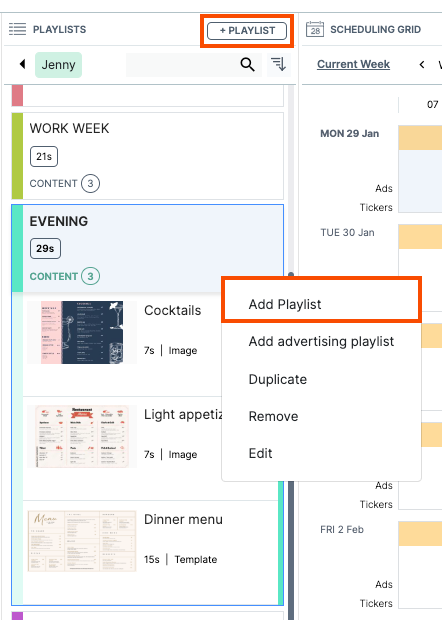
- In the Playlists window, select the +Playlist button. You can also create a new playlist by right-clicking on an existing playlist and then selecting the Add Playlist button. This opens the playlist dialog box.
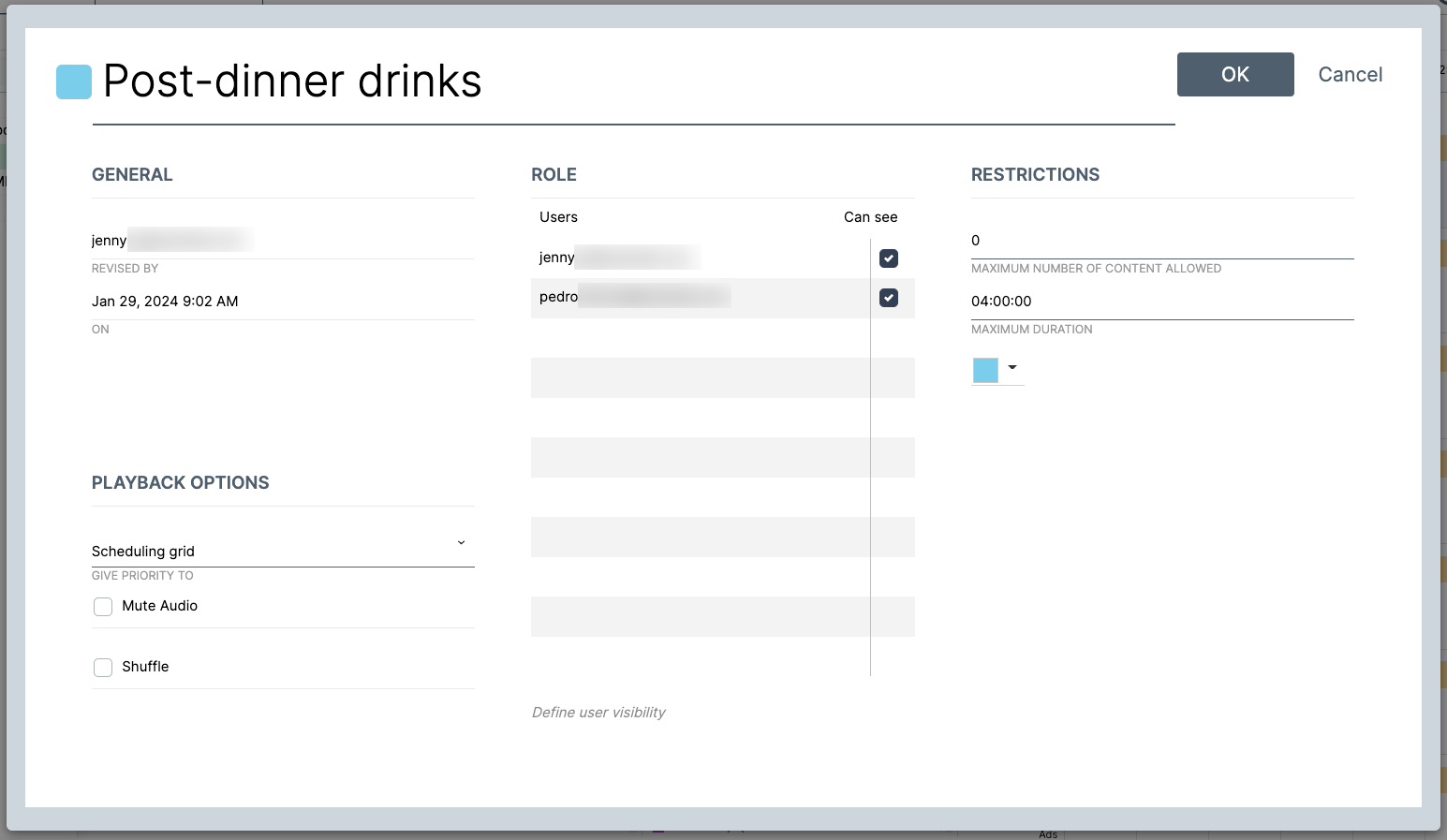
- In the playlist dialog box, you can:
- Name your playlist
- View asset details
- Assign it a color code for easier reference
- Adjust user visibility
- Configure your playback options
- Apply playback restrictions
- Configure your playlist and then select the OK button to save your playlist. Your playlist will appear in the Playlists window.
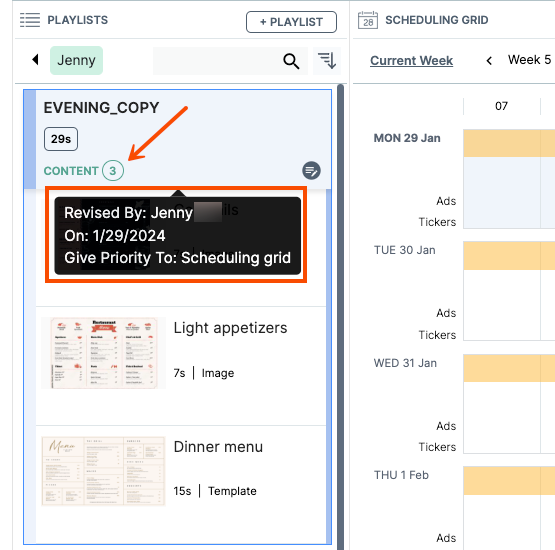
- Drag and drop your media assets into the new playlist. The uploaded assets appear under the playlist name. The playlist also displays the number of assets to be played. To view the assets in the playlist, click on the playlist.
Reorder Assets in a Playlist
You can reorder your assets by clicking and dragging the assets in the playlist.
Add an Advertising Playlist
| Delphi does not support the Advertising playlist function. |
From the Playlists window, you can also add an advertising playlist. To add an advertising playlist, the Advertising Module must be enabled for your Insight Engage Platform account.
Duplicate, Remove, or Edit a Playlist
From the Playlists window, you can choose to duplicate, remove, or edit an existing playlist.
- Duplicate: This creates a duplicate of the playlist. The name of the new playlist is [name of the playlist_copy].
- Remove: This removes the playlist. This action cannot be undone.
- Edit: This opens the playlist dialog box where you can edit the playlist.
Adding Content to a Playlist
Note: You can add content to a playlist at any hierarchical level and have it apply to the lower hierarchies.
From the Content window, drag and drop your asset into the desired playlist. When an asset is added to a playlist, this makes the asset valid and playable.
Search and Sort Playlists
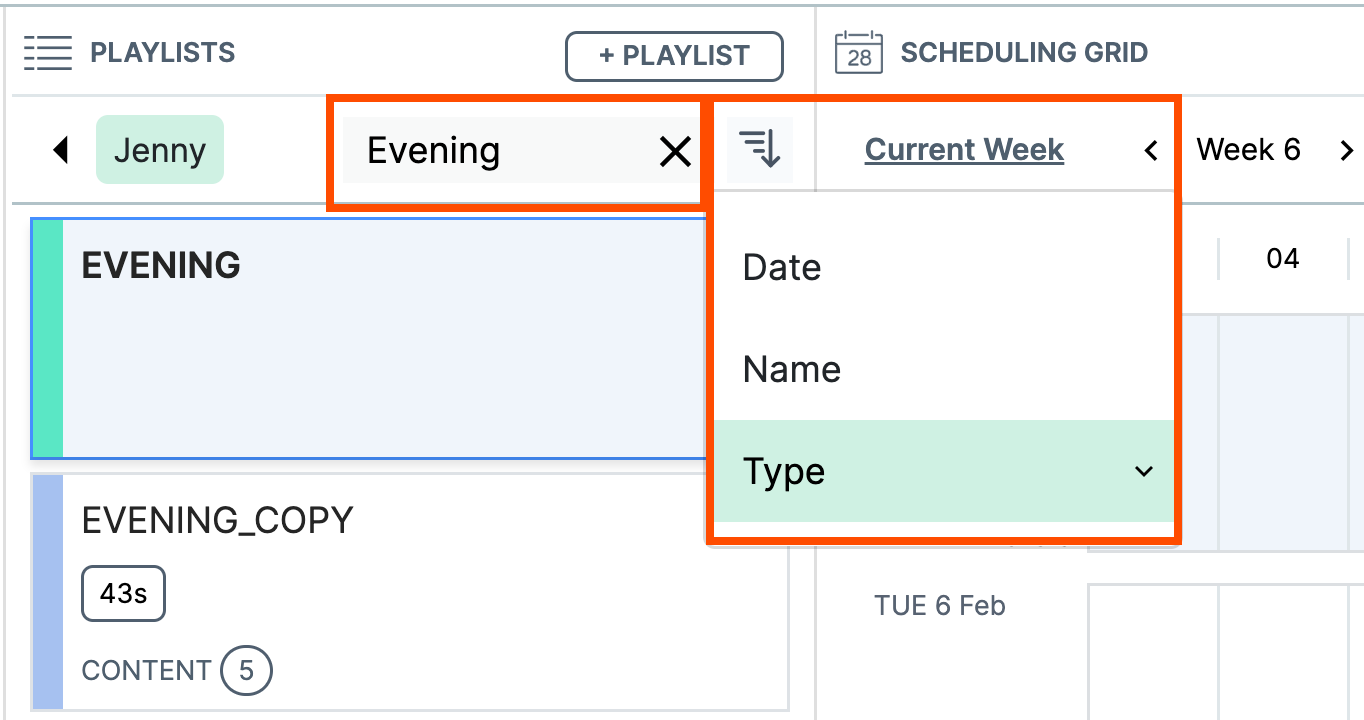
You can search for a playlist by entering in word(s) in the search field underneath the Playlists window. Enter the word and then select the magnifying glass icon to search.
You can also sort playlists by selecting the down arrow icon next to the magnifying glass. You can sort by the following criteria:
- Date
- Name
- Type
Best Practices
- Delphi Support recommends that you do not set playlists to play indefinitely. The longer the playlist, the longer it may take to render and publish in the Insight Engage Platform. Delphi Support recommends that you schedule playlists no further than two to three years out.
- Playlists that contain multiple assets cannot be scheduled for more than 24 hours. Playlists that are scheduled for more than 24 hours trigger an internal error in the Insight Engage Platform.