Get Help With Sales Not Showing Up in Reports
Last updated: May 13, 2026, 3:43 PM
Find missing sales in your Toast reports. Check filters, location, permissions, browser, offline-mode sync, and data freshness, or contact Customer Care.
- Before You Begin
- Quick Fix
- Step 1: Verify Date Range and Location Filters
- Step 2: Confirm Your Sales Reports Permission
- Step 3: Use a Supported Browser and Clear Cache
- Step 4: Check Sales Summary Data Freshness
- Step 5: Check for Recent Offline-Mode Activity
- Step 6: Check Third-Party Integration Sync
- Frequently Asked Questions
- Before You Contact Customer Care
- Related Articles
Before You Begin
Applies to: Toast Web
Permissions needed:
- 4.1 Sales Reports
What you'll accomplish: Identify why expected sales are not appearing in your Toast reports and take the most likely fix, or gather the right details before contacting Customer Care.
Quick Fix
Use this table to match your symptom to the most likely cause and the fastest fix. If a row applies, jump to the matching step below for full instructions.
| Symptom | Most Common Cause | Quick Fix | Self-Service? |
|---|---|---|---|
| Sales Summary shows $0 or no sales for the day you expect | Wrong date range or wrong location selected | Adjust the date range and location filters at the top of the report. See Step 1. | Yes |
| You can see some sales but specific recent sales are missing | Payments were taken in offline mode and are still being processed | Wait for devices to reconnect and payments to capture; do not select Capture in Close Out Day. See Step 5. | Yes |
| The report shows older data, not today's sales | Sales Summary data has not finished refreshing | Hover over the data indicator on the Sales Summary page to confirm the data status. See Step 4. | Yes |
| You cannot open or view any sales report at all | Missing the 4.1 Sales Reports permission | Ask your Toast Web admin to grant the 4.1 Sales Reports permission. See Step 2. | Yes |
| The page is blank, frozen, or behaves oddly | Browser issue or unsupported browser | Use Google Chrome and clear your cache and cookies. See Step 3. | Yes |
| Sales from a third-party integration (for example, xtraCHEF) are not appearing | Integration sync issue with the third-party platform | Verify the integration's connection in its own dashboard. See Step 6. | Partial |
| A specific check, payment, or dollar amount is missing from a closed day | Account-specific issue that needs a Toast lookup | Skip ahead to Before You Contact Customer Care. | No |
Step 1: Verify Date Range and Location Filters
Most reports of "missing sales" are caused by the report being filtered to the wrong date range or wrong location. Before doing anything else, confirm both filters.
- In Toast Web, navigate to Reports > Sales > Sales summary, or select Sales summary from the Quick Actions section of your Toast Web homepage.
- At the top of the report, open the date drop-down and select the date range you expect the sales to fall within. Pre-set options include yesterday, today, this week, and this month, or select Custom date for a specific range.
- Open the location drop-down next to the date filter. Confirm that the correct location is selected and that no other locations are checked. If your business uses restaurant groups, also check the Restaurant groups tab.
- If you used a custom date range, select Apply to refresh the report.
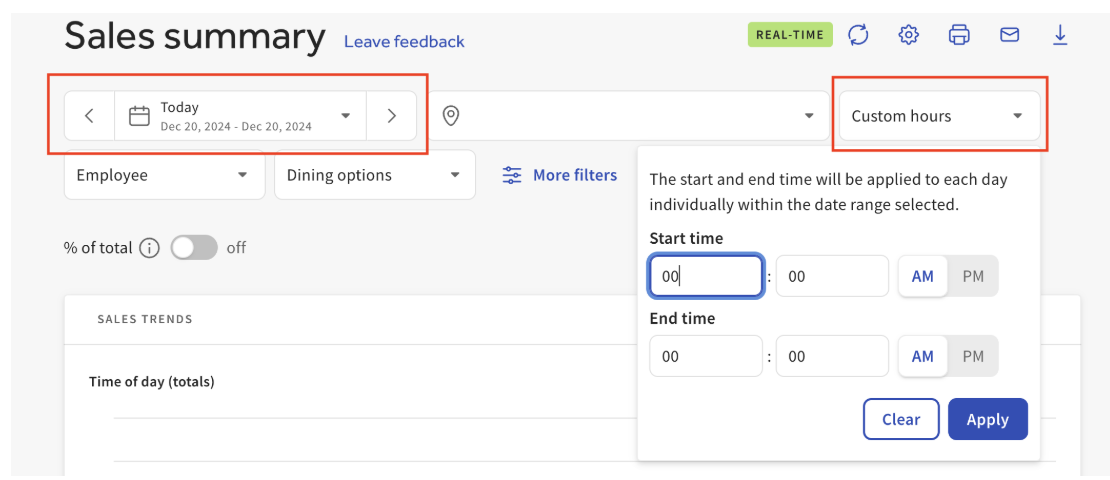
Expected outcome: Your sales for the selected date range and location appear in the report.
If the sales still do not appear, continue to Step 2.
Step 2: Confirm Your Sales Reports Permission
To view any sales data in Toast Web, your user account must have the 4.1 Sales Reports permission. Without it, the report will load empty or be inaccessible.
- Ask your Toast Web admin to confirm that your user role includes the 4.1 Sales Reports permission.
- If the permission was just added, sign out of Toast Web and sign back in for the change to take effect.
- Reopen the Sales Summary report.
Expected outcome: The Sales Summary report loads with your sales data visible.
If you still cannot see sales data after the permission is granted, continue to Step 3.
Step 3: Use a Supported Browser and Clear Cache
Toast Web is optimized for Google Chrome. Other browsers — including Safari — can cause the Sales Summary page to render blank or behave unexpectedly. A stale browser cache can also prevent the report from updating.
- Open Toast Web in Google Chrome.
- Clear your cache and cookies. For step-by-step instructions, see Troubleshoot Web Browsers for Accessing Toast.
- Reload the Sales Summary report.
Expected outcome: The report loads correctly in Chrome with your sales data visible.
If the report loads but specific recent sales are still missing, continue to Step 4.
Step 4: Check Sales Summary Data Freshness
Sales Summary data is updated in near real time, but during periods of high activity or after restoring connectivity, the data shown can be a few minutes behind your actual sales. Customers often describe this as a "data delay."
- In Toast Web, navigate to Reports > Sales > Sales summary.
- On the Sales Summary page, locate the Refresh control. Hover over the data indicator to view the current data status.
- If the indicator shows the data is not current, wait a few minutes and select Refresh.
Expected outcome: The data indicator confirms the report is showing current data, and your most recent sales appear.
For more detail, see Determine if the Data Shown in Sales Summary Report Is Current.
If the data is current but specific sales are still missing, continue to Step 5.
Step 5: Check for Recent Offline-Mode Activity
If your restaurant experienced a network disruption or service outage, payments taken in offline mode do not appear in reporting until each device reconnects to the Toast cloud and the stored payments are captured.
What to do:
- Confirm all POS devices are back online. The yellow offline-mode banner at the top of the device should be cleared. If a device still shows the banner, see Recover and Get Back Online After an Outage or Disruption.
- In Toast Web, navigate to Reports > Payments > Payments to check the status of payments taken during the outage. Statuses include Processing, Authorized, and Denied.
- Wait for payments showing Processing to finish capturing. Authorizations are captured automatically as devices reconnect — you do not need to trigger this manually.
| Important: Do not select Capture in Close Out Day while payments from an outage are still processing. Manually triggering capture may cause in-progress authorizations to be missed, resulting in deposit discrepancies. |
Expected outcome: Once each device reconnects and stored payments capture, the offline sales appear in your reporting.
Most offline payments capture within a few minutes to a few hours of reconnection. If a payment still shows Processing after three to five days, contact Customer Care.
If reporting is still missing sales after all devices have reconnected and payments have captured, continue to Step 6.
Step 6: Check Third-Party Integration Sync
If you use a third-party integration that pulls sales out of Toast — for example, xtraCHEF or another inventory or accounting platform — missing sales in that platform are usually a sync issue between the integration and Toast, not a Toast reporting issue.
- Confirm the sales appear in Toast Web at Reports > Sales > Sales summary for the date in question. If they do, Toast has the data and the issue is on the integration side.
- Open the third-party platform's dashboard and check its Toast integration status. Look for sync errors, disconnected status, or expired credentials.
- For xtraCHEF specifically, see xtraCHEF: Sales Setup.
- If the integration shows as connected but sales are still not syncing, contact the integration provider's support team. Toast cannot directly modify third-party integration data.
Expected outcome: The third-party integration shows the sales for the date you expected, or the integration provider confirms a sync issue is being resolved.
Frequently Asked Questions
Why does my Sales Summary show $0 for today?
Also asked as: "Sales Summary shows zero," "no sales today," "I am unable to see our sales numbers for today"
Your Sales Summary shows $0 most often because the date range filter is set to a different day, the wrong location is selected, or you do not have the 4.1 Sales Reports permission. Start at Step 1 above to check the date range and location, then Step 2 for permissions.
Why are my POS sales not syncing?
Also asked as: "POS sales were synced but now are not," "sales not syncing," "how do I resync sales"
POS sales not syncing usually means a device is still in offline mode, a recent outage left payments in a Processing state, or there is a third-party integration sync issue. See Step 5 for offline-mode payments and Step 6 for third-party integrations.
How long does it take for offline payments to show in reports?
Also asked as: "how long does it take for a POS to process sales after it comes back online," "when will my offline sales appear"
Offline payments begin processing as soon as each device reconnects to the Toast cloud. Most payments appear in reports within minutes to a few hours after reconnection. If a payment still shows Processing after three to five days, contact Customer Care.
How far back can the Sales Summary show data?
The Sales Summary can show data from the past 15 months. For an emailed export of data older than 15 months, contact Customer Care.
Why are sales showing under the wrong section of the report?
Also asked as: "sales not reported correctly under dining option," "items showing under No Sales Category"
Sales appearing under the wrong section — for example, under No Service or No Sales Category Assigned — usually mean the underlying menu item, dining option, or service period is not configured. For full details, see Sales Summary FAQ.
Before You Contact Customer Care
If you have worked through Steps 1 through 6 and a specific check, payment, or dollar amount is still missing — or you need help reconciling a specific date — gather the following before contacting Customer Care:
- The exact date and date range where sales are missing
- The location selected on the report
- The specific sales, check numbers, or dollar amount that is missing (for example, "Daily Sales Summary for 5/2 shows $114.85 unaccounted for")
- Whether your devices were in offline mode during the affected date and, if so, the approximate time of the outage
- Whether a third-party integration is involved and what platform it is
- Steps you have already tried from this article
Contact Customer Care through the Support button in Toast Web, or see How can I contact support in the Toast app?.
Related Articles
- Sales Summary Report Overview
- Determine if the Data Shown in Sales Summary Report Is Current
- Sales Summary FAQ
- How do I access sales reports?
- Recover and Get Back Online After an Outage or Disruption