Get Started With Support Center
Last updated: Oct 2, 2026, 11:08 AM
Learn how to navigate the Help Center in Toast Web.
- Support Center Overview
- Before You Begin
- Step 1: Access Support Center
- Step 2: Open a Case or Start a Chat
- Step 3: View and Manage Your Cases
- Step 4: Understand Case Statuses
- View Notifications in Support Center
- Related Articles
Support Center Overview
Support Center is a one-stop section inside Toast Web that brings your Customer Care experience together for all of your locations. From the Support Center dashboard, you can:
- Use the Customer Case Portal to create, track, and reply to cases in one place.
- Use Chat Support to open a new case or continue chatting with an agent on an existing case.
- Use Article Search to find knowledge base articles without leaving Support Center.
- Use Device Hub and System Status to see device health in real time and get alerted when a device goes offline.
- Use Notifications to see real-time alerts about issues that may affect your business.
- Use Toast Classroom and Office Hours for on-demand training and live sessions with Toast trainers.
- Use Toast Community to connect with other industry professionals.
- Use Product Updates to stay current on new product and feature launches.
For more detail on device monitoring, see Device Hub Overview.
Before You Begin
Applies to: Toast Web
Permissions needed:
- A Toast Web login for your restaurant
What you'll accomplish: Open Support Center, open or continue a case with Customer Care, find your existing cases, and read each case's status.
Step 1: Access Support Center
- Log in to Toast Web.
- Open Support Center using one of these options:
- In the left menu, select Support Center.
- In the top right corner, select the Help button (small question mark inside the circle).
Expected outcome: The Support Center dashboard opens, with your active cases, the Talk to us section, and tiles for the other Support Center features.
Step 2: Open a Case or Start a Chat
Cases with Customer Care are created when you start a chat. To open a new case from Support Center:
- From the Support Center dashboard, find the Talk to us section.
- Select Start a chat.
- Describe your issue in the chat to begin a conversation with Customer Care.
Expected outcome: A chat opens with Customer Care, and a case is created for your conversation. Chat support is available 24/7.
Note: Chat messages that begin on the web are saved automatically and can be continued in the Toast Now app, and the other way around. For other ways to reach Customer Care — including phone, Toast Now, and your Toast device — see Contact Customer Support.
Step 3: View and Manage Your Cases
To find a case you've already opened with Customer Care, return to Support Center.
- In Toast Web, open Support Center using either option in Step 1.
- Under My active cases, select View all cases.
- If you manage more than one location, use the location picker to filter the list to one location or several.
- Select the > icon on the right side of a case row to open the Case Details page.
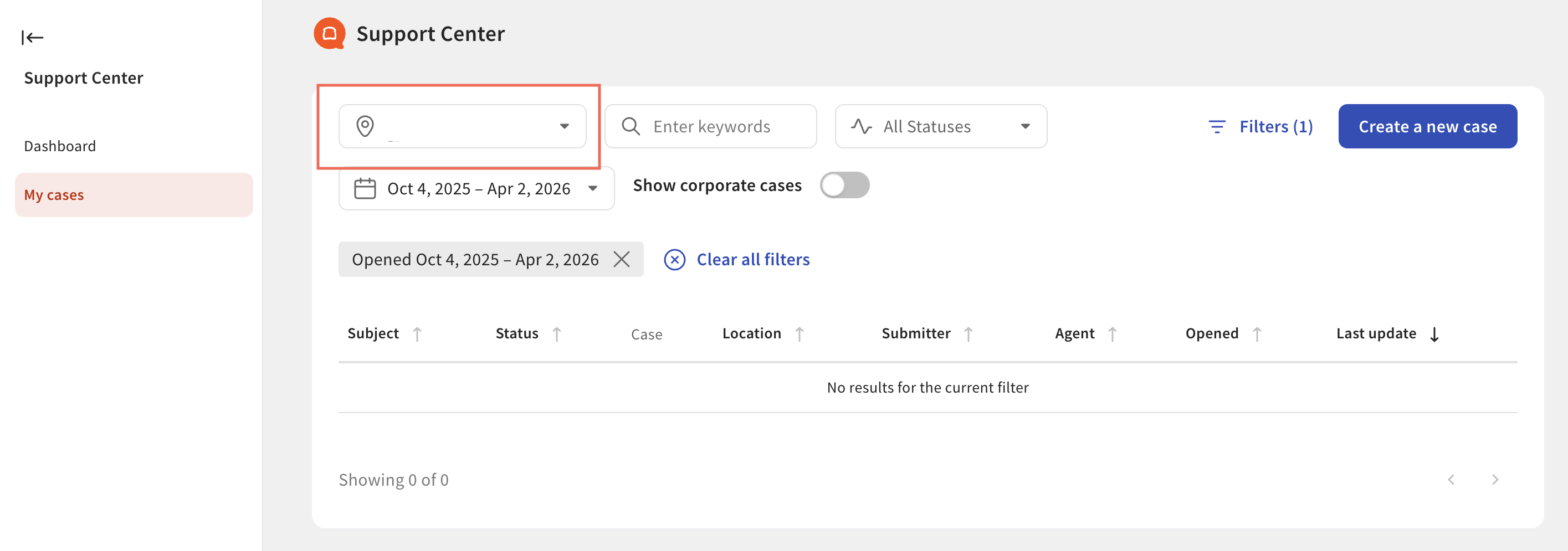
On the Case Details page you can:
- Add a comment or attachment to your case.
- Chat with an agent in real time if the issue is urgent.
- Close the case when you're done.
To close a case you no longer need open, select Close this case in the top right corner of the Case Details page, write a short note about how it was resolved, and then select Yes, close this case. If you're not ready, select No, keep this case open.
Expected outcome: You can see every case for your locations, open any case to read its history, and close cases that are resolved.
For more on adding comments or attachments to an existing case, see Get Help With Customer Care Case Comments and Details.
Step 4: Understand Case Statuses
When you view your cases in Support Center, each case shows a color-coded status so you know where it is in the resolution process. The table below explains each status.
| Status | Status Image | What It Means |
|---|---|---|
| In Queue |  | Your case is open but has not been assigned to an agent yet. |
| In Progress |  | Your case is being worked on, is pending, or is pending a follow-up from the Care team. |
| Needs Response |  | Your assigned agent is waiting on information from you before they can move forward. |
| Pending Follow Up |  | Your case is waiting on a follow-up from a team at Toast or from a team outside of Toast. |
| Resolved |  | Your case has a proposed resolution, an assumed resolution after prolonged inactivity, or a confirmed resolution. |
| Closed |  | Your case has been closed. |
| Merged |  | Your case has been combined with another open, related case so no details are lost. |
Note: If a case has been closed and you need more help on the same issue, contact Toast Customer Care to reopen it or to start a new case.
View Notifications in Support Center
Notifications from Toast will be located within your inbox in Support Center. If you have multiple restaurants associated with your profile, all notifications will be grouped together into one, central inbox tied to your profile so you can easily monitor notifications for all of your restaurants using the location picker.
To access your inbox, select the bell icon in your Toast Web top menu bar, or select Inbox in the left side navigation menu as seen in the image below:
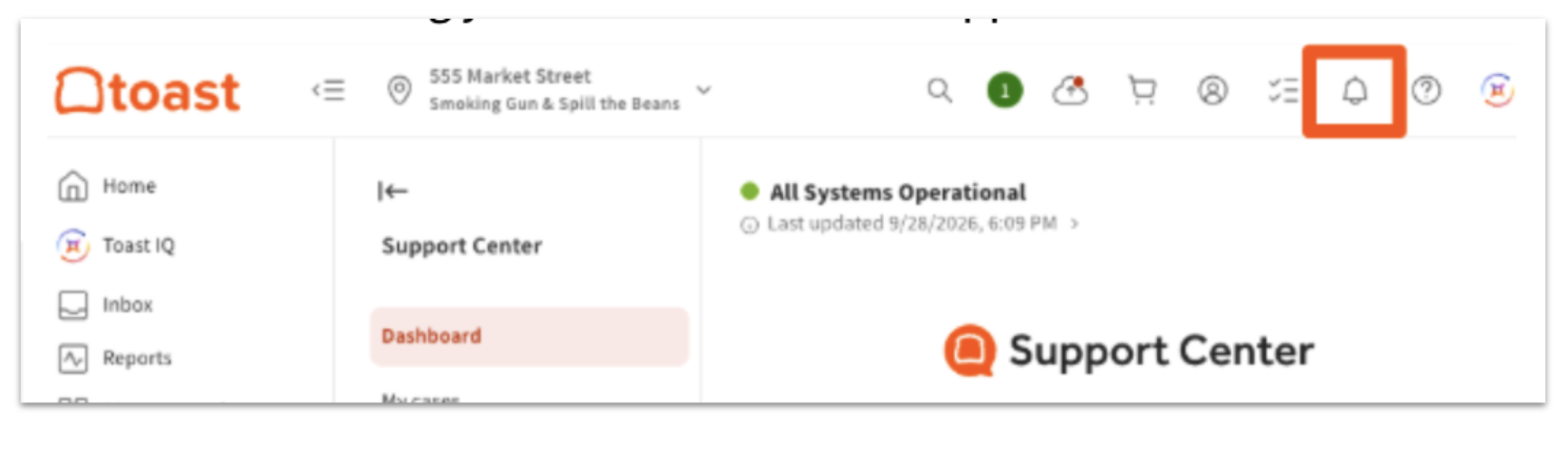
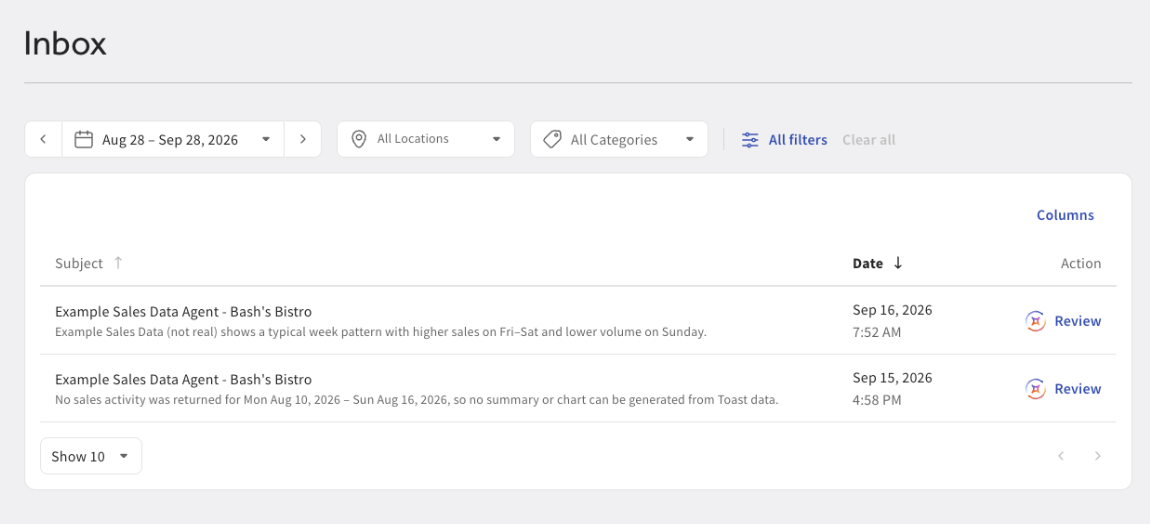
Any Toast IQ AI notifications that you receive in your inbox are related to a Toast IQ session you created or an AI agent you have assigned so you can easily access the conversation ask follow-up questions if necessary. To learn more about Toast IQ AI agents, see Toast IQ Agents Overview.
To open the notification and learn more, select Review as seen on the right side of the notification row as seen in the image below:
Related Articles