Device Hub Overview
Last updated: Sep 16, 2026, 5:03 PM
Access and navigate to Device Hub in Toast Web to manage device status, enable and view connections, and troubleshoot.
Device Hub is a centralized view in Toast Web for managing the status, connections, alerts, and serial numbers of every terminal, handheld, and printer at your restaurant. Use Device Hub to confirm devices are online, find a serial number, troubleshoot a device that is offline or not appearing, view a terminal or handheld's current POS settings, and manage device subscriptions.
- TLDR About Device Hub
- Required Permissions
- Access Device Hub in Toast Web
- What You See in Device Hub
- Device Status: Online, Offline, and Inactive
- Device Details Page
- View a Device's POS Settings
- Why a Device Is Not Showing in Device Hub
- Transfer Existing Subscriptions and Remove Inactive Devices
- Get Additional Support From Device Hub
- Frequently Asked Questions
- Related Articles
TLDR About Device Hub
Device Hub is a single page in Toast Web that lists every terminal, handheld, and printer at your restaurant, along with each one's online or offline status, serial number, last seen time, IP address, and any active alerts. It is the fastest place to confirm a device is online, find a device's serial number for troubleshooting, see which devices are inactive, and start a chat with Customer Care about a specific device. Device Hub is part of Support Center in Toast Web.
Required Permissions
You must have the Sales Reporting 4.1 permission to access and use Device Hub in Toast Web. To manage device licensing from Device Hub, you also need the Financial Accounts 8.1 permission to remove a subscription and the Toast Shop Purchases 8.5 permission to purchase a subscription.
For more information on permissions, see the Permissions Reference Guide.
Access Device Hub in Toast Web
Log in to Toast Web and select Device Hub on the left-hand navigation rail.
You can also navigate to Device Hub through Support Center. To learn more about Support Center, see Get Started With Support Center.
What You See in Device Hub
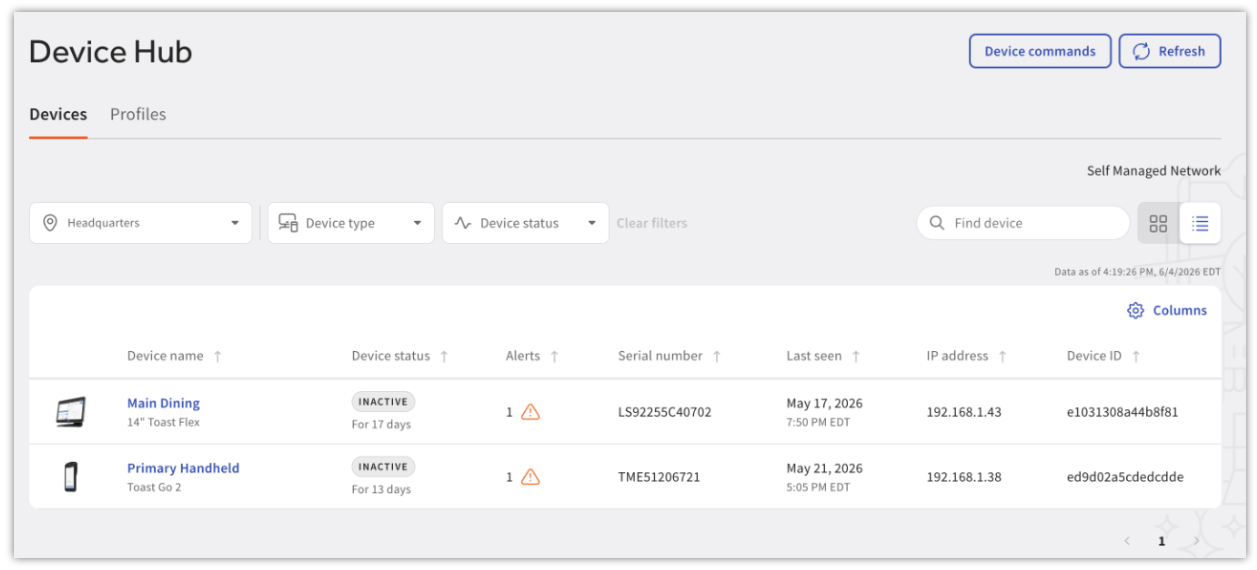
When you open Device Hub, a table appears listing the devices at your restaurant. Each row represents one device.
Default Columns
Your Device Hub lists the following columns by default:
- All of your devices by name
- Online or offline status
- Serial number
- Last seen time (when the device last contacted Toast's servers)
- Enabled connections (with a green checkmark showing the active connection)
- IP address
- Alerts
Additional Columns
You can add more columns by selecting Columns. The following columns of data are available to add:
- MAC address
- Mode
- Firmware version
- Toast POS version
- Device ID
Note: Viewing these additional columns may require scrolling horizontally.
Filters and Search
Within Device Hub, you can filter the list by Device type:
- Terminal
- Handheld
- Printers
You can also filter by Device status, selecting Online or Offline.
To find a specific device, enter the device name or serial number in the Find Device search field.
Device Status: Online, Offline, and Inactive
A device's status reflects the last time it contacted Toast's servers:
- Online—the device has contacted Toast's servers recently
- Offline—the device has not contacted Toast's servers for more than six minutes
- Inactive—the device has not contacted Toast's servers for two days or more
The Toast Web version of Device Hub shows all of your devices, including devices that have been inactive for more than 30 days. The Toast Now version of Device Hub shows only devices seen in the last 30 days, so a device that has been inactive for more than 30 days no longer appears there.
Device Details Page
Selecting any device in Device Hub navigates you to that device's details page. The information shown depends on the device type.
Terminals and Handhelds
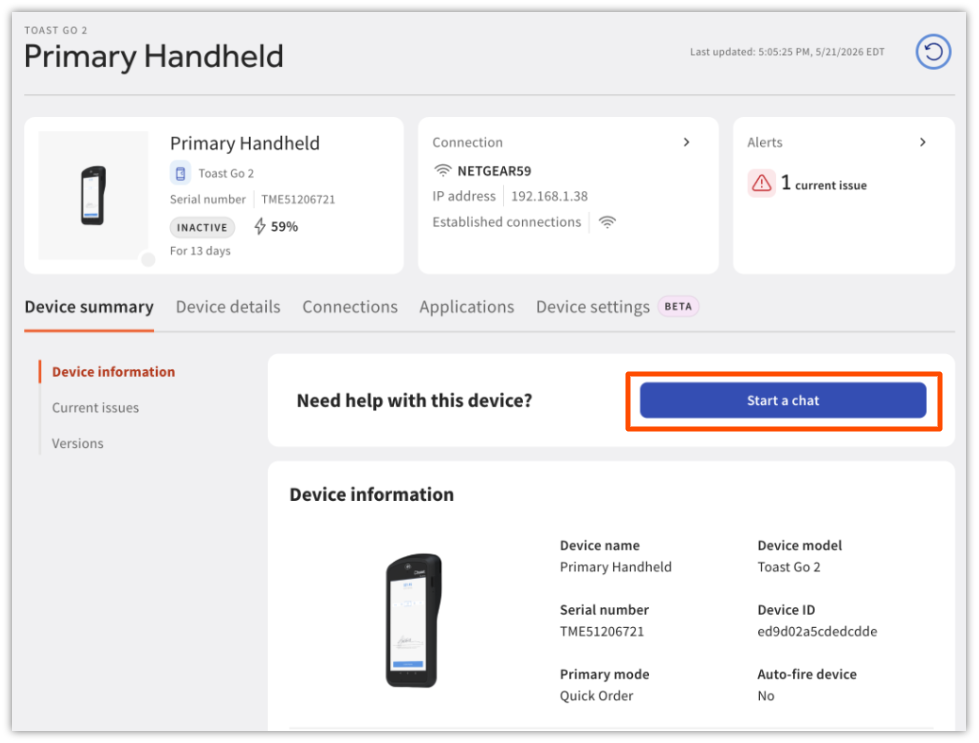
For terminals and handhelds, the device details page shows:
| Section | Contents |
| Current Issues | Status, alerts, and issue details |
| Connection Information | Enabled connections |
| Connected Receipt Printers | Any receipt printers connected to this terminal or handheld. If no printer is connected, this card is empty. |
| Device Information | Name, model, serial number, device ID, primary mode, auto-fire device status, and PCI compliance |
| Version | Software details |
| Settings | Read-only view of the device's current POS configuration settings. See View a Device's POS Settings below. |
Printers
For printers, the device details page shows the same sections as terminals and handhelds, plus printer-specific details:
| Section | Contents |
| Current Issues | Documents any previous problems with the selected printer |
| Connection Details | Compares on-device information against the information in your Toast Web printer setup |
| Prep Station Set Up | Displays assigned prep stations |
| Device Information | Device name, device model, serial number, and backup printer (if configured) |
| Version | Software version |
Note: If a printer doesn't have a backup printer configured, select Select backup in the Device Information card to set one up.
View a Device's POS Settings
For terminals and handhelds, Device Hub also shows a read-only view of the device's current POS configuration settings — the same settings found in the on-device Device Setup menu (Primary Mode, Screen Timeout, Auto-Fire Device, EMV Enabled, and more). This lets you confirm how a device is set up without walking up to it, which is especially useful for troubleshooting or verifying a device's configuration remotely.
To view a device's settings:
- Select a terminal or handheld in Device Hub to open its device details page.
- Select the Settings tab.
A few things to know about this view:
- This shows the last reported configuration from the device, along with a Last Updated timestamp — not a live, on-demand read. If a device is offline, its Settings tab won't reflect changes made on the device until it reconnects.
- This is currently available for terminals and handhelds only. Printer settings are not shown here yet.
- Some settings depend on setup elsewhere in Toast Web — for example, tipping and login screen options configured on the UI Options page. Where this applies, you'll see a Related settings link that takes you directly to that page.
- This view is currently read-only. To change a setting, you'll still need to update it directly on the device. For the full list of POS settings and what each one does, see POS Device Setup Overview.
Why a Device Is Not Showing in Device Hub
A common situation is when a newly connected device—most often a printer—does not appear in Device Hub. A device appears in Device Hub only after it has successfully connected to your network and contacted Toast's servers, so a device that has never connected, or that is having a network or setup issue, will not be listed.
If a new or existing printer is not showing in Device Hub, see Printer Setup Overview for setup checks, and Get Help: My Printer Isn't Working for printer troubleshooting steps. For network connection issues, see Get Help With Printers Going Offline.
If a handheld, terminal, or other device is not appearing after setup, confirm the device is powered on and connected to the same network as your other Toast devices, then wait several minutes for it to register. If it still does not appear, contact Customer Care.
Transfer Existing Subscriptions and Remove Inactive Devices
If you’d like to see how long a device’s subscription remains, see Device Status: Online, Offline, and Inactive in Device Hub.
| The following information in this section, as well as "Purchase a Subscription for a Device," and "Transfer a Subscription to Another Device," only applies if your devices are enrolled in device licensing and if you see licensed devices in your Device Hub. |
You can also manage device subscriptions directly in Device Hub. If a device's subscription has expired, it is linked in a pink banner at the top of the page. You can also find affected devices in the Device software subscription column, where they are marked with a pink REQUIRED button.
If you don't see the Device software subscription column, select the [gear icon] Columns and check Device software subscription to make it visible. If you don't see this option, contact Customer Care.
Purchase a Subscription for a Device
In the Device software subscription column, select Purchase for the device you want to license and follow the instructions.
Transfer a Subscription to Another Device
If you'd rather move an existing subscription from one device to another:
- Locate the subscribed device.
- In the Device software subscription column, select View and manage.
- Select the Make changes dropdown, then Transfer a subscription.
- Select the device you want to apply the subscription to.
- Select Continue. You'll see a preview of the transfer.
- Select Submit to finalize the transfer.
To cancel a subscription for a device you no longer use, or to view device licensing status, see the Device Licensing FAQ. The Device Licensing FAQ explains what happens when a device becomes unlicensed and the 14-day grace period before an unlicensed device locks.
Get Additional Support From Device Hub
If you need additional support in the Device Hub, select a device from the Devices list to open its details page, then select the Start chat button.
When you start a chat from Device Hub, information about the selected device is automatically attached to the chat so Customer Care has the context to help you faster.
Frequently Asked Questions
What makes a device inactive versus offline?
If a device does not contact Toast's servers for more than six minutes, Device Hub marks it as Offline. If the device does not contact Toast's servers for two days or more, it is marked as Inactive. For how long a device remains listed in Device Hub, see Device Status: Online, Offline, and Inactive.
How do I remove an inactive device from Device Hub?
For how long a device remains listed in Device Hub, see Device Status: Online, Offline, and Inactive. If you want to cancel the subscription for a device you no longer use, see Device Licensing FAQ for steps to manage your device subscriptions.
Why is my new printer not showing in Device Hub?
A printer must successfully connect to your network and contact Toast's servers before it appears in Device Hub. If a new printer is not showing, see Get Help: My Printer Isn't Working for printer troubleshooting steps and Printer Setup Overview for setup checks.
Where can I find Device Hub?
Device Hub is in the left-hand navigation rail in Toast Web. Log in to Toast Web and select Device Hub. You can also navigate to Device Hub through Support Center.
Can I export Device Hub data?
There is no way to export Device Hub data.
Can I edit a device's POS settings from Device Hub?
Not yet. The Settings tab on a terminal or handheld's device details page is currently read-only. To change a setting, update it directly on the device. See View a Device's POS Settings above.
Related Articles
- POS Device Setup Overview
- Manage UI Options for Multiple Locations
- Device Licensing FAQ
- Get Started With Support Center
- Printer Setup Overview
- Get Help With the Toast Printing Hub
- Toast Printing Hub FAQ
- Archive and Remove Printers in Toast Web
- Get Help: Troubleshoot Printer Error Messages