Get Started With Menu Upsells On The POS
Last updated: Sep 29, 2026, 4:55 AM
Learn how to use Menu Upsells to increase revenue by recommending menu items and add-ons to guests via server notifications on the Toast Flex, Toast Go, Kiosk, and Guest-Facing Display.
| If you are looking for information on Online Ordering Upsells, see Optimize Online Ordering Item Upsell for more information. |
Menu Upsells On The POS Overview
Restaurants can use menu upsells to encourage servers to upsell specific menu items and add-ons, helping increase the average check size.
To find menu upsells, navigate to Toast Web > Menus > Upsells > Menu Upsells.
Note: To create a menu upsell, you must have a combination of the following permissions:
- 4.5 Edit Full Menu or 4.14 Local Menu Edit
AND - 3.0 Manager or 6.6. Restaurant Operations Setup
Create Your First Menu Upsell For POS
Need help coming up with menu upsell ideas? Ask Toast IQ! Toast IQ will surface data-driven suggestions based on your sales data. To learn more about Toast IQ, see Toast IQ AI Assistant Overview.
To create your first upsell:
- In Menu Upsells, select the blue Create new upsell button.
- Next, select an upsell type from the following options:
- Menu pairing recommendation: Recommend a menu item to pair with another chosen menu item, such as a glass of red wine with a steak.
- Standalone recommendation: Recommend a menu item at the beginning of the meal to elevate the dining experience, such as a glass of champagne to celebrate an anniversary.
- Modifier recommendation: Recommend an upgraded modifier, such as recommending adding avocado to a burger. Note: Not available on the Kiosk at this time.
- Item upgrade: Recommend a substitute for a chosen menu item for an upgraded experience, such as replacing French fries with truffle fries. Note: Not available on the Kiosk at this time.
- Multilocation management customers only: Select the location(s) where the upsell recommendation is available, and who will be able to edit the upsell.
- Select the ordering channel (device type) where you want your upsell to appear. You can select from either POS (this includes both Flex POS and Toast Go units), Guest-Facing Display, Kiosk, or any combination of the above options with the available toggles. Note: To select Guest-Facing Display, POS must be toggled on.
- Select the driving menu item or items, and the item you want to recommend for upsell. When a driving item is selected, this is what prompts the upsell recommendation to appear on your device.
- If you selected that your upsell should appear on your guest-facing display, you can customize the messaging your guests will see when the upsell option populates in the Guest-facing display message section.
- Select the blue Create upsell button.
- After you create an upsell, you will be brought back to the Menu Upsells recommendations tab to publish your upsells.
- When you are ready, Publish your upsells. Menu upsells are automatically saved, but need manual publishing to go live on your POS.
Note: Standalone recommendations do not require a driving menu item.
Add Your First Menu Upsell to Your Check on Your POS
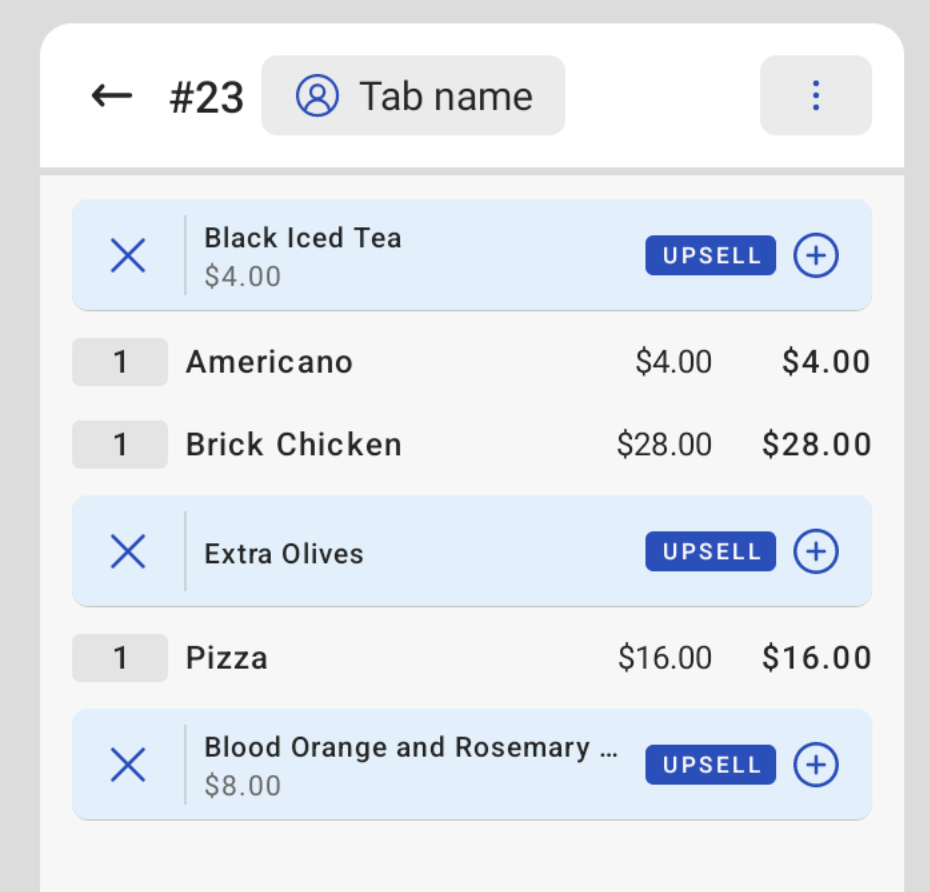
Once your menu upsells have been created and published, your servers will see blue banners appear on their order screen detailing the upsell opportunity. For a standalone recommendation, the blue banner will appear when an order is opened. All other upsell types will trigger the blue banner when the driving menu item is selected. Once the blue banner appears, servers can select the (+) icon on the right side of the banner to add the upsell recommendation to the order, as seen in the image below. Servers can also dismiss the upsell recommendation by selecting the (X) icon as seen in the image below:
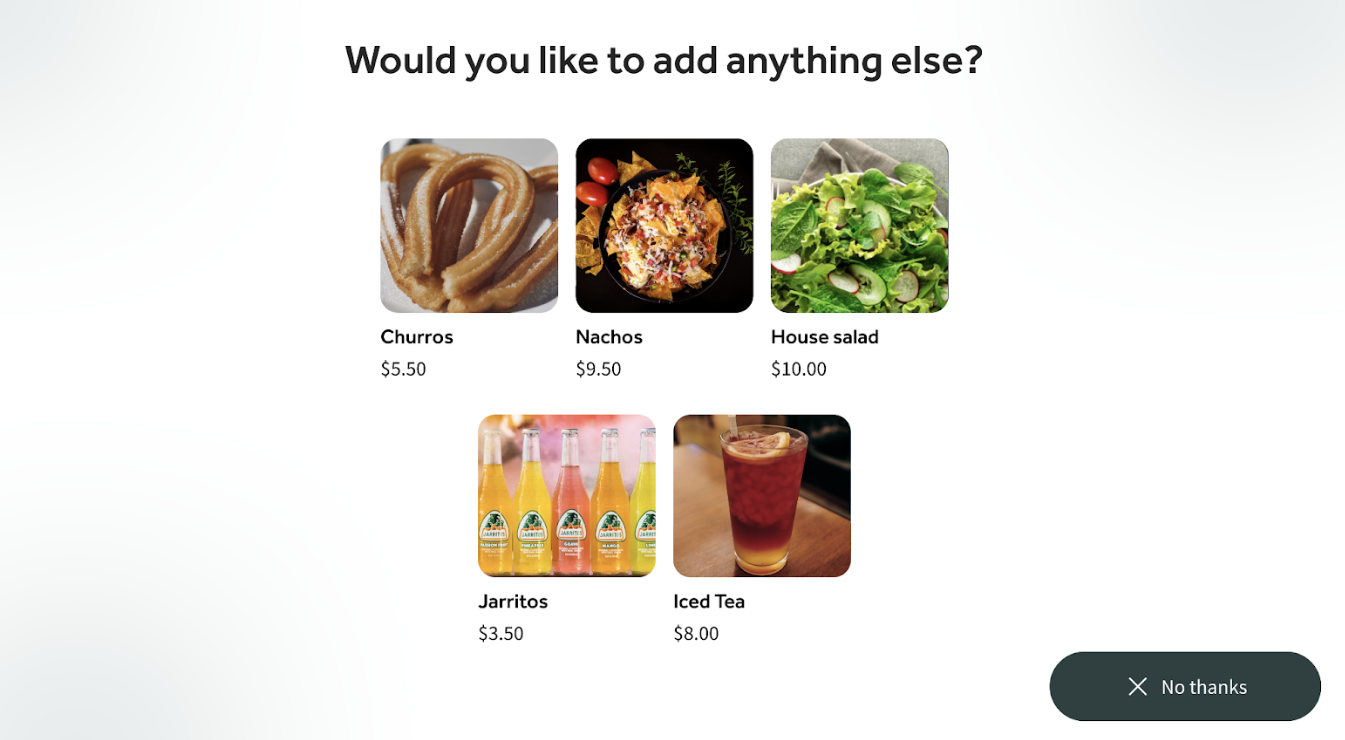
For upsell recommendations on the Toast Kiosk, guests can choose to select one of the provided options, or select the No thanks button in the bottom right corner to continue with their order, as seen in the image below:
For upsell recommendations on the Guest-Facing Display, guests will see the upsell recommendations on the right side of the screen directly next to their check, as seen in the image below:
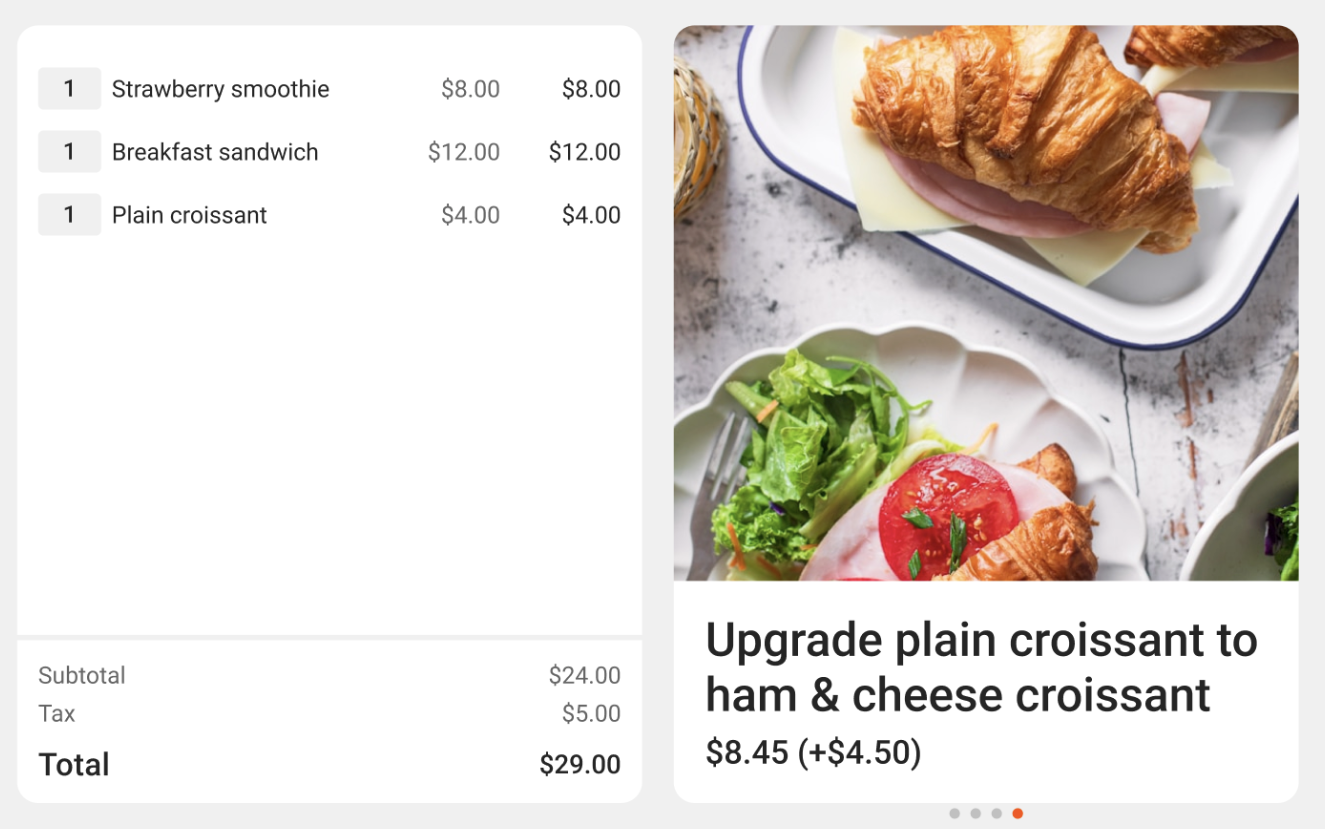
Guests can swipe left and right between upsell suggestions and inform their server which upsell they would like to add to the order if applicable.
Editing Menu Upsells
To edit an existing Menu Upsell:
- Navigate to the Menu Upsell Dashboard.
- Select the item name you would like to edit.
- On the edit page, you can adjust the channel visibility, locations (if applicable), and add or remove driving menu items for the selected upsell.
Menu Upsells Dashboard and Reporting
Within the menu upsells performance tab in Toast Web on your desktop, you’ll find upsell-specific reporting that details the:
- Gross sales generated from Menu Upsells
- Percentage of total sales consisting of Menu Upsells
- Total number of items upsold
- Average difference in check sizes between orders with a Menu Upsell compared to orders without a Menu Upsell
- Percentage of guests who accepted and added a Menu Upsell item
- Top performing Menu Upsell recommendations
- Top performing Menu Upsell servers
- Top upsell locations (if applicable)
Note: This report now uses tax-inclusive Gross Sales definitions for tax-inclusive locations. Gross sales includes tax and excludes discounts and refunds, consistent with Sales Summary and Product Mix.
To view more detailed reporting by item, scroll to Relevant Pages and select Menu upsell performance report.
This report can be filtered by location (if applicable), time range, and ordering channel as desired, and is also accessible in the Toast Now app.
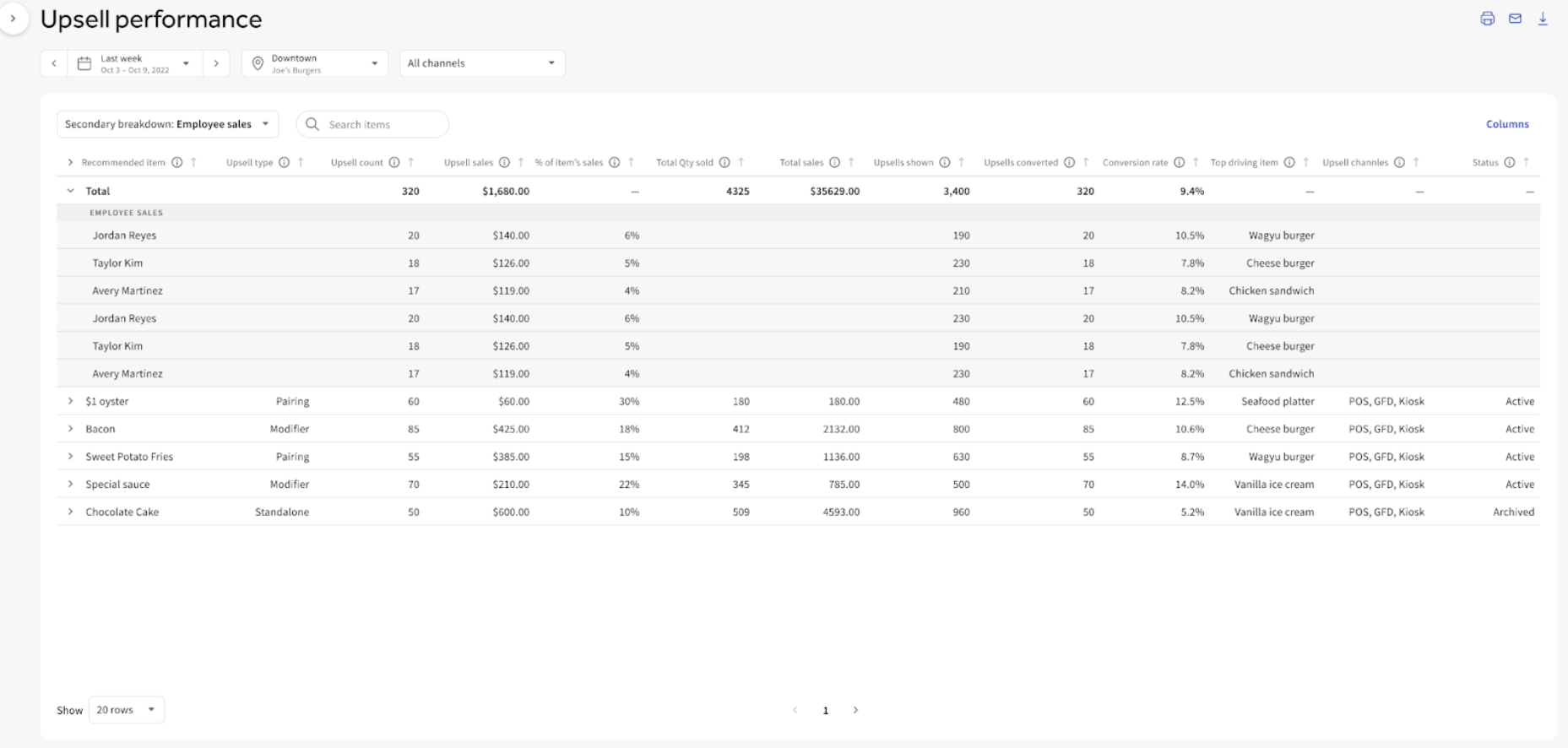
Below your reporting features, the Upsell Recommendations list features your currently active menu upsell recommendations detailing the upsell type, recommended item, channels, and driving menu item.
To archive an upsell, select the archive icon on the right-hand side of the upsell you’d like to archive, as seen in the image below.
You can also reorder your upsells at any time on this page by selecting the reorder icon directly to the left of the upsell name as seen in the image below, then clicking and dragging it into your preferred position. When a driving menu item triggers multiple upsell suggestions, they’ll show up based on your upsell recommendation order. The higher an item is in the list, the higher its priority.

You can also view the following upsell reporting features in the Toast Now app:
- A high-level upsell performance overview
- A single-day view
- Item-level and employee-level views showing name, total sales, and upsell counts
Frequently Asked Questions About Menu Upsells
I saved and published my Menu Upsell, but it isn't appearing on my POS. Where is it?
If your upsells aren't appearing, they're likely linked to an archived menu rather than an active menu. To fix it, archive the problematic menu upsell and create a new one using an item from your active menus.