Get Started With Subscription Plans
Last updated: Sep 10, 2026, 3:45 PM
Learn how to set up subscription plans for recurring offerings like a mug club, wine club, or seasonal access pass.
- Before You Begin and Subscription Plan Overview
- Build Your Subscription Plan
- Create Subscription Website
- Identify Subscribers on the POS
- View Subscribers in the Guestbook
- Frequently Asked Questions
- Related Articles
Before You Begin and Subscription Plan Overview
Applies to: Toast Web, Toast POS
Permissions needed:
- 4.11 House Accounts
- Access to the Finance section in Toast Web
What you'll accomplish: Create a subscription plan, publish a subscription plan website where guests can sign up, and identify active subscribers on the POS and in the Guestbook.
Subscription plans let you offer curated, recurring plans such as a cigar locker rental, a monthly mug club, or a 7-day access pass. Subscribers get uninterrupted access, and your restaurant earns predictable recurring revenue while building brand and customer loyalty.
Build Your Subscription Plan
Step 1: Setup your subscription plan
To start a new plan, navigate to Finance > Payments > Subscription Plans. Select the Create subscription button.
Once you have selected Create subscription, complete the following:
- Enter a name for the subscription plan.
- Set the price for the subscription plan.
- Choose whether the plan will charge tax. If it will, choose a tax rate.
- Note: You can choose more than one tax rate.
Select Continue to move to the next page where you will describe your plan benefits.
Step 2: Describe the plan benefits
On this page, complete the following:
- List the subscription plan benefits.
- Choose whether pickup is required for the plan.
- Choose whether to collect subscriber addresses for shipping and mailing.
Select Continue to move to the next page where you will set your billing date and frequency.
Step 3: Subscription plan billing
On this page, determine billing frequency, and billing date.
You can bill on each subscriber's signup anniversary, or align every subscriber to the same billing cycle by choosing a specific day. Weekly and biweekly plans use a day of the week; monthly and longer plans use a calendar date.
For example, if you choose to set your billing frequency to every three months and you choose a start date of January 1st, your guests will be billed on January 1st, April 1st, July 1st, and October 1st.
Select Continue to move to the next page.
Step 4: Subscriber management
On this page, complete the following:
- Choose how long subscribers have to resolve a failed payment before their subscription is canceled.
- Choose when subscribers can cancel their subscription.
- Choose whether to set a maximum subscriber count.
- Choose whether to allow subscribers to skip upcoming payments.
Select Continue to move to the next page where you will set identification tags for your subscribers to ensure your staff recognize subscribers.
Step 5: Subscriber identification
Subscriber identification is what lets your staff recognize an active subscriber on the POS. On this page, complete the following:
- Add a guest tag and color.
- Add a subscriber icon.
- Add a subscriber short code.
- Choose where the tag is visible at one location or all locations.
Select Continue to move to the next page to set up reporting.
Step 6: Set up reporting
On this page, you can assign a revenue center and sales category to help you maintain accurate reporting for your subscriptions.
Step 7: Review Your Subscription Plan
Next, a preview of your subscription plan is displayed. Confirm that the plan details are correct, then select Next: Customize website to begin setting up your subscription plan website.
Create Subscription Website
Your subscription plan website is where guests find your plans and subscribe. After you create your plan following the steps above, customize the website on the Toast Subscription Plan website page. You can preview your website on the right hand side of the screen as you make edits.
Write a description of your plan and benefits, add images (Note: one image is required), and list up to three frequently asked questions about your plan to ensure guests have all the information they need before signing up for a subscription.
You can also add optional information about your plan, such as:
- Important dates, for example pickup windows or dates for special events.
- Additional notes, for example age restrictions, special instructions, or allergen notes.
You can customize the subscription plan website further to match your brand's style by choosing fonts, colors, button shapes, and more.
Once your Subscription Plan website has been customized to your needs, select Save and continue to open the Review page, where you can review the look of your website before you publish it.
To publish, select Finish and launch. The new page will display:
- A link to the newly created subscription plan website.
- A button to send an email to your guests about the website.
- Links to social media platforms.
- A download button for a scannable QR code.
Note: You can add the subscription plan website link to your Toast website like any other URL. To learn more, see Optimize Toast Websites.
Identify Subscribers on the POS
The guest tag, color, icon, and short code you added in Step 5: Subscriber identification let you recognize active subscribers on the POS. When you look up a guest on the POS, their subscription plan tags appear in the guest profile.
Note: Pending and inactive subscribers do not appear in search results.
You can identify subscribers on the POS by searching for the guest in the following ways:
On the ordering screen:
- Navigate to the check you would like to add subscriber information to.
- Select the overflow menu (three vertical dots) on the check, then select Customer info.
- Search for the subscriber by name, email, or phone number.
- Once you have located the subscriber, select Select.
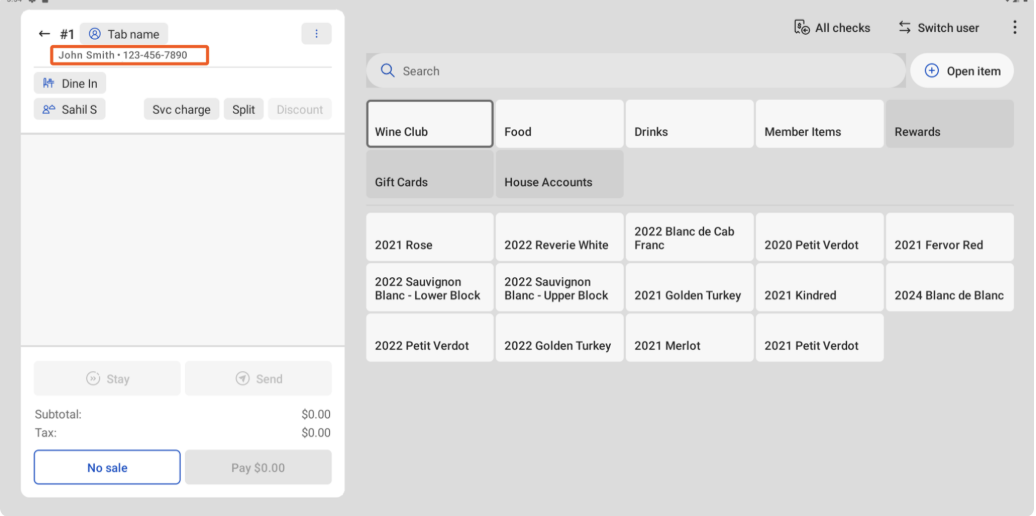
- The subscriber name and phone number will be attached to the top of the check as seen in the image below.
On a non-ordering POS screen:
- Navigate to the home screenof your POS.
- Scroll to Manager Activities.
- Select Guest Directory.
- Search for the subscriber by name, email, or phone number.
- Locate the subscriber tag on their profile. If there is no tag, they are not an active subscriber.
The guest profile is attached to the order, and guest details appear on the order details pane.
View Subscribers in the Guestbook
From the Guestbook page in Toast Web, you can see which guests are active subscribers and filter your guest list by subscription plan.
- Access Toast Web.
- Navigate to Guests > Guestbook.
- Select All Filters.
- In the Guest Identity section, select the appropriate subscriptions. You can select any number of plans.
- Select Apply.
You can also see a guest's plans on their individual profile. From Guestbook, select the guest's name; their active plans appear in the Subscription Plans row at the top of the profile, alongside their Tags. Subscription information also appears in your Guestbook search results, so you can identify subscribers without opening each profile.
The Guestbook page displays all matching guests. For more on guest data, see Access Your Guest Data With Guestbook.
Frequently Asked Questions
How many subscription plans can I have active at once?
You can have as many active subscription plans as you want, but you can only have one draft plan at a time. A guest can subscribe to a given plan only once, but they can join as many different plans as you offer.
Also asked as:
- Can I run more than one subscription plan?
- How many plans can I create?
- Can a customer join multiple plans?
How do I offer subscriptions across multiple locations?
Currently, Toast does not support multi-location subscriptions, however you can configure support for multi-location by setting your subscriber tag visibility. Subscriber tag visibility lets you identify subscribers across all your locations.
How do I offer credits or deferred payments as part of my plan?
If you plan to offer benefits such as credits, stored value, or deferred payments, we recommend using house accounts alongside subscriptions. To learn more, see Set Up and Manage House Accounts.
Can I market to my subscribers?
Yes, you can market to your subscribers. In Guestbook, filter your guest list by subscription plan, then select Email these guests to send that list to Email Marketing. Dynamic segments are not available at this time.
You can also create a menu upsell on the POS to remind staff to mention the subscription plan as a way to sell it in store to existing guests. Servers can have QR code cards printed and hand them out to interested guests.
To learn more, see Get Started with Menu Upsells.
Also asked as:
- Do subscription plans work with marketing?
- Can I email my subscribers?
How does the subscription plan website work with my existing Toast website?
Your subscription plan website works alongside your existing Toast website. Toast builds the subscription site as part of plan setup, and at the end of setup you receive a URL. You can add that URL to your Toast website like any other link.
Also asked as:
- Is the subscription site separate from my website?
- How do I add the subscription plan page to my site?
Can I offer a mug club, wine club, or coffee club?
Yes, you can offer a mug club, wine club, coffee club, or similar recurring plan. Set your dues as the plan price, choose the billing frequency, and add a subscriber tag so staff can look up members on the POS.
Also asked as:
- Can I do a monthly membership?
- Can I charge a recurring membership fee?
- Can I set up a members-only club?
How do I offer shipping?
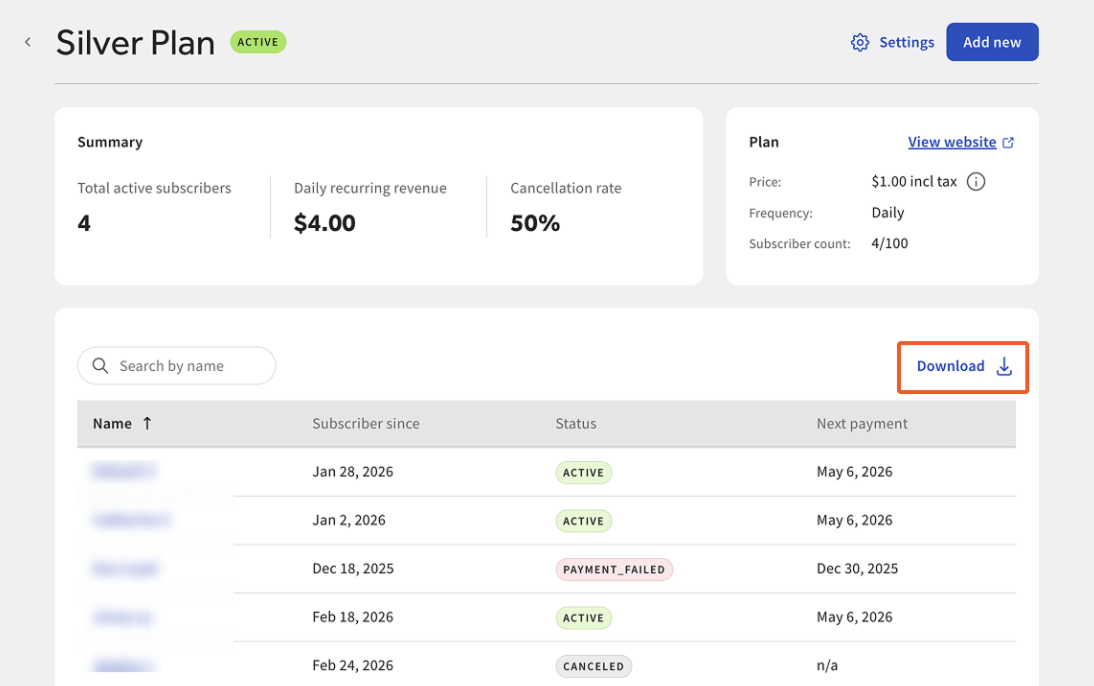
Currently, shipping is not available for subscription plans. Shipping to guest addresses must be manually managed outside of Toast. You can export all subscriber addresses from the subscription dashboard as seen in the image below.
Can I limit how many guests subscribe to a plan?
Yes. When you create your subscription plan, you can optionally set a maximum subscriber count.
Can subscribers skip an upcoming payment?
Only if you allow it. When you create your subscription plan, you choose whether subscribers are allowed to skip upcoming payments.
How do I apply a subscriber discount?
Currently, discounts must be manually applied. Automatic discounts are currently unavailable.
How do I redeem and track benefits?
Benefits are redeemed manually. We recommend you use a 100% discount to redeem an item when checking out on the POS.
Setup
- Create a menu item in the POS for the benefit item (e.g., Coffee).
- Create a 100% discount in Discounts and promo codes in Toast Web. We recommend setting up the discount with a single-use promo code if the item can only be redeemed once per cycle. This will prompt staff to enter the promo code ensuring the benefit can only be redeemed once per cycle.
- Include a clear name or identifier so staff can easily select the correct discount.
Steps
- From the ordering screen, look up the subscriber and attach them to the check (as described above).
- Add the item to the order.
- Apply the 100% discount and enter the promo code.
Note: Some items (e.g., alcohol) cannot be fully discounted in certain states — check local regulations.
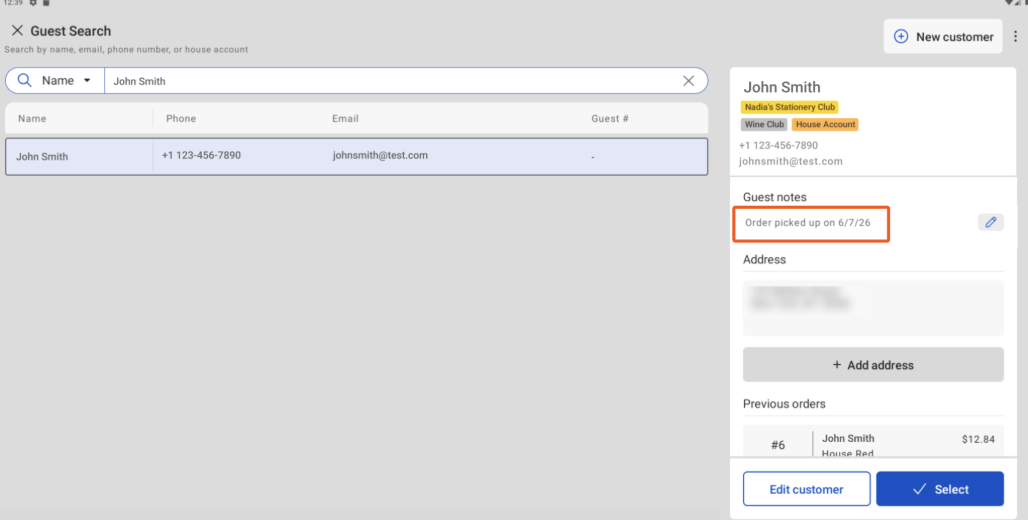
You can also track redemption using guest notes. To add a guest note, locate your subscriber in the guest directory as described above and select the pencil icon to add your note. This note will appear each time the guest is searched. You will also be able to see their order history.
Related Articles