Get Started With the Barefoot PMS Integration
Last updated: May 19, 2026, 10:32 AM
Overview of Barefoot Hotels property management system integration setup, onboarding, and configuration.
Barefoot, powered by Omniboost, is a property management system (PMS) hotel integration that allows guests to charge meals directly to their room or folio via a room charge or membership payment.
Note: You must have the Hotel API subscription for each of your locations to gain access to Barefoot in Toast Partner Integrations (TPI), which can be purchased on the Toast Shop. You do not need the $25 API subscription fee to use Hotel/PMS integrations, however.
- Integration Setup and Onboarding
- Toast Web Configuration Items
- POS Member Charge Workflow
- Support and Escalation
- Additional Resources
Barefoot Integration Setup and Onboarding
If you're new to TPC, follow the process as shown in Set Up Toast Partner Integrations, or as outlined below to enable Barefoot with Toast.
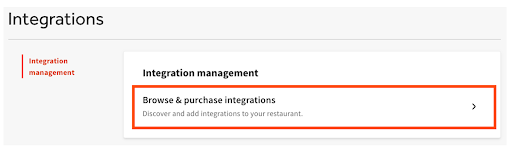
- Navigate to the Integrations section of Toast Web on the left-hand navigation menu. Select Integrations management > Browse & purchase integrations.
- Enter "Barefoot" in the Search field and then select Add Now. If you have multiple locations, select which restaurant(s) you would like to connect to your Barefoot account, and select Apply.
- Review the data scope visibility terms and conditions and select Confirm to accept. Check out Toast Partner Integrations Data Scope Visibility Overview for more information.
- You will receive an email confirming the activation of the integration. Once the email is received, contact Omniboost support via email at integrations@omniboost.io to finalize the integration and connect Toast to Barefoot. Omniboost’s team also receives an email alerting them that a new integration has been added for Toast. The Omniboost team will reach out to you directly within three business days. Full onboarding and setup time varies depending on the provision of the necessary Barefoot information, and your needs and responsiveness.
- After the Barefoot tile in TPC has been added, Omniboost and Toast will continue the setup of your integration.
Toast Web Configuration Items
As with all PMS/Hotel Integrations, Barefoot requires the following configuration items to be set up in Toast Web.
Sales Categories
In order for revenue generated from Toast POS to be accounted for accurately within the Barefoot Hotel/Property Management System integration, Toast Sales Categories must be assigned to every menu item before the PMS integration can be fully set up and configured.
Whether the sales categories are inherited from the Menu or Menu Group level, or individually applied to a specific menu item, this can be configured in either: Advanced Properties, Edit Menus, or the Menu Builder tool.
Within the Barefoot hotel system, Sales Categories are mapped to Barefoot revenue categories which enables the integration to accurately account for revenue generated by the sale of each menu item posted to a guest’s folio. If no sales categories are applied, no sales are accounted for with the integration.
Note: Sales Categories must be configured and mapped to menus, menu groups, and/or menu items in Toast Web for every location leveraging any Hotel/PMS integration before the PMS integration can be fully configured.
Other Payment Options
As a part of the integration setup, Toast will be creating the following necessary Barefoot Other Payment Options for you:
- Room Charge: For Room Charge transactions, when fully online. You must add the Barefoot PMS tile in TPI to activate room charges.
- Room Charge - Offline: When in offline mode/during an outage, it provides a way for customers to continue transactions for later processing and closing. You must add the Barefoot PMS tile in TPI to activate room charges here as well.
- Member Charge: For guests to be able to use their Barefoot membership for payment on the POS. You must add the Barefoot Club tile in TPI to activate room charges.
Receipt Setup
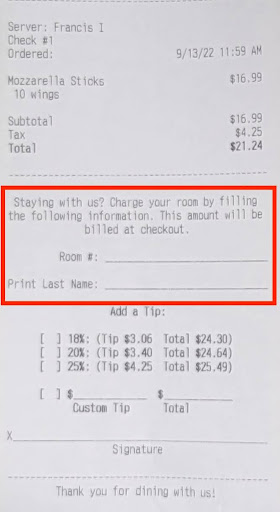
Changes to your location’s receipt setup allow your hotel guests to provide their hotel room information directly on their receipt so servers and restaurant administrators can update the related hotel information. This information will most likely include the guest’s name, hotel room, and signature.
To set up receipts for hotel PMS integrations:
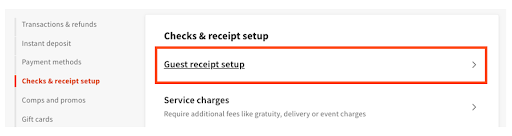
- Log in to Toast Web, and navigate to Finance > Related > Settings > Guest receipt setup.
- Select the receipt name.
- Scroll down to the Advanced section.
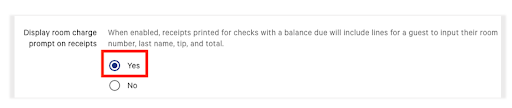
- Next to the Display room charge prompt on receipts, select Yes to add lines for a hotel guest's room number and name to printed receipts.
- Select Save > Publish Now.
Once this setting has been saved and published, receipts will print like the image below:
If you wish to remove the room charge lines from their receipts, follow the steps above, then select No next to Display room charge prompt on receipts. Then Save and Publish Now.
Note: For MLM/MUO customers, the Hotel PMS receipt config can be configured to be owned/targeted at both the individual location level and/or the group level.
Back to top
POS Member Charge Workflow
If a guest would like to pay with a Barefoot gift card, follow these steps:
- Choose Select alternate payment type.
- Select Member Charge.
- Enter the guest’s membership information on the Guest search screen.
- Select a result to process the Barefoot Member Charge payment.

Support and Escalation
Contact Omniboost directly via support@omniboost.io for any issues with your Barefoot integration that are unrelated to Toast products (software or hardware) or network/connection issues.
Once you're live with Barefoot, for any questions or technical issues relating to the Barefoot integration, please contact Omniboost directly via email at support@omniboost.io.
If you're having issues with your Barefoot system that are unrelated to Toast’s integration, please contact the Barefoot support team directly. You can reach their Technical Support team via this submission form.