Get Started With the Kitchen Display System
Last updated: Sep 17, 2026, 10:07 AM
- Kitchen Display System overview
- Before you begin
- Step 1: Confirm your restaurant has the KDS module
- Step 2: Confirm you have the required permissions
- Step 3: Switch a Toast device to KDS mode
- Step 4: Set the device as an expediter or a prep station
- Get to know the KDS screen
- Related articles
Set up the Toast Kitchen Display System (KDS): confirm your module and permissions, switch a device to KDS mode, and set expediter or prep station.
Kitchen Display System overview
The Toast Kitchen Display System (KDS) connects your front-of-house and kitchen staff so orders move from the point of sale to the line without paper tickets. When an order is placed, tickets appear on the KDS in the order they were fired, with the oldest on the left and the newest on the right. You select a ticket to fulfill a whole order or a single item.
KDS includes features such as All Day View and production item counts, multiple language support, prep station routing, kitchen productivity reporting, SMS and in-app alerts, automated firing by prep time, and color-coded modifiers.
Note: During a Toast or internet outage, a KDS can still receive in-store orders over your local network, so your staff can keep working. Online orders cannot be received while the internet or Toast is down.
This video provides a comprehensive walkthrough of Toast's Kitchen Display System (KDS).
Before you begin
Applies to: Toast POS, Kitchen Display System (KDS)
Permissions needed:
- 1.3 Kitchen Display System Mode (required to switch a device into KDS mode)
- 7.1 Terminal Setup and 7.3 KDS and Order Screen Setup (required to reach all KDS device setup options)
What you'll accomplish: You will turn a Toast device into a working KDS screen and set it up as either an expediter or a prep station.
Note: The KDS module must be on your account before you can use it. To add the KDS module, or to add a subscription or license for an additional KDS screen, contact your Toast sales representative or your Customer Success Manager. To order kitchen display hardware, such as a 22-inch or 14-inch screen for a wall mount, universal mount, or counter, visit Toast Shop. For more information about stands and mounts, see Toast Flex and Elo: Stand Options and Mount.
Step 1: Confirm your restaurant has the KDS module
Before setup, confirm the KDS module is active on your account. Find how to do this here: Review and Manage Your Toast Subscriptions. If your restaurant already has the KDS module, any Toast terminal with the required permissions can be switched into KDS mode.
Expected outcome: You have confirmed the KDS module is on your account and you are ready to set up a device.
Step 2: Confirm you have the required permissions
The Toast user signed in to the device must have the 1.3 Kitchen Display System Mode permission to switch that device into KDS mode. To reach all of the device setup options for the KDS, that user also needs the 7.3 KDS and Order Screen Setup permission.
To review or update permissions, navigate to Toast Web > Employees and open the access level assigned to the user. For details on access levels, see Access Permissions Reference.
Expected outcome: The user who will set up the KDS has both the 1.3 and 7.3 permissions assigned.
Step 3: Switch a Toast device to KDS mode
A Toast terminal becomes a KDS screen by switching its mode.
- On the Toast device, open the main menu of the Toast app.
- Scroll to Setup section.
- Select Device Setup.
- Select Primary Mode.
- Select Kitchen Display/Expo Screen. Select Save.
- Scroll up to the Mode section.
- Select Kitchen Display System (KDS).
Expected outcome: The device will default to KDS mode and begins displaying kitchen tickets.
Note: For reliable ticket delivery, a KDS device should be hardwired with a USB-C or RJ-45 (Ethernet) cable, with Wi-Fi disabled on the device.
Step 4: Set the device as an expediter or a prep station
Each KDS device works as either an expediter or a prep station, and you can change this at any time. An expediter screen shows the entire order across every prep station. A prep station screen shows only the items routed to that station.
- On the KDS, select the three-dot overflow menu in the top-right corner of the screen.
- Select Device Setup.
- Note: If your KDS has been migrated to the new KDS experience, the overflow menu may show different options (such as KDS Appearance or Switch to Legacy View) directly, and Device Setup may not appear the same way. If you don't see Device Setup, contact Toast Customer Care for the correct path on your current KDS version.
- Scroll to the Kitchen Setup section and select the Kitchen Expediter setting.
- Choose the role for this device:
- Set Kitchen Expediter to Yes to make this device an expediter that shows a consolidated view of every prep station's tickets.
- Set Kitchen Expediter to No to make this device a prep station, then select Prep Stations and choose the stations this device should display.
Expected outcome: The device displays tickets for its assigned role — the full order on an expediter, or only the routed items on a prep station.
To set up which prep stations exist and how items route to them, see Configure and Assign Prep Stations. To filter which dining options or courses appear on a device, see Configure Ticket Routing and Filter Tickets on Your KDS Device. If tickets are not appearing as expected, see Get Help With KDS Tickets.
Get to know the KDS screen
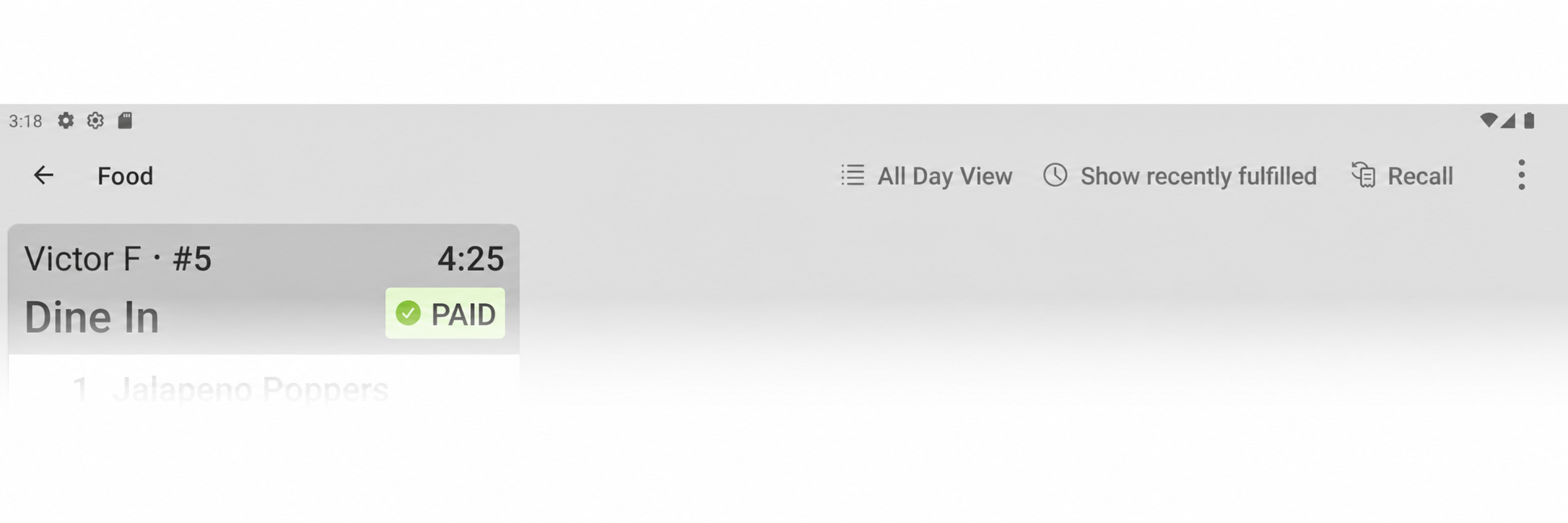
Once a device is in KDS mode, four buttons in the top-right of the screen give you more information and options.
- All Day View: Select Show All Day View to see a condensed count of how many of each menu item need to be prepared, without searching through every ticket. Select Hide All Day View to return to the ticket view.
- Show Recently Fulfilled: Select this to display tickets you recently fulfilled, shown in green on the left of the screen, so you can see what is complete and unfulfill a ticket if needed. Select Hide Recently Fulfilled to remove them.
- Recall: Select Recall to re-open the most recently fulfilled ticket — useful if a ticket was fulfilled by mistake. Recalled tickets show RECALLED in red at the top. Select the button again to recall additional tickets.
- Device Setup: Select the three-dot icon to open configuration options for that device, including how and which tickets are displayed and whether the device is an expediter or a prep station.
Production Item Count is another setting that summarizes active orders at the ingredient level, so cooks can see how many of each ingredient are needed at a glance. To customize how tickets look, see Customize the Appearance of KDS Tickets. For answers to common KDS questions, see Kitchen Display System FAQ.
Related articles
- Get Help With KDS Tickets
- Configure and Assign Prep Stations
- Get Started With Kitchen Configuration
- Customize the Appearance of KDS Tickets
- Kitchen Display System FAQ