Get Started With the Lexi Integration
Last updated: Sep 16, 2026, 5:17 PM
Learn how to set up the Lexi integration with Toast.
| This integration requires access to Toast Partner Integrations. To learn more, see Set Up Toast Partner Integrations. |
- Lexi Integration Features
- Enable Lexi Integration With Toast
- Lexi Integration: Troubleshooting and Support
Lexi Integration Features
Meet Lexi, the fastest and most accurate voice AI for restaurants. Lexi is an AI agent that takes orders, handles questions, and books reservations just like a person, so your guests never have to deal with a text link.
Enable Lexi Integration With Toast
To enable the Lexi integration with Toast, follow these steps:
- To enable Lexi with Toast, log into Toast Web and navigate to Integrations > Integrations management > Browse & purchase integrations.
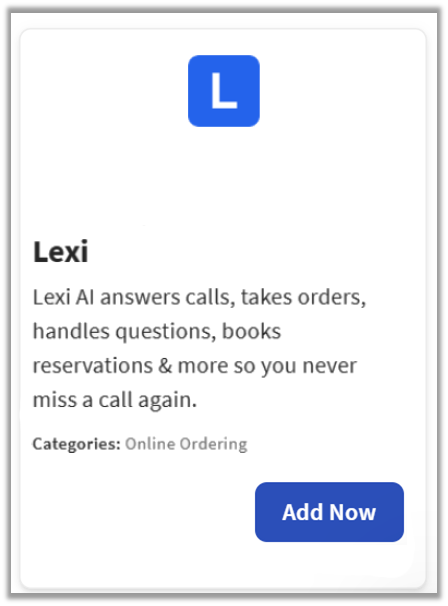
- Enter Lexi in the search field and select Add Now.
- If you have multiple locations, please select the restaurants you would like to connect to Lexi. Finally, select Apply.
- Note: Your restaurant must have access to Toast Partner Integrations to add this integration. To learn more, see Set Up Toast Partner Integrations.
- Review the data scope visibility terms and conditions, and select Confirm to accept. See the Data Scope Visibility article for more information.
- Once you select Add Now on the Lexi tile in Toast Web, you will select which restaurant(s) you would like to connect to your Lexi account, and select Apply
- After you select Apply, you will be forwarded to a confirmation screen.
- After adding the integration in Toast Web, the Lexi team will reach out to you directly to start your account setup and onboarding if you have yet to create your Lexi account.
Lexi Integration: Troubleshooting and Support
For any questions or support issues relating to the Lexi integration, you can contact Lexi at:
- General Support
- Email: support@hilexi.ai