Get Started With the WinEmotion Integration
Last updated: Aug 28, 2026, 4:46 PM
Learn how to set up the WinEmotion integration with Toast.
| This integration requires access to Toast Partner Integrations. To learn more, see Set Up Toast Partner Integrations. |
- WinEmotion Integration Features
- Enable WinEmotion Integration With Toast
- WinEmotion Integration: Troubleshooting and Support
WinEmotion Integration Features
Maximize your wine program’s potential with the seamless WineEmotion and Toast integration. This self-service solution allows guests to explore your premium selection with ease while you enjoy total operational control.
Enable WinEmotion Integration With Toast
To enable the WinEmotion integration with Toast, follow these steps:
- To enable WinEmotion with Toast, log into Toast Web and navigate to Integrations > Integrations management > Browse & purchase integrations.
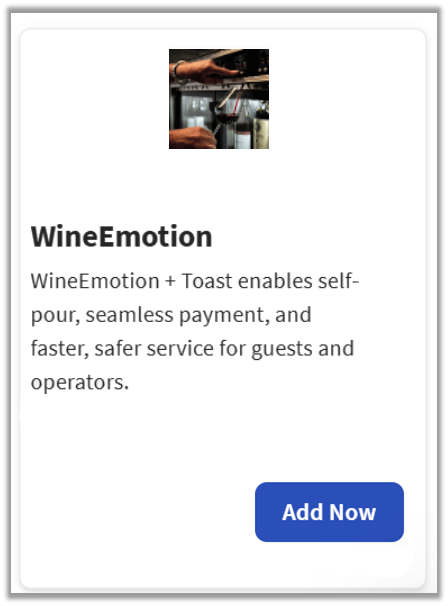
- Enter WinEmotion in the search field and select Add Now.
- If you have multiple locations, please select the restaurants you would like to connect to WinEmotion. Finally, select Apply.
- Note: Your restaurant must have access to Toast Partner Integrations to add this integration. To learn more, see Set Up Toast Partner Integrations.
- Review the data scope visibility terms and conditions, and select Confirm to accept. See the Data Scope Visibility article for more information.
- Once you select Add Now on the WinEmotion tile in Toast Web, you will select which restaurant(s) you would like to connect to your WinEmotion account, and select Apply
- After you select Apply, you will be forwarded to a confirmation screen.
- After adding the integration in Toast Web, the WinEmotion team will reach out to you directly to start your account setup and onboarding if you have yet to create your WinEmotion account.
WinEmotion Integration: Troubleshooting and Support
For any questions or support issues relating to the WinEmotion integration, you can contact WinEmotion at:
- General Support
- Phone Number: (407) 420-8007 / 8 a.m. - 8 p.m. EST
- Email: service@bevteks.com