Get Started With the Z-Order Integration
Last updated: Sep 16, 2026, 4:53 PM
Learn how to set up the Z-Order integration with Toast.
| This integration requires access to Toast Partner Integrations. To learn more, see Set Up Toast Partner Integrations. |
- Z-Order Integration Features
- Enable Z-Order Integration With Toast
- Z-Order Integration: Troubleshooting and Support
Z-Order Integration Features
Z-Order is a tablet-based ordering and payment solution specifically designed for full-service and all-you-can-eat (AYCE) restaurants. Fully integrated with Toast POS, Z-Order functions like a dedicated server for each table, available 24/7. This robust solution helps restaurants boost check sizes, reduce labor strain, and significantly enhance the guest experience. Unlike generic kiosk systems, Z-Order is purpose-built to support complex dine-in flows, ensuring a positive return on investment rather than added overhead.
By automating ordering, Z-Order empowers Toast restaurants to thrive, freeing up staff to focus on genuine hospitality. Its seamless integration with Toast allows operators to achieve more with fewer resources, enabling confident growth.
Key Features:
- Seamless POS Integration: Z-Order’s integration with Toast is fast, reliable, and deeply embedded. Orders flow directly to the POS system, complete with full modifiers and accurate seat mapping.
- Order Throttling: Particularly useful in AYCE or high-volume dining environments, Z-Order's unique order throttling feature allows restaurants to manage how often and how much customers can order from their table, optimizing kitchen flow and service.
Enable Z-Order Integration With Toast
To enable the Z-Order integration with Toast, follow these steps:
- To enable Z-Order with Toast, log into Toast Web and navigate to Integrations > Integrations management > Browse & purchase integrations.
- Enter Z-Order in the search field and select Add Now.
- If you have multiple locations, please select the restaurants you would like to connect to Z-Order. Finally, select Apply.
- Note: Your restaurant must have access to Toast Partner Integrations to add this integration. To learn more, see Set Up Toast Partner Integrations.
- Review the data scope visibility terms and conditions, and select Confirm to accept. See the Data Scope Visibility article for more information.
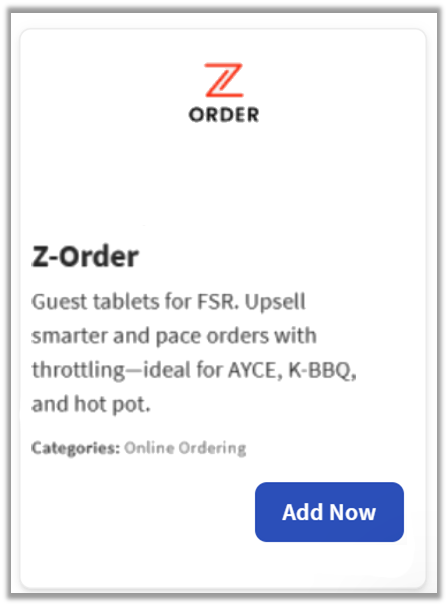
Configure Z-Order in Toast Web
- Once you select Add Now on the Z-Order tile in Toast Web, you will select which restaurant(s) you would like to connect to your Z-Order account, and select Apply
- After you select Apply, you will be forwarded to a confirmation screen.
- After adding the integration in Toast Web, the Z-Order team will reach out to you directly to start your account setup and onboarding if you have yet to create your Z-Order account.
Z-Order Integration: Troubleshooting and Support
For any questions or support issues relating to the Z-Order integration, you can contact Z-Order at:
- General Support
- Email: info@zorder.net
- Phone Number: (213) 435-0853 / 9 a.m. to 6 p.m. PST (Monday to Friday)