Use Assembly Lines With KDS
Last updated: Sep 16, 2026, 5:06 PM
Learn how to configure sequential prep stations on your kitchen display screen.
- Assembly Lines Overview
- Create an Assembly Line
- Assign an Assembly Line
- Partial Fulfillment Indicators
- Recall an Item
- Reporting for Assembly Lines
KDS Assembly Lines Overview
An assembly line is a sequence assigned to an item to ensure it moves through prep stations in the kitchen in the correct order for fulfillment. An item sent to the kitchen appears at the first prep station. It then moves through each prep station in sequence until the process is complete.
An assembly line sequence enhances routing an item to multiple prep stations in the following ways:
- Items appear at a prep station only after they have been fulfilled at the previous station in the sequence.
- Items appear at subsequent stations in the same order they were fulfilled at the previous station, rather than in the order they were originally fired.
- For example, if Prep Station 1 fulfills Item 1 before Item 2, the items will appear at Prep Station 2 in that order—Item 1 followed by Item 2. If Prep Station 2 then fulfills Item 2 first, followed by Item 1, the items will display at Prep Station 3 as Item 2 followed by Item 1.
- For example, if Prep Station 1 fulfills Item 1 before Item 2, the items will appear at Prep Station 2 in that order—Item 1 followed by Item 2. If Prep Station 2 then fulfills Item 2 first, followed by Item 1, the items will display at Prep Station 3 as Item 2 followed by Item 1.
You can think of prep stations as different work stations on a factory floor, each holding a specific job. For example, at a pizzeria, these prep stations might be:
- Dough
- Sauce/Toppings
- Bake
Without assembly lines, orders will be fired at all three of these stations at the same time.
If your pizzeria uses assembly lines, your order would proceed as follows:
- An order is placed for a pizza. It starts at the first prep station, or Dough.
- Once the Dough station finishes its part, the pizza moves to the next station, Sauce/Toppings.
- This process continues until the pizza has gone through all the stations in the assembly line, ending at the Bake station.
In order for assembly lines to work on your Kitchen Display System (KDS), you must have the following settings configured:
|
Create a KDS Assembly Line
To create an assembly line:
- Navigate to Toast Web.
- Navigate to Kitchen > Kitchen stations > Assembly lines.
- Select Create an assembly line.
- Once you have created your first assembly line, you can select Add New to create additional assembly line sequences.
- Name your assembly line and select Okay.
- On the next screen, you will set the sequence of your prep stations. Select the prep stations that you would like to use in this Assembly Line.
- Select the Save and Publish.
Note: It is important that prep stations are listed in the order your items will need to sequentially flow through. You can rearrange the order by clicking and dragging the items into your preferred order using the reorder icon on the left
If an item is not assigned to all prep stations in an assembly line, it would still follow the sequence of the assembly line, skipping the prep station that it is not routed to. This enables you to use the same assembly line even if the kitchen set up is different from location to location.
Assign a KDS Assembly Line
To assign an assembly line to your menu:
- Navigate to Menus > Menu Manager.
- Select the menu, group, or item that will be using this assembly line.
- In the panel that opens on the right side of your screen, select the Assembly Line from the drop-down that you would like to apply to this item.
- Select Save and Publish.
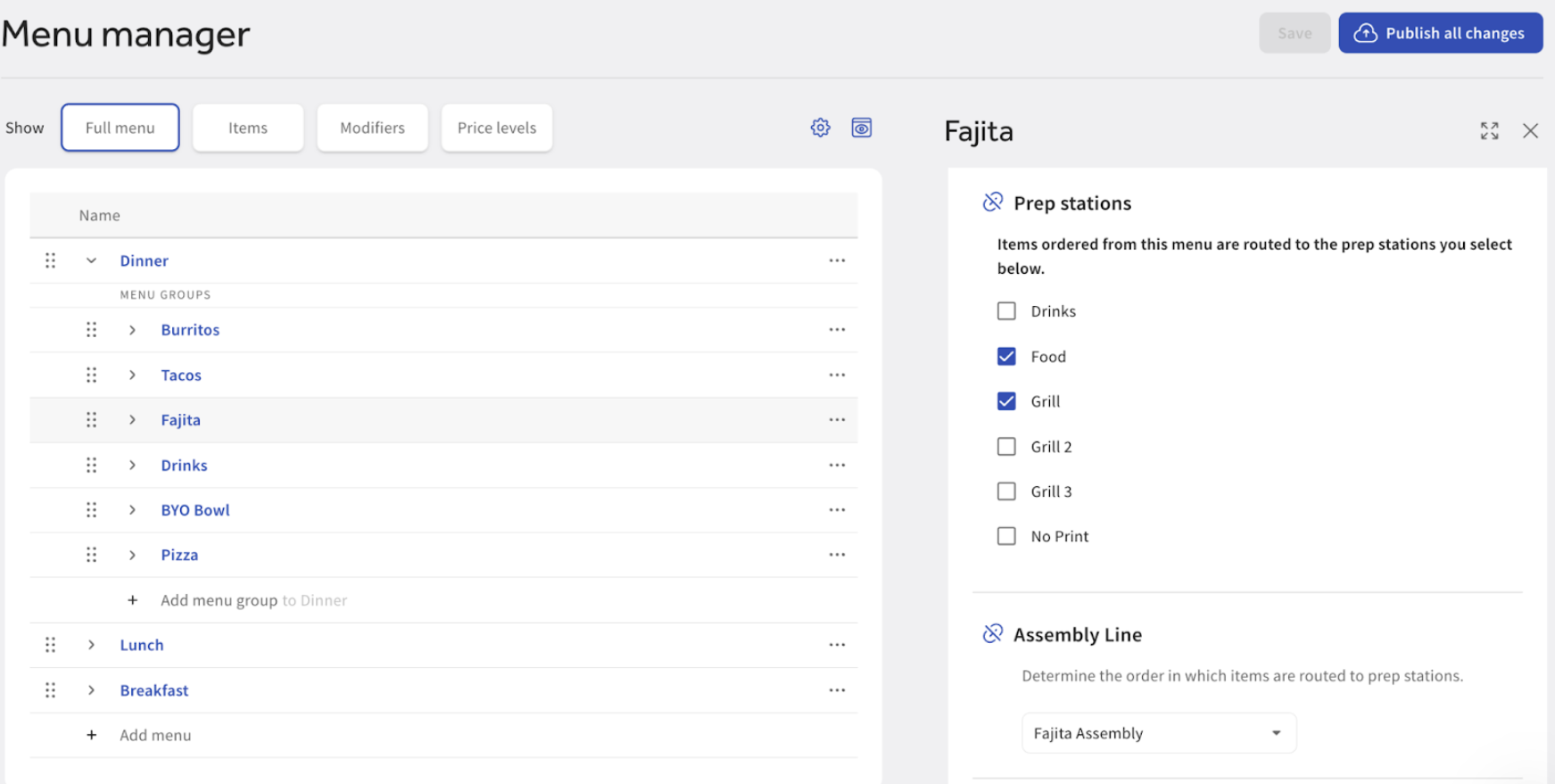
Note: Any assembly lines set at the menu or group level will be inherited by the items within it. You can choose to manually override this at the item level by disabling the Inherit Assembly Line? toggle, and selecting the assembly line you would like to attach.
Partial Fulfillment Indicators for KDS Assembly Lines
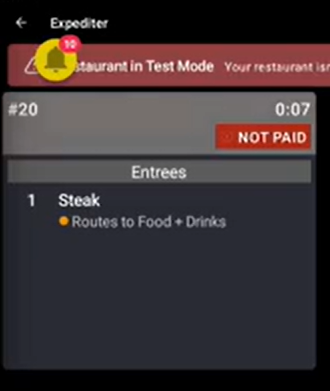
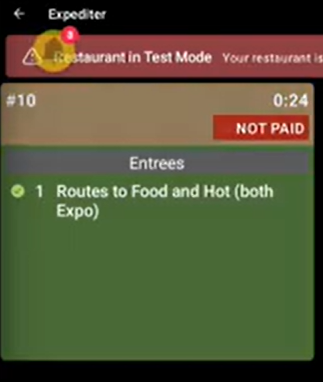
While using Independent Prep Station Fulfillment or assembly lines, items can be entirely fulfilled and noted with a green check mark, or partially fulfilled, noted with a yellow checkmark. This yellow checkmark will display on your expediter screen when an item has been fulfilled at one prep station within the sequence, indicating the item is in progress. When all stations have completed their work for the item, the checkmark will turn green signaling completion.
For example, if a pizza is ordered and is sent to the Dough station to begin assembly:
- Once Dough is finished and has passed the pizza to Sauce/Toppings, Dough will fulfill their station and receive a green checkmark, but the Expo, Sauce/Toppings, and Bake will display a yellow checkmark.
- This process will continue through all sequential stations and when the final station, Bake, completes their work, the Expo screen will show a green checkmark
Recall an Item in a KDS Assembly Line
If you need to recall an item while using assembly lines, the functionality differs depending on who initiated the recall.
- Prep Station recall sends the ticket back to the station that initiated the recall, and will need to pass through any subsequent stations in the assembly line.
- Expediter recall sends the ticket back to the first station in the assembly line and will need to pass through all subsequent stations in the assembly line.
If an item is routed to both assembly line and non-assembly line prep stations:
- Recalling from a prep station on the assembly line will route that item back to that specific station and recall the ticket at all non-assembly line prep stations.
- Recalling from the non-assembly line prep station or from expo will send the item back to the first prep station of the assembly line and to all other non-assembly line prep stations the item is routed to.
Reporting for KDS Assembly Lines
Different food items take different amounts of time to cook. In order to give you the most accurate reporting, item cook time reporting is based on when each individual item is fired, measuring each item individually and precisely at each prep station to help you see exactly how long each item takes and how efficient each prep station is.
Your Ticket by Fulfillment report will now be more accurate. If you want to know how long the whole order took rather than each individual item, you can review the Ticket Details report and evaluate the time between when an item is first fired, and when it’s last fulfilled at a prep station of your choosing.