Get Started With Toast Pay
Last updated: Sep 17, 2026, 7:50 AM
- Toast Pay Overview and Setup
- Guest Experience
- Toast Pay Reports
- Staff Training
- Frequently Asked Questions
- Additional Resources
Toast Pay Overview and Setup
Toast Pay lets guests pay with ease while helping you earn more reviews, build loyalty, and run smoother service — all on the platform you trust. Run service with confidence, turn feedback into 5-star reviews, and make every checkout more valuable. Toast Pay is included in the Toast core POS subscription and can be turned on and set up right from your Toast account.
When using Toast Pay, you may see:
- Higher Tips: Guests tip higher with Toast Pay. On average, guests tip 3.8 percentage points more on transactions when they pay through Toast Pay vs. traditional checkout methods.*
- Faster Table Turns: Table turn times are faster with Toast Pay. On average, checkout using Toast Pay can save servers 2.5 minutes per table when compared to traditional checkout methods.*
- More Loyalty Signups: Toast Pay helps drive Loyalty signups. On average, guests are twice as likely to sign up for Loyalty when they pay through Toast Pay vs. in-store checkout methods.
*Based on Toast internal annual data from June 2026 to August 2026 among ~15,000 restaurants using Toast Pay, on single-check orders. Individual results will vary.
**Based on Toast internal data from June 30, 2026 to July 7, 2026 among ~76,000 restaurants. Individual results will vary.
Note: All transactions through Toast Pay will be considered as Card Not Present rate, as outlined in your Toast Merchant Agreement.
To get to Toast Pay in Toast Web, navigate to Finance > Related > Settings > Toast Pay.
To turn on Toast Pay: Toggle QR code payment on the receipt to On. This will print a QR code on your receipt with the message View check and pay now, enabling your guests to do so. You can also review the size of the QR code and its position on your receipts. You can also toggle on Toast Pay via QR on the Guest-Facing Display (GFD). To learn more about this feature, or if you are interested in enabling this feature, sign up on Test Kitchen here.

On this page, you can also:
- Enable split payments
- Gather menu item reviews from your guests
- Set up server POS notifications
- Determine tip selection options
- Review the logo displayed at the top of your Toast Pay experience page.
To learn more about these features, please see Toast Pay Features below.
Note: Tip selections are shared on the Toast guest-facing display and are not unique to the Toast Pay experience.
Toast Pay Features
| The following features are not yet available in Canada, Ireland, the UK or Australia: Loyalty, Guestbook, Email marketing, and Toast Cash. Please check back soon for updates. |
- Accepted payment methods: Guests can pay with all major credit cards, Apple Pay, and Google Pay. Guests can also use Toast-specific rewards, including loyalty points, promo codes, and Toast cash.
- Menu item reviews: Keep tabs on your menu item quality with real-time feedback from Toast Pay guests packaged into Toast Web reporting. See Optimize Toast Pay with Menu Item Reviews for more information.
- Split checks: Guests can evenly split a check across other guests Toast Pay, all from the same QR code.
- Note: Guests cannot split by item at this time.
- Inviting guests to pay: After the first guest splits the check, other guests can scan the same QR code or receive a link from the first guest
- POS notifications: Servers will receive a POS notification when a guest initiates a split and pays the first part, and a second notification once the full order is paid and closed. Notifications can be set up by following the directions listed in Get Started with Mobile Payments and Digital Menus in Support Center.
- Note: After a check has been split and partially paid via Toast Pay, other guests can still close out their portion of the check on the POS via the usual payment workflow.
- Powering loyalty & guest marketing: Guests can participate in your loyalty program via Toast Pay, while you can collect data to power your marketing and guestbook
- Loyalty integration: Toast Pay guests can sign up for loyalty programs via email, accrue points, and redeem them during checkout. Staff members can also help guests by taking the gift card and/or loyalty information and manually entering it at a POS terminal or Toast Go®.
- Guest data collection: Guests who complete a loyalty transaction will be added to your guestbook to power your email marketing program.
Toast Pay Guest Experience
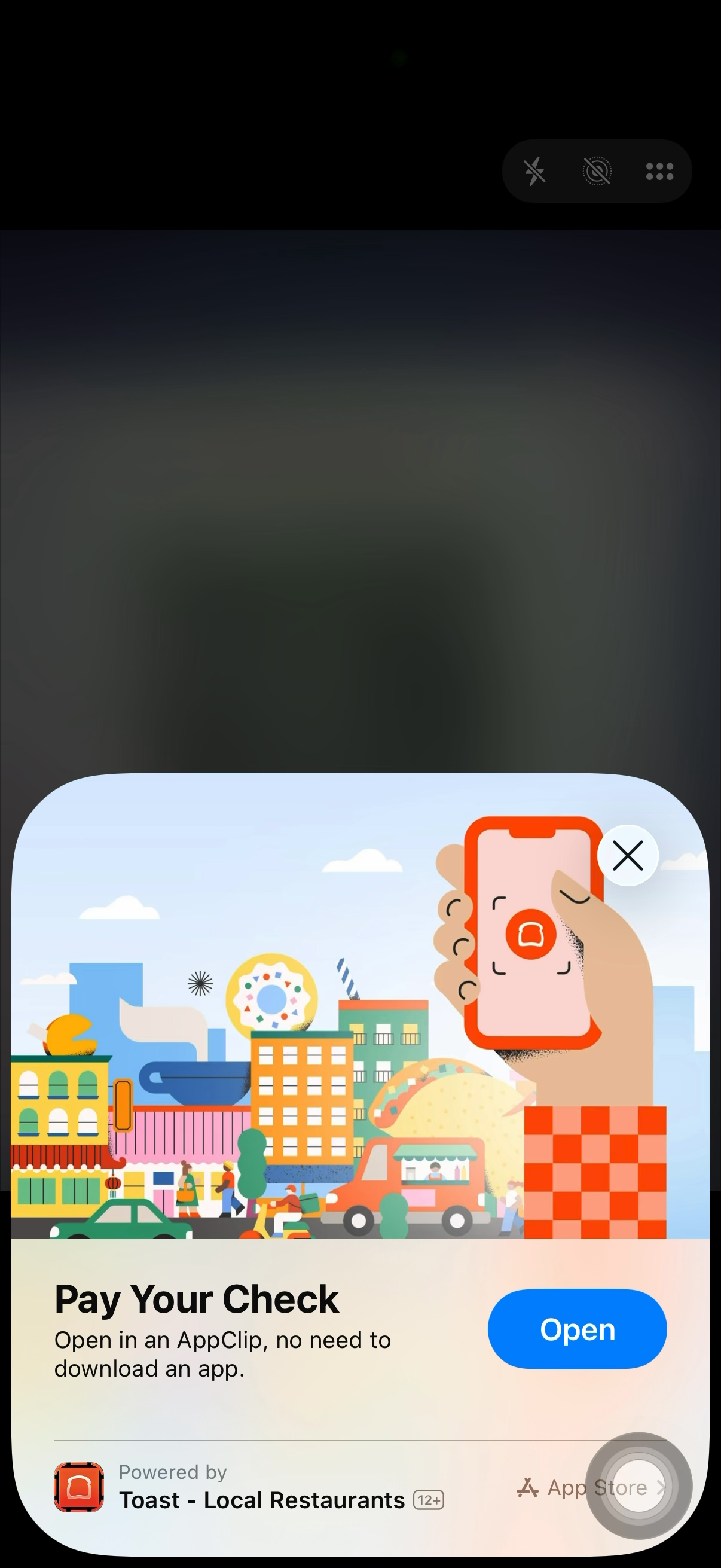
When your server prints the check, a QR code appears on the printed receipt. The guest scans it with their phone camera, which opens a mobile experience that requires no app download. For U.S. based guests using iOS devices, guests will be directed to an "App Clip" or the full Toast Local app if they already have the Toast Local app downloaded. For U.S. based guests using Android devices, guests will be directed to the mobile web or the Toast Local app if they already have it downloaded.
| Please note that the app feature is not yet available in Canada, Ireland, or the U.K.. All guests will be directed to mobile web. Check back for updates. |
Your guests can:
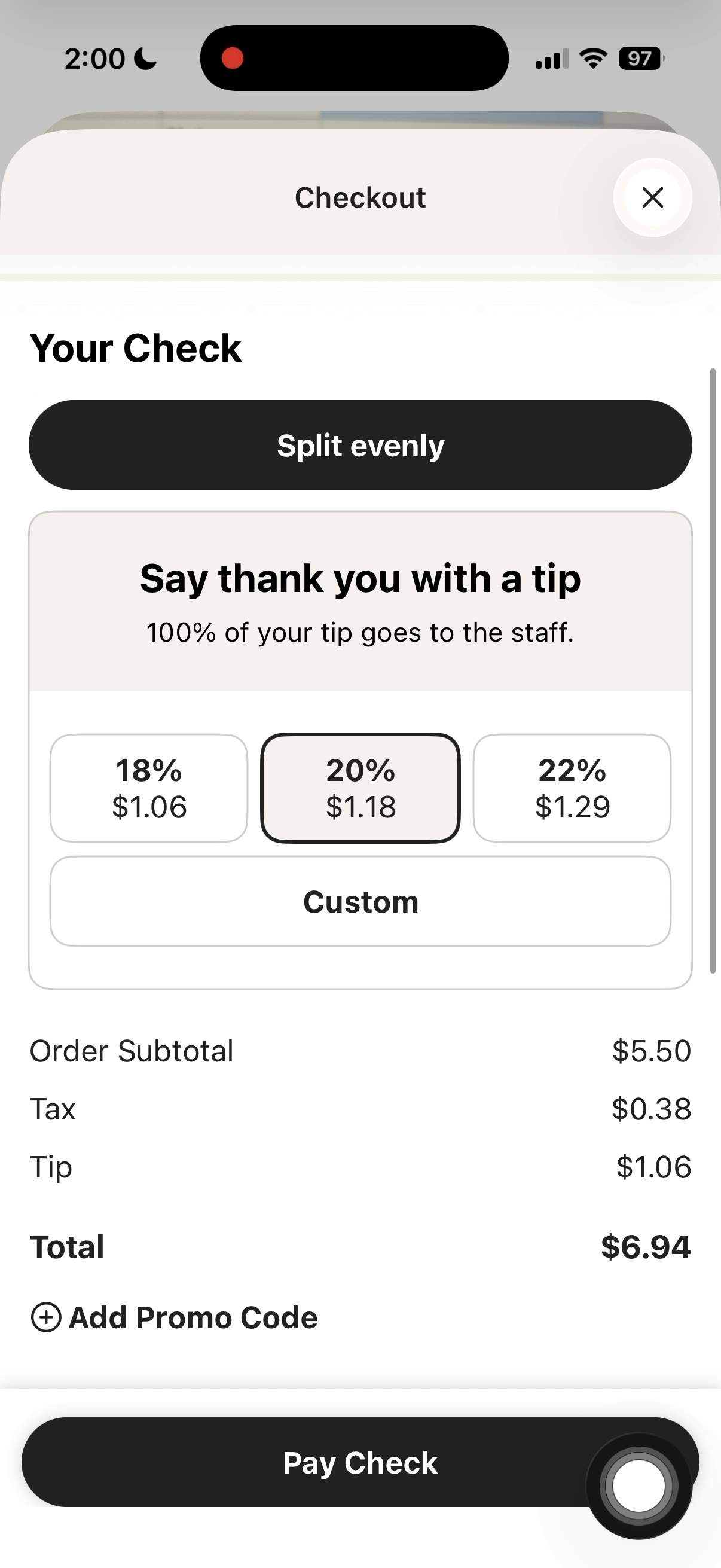
- View their itemized check
- Split the check evenly among their party (if the feature is turned on at your restaurant)
- Choose a tip amount
- Pay with a saved card or add a new card (e.g., Apple Pay, Google Pay, Toast-based gift cards)
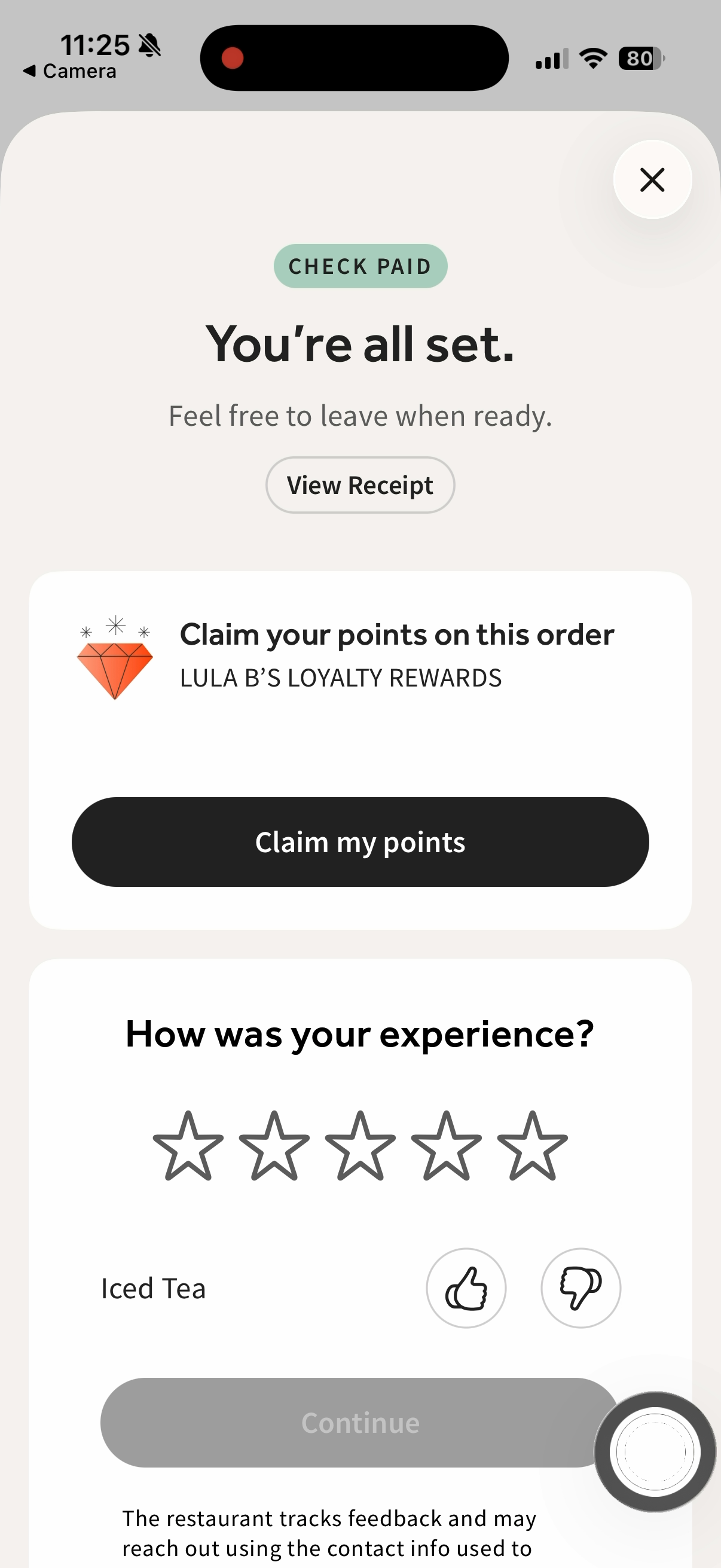
- Sign up, earn, or redeem loyalty rewards on your loyalty program (only Toast-based loyalty programs are supported).
- Note: Only available for iOS devices; features not yet available for Android devices.
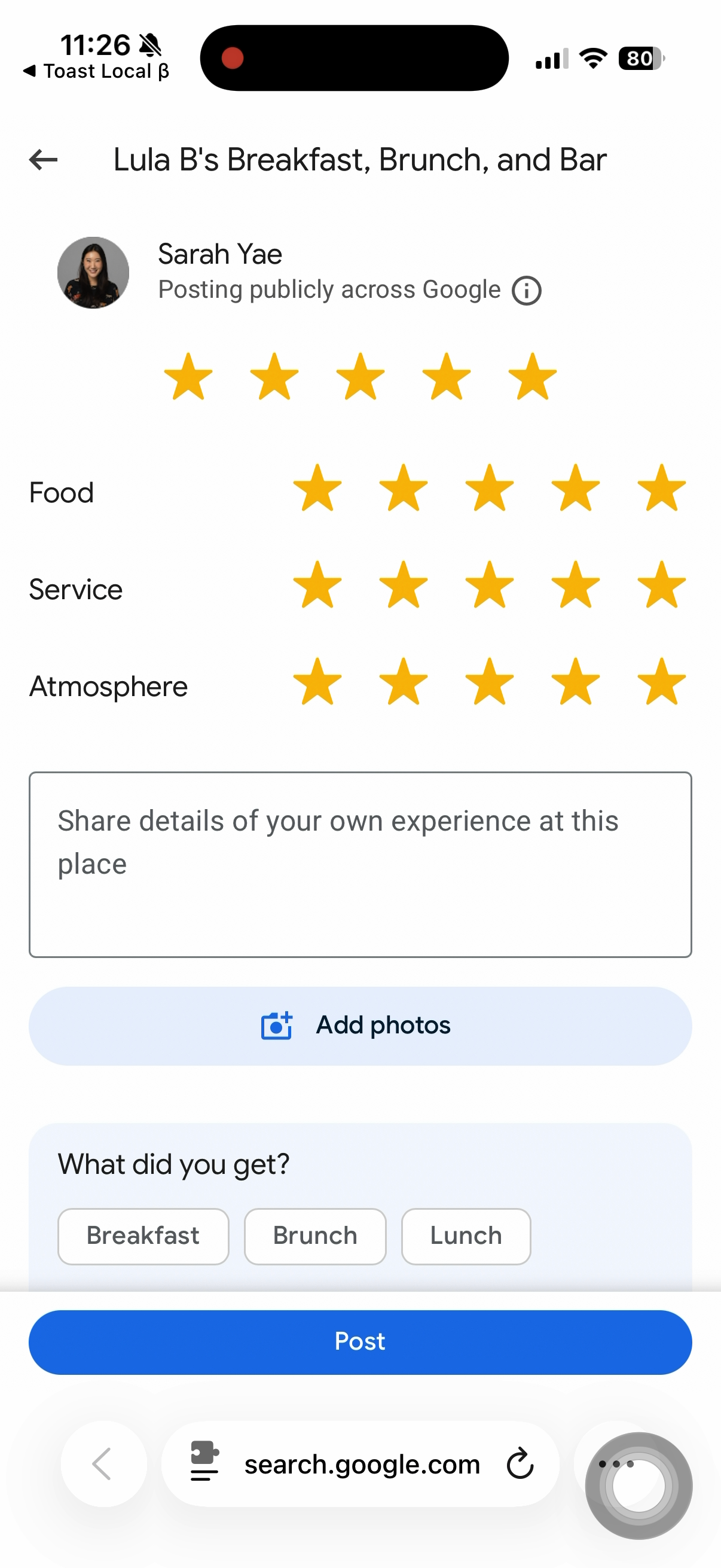
- Provide guest feedback, and Google Reviews.
- Note: Only available for iOS devices; features not yet available for Android devices.
After scanning the receipt QR code with their phone camera, below are several screenshots from the guest experience (iOS screenshots shown below):
Toast Pay Reports
To view all your Toast Pay transactions in Toast Web, navigate to Reports > Sales > Orders and filter for Toast Pay: Yes as seen in the image below.

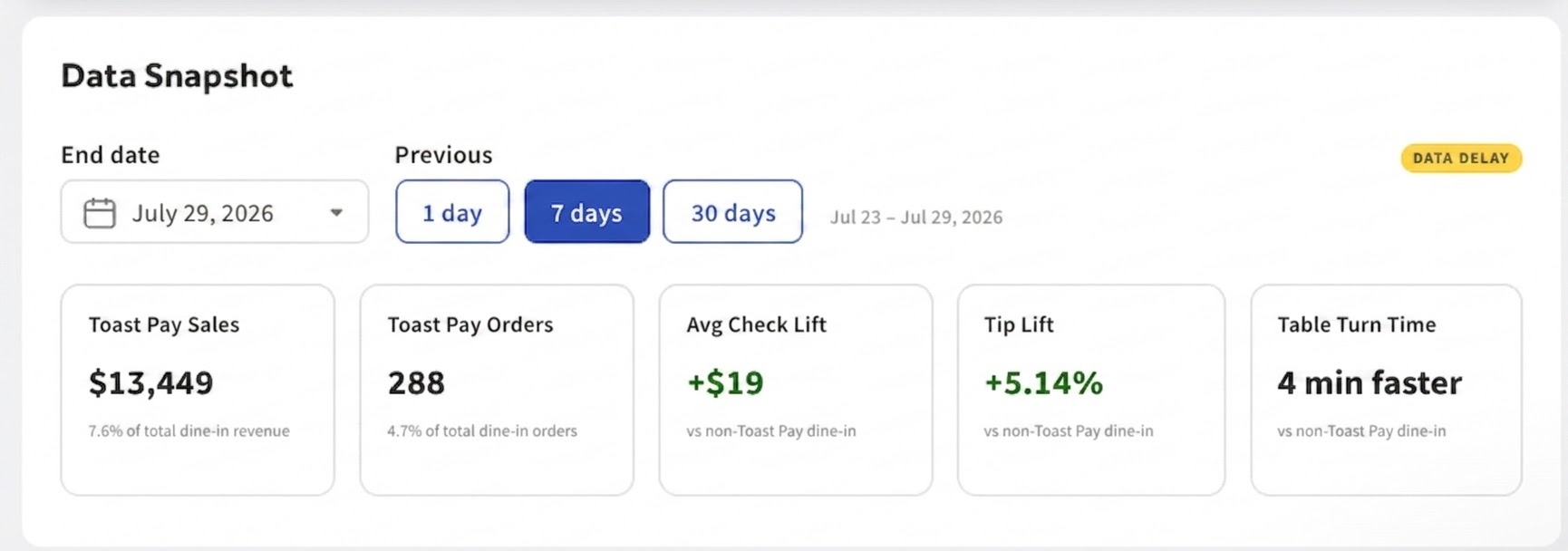
To view overall metrics in Toast Web, navigate to Finance > Related > Settings > Toast Pay > Reports > Data Snapshot. Here you can view Toast Pay-related sales, orders, average check lift, tip lift and table turn time over 1 day, 7 days, or 30 days based on the selected end date.
Note: There is a data delay for up to 24 hours.
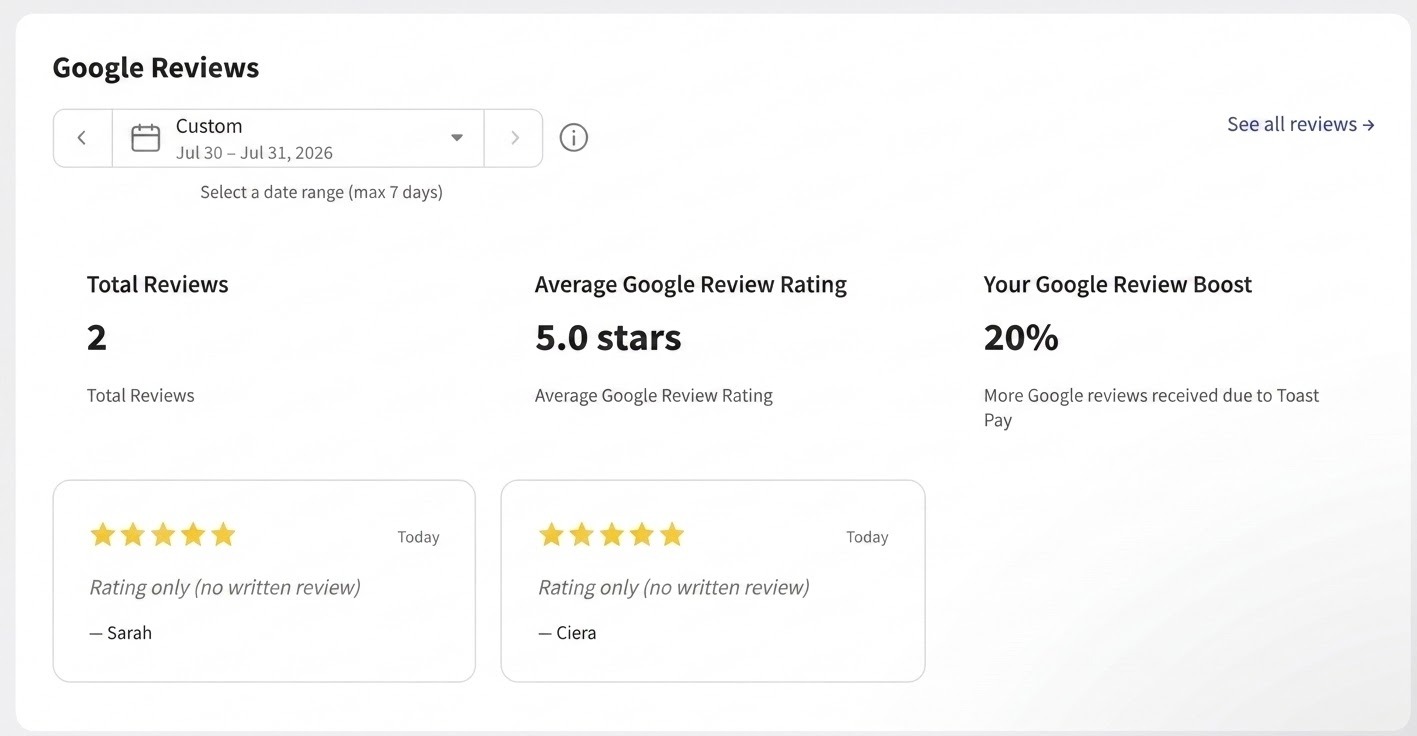
For Google Review-related Toast Pay metrics, navigate to Toast Pay > Reports > Google Reviews. Here you can view total Google reviews received from Toast Pay, average Google review rating, and your Google review boost over a selected date range. Select See all reviews to view specific Google reviews that match to Toast Pay transactions.
Note: To power this, Toast uses AI to identify and attribute Google Reviews that are likely connected to Toast Pay transactions. While these matches are highly accurate, they are not guaranteed and some reviews may be incorrectly matched or omitted.
Toast Pay Staff Training
Toast Pay gives guests the flexibility to view their check and pay whenever they’re ready by scanning the QR code on their printed receipt. This means staff spend less time swiping cards and running back and forth to payment terminals, leaving more time for genuine hospitality. Toast Pay is an option, never an obligation. Always read the table, use natural language, offer reassurance if a guest seems hesitant, and know when to step in with traditional payment methods.
Sample Staff Scripts:
- Closing Experience: “How is everything tasting? When you're finished with your meal, use the camera on your phone to scan the QR code on your receipt [show QR code to the guest] to pay for your meal. This will bring you to a website where you can complete your payment right here at the table, including payment options like Apple Pay and Google Pay. You could also leave a Google Review to share your experience with us today. And, of course, if there is anything else I can help you with, please let me know!"
- If a Guest Looks Confused: “No worries at all - just open your phone’s camera app and point it at the QR code on the bottom of your receipt if you'd like to try it, or I am more than happy to take care of your payment the traditional way.”
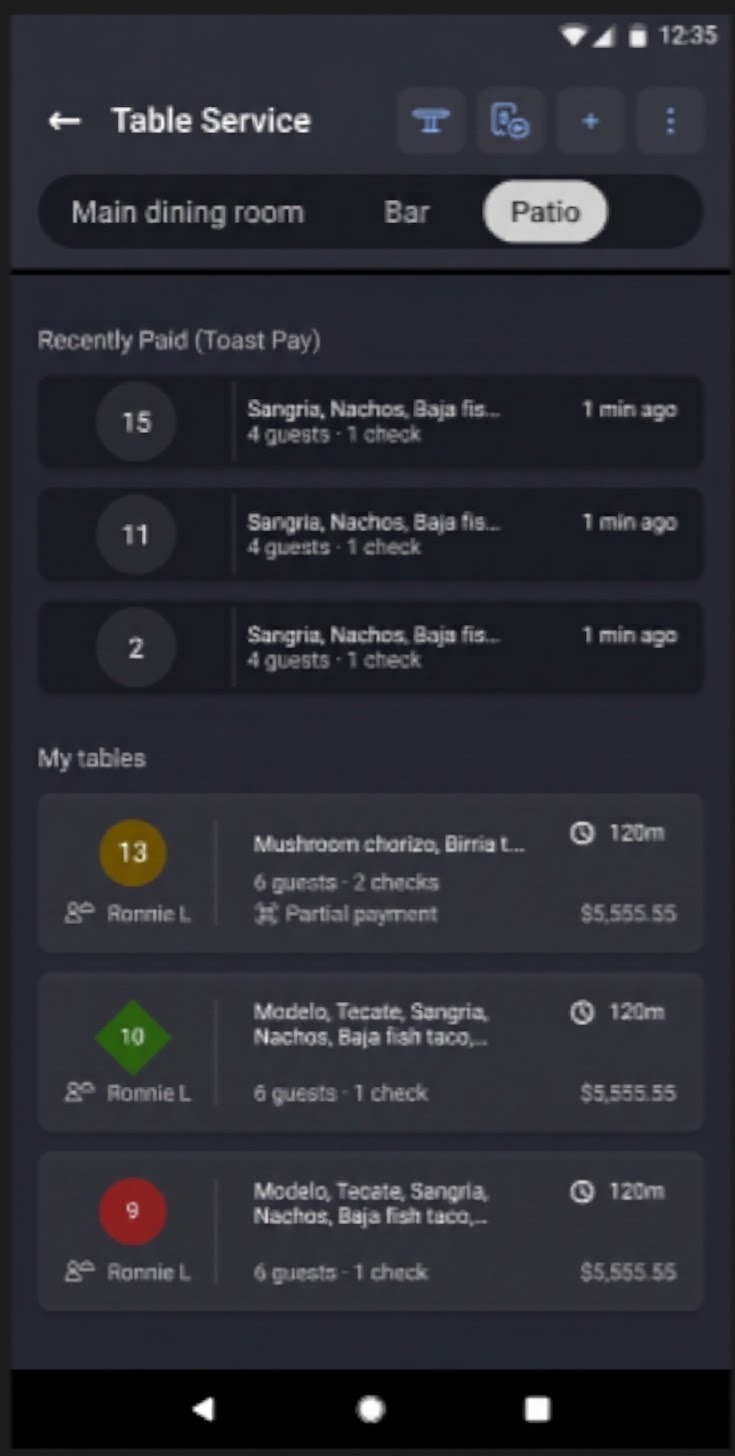
Once complete, your staff can easily view real-time payment statuses indicating which tables have completed payment via Toast Pay directly on the POS in Table Service mode as seen in the image below.
Toast Pay Frequently Asked Questions
Does Toast Pay cost anything to the restaurant?
Toast Pay works like mobile payments today and is included with the POS. Transactions are charged at the Card Not Present rate, but no monthly fee exists.
How is Toast Pay different from Mobile Order & Pay?
Toast Pay and Mobile Order & Pay® are two different products:
-
- Toast Pay: Guests pay an existing check from their phones at the end of a traditionally served meal. Depending on the restaurant’s setup, they can also split the check, add a tip, use loyalty rewards, and provide feedback.
- Mobile Order & Pay®: Guests browse the menu, place orders, and pay from their phones as part of a self-service dining experience. To learn more, see Get Started With Toast Mobile Order & Pay®.
Can guests use promo codes or discounts with Toast Pay?
Yes, guests can apply promo codes during the Toast Pay checkout flow. Only one offer or promo can be applied per transaction.
Will guests receive email after Toast Pay payment?
Yes, all guests receive an email confirmation with their check details and a request for guest feedback (if enabled). For payments made via Apple Pay or Google Pay, the email will automatically be sent to the address linked to that account.
How do I reflect a large party gratuity for guests?
To automatically apply a gratuity:
- Navigate to Finance > Settings > Service charges & fees.
- Select + Add to create a new service charge rule. (If you already have an existing rule, skip step 2 and 3.)
- Configure your rule (e.g., set the percentage and party size requirement).
- Ensure the Dine In column is selected for this rule.
- Select Save.
Once guests are seated, on the POS payment screen, select Service charge. Choose the appropriate charge from the list. Select Done to apply it to the check. Guests will see the reflected large party service charge on their Toast Pay payment screen.
We are not seeing Google Reviews prompting for guests. How do I enable Google Reviews?
Please review the following:
-
- Make sure your Google Business Profile is connected. Get started by clicking on this link here.
- Make sure you’re using the correct Google Business Profile login. If you'd like to link multiple restaurants to Google, please link each restaurant separately through the above link.
- You must have Guest feedback enabled to use this feature. Menu item feedback is optional. To enable Guest feedback and Menu item feedback in Toast Web, navigate to Guests > Related > Guest feedback settings or Guest > Related menu items feedback settings.
We want to remove the Google Review prompting upon guest checkout. How do we do this?
Contact the Toast Pay support team at toastpaysupport@toasttab.com to disable Google Review prompting for your location.
The QR code isn't showing on our printed receipts, even though Toast Pay is turned on. Why?
Make sure you select Publish Changes after toggling on the QR code setting, and confirm there are no unpublished changes in your configuration. If the QR code is still not appearing, contact the Toast Pay support team at toastpaysupport@toasttab.com.
Guests are getting the following errors when scanning: "Oops! Something went wrong" or "Unable to load this item". What's wrong?
This is usually a temporary sync glitch that can be fixed by having the guest reload the page. If this is happening across all checks, please report the issue to the Toast Pay support team at toastpaysupport@toasttab.com.
We want to remove the QR code on the receipt. How do we do this?
To remove the Toast Pay QR from your receipts, navigate to Toast Pay > Settings > QR Code on the receipt and turn the toggle to Off. Turning off your QR code on the receipt will disable Toast Pay.
Additional Resources