Get Started With Mobile Payments and Digital Menus
Last updated: Oct 2, 2026, 11:12 AM
Learn how to enable, configure, and get the most out of mobile payments and digital menus.
- Mobile Payments and Digital Menus Overview
- Before You Begin
- Step 1: Turn On the Payment QR Code for Receipts
- Step 2: Set Up Digital Menus With QR Codes
- Step 3: Adjust Your Menu Visibility for Digital Menus
- Step 4: Set Up Server Notifications on the POS
- Step 5: Train Your Staff
- What Your Guests Will See
- Toast Loyalty Sign-Up Through Digital Payments
- Related Articles
Mobile Payments and Digital Menus Overview
Mobile payments and digital menus let guests use the camera on their phones to scan a QR code, view your menu, and pay for their check at the table. Many restaurant operators refer to this simply as "the QR code" on the receipt or table tent.
Toast offers two related digital dining options:
- Mobile payments let guests pay an existing check by scanning a QR code. This feature is included with the Core POS subscription and can be enabled right from your Toast account.
- Toast Mobile Order & Pay® lets guests both order and pay from their phones, order continuously on one tab, and split payments. To learn more, see Toast Mobile Order & Pay® Overview.
Note: All mobile payments are processed at your contracted keyed transaction rate, also called the mobile transaction or card-not-present rate. These costs are typically higher than swiped transactions because of the added fraud risk on keyed payments. There is no additional feature fee for mobile payments or digital menus.
Before You Begin
Applies to: Toast Web, Toast POS
Permissions needed:
- Access to payment and front of house settings in Toast Web
What you'll accomplish: Enable the payment QR code on receipts, set up digital menus with QR codes, control which menus guests can see, and turn on server notifications so staff know when a guest has ordered or paid.
Step 1: Turn On the Payment QR Code for Receipts
If you use Toast Pay, see Get Started With Toast Pay to set up mobile payments. As of December 2023, all new Toast customers have access to Toast Pay by default, and restaurants not yet using Toast Pay can update to it for free.
If you are not using Toast Pay, follow these steps to turn on the payment QR code that prints on receipts:
- In Toast Web, navigate to Finance > Related > Settings > Payment options > Toast Pay.
- Locate the QR Code on the receipt setting and set it to On.
- Review the other Toast Pay settings as desired.
- Select Save, then Publish.
Expected outcome: The payment QR code begins printing at the bottom of guest receipts. It may take up to one day for QR codes to start appearing on receipts.
Note: If you want to stop the QR code from printing on receipts, see Remove QR Code From Receipts.
Step 2: Set Up Digital Menus With QR Codes
Digital menus let guests scan a QR code at the table to view your menu on their phones.
- In Toast Web, navigate to Front of house > Mobile dining solutions > Toast Mobile Order & Pay™ & Digital Menus.
- Toggle on the menus you want guests to see, then select Continue. Any changes on this screen are published when you select Continue.
- Select the tables that should have table tents (signs) with QR codes, then select Continue. You can change the service area at the top of the page.
- Review your restaurant's logo. To add or update it, upload your logo under Restaurant Info. To learn more, see Update Restaurant Information.
- Select Continue.
- Select a color to complement your logo. To set transparency, enter a number between 0.0 (fully transparent) and 1.0 (fully opaque) under the Alpha header, or use the color picker or a Hex code. Select Continue.
- Preview the guest experience by scanning the on-screen QR code, or make changes such as which menus are available. Select Continue.
- Choose how to get your signs, then select Continue:
- Select Print signs yourself to download a PDF of your customized table signs.
- Select Place a sign order to order the signs through Toast's recommended printer.
- Select Download QR codes to download the QR code images or the per-table URLs for your own sign design.
Expected outcome: Your customized table signs or QR codes download to your computer, ready to print and place on tables.
Note: Ordering QR code signs through Toast is only available to customers in the US. Customers outside the US must print signs on their own. We also recommend purchasing sign holders, such as the weighted menu card holders available here (external link), so the signs stand out to guests.
Step 3: Adjust Your Menu Visibility for Digital Menus
Choose which menus guests can view by adjusting your menu visibility settings.
- In Toast Web, navigate to Menus > Bulk management > Advanced properties.
- Using the Show/Hide filter in the upper right corner of the page, select Visible To.
- Next to the menu you want guests to see, change the Visible To setting to POS & Digital Menus.
- Select Save, then Publish.
Expected outcome: The menus you set to POS & Digital Menus appear when guests scan the QR code. Your settings may look different depending on which Toast products your restaurant uses, so make sure each menu you want guests to see is visible for digital menus.
Step 4: Set Up Server Notifications on the POS
Server notifications alert your staff when a guest places an order, pays, or fails to pay using mobile dining solutions. Depending on your configuration, notifications are sent to Toast Go® and POS devices.
- In Toast Web, navigate to Front of house > POS Notifications > Notification setup.
- Choose your notification settings:
- Select which notifications are sent to your servers.
- Choose whether the alert goes to the server assigned to the check or to all servers.
- Choose whether notifications are sent to Toast Go® devices. Only Toast Go® 2 devices can be excluded from receiving notifications.
- Select Save, then Publish.
Expected outcome: Servers receive the notifications you selected on their assigned devices. A failed payment notification means a guest tried to pay by scanning the QR code, but the payment did not go through, often because a card number was entered incorrectly or the card declined. If a server cannot help a guest resolve a declined payment, they can take payment on a POS device instead.
Step 5: Train Your Staff
Before using mobile payments and digital menus with guests, familiarize your staff with the process and create a short script for introducing the option. A friendly, reassuring tone helps, along with a plan for when a manager needs to get involved.
If your staff are unfamiliar with QR code technology, share these resources:
- Scanning a QR code with your iPhone, iPad, or iPod Touch (external link)
- Scanning a QR Code from a Samsung Phone (external link)
A few things to cover in training:
- Once a guest is ready to order, use table service mode on your Toast device to place the order at the guest's table.
- The guest's table displays as yellow once you enter their order, and changes from yellow to white once their payment is complete, so you can confirm guests have paid before they leave.
- Select Send, Stay, or Hold for an item to add it to the guest's Pay Check tab.
- If guests split the check, each guest receives a separate QR code with their own itemized receipt.
What Your Guests Will See
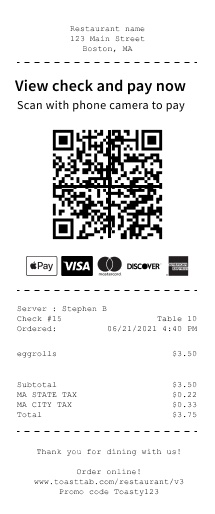
After a guest finishes their meal, the server prints an itemized receipt with a QR code at the bottom and leaves it with the guest. To pay, the guest scans the QR code with their phone's camera.
What the guest sees next depends on their location and device:
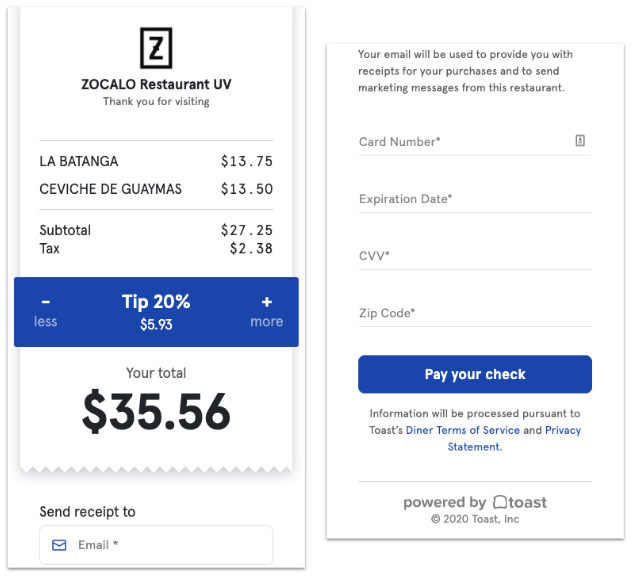
- For guests outside the US, the QR code opens a website where they enter their email address and payment information and can add a tip.
- For guests inside the US, the QR code opens a website (Android), the Toast Local app (iOS, if installed), or an App Clip (a partial version of the Toast Local app on iOS). The Android Toast Local app does not currently support mobile payments, so Android guests use the web experience. If the app store is offline, iOS guests also see the web experience. Guests then enter their email address and payment information and can add a tip.
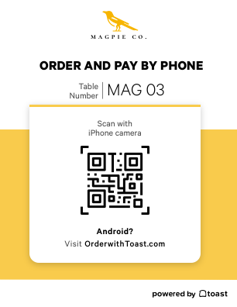
When guests use digital menus, scanning the QR code at the table opens a screen where they select View menu to browse items, images, descriptions, and modifier options. When they are ready to order, they order directly with a staff member. To pay, they re-scan the QR code and select Pay Check.
Expected outcome: Once payment is complete, the guest sees a confirmation message. If a guest opens the Pay Check tab before their server enters the order, they see the message: "Nothing to pay for right now. We could not find an open check with that number right now. Try again."
Note: If a guest's payment shows as complete on their phone but the check has not updated on the POS, your POS device may be offline. You can verify the payment in Toast Web using the Find checks & issue refund feature on the Payments page. For more answers about the guest payment experience, see Toast Mobile Payments & Digital Menus FAQ.
Toast Loyalty Sign-Up Through Digital Payments
If you use Toast Loyalty, guests can sign up for rewards when they check out using mobile payments or digital menus, with no extra setup needed. Toast Loyalty is currently available only to customers inside the US.
Here's how it works:
- At payment, Toast checks whether a loyalty account exists under the email address the guest entered at checkout.
- If the guest has an existing account, their purchase points are added automatically.
- If no account is found, the guest is prompted to enter their preferred email address or phone number, depending on your sign-up method, to claim their points.
Related Articles
- Toast Mobile Payments & Digital Menus FAQ
- Remove QR Code From Receipts
- Get Started With Toast Pay
- Toast Mobile Order & Pay® Overview
- Split Payments With Toast Mobile Order & Pay®