Get Started With the Bloom Intelligence Integration
Last updated: Aug 28, 2026, 4:49 PM
Bloom Intelligence provides a read-only marketing platform integration for Toast customers who want an AI-based platform that saves time, finds new guests, and retains Marketing. Leveraging Toast’s order data, Bloom Intelligence allows you to gather guest data, trigger behavior-based marketing campaigns, and control your restaurant reputation, all in one platform.
Bloom Intelligence is an AI-powered restaurant marketing platform integration that provides automation, reputation management, and guest data aggregation, helping save time, find new guests, and trigger behavior-based marketing, for Toast customers.
| This integration requires access to Toast Partner Integrations. To learn more, see Set Up Toast Partner Integrations. |
In this Article:
- Enable the Bloom Intelligence Integration With Toast
- Bloom Intelligence Integration: Troubleshooting and Support
Enable the Bloom Intelligence Integration With Toast
- To enable Bloom Intelligence with Toast, log in to Toast Web and navigate to Integrations > Integrations management > Browse & purchase integrations.
- Enter Bloom Intelligence in the Search field and then select Add Now.
- If you have multiple locations, you’ll be prompted to select which location(s) you’d like to connect to Bloom Intelligence. Select your desired locations, and then select Apply.
- Note: Your restaurant must have access to Toast Partner Integrations to add this integration. To learn more, see Set Up Toast Partner Integrations.
- Review the data scope visibility terms and conditions and select Confirm. See the Data Scope Visibility article for more information. Once confirmed, Bloom Intelligence’s customer success team will contact you to complete the onboarding and setup process. After this is complete, continue with the next step:
- Locate your Bloom Location ID by logging in to your Bloom Intelligence dashboard and completing the following steps:
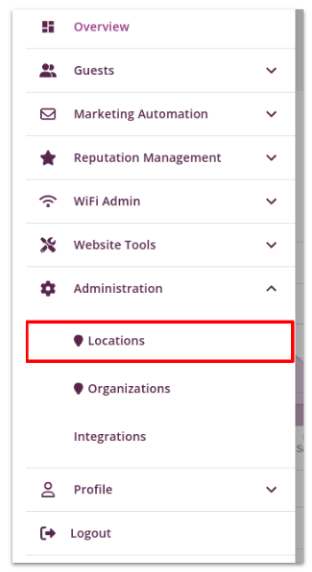
- Open the Administration drop-down on the left side of the screen.
- Select Locations.
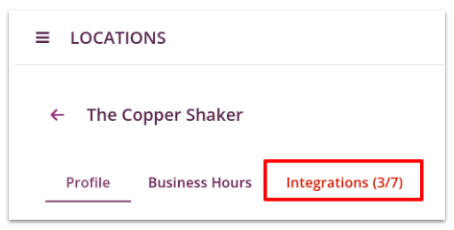
- From the location list, select the name of the restaurant you want to add the integration to.
- Select the Integrations tab.
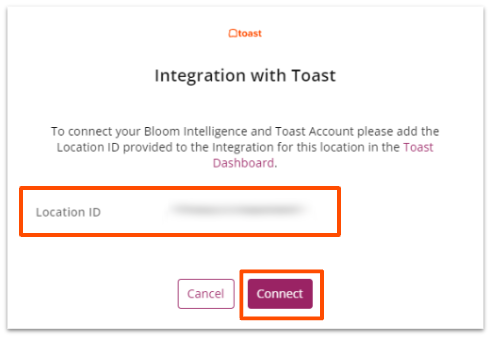
- Find Toast in the Platform column and select Connect.
- In the pop-up window, copy the Location ID displayed, and then select the Connect button. This tells the Bloom Intelligence system that the integration is being added for the selected location.
- Note: The pop-up window will close and the status of the Toast integration will show as “Pending”. Once you complete the remaining steps below, the status will change to “Connected”.
- Note: The pop-up window will close and the status of the Toast integration will show as “Pending”. Once you complete the remaining steps below, the status will change to “Connected”.
- Then, go back to Toast Web to paste the Location ID and complete the connection between Toast and Bloom Intelligence. In Toast Web, navigate to Integrations > Integrations management > Browse & purchase integrations, and select Manage integrations at the top of the page.
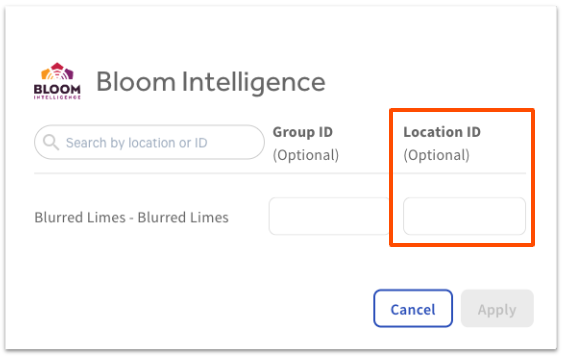
- Select the gear icon for the Bloom Intelligence integration.
- Paste your Location ID into the corresponding field and select Apply.
Bloom Intelligence Integration: Troubleshooting and Support
For any questions or technical issues with your Bloom Intelligence integration that are unrelated to Toast products (hardware or software) or network/connection issues, email CR@bloomintelligence.com or call (727) 877-8181, Mondays to Fridays, 8:30 a.m. - 5:30 p.m. ET.
Back to top