Gift Card Reports Overview
Last updated: Sep 17, 2026, 5:32 PM
Learn how to use and get the most out of your gift card reporting.
- Gift Card Reports Overview
- Before You Begin
- Quick Pick: Which Gift Card Report Should I Use?
- Find Your Gift Card Liability at a Point in Time (e.g., Year-End)
- Navigate to Gift Card Reports
- Gift Card Reports at a Glance
- Gift Card Balances Report
- Gift Card Transactions Report
- Gift Card Liabilities Report (Multi-Location Liability Pooling)
- Inactive Gift Cards Report
- Failed eGift Card Deliveries Report
- Build a Custom Gift Card Report
- Reconcile Gift Card Reports With Other Reports
- Glossary: Gift Card Reports Terms
- Why Isn't My Gift Card Report Loading or Showing Data?
- Frequently Asked Questions
- How do I get a gift card liability report for year-end (e.g., 12/31)?
- What is the difference between the Gift Card Balances and Gift Card Liabilities reports?
- Why is my gift card liability report blank?
- What is a "void redemption" in gift card transactions?
- Can I get a list of every gift card with its number and current balance?
- How do I find an eGift card a customer says they never received?
- How do I track gift cards in a multi-location restaurant group?
- What if my Toast Gift Card module is deactivated?
- Can I build my own gift card report?
- Related Articles
Gift Card Reports Overview
Gift card reports in Toast Web tell you what gift cards you have outstanding, what they're worth, how they've been used, and where the money is owed between locations. If your accountant asks for "the gift card liability report" for a tax filing or a balance sheet, the report they want depends on the question they're answering — see the Quick Pick table below.
Note: All six reports live in Toast Web at Reports > Payments. They are pulled in real time from your gift card data — there is nothing to upload or send.
Before You Begin
Applies to: Toast Web with the Toast Gift Card module enabled.
Permissions needed:
- 4.4 Gift/Rewards Cards Reports
What you'll accomplish: Identify the right gift card report for your question, pull it for the time range you need, and understand what each field means.
Note: If your Toast Gift Card module is deactivated, the only gift card report available is the Gift Card Balances report. See Gift Card Liability Without the Toast Gift Card Module for the manual workflow that replaces these reports.
Quick Pick: Which Gift Card Report Should I Use?
Lead with the question your accountant, owner, or guest is asking. Each row below maps that question to the single best report.
| If you need to know… | Use this report | Why |
|---|---|---|
| The total outstanding gift card liability for my restaurant at a specific date (e.g., 12/31/2025 for year-end accounting) | Gift Card Liabilities (set the custom date range to that single day — see the next section) | The Liabilities report rolls up transaction-level activity into a starting and ending liability, so a one-day custom range returns the balance as of that day. |
| The current real-time balance of every active gift card, with card number and current balance for each | Gift Card Balances | Real-time list, ignores date filters, exports to CSV for accountants. |
| The detailed transaction history of one card or all cards over a date range (sales, redemptions, voids) | Gift Card Transactions | Date-range-driven transaction log. Each row is one transaction with a Type column (Added Value, Redemption, Void Redemption, Adjust Balance, etc.). |
| Who owes who between locations in a multi-location restaurant group | Gift Card Liabilities (Liability Pooling Report) | Tracks the difference between the store that sold the card and the store that redeemed it. Multi-location only. |
| How many unsold (inactive) physical gift cards I have left in inventory | Inactive Gift Cards | Real-time count of cards that have been ordered but not yet loaded with value. |
| Whether an eGift card was actually delivered to the recipient (and how to resend it) | Failed eGift Card Deliveries | Lists eGift cards that bounced to an invalid email address, with a resend action. |
| The single total balance number for all my gift cards (not a line-item list) | Single-location: Guests, Gift Cards, and Loyalty Summary (under Reports > Marketing > Guest Summary). Multi-location: Gift Card Liabilities | The line-item Gift Card Balances report does not display a single grand total — use a summary report or sum the CSV export. |
| For a guest who can't find their eGift card, where to look it up by transaction or email | Gift Card Transactions (search by date or card number) or Failed eGift Card Deliveries (if delivery failed) | See Check or Adjust a Gift Card Balance for alternate lookup paths. |
| Gift card trends over time, sales by channel, or a single dashboard combining several gift card views | Custom report (Gift card performance template) | Builds a dashboard of gift card charts on one page, with no lookback-window limit. |
Find Your Gift Card Liability at a Point in Time (e.g., Year-End)
To get your outstanding gift card liability as of a specific date (most common ask: 12/31 for year-end tax/accounting):
- In Toast Web, navigate to Reports > Payments > Gift card liabilities.
- In the date-range selector at the top of the report, select Custom and set both the Start Date and End Date to the same day — for example, both dates set to 12/31/2025.
- Select Update to refresh the report. The Ending Liability value displayed is your total outstanding gift card liability as of that date.
- To save a copy for your accountant, select Email Export and enter the recipient's email address. Toast emails the report as an Excel file.
Expected outcome: The report displays your outstanding gift card liability for the single date selected. The Ending Liability value is the number to give your accountant for a balance-sheet snapshot.
Note: This technique works because the Liabilities report is transaction-based — a one-day custom range collapses to a point-in-time snapshot.
For multi-location restaurant groups, confirm your location dropdown selection at the top of the report is set to the location (or all locations) you want included before selecting Update.
Navigate to Gift Card Reports
In Toast Web, navigate to Reports > Payments. From the left-hand report navigation menu, select the gift card report you want to view. Tip: Type the report name (for example, Gift Card Balances or Gift Card Transactions) into the Toast Web search bar to jump directly to it. From any gift card report, the horizontal menu at the top lets you switch between the other gift card reports quickly.
You must have the 4.4 Gift/Rewards Cards Reports user access permission to view the gift card reports. For more information, see Permissions Reference Guide.
Gift Card Reports at a Glance
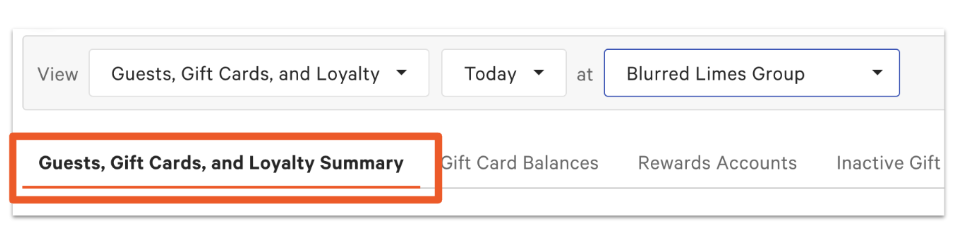
The summary view of gift card activity in Toast lives in three closely related places: the Guests, Gift Cards, and Loyalty Summary report (single-location only), the Card Counts widget at the top of every gift card report, and the Gift Card Transactions summary metrics at the top of the Liabilities report.
Guests, Gift Cards, and Loyalty Summary
What this report tells you: For single-location restaurants, this is the fastest way to see a single total liability number — broken down by physical vs. eGift cards, net liability change, starting liability, and ending liability — along with any rewards account information.
In Toast Web, navigate to Reports > Marketing > Guest Summary.
Card Counts
What this report tells you: The real-time count of every active and inactive gift card in your Toast account, split by card type.
- Classic Gift Cards: Count of all active physical gift cards ordered through Toast's printing partner, eCard Systems.
- eGift Cards: Count of all active digital eGift cards.
- Imported Gift Cards: Count of all active imported cards.
- Inactive Cards: Physical cards that have been ordered but not yet loaded with value (for example, a box of blank physical cards waiting to be sold).
Note: Key definitions when counting gift cards:
- Gift Cards = All cards with at least one transaction (sale, balance adjustment, or import). Even if the balance is $0, they're still counted.
- Inactive Cards are NOT the same as deactivated gift cards. To learn how to reactivate a deactivated gift card, see Reactivate a Deactivated Gift Card.
Gift Card Transactions Summary Metrics
What this report tells you: The total gift card sales and redemptions over a selected date range, along with the starting and ending liability for that period. This panel appears at the top of the Gift Card Transactions and Liabilities reports.
- Total Sales
- Added Value: Transactions where value was added to gift cards (includes new card sales and reloading existing cards).
- Voided Add Value: Transactions where added value was canceled or voided.
- Adjust Balance: Manual adjustments to card balances (outside of a sale or redemption).
- Total Redemptions
- Redemptions: The amount guests used from gift cards to pay for orders.
- Voided Redemptions: Redemptions that were later canceled or voided.
- Net Liability Change: Change in total gift card liability during the selected period. Calculated as Total Sales − Total Redemptions.
- Starting Liability: Outstanding gift card balance at the beginning of the selected date range.
- Ending Liability: Outstanding gift card balance at the end of the selected date range.
Note: To find your gift card liability at a specific point in time (for example, 12/31/2025), use the custom date range and set both the start and end dates to that day. See Find Your Gift Card Liability at a Point in Time above.
Important: For multi-location customers, confirm your location dropdown selections are accurate before reading the totals.
Gift Card Balances Report
What this report tells you: The Gift Card Balances report lists every active gift card account and its current balance. Use it to look up a single card, export the full list to CSV, or adjust the balance on a specific card.
Note: This report ignores date-range filters. It is real-time. If you want a transaction history over a date range, see the Gift Card Transactions report instead.
To filter the report, use the dropdown menus at the top to set the date and/or location (the location where the gift card was first generated or imported). After changing options, select Update. To customize visible columns, select Show/hide columns and choose the columns to display.
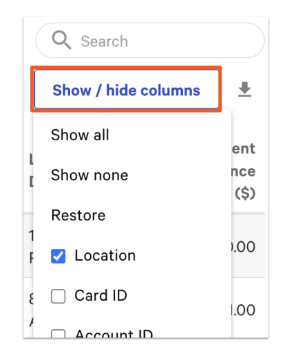
Column definitions (Gift Card Balances):
- Location: The location where the gift card was first generated or imported.
- An eGift card is generated at the time of sale in the restaurant where the card is sold.
- A Toast-ordered/printed physical card is generated in the restaurant where the order is placed, which can differ from where it's sold.
- A non-Toast-ordered/printed card must be imported to Toast. It is linked to the location where it was imported (either as an inactive or active card).
- Card ID: A secondary identifier for the gift card. Useful in the rare case that two gift cards share the same card number.
- Account ID: The ID of the stored value. Most often unique to each card, but two or more gift cards that are merged together share the same Account ID. For example, if gift card 1234 and gift card 4567 are merged, they begin to share the same Account ID.
- Classic Card?: If true, the gift card is a physical card. If false, it is an eGift card.
- De-activated?: If true, the gift card has been deactivated. If false, the gift card is still active.
Note: It's possible to re-activate a previously deactivated gift card. Select a gift card row to open the Card Details window, then select Edit in the upper-left corner of Card Details to open a dropdown that lets you deactivate or re-activate the card. To learn more, see Reactivate a Deactivated Gift Card.
- Imported Number: The card number assigned to a gift card before it was imported to Toast. Applies only to cards created or generated outside Toast and imported later.
- Card Number: Every gift card has a Toast-assigned card number, regardless of whether it was imported. Toast-assigned card numbers always begin with 862.
- First Trans. Date: The date of the first transaction on the gift card.
- Initial Amount ($): The initial amount associated with the gift card.
- Last Trans. Date: The date of the last transaction on the gift card.
- Current Balance ($): The current balance on the gift card.
To adjust the balance of a specific card from this report:
- Select the gift card row you want to change.
- On the Card Details pop-up, in the Transaction section, select Adjust Balance.
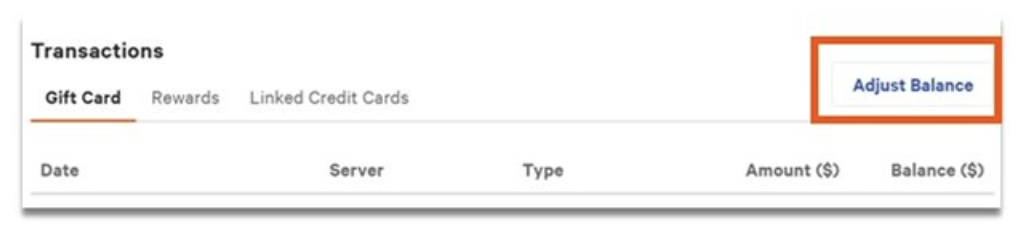
- In the Amount ($) field, enter the value to add to the gift card. To subtract value, enter a negative value (e.g., -5.00).
- Select Save.
Expected outcome: The gift card's Current Balance ($) updates immediately, and a balance-adjustment row appears on the Gift Card Transactions report with Type = Adjust Balance.
Note: From the Card Details pop-up, you can also edit Card Info, Customer Info, and eGift Card Information. To adjust a gift card balance from the POS instead of from Toast Web, see Check or Adjust a Gift Card Balance.
To export the report, select the download icon (down arrow) above the columns to download a .csv file.
Gift Card Transactions Report
What this report tells you: The Gift Card Transactions report shows every gift card transaction — sales, redemptions, voids, and balance adjustments — over a date range you select, along with each transaction's effect on card balances.
Use this report when you need a transaction-level history (for one card or all cards) rather than current balances. You can match imported card numbers to Toast card numbers here, audit redemption activity, and confirm the result of a balance adjustment.
To customize columns, select Show/hide columns. The column set is similar to the Gift Card Balances report; see Gift Card Balances Report above for column definitions.
Note: Any tip adjustments associated with gift cards appear as a Void Redemption type in this report. See the Glossary for more on what Void Redemption means.
Gift Card Liabilities Report (Multi-Location Liability Pooling)
What this report tells you: For multi-location restaurant groups, the Gift Card Liabilities report tracks each transaction in relation to the store that owns the card's liability (the original purchase store) versus the store that redeemed the value. Use it to audit how much each store owes the others based on the liability amount versus the redeemed amount.
Note: The redemption store is always owed the amount for accepting the original store's gift card and honoring that liability.
To customize columns, select Show/hide columns.
Column definitions (Gift Card Liabilities):
- Affected Store: Sort by location to see how much outstanding liability there is at a given time for a particular store.
- Transaction ID: Identifier for the transaction.
- Original Account ID / Current Account ID: The gift card account ID.
- Card Number(s): Every gift card has a Toast-assigned card number, regardless of whether it was imported. Toast-assigned card numbers always begin with 862.
- Imported Card Number(s): If the card is imported, the imported card number appears here.
- Date: Transaction date. There can be — and often will be — several dates per Account ID.
- Original Purchase / Add Value Store: The store in the restaurant group that originally accepted payment for the card. This is the store that owes the redemption location.
- Debit ($): The amount owed by the affected store. You'll see a debit when the affected store is the purchase location — this is money owed from that store.
- Credit ($): The amount owed to the affected store. You'll see a credit when the affected store is the redemption location — this is money owed to that store.
- Redemption Store: The store where the gift card value was actually redeemed to purchase an item.
To export the report as an Excel file:
- Select Email Export at the top of the report.
- Enter the email address(es) of the recipients (accountant, bookkeeper, owner, etc.).
- Select Submit to send the report.
Expected outcome: Recipients receive the report by email as an Excel attachment. Since the report is transaction-level, recipients can use a pivot table to aggregate by store, by date, or by card to get a summary view.
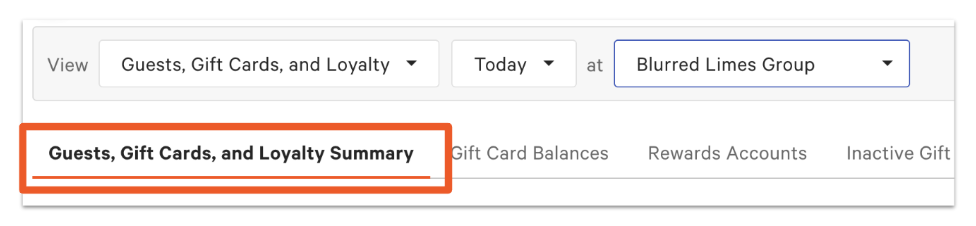
Note: For single-location restaurants, the Gift Card Liabilities report is not the right tool. Use the Guests, Gift Cards, and Loyalty Summary report instead — see Guests, Gift Cards, and Loyalty Summary above.
Inactive Gift Cards Report
What this report tells you: The Inactive Gift Cards report lists every unsold gift card number — physical cards that have been ordered but not yet activated or loaded with value. Use it to view or edit card details, manually activate an inactive card, and check inventory to decide whether to order more.
To customize columns, select Show/hide columns. Column definitions are the same as on the Gift Card Balances report — see Gift Card Balances Report above.
To export the report, select the download icon (down arrow) to download a .csv file.
Note: Inactive cards are not the same as deactivated cards. Inactive cards have never been sold; deactivated cards were active and were later deactivated. To reactivate a deactivated card, see Reactivate a Deactivated Gift Card.
Failed eGift Card Deliveries Report
What this report tells you: The Failed eGift Card Deliveries report lists every eGift card that was sent to an invalid or undeliverable email address. Use it to find an eGift card a customer never received, correct the recipient's email, and resend the card.
To access this report, in Toast Web, navigate to Reports > Payments > Failed e-gift card delivery.
To filter by date, time, or location, use the dropdown menus and select Update. To customize columns, select Show/hide columns.
Column definitions (Failed eGift Card Deliveries):
- Location: The location where the gift card was first generated. An eGift card is generated at the time of sale in the restaurant where it's sold.
- Email: The gift card purchaser's email.
- Purchaser Contact Info: The contact information the purchaser provided.
- Card Amount: The original amount on the gift card.
- Delivery Attempted: The date and time of the electronic delivery attempt.
- "To" Name: The gift card recipient's name.
- "From" Name: The gift card sender's name.
- Failure Reason: The reason the gift card was not delivered (for example, invalid email address).
To resend a failed eGift card with a corrected email address, follow these steps:
- In Toast Web, navigate to Reports > Payments > Failed e-gift card delivery.
- Select the order and enter the correct email address for the eGift card that should be sent.
- When finished, select Update & Resend Email.
For more information, please see Resend Toast eGift Cards.
Build a Custom Gift Card Report
Alongside the six standard gift card reports, you can build a custom gift card dashboard that brings sales, outstanding liability, and transaction detail onto a single page. Toast provides a Gift card performance template, so you do not have to build the dashboard from scratch.
Use a custom gift card report when you want to see gift card trends over time, compare sales channels, or keep your most-used gift card views together in one place instead of switching between reports.
Note: Custom reports are not limited to a set lookback window. You can query gift card data going as far back as you need.
Note: The 4.4 Gift/Rewards Cards Reports permission listed in Before You Begin applies to the six standard gift card reports. It is not required to build or view a custom gift card report.
Create a Custom Gift Card Report From the Toast Template
- Navigate to Toast Web > Reports > Custom reports.
- Select Create new report.
- Hover over the Gift card performance template. Select Preview to view the template first, or select Use this template to begin customizing it.
- Rename the report, rearrange the widgets, or remove any widget you do not need.
- Select Save.
Expected outcome: Your gift card dashboard opens in View mode, where you can filter by date, compare time periods, filter by location, refresh the data, download the report as a CSV or Excel file, share it, or return to editing.
Note: For the full custom report builder — including building a report from scratch and configuring table, chart, and metric highlight widgets — see Create Custom Reports for Toast POS.
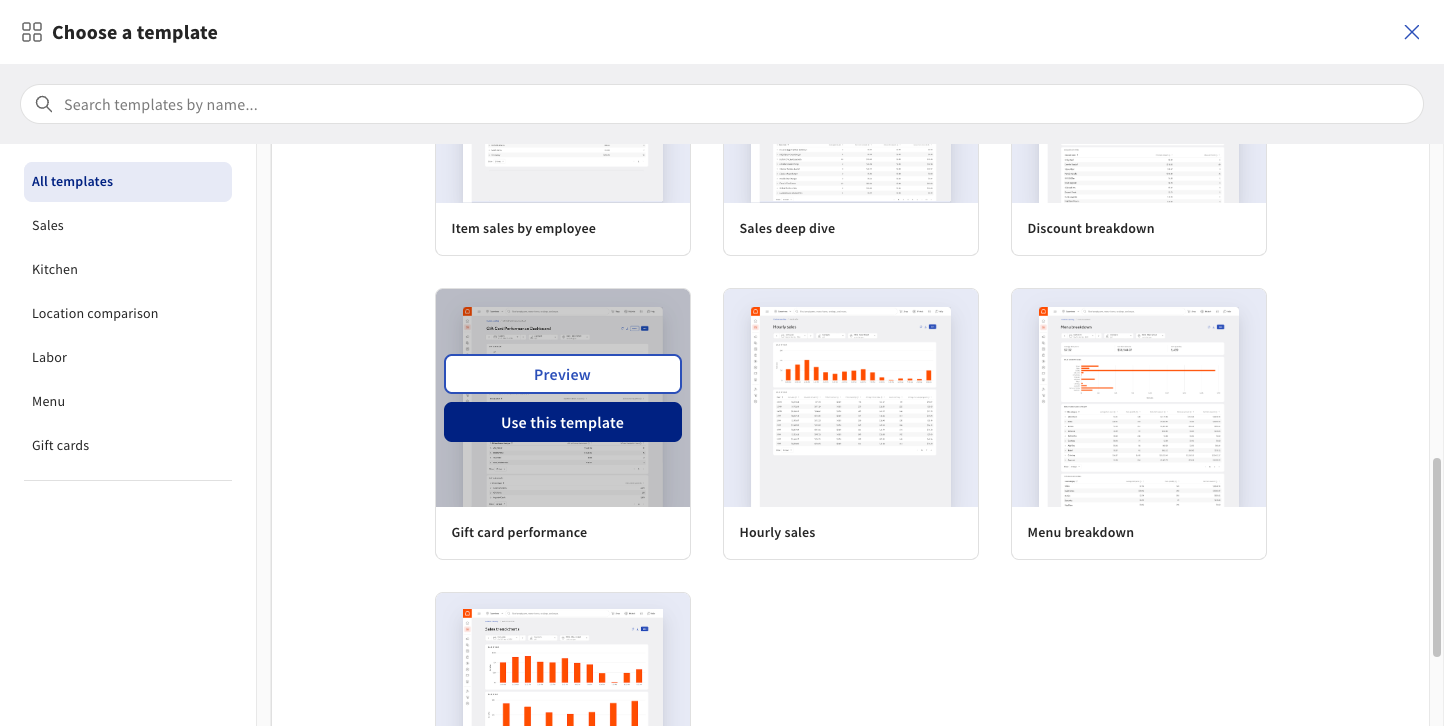
What the Gift Card Performance Template Shows
The Gift card performance template includes the following charts:
- Gift Card Sales Over Time: Total gift card sales tracked month by month.
- Gift Card Sales by Channel: Where gift cards were sold — on-premises versus your online eGift Card Shop. On-premises sales can include eGift cards.
- Gift Card Ending Balance: Outstanding gift card liability at the end of the selected time period.
- Gift Card Transactions: Total number of gift card transactions over time, broken down by gift card type.
- Gift Card Counts: Total number of gift cards in your system, broken down by type (for example, Classic versus eGift card) and status (active versus inactive).
- Gift Card Discounts: Discounts applied to gift cards over time, tracked month by month.
Note: The Gift Card Ending Balance chart shows outstanding liability for the selected period. For a point-in-time liability figure to give an accountant, use the Gift Card Liabilities report — see Find Your Gift Card Liability at a Point in Time above.
Reconcile Gift Card Reports With Other Reports
When the Gift Card Liabilities report number doesn't match the Sales Summary report number, the most common cause is the timing of revenue recognition.
Gift card sales are not recognized as revenue at the time of sale. Instead, when a guest buys a gift card, the value sits as a deferred liability on your books — the restaurant owes the cardholder that value as a future product or service. The liability is cleared (and revenue is recognized) when the gift card is redeemed against an order.
In Toast Web reports, this means:
- The Sales Summary report shows gift card redemption revenue when a card is used to pay for an order. It also shows the gift card sale as deferred (not as revenue) on the date the card was purchased — typically in a "deferred" or "gift card" line item.
- The Gift Card Liabilities report tracks the deferred side: how much liability you carry, what was added (sold) versus redeemed in a period, and the ending liability balance.
If the gift card sale amounts on the two reports don't agree for the same date range, check that:
- Both reports are filtered to the same date range and the same locations.
- Voids and adjusted balances are accounted for. Voids appear on the transactions report as Voided Add Value or Voided Redemption rows, and they shift both reports' numbers.
- Any added value or balance adjustments made directly from Toast Web (not from the POS) are not appearing on the Sales Summary, because those manual adjustments are not sales — they're balance changes.
For more details on managing gift card liability when your Toast Gift Card module is deactivated (in which case neither report shows new activity), see Gift Card Liability Without the Toast Gift Card Module.
For restaurants with the Toast Gift Card module deactivated, the only available gift card view is the Gift Card Balances report at Reports > Payments > Gift card balances. Liability totals cannot be derived from a deactivated-module account — gift cards must be tracked manually outside Toast. Refer to Gift Card Liability Without the Toast Gift Card Module for the full manual-tracking workflow.
Glossary: Gift Card Reports Terms
| Term | What it means |
|---|---|
| Added Value | A transaction that adds dollar value to a gift card. Includes both new-card sales and reloads of an existing card. Appears with Type = Added Value on the Gift Card Transactions report. |
| Voided Add Value | An Added Value transaction that was later canceled or voided. The dollar value is reversed, and the card balance is reduced accordingly. |
| Adjust Balance | A manual change to a gift card's balance made from Toast Web (Gift Card Balances report > Card Details > Adjust Balance) outside of a sale or redemption. Appears with Type = Adjust Balance on the Gift Card Transactions report. |
| Redemption | The amount a guest used from a gift card to pay for an order. Appears with Type = Redemption on the Gift Card Transactions report. |
| Void Redemption | A Redemption that was later canceled or voided — for example, when an order is voided after a gift card was applied as payment. Voiding the redemption returns the value to the gift card. Tip adjustments associated with gift cards also appear as Void Redemption rows. |
| Net Liability Change | The change in total gift card liability during a selected date range. Calculated as Total Sales − Total Redemptions. A positive number means liability increased (more value sold than redeemed). |
| Starting Liability | The outstanding gift card liability at the beginning of the selected date range. |
| Ending Liability | The outstanding gift card liability at the end of the selected date range. Use this number for a point-in-time snapshot (set custom date range start and end to the same day). |
| Card Counts (Gift Cards) | The count of all gift cards with at least one transaction — even if the current balance is $0. |
| Card Counts (Inactive Cards) | The count of physical cards that have been ordered but never loaded with value. |
| De-activated | A gift card whose status has been set to deactivated. Reactivatable from the Card Details pop-up. Distinct from "Inactive Cards." See Reactivate a Deactivated Gift Card. |
Why Isn't My Gift Card Report Loading or Showing Data?
If your gift card report is blank or returning no transactions for a date range you expect to have activity, check the following in order:
- You're in Test Mode. Active gift cards are not visible in Test Mode. Confirm Test Mode is disabled. To learn how, see Test Mode Overview.
- The wrong location is selected. On multi-location accounts, the location dropdown defaults may exclude the location where the cards live. Set the dropdown to All Locations (or to the correct single location) and select Update.
- The date range excludes your activity. Gift Card Balances and Inactive Gift Cards are real-time and ignore date filters, but Gift Card Transactions and Gift Card Liabilities are date-range driven. If you set both start and end dates to a single day and there was no activity that day, the report is correctly blank.
- The Toast Gift Card module is deactivated. If your module is off, gift card data isn't pulled in real time. Only the Gift Card Balances report displays existing card data; no new transactions appear. See Gift Card Liability Without the Toast Gift Card Module.
- No card activity in the selected window. If you are a newer Toast customer or a slow gift card month, the Liabilities report can legitimately return zero transactions. Try widening the date range (for example, last 365 days) to confirm.
- You're missing the permission. Without the 4.4 Gift/Rewards Cards Reports permission, the gift card report navigation entries may not appear in your menu. See Permissions Reference Guide.
If none of the above resolves the issue, contact Customer Care.
Frequently Asked Questions
How do I get a gift card liability report for year-end (e.g., 12/31)?
Also asked as:
-
- "I need a gift card liability report for 2025"
- "what is my year-end outstanding gift card liability"
- "How do I check my outstanding gift card liability on 12/31/25?"
- "my accountant needs a gift card liability report for 2025."
To get your gift card liability for year-end, run the Gift Card Liabilities report at Reports > Payments > Gift card liabilities with the custom date range set to your year-end date as both start and end (for example, both dates set to 12/31/2025). The Ending Liability value is the number to give your accountant. See Find Your Gift Card Liability at a Point in Time above for full steps.
What is the difference between the Gift Card Balances and Gift Card Liabilities reports?
The Gift Card Balances report is a real-time, line-item list of every active gift card and its current balance — useful for looking up a single card or exporting the full list to CSV. The Gift Card Liabilities report is a transaction-driven view that rolls up activity over a date range and tracks multi-location liability transfer. If your accountant wants a single total at year-end, use Gift Card Liabilities. If you want every card's current balance, use Gift Card Balances.
Why is my gift card liability report blank?
Your gift card liability report is most likely blank because your account is in Test Mode, the wrong location is selected on a multi-location account, the date range excludes your activity, or your Toast Gift Card module is deactivated. See Why Isn't My Gift Card Report Loading or Showing Data? above for the full checklist.
What is a "void redemption" in gift card transactions?
A Void Redemption is a previously applied gift card redemption that was canceled — for example, when an order paid with a gift card is voided. The value is returned to the gift card, increasing its current balance. Tip adjustments associated with gift cards also appear as Void Redemption rows on the Gift Card Transactions report.
Can I get a list of every gift card with its number and current balance?
Yes. On the Gift Card Balances report (Reports > Payments > Gift card balances), select the download icon (down arrow) above the columns to download the report as a CSV. The CSV contains every active gift card with its Card Number and Current Balance ($), plus the other columns documented in the Gift Card Balances Report section.
How do I find an eGift card a customer says they never received?
Check the Failed eGift Card Deliveries report at Reports > Payments > Failed e-gift card delivery — it lists every eGift card that bounced to an invalid email. From the report, you can correct the recipient's email and resend the card. for the exact resend click sequence. If the eGift card delivery did not fail (it delivered, but the customer can't find it), look up the transaction on the Gift Card Transactions report by date or card number.
How do I track gift cards in a multi-location restaurant group?
Use the Gift Card Liabilities report. It tracks transactions for both the store that owns the card's liability (the original purchase location) and the store that redeemed the value, so you can audit how much each store owes the others. The redemption store is always owed by the original purchase store. See Gift Card Liabilities Report (Multi-Location Liability Pooling) above.
What if my Toast Gift Card module is deactivated?
If your Toast Gift Card module is deactivated, only the Gift Card Balances report displays existing card data — no new transactions are recorded and you must track redemptions manually. See Gift Card Liability Without the Toast Gift Card Module for the manual workflow.
Can I build my own gift card report?
Yes, you can build your own gift card report using custom reports. Navigate to Toast Web > Reports > Custom reports, select Create new report, and select the Gift card performance template. The template charts gift card sales over time, sales by channel, ending balance, transactions, card counts, and discounts, and it is not limited to a set lookback window. See Build a Custom Gift Card Report above.
Related Articles
- Gift Card FAQ
- Check or Adjust a Gift Card Balance
- Reactivate a Deactivated Gift Card
- Import Gift Cards
- Create Custom Reports for Toast POS