Customize Guest Details on Receipts
Last updated: Sep 17, 2026, 8:09 PM
You may set the amount of guest details that print on takeout and delivery receipts. Discover the options you have on this page.
There are two places where guest details are printed on receipts: customer payment receipts and takeout/delivery receipts. Follow the steps to customize the different guest details on these receipts.
- Customize Guest Details on Payment Receipts
- Customize Guest Details on Takeout/Delivery Receipts
- Additional Resources
Customize Guest Details on Payment Receipts
- Log in to Toast Web and navigate to Finance > Related > Settings > Guest receipt setup.
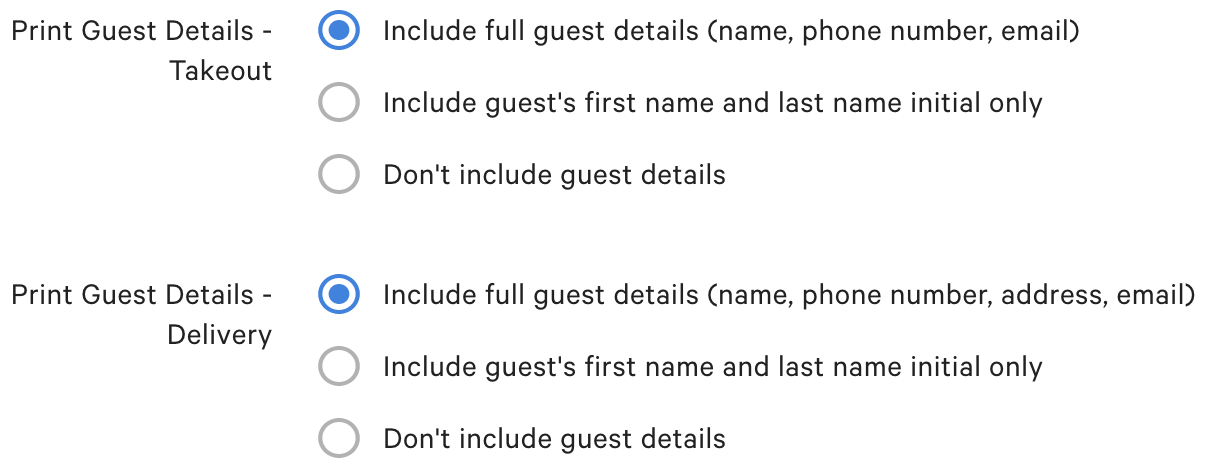
- Locate the two sections called Print Guest Details. Note: Full guest details (name, phone number, address, email)” option is available only when using first-party delivery. This means it will appear when Toast Delivery Services® is disabled.
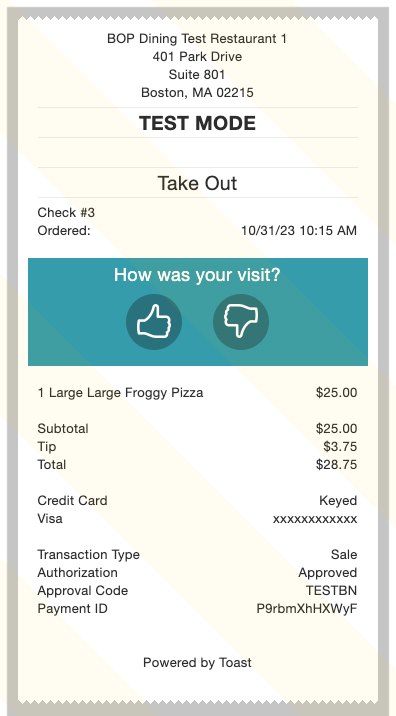
- Toggle to the option you prefer for both Takeout and Delivery customer payment receipts. It's recommended to include your guest's first name and last name initial only. Don't forget to Save and Publish when you're finished.
- Note: Receipts sent via text (SMS) do not fully display a guest’s personal information, such as name and email address. Printed receipts and emailed receipts still display this information. If a guest needs a receipt with their personal information, you can search for the check and either print or email it to the guest. Learn How to Find Checks.
- Note: Receipts sent via text (SMS) do not fully display a guest’s personal information, such as name and email address. Printed receipts and emailed receipts still display this information. If a guest needs a receipt with their personal information, you can search for the check and either print or email it to the guest. Learn How to Find Checks.
Customize Guest Details on Takeout/Delivery Receipts
- In Toast Web, navigate to Takeout & delivery using the navigation on the left side of your screen and select Availability > Takeout/delivery.
- Scroll down to the Print Guest Details section.
- Toggle to the option you prefer for Takeout and Delivery of guest payment receipts. It's recommended to include your guest's first name and last name initial only. Don't forget to Save and Publish when you're finished.
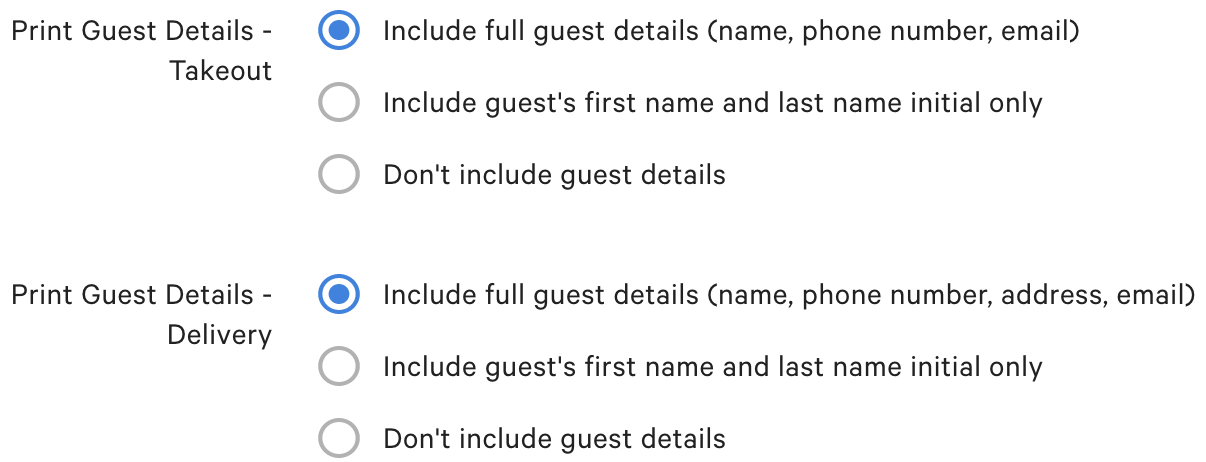
Note: The Print Guest Details toggle only supports a masked phone number for Takeout and Delivery receipts -- there's no setting to unmask it. If staff need the guest's full phone number to call about an order, search for the check in Toast Web or on the POS and view or email the receipt, which displays the guest's full contact information.