Guest Pay Reader Functionality With Toast Tap™
Last updated: Sep 1, 2026, 12:15 AM
Learn how you can configure your card readers to work with the Toast Tap™.
If you have two screens on your terminal—most commonly referred to as a guest-facing display or Toast Flex for Guest—you can have one or two card readers with the Toast Tap™ (legacy, TDA300, or TOC300)! Check out the article below to learn how this works.
Are you interested in adding a Toast Tap™ card reader to your restaurant?
- Capture insights to understand your customers better
- Machine-learning fraud monitoring to help prevent resulting chargebacks
- Reliably accept credit card payments online or offline
- Simple, transparent pricing with no hidden fees
- Configure Single Card Reader
- Configure Dual Card Readers
- Guest Pay Functionality
- Frequently Asked Questions
- Related Articles
Configure Single Card Reader
You can configure a single card reader to have the Guest Pay payment option with or without a guest-facing display and without needing a separate mag-strip reader.
To configure a single card reader, use the following steps:
- From the Toast main menu on the terminal, navigate to Setup > Device Setup.
- Navigate to Card Readers > select your card reader > Payment Option > Guest Pay.
If a single card reader is enabled, and its Payment Option setting from the Device Setup on the Toast POS app is set to Guest Pay, you can add funds to gift cards, activate gift cards, and redeem them.
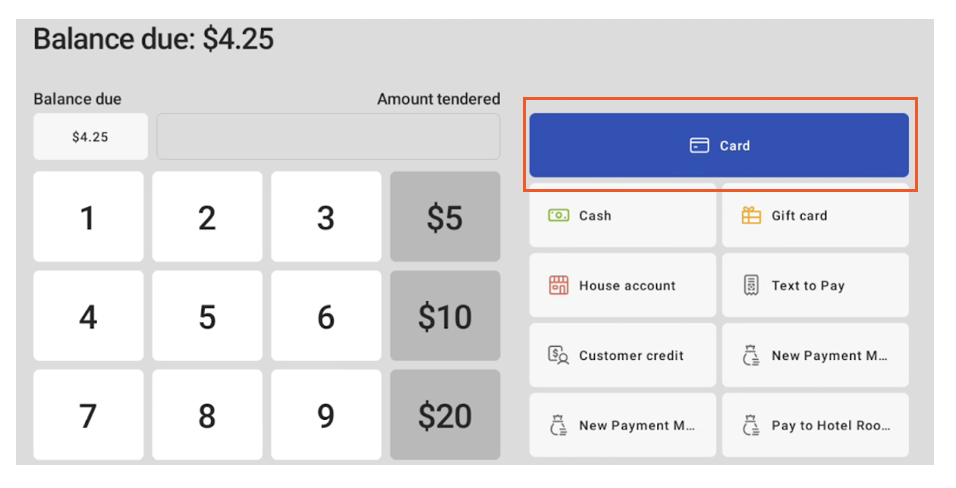
Note: With only one card reader set to Guest Pay, select Card on the payment selection screen instead of a separate Guest Pay button. The Guest Pay and Employee Pay options are only available when using a guest-facing display screen regardless of number of card readers attached to your terminal. Manual card key entry is still available on the employee-facing payment terminal. See Guest Pay Functionality.
Configure Dual Card Readers
To configure both card readers, use the following steps:
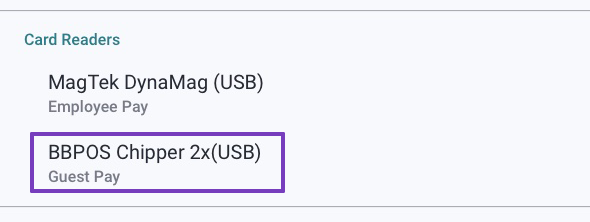
- From the Toast main menu on the terminal, navigate to Setup > Device Setup. Under Card Readers, you'll see two different readers.
- The Toast Tap™ should be set to Guest Pay when used with another card reader. Depending on your hardware generation, it will appear as:
- Legacy: BBPOS Chipper 2X(USB)
- Gen 3: TDA300 Direct-Attach Card Reader(USB) or TOC300 On-Counter Card Reader(USB)
- Your swipe-only reader on the terminal—MagTek DynaMag(USB) or Toast MSR—is the other reader. This should be set to Employee Pay.
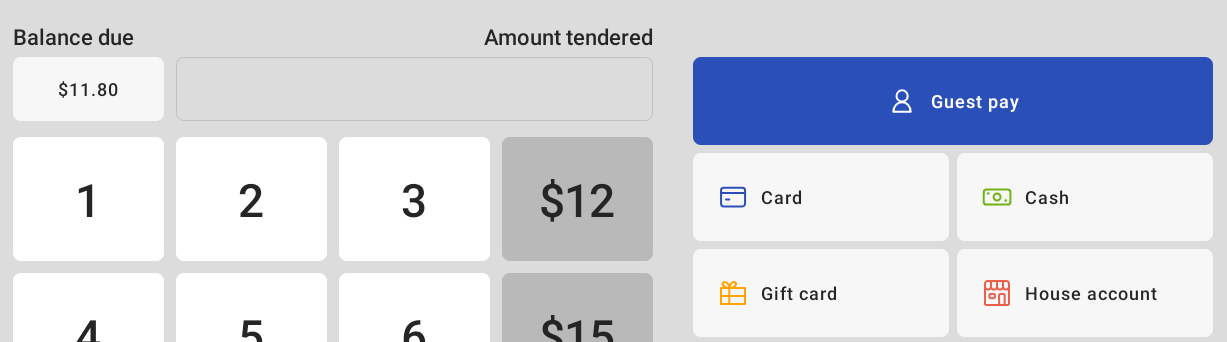
Note: With two card readers set up this way, you will see a separate Guest Pay button on the payment selection screen. See Guest Pay Functionality for what your staff sees when taking a payment.
Guest Pay Functionality
After taking a guest's order and selecting Pay, the payment button you see depends on how many card readers are connected to your terminal:
- Dual card readers: You'll see a button for Guest Pay, similar to the option for Cash or Gift Card. Your Toast Tap™ is set to Guest Pay and your swipe-only reader is set to Employee Pay.
- Single card reader set to Guest Pay: You'll see a button for Card, and there is no separate Guest Pay button.
Once selected, the screen will prompt your guest with instructions to complete the payment. This will ensure that the order information is entered in entirely before the guest inputs their payment and eliminates early payments on the reader.
Note: Your Toast Tap™ (legacy, TDA300, or TOC300) can only be paired with a swipe-only reader, also known as an MSR reader. All other card readers cannot be used with the Toast Tap™.
Frequently Asked Questions
Why isn't my reader taking payments?
Your reader may not be taking payments because it is set to the wrong Payment Option. See the next question to confirm which setting to use.
Can I have two EMV readers connected at the same time?
No, you can never have two EMV readers connected at the same time—this applies to any combination of legacy eDynamo, legacy Toast Tap, TDA300, or TOC300. If you have a secondary display on your terminal, you can keep an MSR card reader, the type of reader that only takes swipe payments, adhered to the employee-facing terminal. Your Toast Tap™ will be set to Guest Pay.
I set up dual card readers, but now I want to remove the MSR (swipe-only) and not have to select the Guest Pay button each time. What do I do?
To remove the MSR and stop selecting the Guest Pay button each time, follow the steps in this article: Unable to Remove Card Reader in Device Setup.
Note: Once the MSR is removed and your Toast Tap™ is your only card reader, the Guest Pay button no longer appears. Select Card to take a payment instead.
Why did Guest Pay stop working?
If you no longer see the option for Guest Pay on your terminal, first confirm how many card readers are connected. When only one reader is connected and it is set to Guest Pay, the Guest Pay button is replaced by the Card button, and Guest Pay still works when you select Card. If two readers are connected and the button is still missing, attempt card reader troubleshooting steps: Get Help With Your Card Reader.
My card reader isn't responding when a guest inserts their card. How can I troubleshoot?
| Legacy | TDA300 / TOC300 |
| If your card reader is not responding and the blue light is blinking, try clearing your cache. To do this, navigate to Settings > Apps > Clear cache, then force-close and reopen Toast POS. | Gen 3 readers do not use a blue light in normal operation. If the reader isn't responding, first check the tap/dip indicator—it should show a soft white pulse when ready, and go solid white during a payment. If the lights don't match this pattern, try clearing your cache the same way as legacy: Settings > Apps > Clear cache, then force-close and reopen Toast POS. If that doesn't help, see Get Help With Toast Tap™ for the full Gen 3 light guide and tamper-alert check. |
Related Articles