Get Help With Your Card Reader
Last updated: Oct 22, 2026, 12:15 AM
If your Toast Tap™ card reader (legacy, TDA300, or TOC300) is not working, keeps disconnecting, or is forcing manual card entry, run these troubleshooting steps before contacting Customer Care.
- Before You Begin
- Tamper-Alert Check (TDA300/TOC300 only)
- Quick Fix
- Run Payment Troubleshooting on Your Device
- Step 1: Power Cycle
- Step 2: Run a Test
- Step 3: Clear the Cache
- Step 4: Check the Connection
- Step 5: Verify EMV Is Enabled
- Step 6: Reset USB Detection
- Step 7: Fix Tap Payments That Prompt for a Swipe
- Manager Swipe Cards Not Working After Installation
- Persistent Connection or Repeated Errors
- Frequently Asked Questions
- Before You Contact Customer Care
- Related Articles
Before You Begin
Applies to: Toast Tap™ (Direct Attach), Toast Tap™ (On-Counter), Toast Flex terminal — covers both legacy readers and the current-generation TDA300/TOC300 readers.
Permissions needed:
- Device administrator access on the Toast Flex terminal
- Toast POS app credentials
What you'll accomplish: Restore card reader functionality so your Toast Tap™ can accept tap, dip, and swipe payments through the Toast POS app.
Different reader? This article only covers Toast Tap™ readers used with the Toast Flex terminal. If you have a different device, use the right guide:
- Toast Go® handheld with an attached card reader → see Toast Go® 2 Card Reader Not Working
- e285, P400, P630, V400m, AMS1, or S1 (UK / Ireland / Canada) → see Identify Your Card Reader Type to find the right setup or troubleshooting article
- MagTek or Elo magnetic stripe reader → see Remove Your Magnetic Card Reader (MSR)
Note: Before troubleshooting, verify your Toast Flex terminal is online and connected to your Toast Network. A dropped internet connection often looks like a card reader problem. See Troubleshoot Internet Connection Issues on Toast Devices for more details.
Note: You can never have two EMV readers connected to the same terminal at the same time — this includes any combination of legacy eDynamo, legacy Toast Tap™, TDA300, or TOC300. If you installed your Toast Tap™ by removing an eDynamo or ICMP chip reader, see Manager Swipe Cards Not Working After Installation for a related step you may need to complete.
Tamper-Alert Check (TDA300/TOC300 only)
Check this first if you have a TDA300 or TOC300 reader. A tamper alert can look like a normal connectivity issue, but requires a different fix — replacement, not troubleshooting.
Is the power light on your reader solid red, are the payment lights flashing blue, yellow, green, and red, and is the device beeping about every 5 seconds?
- If yes, this indicates tamper detection. All data on the device has been erased and it cannot be restored to service. Do not continue troubleshooting — contact Customer Care for a replacement; see Before You Contact Customer Care.
- If no (or you have a legacy reader), continue to the Quick Fix table below.
Quick Fix
Match your symptom in the table below. If the quick fix doesn't resolve the issue, jump to the linked step for the full procedure.
| Symptom | Most Common Cause | Quick Fix |
| Card reader not taking payments and you're not sure why | Reader not detected, EMV off, or firmware out of date | Run payment troubleshooting from the payment screen. See Run Payment Troubleshooting on Your Device. |
| Card reader not working at all (no lights, no response) | Reader unplugged, loose USB connection, or USB damage (legacy); loose connection or unseated screws (Gen 3) | Legacy: reseat the USB cable, check for the blue power light. Gen 3: check for the solid green power light; for TDA300, confirm the captive screws are tight; for TOC300, reseat the cable. See Step 2 and Step 4. |
| Forced to manually enter card numbers on every payment | Reader is not connected to the Toast POS app | Power cycle the terminal; force-close and reopen the Toast POS app. See Step 1. |
| Tap or dip payments fail; swipe still works | EMV is not enabled in Device Setup | Enable EMV Enabled in Device Setup. See Step 5. |
| Card reader test passes but real payments fail in the Toast POS app | Legacy only: Card Reader Support app left open in the background. (Gen 3's test app does not have this issue — no Force Stop is required.) | Legacy: force-close the Card Reader Support app. See Step 3. |
| Reader was working, suddenly keeps disconnecting | Internet drop, USB power issue, or device queue timeout | Verify internet connection; check Device Status > Queues for timeout errors. See Step 1. |
| "Looking for Card Reader Upgrades" message keeps appearing | A pending firmware update is in progress | Verify device settings in the Device Status menu. See Persistent Connection or Repeated Errors. |
| "Remove Card From Card Reader" message repeats | Reader's internal connection cable may need reseating | Run all standard troubleshooting steps; if persistent, the internal cable may need reseating — contact Customer Care. See Persistent Connection or Repeated Errors. |
| Tap payment fails and the guest is prompted to swipe instead | Fast Processing is enabled in Payment Options | Switch Background Processing to Yes, Offline Mode. See Step 7. |
| EMV update keeps failing when enabling EMV Enabled | Legacy: network firewall blocking the firmware server. Gen 3: no external server dependency — a failure here points elsewhere. | Legacy: whitelist tms.bbpos.com, or try a different network. Gen 3: see Step 5 for next steps. See Step 5. |
| Manager swipe cards stopped working after Toast Tap™ was installed | An eDynamo or ICMP chip reader was removed during installation, or the reader generation changed | Re-register manager swipe cards, or switch to Toast Access Cards. See Manager Swipe Cards Not Working After Installation. |
| Card reader is physically damaged or USB connector is bent | Hardware failure | Stop troubleshooting; contact Customer Care for warranty replacement. See Before You Contact Customer Care. |
Run Payment Troubleshooting on Your Device
Note: Some customers may have a different experience.
If your card reader isn't taking payments, your Toast POS device can check the reader and walk you through the fix on screen. Try this before the manual steps below.
- On the payment screen in the Toast POS app, select Troubleshoot.
- Review the payment health check results. The check confirms that your card reader is detected, EMV is enabled, and the card reader firmware is up to date.
- If a check fails, select the fix shown on screen. Depending on the issue, the device can clear the cache, reset USB detection, update the card reader firmware, or enable EMV for you.
- If you're prompted to reseat the card reader cable, follow the on-screen images, then run the check again.
- Run a test card payment.
Expected outcome: All checks pass and the Toast POS app accepts a card payment.
Note: Payment troubleshooting only appears on employee-facing screens. It doesn't appear on guest-facing displays or during guest payment on a handheld.
If a check still fails, continue to Step 1: Power Cycle. If the reader isn't detected at all, see Before You Contact Customer Care.
Step 1: Power Cycle
Power cycling the terminal or printer that the card reader is plugged into is the fastest way to fix most card reader issues. Always try this first if your card reader is not accepting payments.
For card readers plugged directly into the Toast Flex terminal:
- Press and hold the power button on the Toast Flex terminal until the device turns off.
- Wait 30 seconds.
- Press and hold the power button again to restart the terminal.
- Open the Toast POS app and run a test card payment.
For Toast Tap™ (On-Counter) readers plugged into a Toast Printer:
- Unplug the printer power cord from the wall.
- Wait 30 seconds.
- Plug the printer power cord back in and press the printer's power button.
- Open the Toast POS app and run a test card payment.
Note: Check the Toast Tap™ for a small pinhole light near the cable connection. On legacy readers, a blinking blue light means the reader is powered on but not yet ready to accept a payment; a solid blue light means it's ready. On TDA300/TOC300, this power light is solid green when the reader is on and working normally — there is no blue light on Gen 3 hardware. If you see no light at all on either generation, the reader may not be receiving power — go to Step 4: Check the Connection.
Expected outcome: The Toast POS app accepts a credit card payment via tap, dip, or swipe.
If the reader still does not work, continue to Step 2: Run a Test.
Step 2: Run a Test
Confirm whether the reader hardware itself is working, separate from the Toast POS app. If this is a Dual Card Reader setup, please remove the card reader that is not being tested before proceeding.
| Legacy | TDA300 / TOC300 |
| Use the Card Reader Support app to test tap, dip, and swipe without charging a card:
Note: If you don't force-close the Card Reader Support app, the card reader won't work in the Toast POS app.
| Use the built-in Card Reader Test App — no separate app to open, and no Force Stop needed afterward:
|
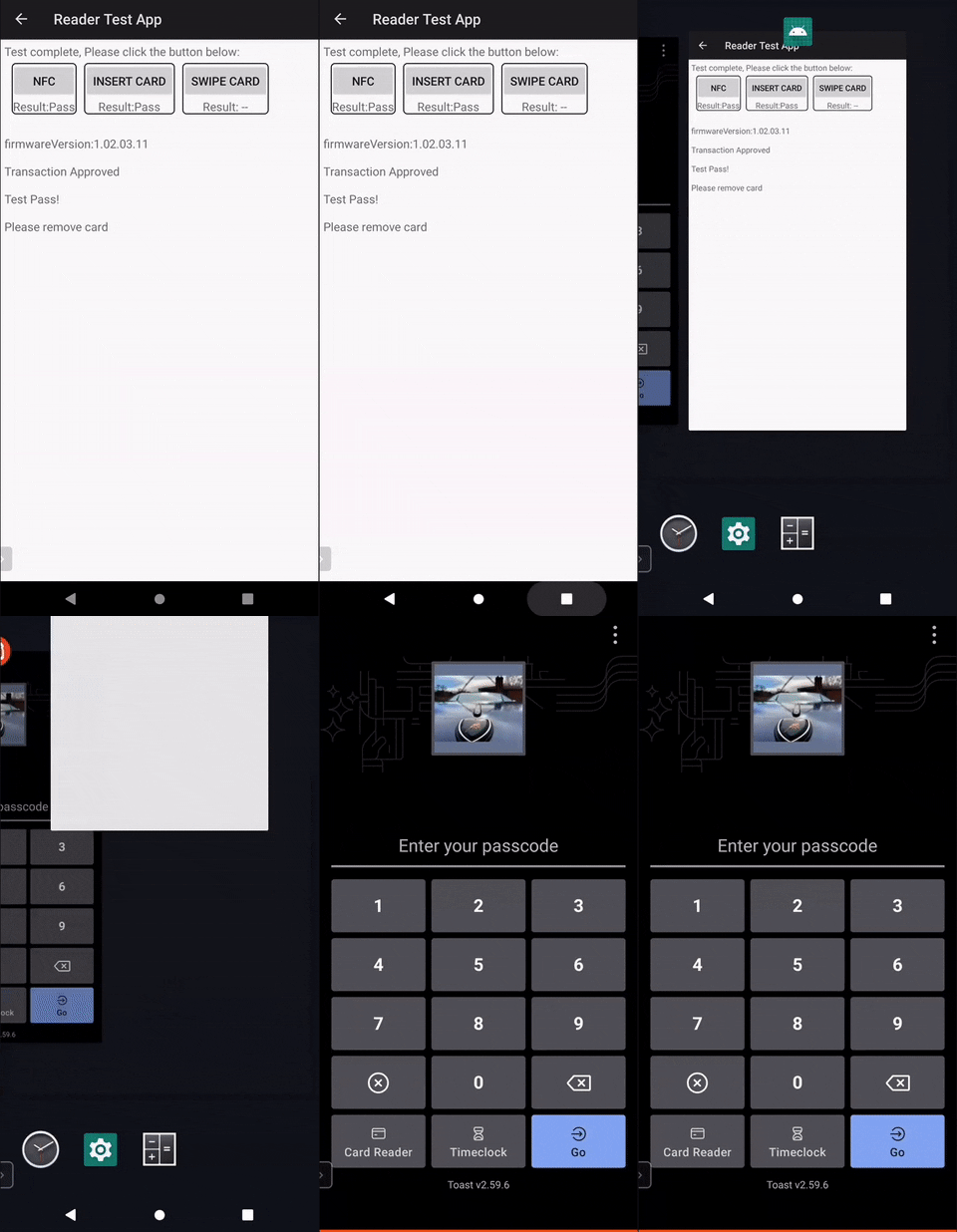
Expected outcome: All test payment methods show as successful, and the Toast POS app accepts a real credit card payment.
If the credit card payment does not register in the Toast POS app, continue to Step 3: Clear the Cache.
Step 3: Clear the Cache
Clearing the cache forces the Toast POS app to reload its connection to the card reader. This applies regardless of reader generation.
- Select the gray circle at the bottom of your device's screen and open the Clear Cache shortcut.
- For devices with Launcher, see Use Toast Launcher for navigation instructions.
- For devices using Locktask, unlock device shown in Use Kiosk Mode on Your Terminal, then navigate the same as with Launcher.
- Select Clear Cache.
- Select the gray square at the bottom of your device's screen and swipe up on the Clear Cache window to close it.
- Open the Toast POS app and attempt another credit card payment.
Note: For a more thorough cache clear, you can navigate to Settings > Apps > Toast POS > Storage and select Clear Cache.
Expected outcome: The Toast POS app accepts a credit card payment via tap, dip, or swipe.
If the card reader still does not work, continue to Step 4: Check the Connection.
Step 4: Check the Connection
| Legacy | TDA300 / TOC300 |
| Switching the card reader to a different USB port on the Toast Flex terminal can resolve issues caused by a bad port or loose connection.
Note: For Toast Tap™ (On-Counter), if the problem continues, and if this is currently plugged into the printer, try using the micro USB to micro USB cable that comes with the Toast Tap to plug into the Terminal or Guest Facing Display.
If the reader shows a solid blue light but still fails the test, repeat the steps in any other available USB port you have not yet tried. | TDA300 (Direct Attach): there is no cable and only one mount location on the terminal.
If it still fails, there is no alternate port to try — contact Customer Care for a replacement.
TOC300 (On-Counter): confirm you're using the correct cable for your setup:
Note: Third-party USB-C cables are not supported — only use the cables provided with your TOC300. |
Expected outcome: The card reader is recognized and successfully passes a test payment.
If the connection checks out but the reader still fails, continue to Step 5: Verify EMV Is Enabled.
Step 5: Verify EMV Is Enabled
EMV must be enabled to accept chip and dip payments. If tap or dip payments fail but swipe works, EMV is likely disabled.
- In the Toast POS app, select the arrow in the upper-left corner until you reach the main menu.
- Scroll down and select Device Setup.
- Locate and select the EMV Enabled setting near the bottom of the page.
- If EMV Enabled is not already set to Yes, select Yes and then select Continue. Download an update if prompted.
- Select the arrow in the upper-left corner to return to return to a service mode.
- Attempt another credit card payment in the Toast POS app.
Note: If you're prompted to update your card reader firmware and select Remind Me Later, EMV Enabled can turn back off. Complete the firmware update, then repeat this step to enable EMV again.
Verify your hardware is recognized: While in Device Setup, scroll to Card Readers. Your reader should appear under one of these official model names:
- Legacy: BBPOS Chipper 2X(USB)
- TDA300: TDA300 Direct-Attach Card Reader(USB)
- TOC300: TOC300 On-Counter Card Reader(USB)
If you're using a Guest-Facing Display or a Toast Flex for Guest with a swipe-only reader, your EMV reader will show under Guest Pay instead.
If payment still isn't working after enabling EMV: Select your reader under Card Readers and select Remove Reader. Scroll down and confirm the reader is still listed. This will automatically turn EMV back off. Return to Device Setup and turn EMV Enabled back on, then run another test payment.
Note: On legacy readers, if the EMV update keeps failing, this is usually related to your network's firewall. Confirm your firewall allows outbound access to tms.bbpos.com and try again. If the update still fails, connect the terminal to a different network — for example, disconnect the Ethernet cable and connect to a personal phone hotspot over WiFi — and retry the update. On TDA300/TOC300, there is no external server dependency, so a firewall whitelist won't apply here — if the update keeps failing, try a different network anyway, and if it still doesn't resolve, contact Customer Care.
Expected outcome: Chip and tap payments succeed in the Toast POS app.
If the credit card payment does not register, continue to Step 6: Reset USB Detection.
Step 6: Reset USB Detection
If the card reader still doesn't work after checking the connection, reset USB detection on the terminal. This applies regardless of reader generation.
- Navigate to Settings > About Device > USB Detection.
- Select Reset All.
- Restart the Toast Flex terminal.
- After the terminal restarts, test the card reader functionality with a real credit card payment.
Expected outcome: The Toast Flex terminal recognizes the card reader and processes a payment successfully.
If the card reader still does not work, see Persistent Connection or Repeated Errors and Before You Contact Customer Care.
Step 7: Fix Tap Payments That Prompt for a Swipe
If tap payments never succeed and always prompt the guest to swipe instead, this is usually a payment setting rather than a hardware issue — this applies regardless of reader generation. Check whether Fast Processing is enabled.
- In Toast Web, navigate to Finance > Related > Settings > Payment options.
- Scroll to the Credit section and check whether Enable Background Processing is set to Yes, Fast Processing.
- If it is, change it to Yes, Offline Mode.
- Select Save and then Publish.
Note: Yes, Offline Mode is the recommended setting. It allows the terminal to accept credit card payments even when a connection is temporarily unavailable, queuing transactions to process in the background once the device reconnects. If you don't have the Offline/Background Credit Card Processing permission, you'll need a manager to approve the change.
Expected outcome: Tap payments complete successfully in the Toast POS app instead of prompting the guest to swipe.
If tap payments still fail after this change, return to Step 1: Power Cycle and work through the remaining hardware troubleshooting steps.
Manager Swipe Cards Not Working After Installation
If you removed a chip card reader (also known as an eDynamo or ICMP reader) to install your Toast Tap™, the Toast system will no longer recognize your existing manager swipe cards. Reprogram your manager swipe cards using the steps below.
Note: If your previous card reader was a swipe-only card reader (also known as a magnetic stripe reader), the Toast system will recognize your manager swipe cards automatically and no action is necessary.
Note: Manager swipe cards registered on one reader generation do not work on the other — a card registered on a legacy Toast Tap™ will not work on a TDA300/TOC300, and vice versa. If your restaurant has a mix of legacy and current-generation readers, consider switching to Toast Access Cards instead, since they work across all reader generations.
Register Swipe Card is a manager-level permission. You may need to review your manager permissions or contact your restaurant administrator to gain access to this permission.
- Select Register Swipe Card from the main Toast POS dashboard.
- Locate and select the employee who needs to register a card.
- Select the +Add button in the top right corner and swipe the card through the credit card reader attached to the Toast device. Make sure the stripe is facing toward the top of the reader when you swipe.
- Select Done.
Expected outcome: The employee can now swipe their card to log in.
Persistent Connection or Repeated Errors
Some card reader problems point to a hardware or firmware issue that the standard troubleshooting steps cannot fix. Use this section to identify your scenario.
Card Reader Intermittently Disconnects
If the card reader disconnects intermittently but passes initial tests, the problem is usually the USB port, the cable, or an internet drop. This applies regardless of reader generation.
- Test the card reader connection again (see Step 4: Check the Connection).
- Replace or reset USB cables as needed to ensure a stable connection (legacy and TOC300 only — TDA300 has no cable).
- Verify the terminal's internet connection (see Troubleshoot Internet Connection Issues on Toast Devices).
"Remove Card From Card Reader" Repeats
If the Remove Card From Card Reader prompt repeats:
- Inspect and clean the card reader of any debris
- Complete the basic troubleshooting steps above (Step 1 through Step 6).
"Looking for Card Reader Upgrades" Error
If you see the Looking for Card Reader Upgrades error:
- Verify your device settings in the Device Status menu.
- On legacy readers: a BBPOS firmware update may be in progress. If the update has failed, power cycle the terminal and try again. See BBPOS Card Reader Firmware Updates.
- On TDA300/TOC300: firmware updates finish with an audible beep rather than a light sequence — if the update seems stuck, power cycle the terminal and try again.
- If the update continues to fail or the error persists after a power cycle, contact Customer Care.
Frequently Asked Questions
Why is my card reader not working?
Card readers usually stop working for one of three reasons: a loose connection, a software issue in the Toast POS app, or a hardware failure. Start with Step 1: Power Cycle and work through the steps in order. If the reader fails its connectivity test, the reader hardware is broken and needs to be replaced.
Why is my Toast Tap™ forcing me to manually enter card numbers?
Forced manual entry usually means the Toast POS app cannot detect the card reader. Power cycle the Toast Flex terminal (see Step 1). On legacy readers, also force-close any open apps including Card Reader Support (see Step 2). If manual entry continues, run through the rest of the troubleshooting steps.
My card reader test passes, but real payments still fail. What's wrong?
On legacy readers, if the Card Reader Support app test passes but the Toast POS app still fails to take payments, the Card Reader Support app is most likely still open in the background — force-close it, then attempt a payment again (see Step 2: Run a Test). On TDA300/TOC300, this isn't an issue, since no Force Stop is needed — if the Payment Readiness check passes but real payments still fail, continue to Step 5 to double-check EMV is enabled.
Does this article cover Toast Go® card readers?
No. This article covers Toast Tap™ (Direct Attach) and Toast Tap™ (On-Counter) readers used with the Toast Flex terminal. For Toast Go® handheld card readers, see Toast Go® 2 Card Reader Not Working or Get Help With Your Toast Go® 2 Handheld.
Can I troubleshoot a Guest Pay or dual reader setup with this article?
This article covers single-reader troubleshooting. For Guest Pay and dual reader functionality, see Guest Pay and Dual Reader Functionality with Toast Tap™.
Why is my guest being prompted to dip instead of swipe?
Guests paying with a chip card are prompted to dip by default, since dipping reads the chip's unique one-time code and is the most secure transaction type for both you and your guest. This is expected behavior, not an error. If the Toast Tap™ can't read the chip after two unsuccessful dip attempts — often because the chip is dirty or damaged — the Toast system automatically prompts the guest to swipe instead.
Does pre-authorization work with tap or dip payments?
No. Pre-authorization only works when a card is swiped. Tap and dip transactions do not support pre-authorization.
Can I have two EMV card readers connected at the same time?
No. You can never have two EMV readers connected to the same terminal at the same time — this includes any combination of legacy eDynamo, legacy Toast Tap™, TDA300, or TOC300.
Why aren't my manager swipe cards working after installing Toast Tap™?
If you removed an eDynamo or ICMP chip reader to install your Toast Tap™, existing manager swipe cards need to be re-registered. See Manager Swipe Cards Not Working After Installation for the steps.
Why do my tap payments keep failing and asking me to swipe?
This is usually caused by the Fast Processing setting being enabled in Payment Options rather than a hardware problem. See Step 7: Fix Tap Payments That Prompt for a Swipe to switch to Offline Mode.
How do I know if I have a legacy reader or a TDA300/TOC300?
Check Device Setup > Card Readers. Legacy readers show as BBPOS Chipper 2X(USB). Current-generation readers show their full model name: TDA300 Direct-Attach Card Reader(USB) or TOC300 On-Counter Card Reader(USB).
Before You Contact Customer Care
If you've completed the steps above and your card reader still does not work — or if any of the following apply — contact Customer Care for hardware replacement options:
- The USB connector on the card reader is bent or broken (legacy or TOC300).
- The card reader has no power light in any USB port or mount position.
- The connectivity test fails on multiple cards, in multiple ports, or after reseating (TDA300).
- The card reader was working previously and has now physically failed (overheating, melted connector, no response).
- A tamper alert was detected (TDA300/TOC300) — see Tamper-Alert Check.
Have the following ready when you contact Customer Care:
- The card reader serial number (printed on a label on the device).
- The Toast Flex terminal serial number.
- A summary of which troubleshooting steps you have already completed.
- A description of the symptom (no power, fails test payments, intermittent disconnects, repeated error message, tamper alert).
For warranty information, see Toast's limited warranty policy. To order a replacement, head to Toast Shop and search card readers for more information and product availability.
To open a Customer Care ticket, see Contact Customer Support.
Related Articles
- Identify Your Card Reader Type
- Toast Tap™ (On-Counter) Installation Guide
- Toast Tap™ (Direct Attach) Installation Guide
- Guest Pay and Dual Reader Functionality with Toast Tap™