Set Up and Manage House Accounts
Last updated: Oct 14, 2026, 1:59 PM
- Before You Begin
- Enable House Accounts as a Payment Method
- Create a House Account
- Charge an Order to a House Account on the POS
- Pay a House Account Balance on the POS
- Create and Send Invoices for House Accounts
- Adjust or Clear a House Account Balance
- View House Account Activity
- Archive or Restore a House Account
- Frequently Asked Questions
- Related Articles
House accounts let guests charge orders to an account and pay later. Learn to enable, create, charge, invoice, pay, and manage house accounts in Toast.
Before You Begin
Applies to: Toast POS, Toast Web
Permissions needed: Restaurant Admin > 4.11 House Accounts
- Access to Finance > Payments > House accounts in Toast Web
What you'll accomplish: You will enable house accounts on your POS, create accounts for your guests, charge orders to those accounts, collect payment, and manage balances over time.
A few things to know before you start:
- House accounts are not currently supported for Toast Online Ordering.
- House accounts are not shared across multiple locations—this includes across regions. For example, a US location's backend cannot create or view house accounts for a location in the UK, Ireland, Australia, or Canada, and a UK, Ireland, Australia, or Canada location's backend cannot create or view house accounts for a US location.
- House accounts cannot be set up as tax-exempt. If an order charged to a house account should be tax-exempt, mark it tax-exempt individually before closing it to the house account. To learn more, see Manage Tax-Exempt Orders.
Note: You can add house accounts while your Toast account is still in Test Mode, but house accounts can take 24 to 48 hours to appear once you come out of Test Mode.
Enable House Accounts as a Payment Method
To enable house accounts as a payment method on your POS, follow these steps:
- In Toast Web, navigate to Finance > Payments > House accounts.
- On the left-hand navigation of the House accounts page, select Settings.
- Set Take house account payments on a POS device to the On position.
- Select Save, and then select Publish all changes to finalize your selection.
Expected outcome: House accounts are now available as a payment method on the POS. After this is enabled, cashiers can use the feature without manager approval.
Create a House Account
To create a house account in Toast Web, follow these steps:
- From the House accounts page (Finance > Payments > House accounts), select Create account.
- Enter your Customer Info. The required fields are First Name, Last Name, Email, and Phone.
- Each house account must have a unique email address.
- You can also add a Customer # and Address if you want.
- Select Save to finish creating the house account.
Expected outcome: The new house account appears in your House accounts list. It may take up to 30 minutes for the account to sync from Toast Web to the POS.
To create more than one house account at once, select the down arrow next to the Create account button and select Multiple accounts. You will see a page with a template and instructions for importing a file to create multiple house accounts at a time.
Charge an Order to a House Account on the POS
Charging an order to a house account adds the order to the account's outstanding balance so the guest can pay later. This is different from paying down a balance, which is covered in the next section.
With a house account created and the feature enabled as a payment option on the POS, follow these steps to charge an order:
- Place the order as normal on your POS, and then select Pay to go to the payment selection screen.
- Select the Other button and then House account as the payment method.
- Search for and select the house account.
- For takeout or delivery orders, if the house account was already found using Customer Lookup, the POS populates the attached house account automatically.
- Otherwise, an Enter account number pop-up appears. Enter the house account number, or select Lookup.
- You can look up a guest by first or last name, email address, customer number, or phone number. Partial information can be used to search.
- After you select the house account, choose Charge to close the order to the house account to be invoiced later. Two other options are available:
- Track but do not charge—Use this if your guest is paying for this order with a different payment method but you still want this amount counted toward their house account total spend.
- Use a different account—Use this to search for a different house account.
- After you select Charge, the order is added to the outstanding balance of the house account in Toast Web.
Expected outcome: The order is closed on the POS and its amount is added to the guest's outstanding house account balance in Toast Web.
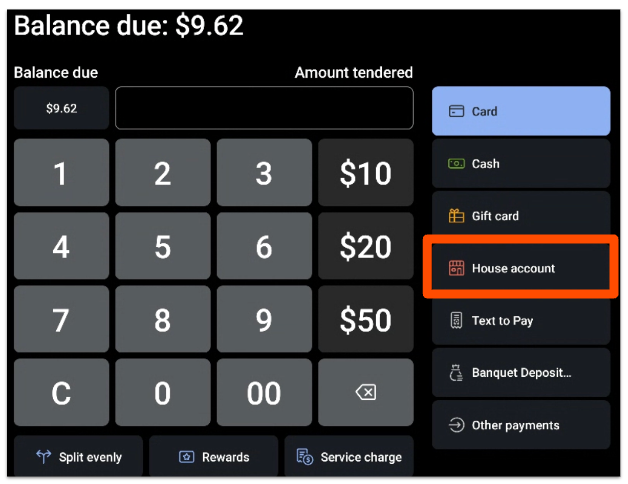
You can add a tip to a house account transaction if you have digital receipt settings configured. To learn more, see Configure Digital Receipts.
Pay a House Account Balance on the POS
Paying a house account balance collects money from the guest and reduces their outstanding balance. This is different from charging an order to the account, which is covered in the previous section. You can also collect payment by invoice, covered in Create and Send Invoices for House Accounts.
To take a payment for a house account balance on the POS, follow these steps:
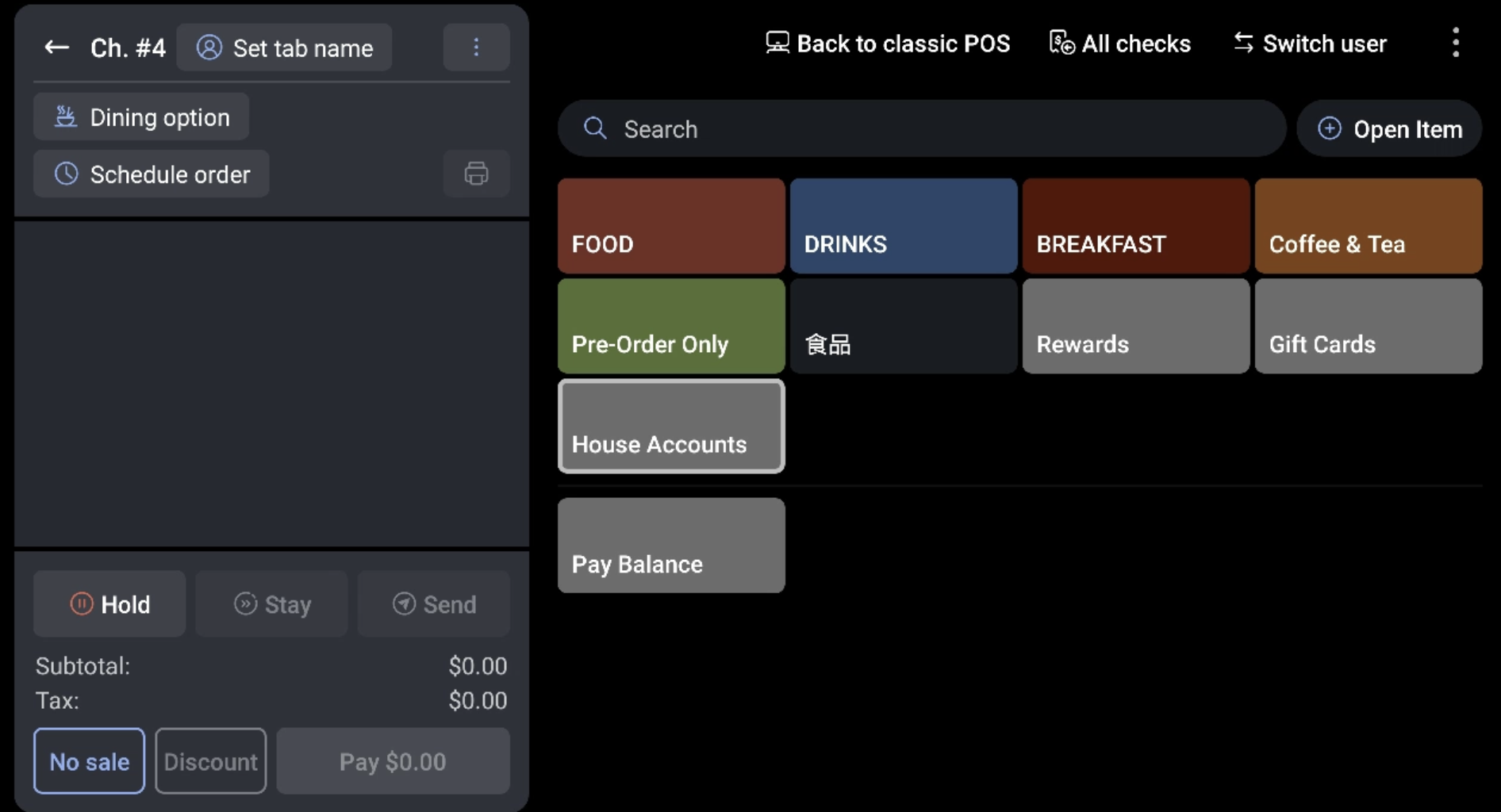
- Swipe to the right of your menus (category groups for Toast Retail) on your POS Quick Order screen and select the House Accounts button.
- Look up and select the house account.
- On the Pay House Account Balance screen, the Outstanding Balance is displayed along with the customer information. Enter the Amount to be paid, and then select Done. Guests can partially pay, fully pay, or overpay their outstanding balance depending on what you enter here.
- Pay Balance appears on the order screen with the selected amount. Select Pay to enter your guest's payment.
Expected outcome: The payment is recorded and the guest's outstanding balance is reduced by the amount paid.
Note: House account tips are paid out to the server the day of the transaction and are listed under Non-Cash Tips in your reporting. When the house account transaction is settled at a later date, 100% of the amount is payable to the restaurant.
Create and Send Invoices for House Accounts
You can invoice an individual house account to collect payment for an outstanding balance, or bulk invoice multiple house accounts at a time.
First, configure your house account invoice settings:
- Navigate to the House accounts page in Toast Web and select Settings from the left-hand navigation.
- In the House account invoice settings section, select the default settings that apply to all house account invoices. These can be overwritten when you create an individual or bulk invoice. Settings include:
- Default dining option (non-delivery).
- House account charges—additional fees or charges applied by default to all house account invoices. Some restaurants use this to capture monthly charges for memberships.
- Note: If you're using house account charges to bill guests for a recurring membership or club, Subscription Plans may be a better fit—it handles recurring billing, guest identification, and a guest-facing signup site natively. See Get Started With Subscription Plans.
- Default time range for new invoices.
- Select Save, and then select Publish all changes when you are done.
Expected outcome: Your default invoice settings are saved and will apply to new house account invoices.
To invoice a single house account, select Create invoice at the top of that house account's profile page. You will see the current balance on the account, and you can charge by transactions within a selected date range or charge a custom amount.
To bulk invoice all guests who have a house account transaction within a date range, follow these steps:
- From the left-hand navigation on the House accounts page in Toast Web, select Bulk invoice.
- Select Create bulk invoice.
- Select your invoice details, Payments settings, and any additional House account charges you want to apply. The Payments section is where you set a due date and where you can choose to allow guests to pay their invoice with a credit card.
- Select the Transaction range for the invoice recipients. Toast gathers all non-invoiced orders for the selected timeframe, and you can use the checkboxes to select the invoices you want to generate in bulk.
- Select Next: Generate Invoices.
- When your invoices are generated, the status on the Bulk invoice page changes to Ready to send. Select the bulk invoice line to open the invoice preview.
Expected outcome: Your invoices are generated and ready to send. From the invoice preview, you can download one or all invoices, print invoices, or send them to the email address or phone number associated with the account.
Adjust or Clear a House Account Balance
You can adjust a house account balance to correct it or to clear it to $0 without collecting a payment. You can only reduce an outstanding balance with this process, not increase it.
To adjust or clear a balance, follow these steps:
- Select the name of the house account from the House accounts page in Toast Web.
- On the house account's profile, select Adjust balance.
- Choose either Set new outstanding balance (default) or Reduce outstanding balance.
- Select Adjust balance to finalize your change.
Expected outcome: When you refresh the page, the change appears as an Adjustment on the Account Activity table.
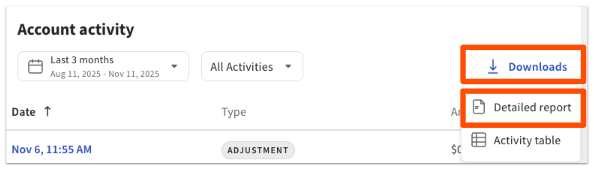
Note: If you want to mark a house account as paid without collecting a payment from a guest—for example, if you use house accounts to track employee spend that is deducted from a paycheck—use this process to update the balance to $0. To share a detailed list of charges with the account holder, select Downloads on the Account Activity table on the house account profile page, and then choose Detailed report.
View House Account Activity
At the top of the House accounts page in Toast Web (Finance > Payments > House accounts), a Summary section shows your total number of house accounts and your total outstanding balance. Below that is your full list of house accounts. Toggle between Active and Archived accounts, or use search, date range, or filter options to narrow the list. If you select a date range, the list updates to show the Total spend per house account for that period.
When you select a specific house account, you open the account's profile page. This shows the account's outstanding balance, lifetime spend, number of orders, account activity, invoices, and guest contact information. The Account Activity table shows a separate line item for each action on the account, labeled by Type, such as Sales, Charge, Payment, Adjustment, Invoice created, Invoice voided, Void charge, and Void payment.
For where house account payments appear in Toast reports, including House Account Deferred Revenue on the Sales Summary report, see House Accounts Reporting.
House account information also appears directly on a guest's profile in Guestbook. Select the guest, then select the House account tab to see their outstanding balance, spend for the current month, and unpaid invoice count. From there, select House Accounts to open the full account and manage it.
Archive or Restore a House Account
For reporting purposes, we recommend that you do not archive house accounts.
To archive a house account, search for and select the name of the account on the House accounts page in Toast Web (Finance > Payments > House accounts), and then select Archive at the top of the page. Once a house account is archived, it cannot be used to pay for an order on the POS.
To restore an archived house account, toggle the table on the House accounts page to show Archived accounts. The Restore button is available on the account profile page.
Frequently Asked Questions
What is the difference between charging an order to a house account and paying a house account balance?
Charging an order to a house account and paying a house account balance are two different actions. Charging an order adds that order's amount to the guest's outstanding balance so they can pay later—you do this by selecting House account as the payment method when you close an order. Paying a balance collects money from the guest and reduces what they owe—you do this from the House Accounts button on the POS Quick Order screen, or by sending an invoice.
Also asked as:
-
- "How does the guest pay on the house account?"
- "How do I charge something to a house account versus pay it off?"
- "I charged to the house account, but how do I take payment?"
How do I clear or zero out a house account balance without taking a payment?
To clear or zero out a house account balance without taking a payment, select the account on the House accounts page in Toast Web, select Adjust balance, choose Reduce outstanding balance or Set new outstanding balance, set it to $0, and select Adjust balance. This is common when house accounts are used to track employee spend that is deducted from a paycheck. The adjustment appears as an Adjustment line on the Account Activity table.
Also asked as:
-
- "How do I zero out a house account for payroll?"
- "Can I close a house account without payment?"
- "How do I clear an outstanding balance?"
How is the outstanding balance calculated?
The outstanding balance is the total of all amounts charged to the house account minus all payments and adjustments applied to it. Every action—including each Charge, Payment, Adjustment, Invoice created, Invoice voided, Void charge, and Void payment—appears as its own line in the Account Activity table. To see how the balance was reached, open the house account profile and review all activity rather than a filtered view, because actions like a voided invoice also affect the balance.
Also asked as:
-
- "How did Toast come up with this balance?"
- "Why is the outstanding balance this amount?"
Why doesn't the outstanding balance match what I expected?
If the outstanding balance does not match what you expected, the difference usually comes from activity recorded on the account, such as a voided invoice, an adjustment, or a partial payment. Open the house account profile and review the full Account Activity table, which lists every Charge, Payment, Adjustment, and void as a separate line. If the balance still does not look right after reviewing all activity, contact Toast Customer Care.
Also asked as:
-
- "Outstanding balance doesn't match the current balance"
- "The balance looks wrong"
Where can I see house account payments in reporting?
You can see house account payments in reporting on the house account profile and in Toast Web reports. The Account Activity table on each account shows charges, payments, and adjustments, and the Sales Summary report (Reports > Sales > Sales summary) shows payments data including House Account Deferred Revenue. House account sales report as net sales on the day the order is fulfilled, and payments report on the day the payment is collected. For full detail, see House Accounts Reporting.
Also asked as:
-
- "Where do house account sales show up in reports?"
- "How do house accounts affect my sales numbers?"
How do I check a house account balance on the POS?
To check a house account balance on the POS, swipe to the right of your menus on the Quick Order screen and select the House Accounts button, then look up and select the account. The Outstanding Balance is displayed on the Pay House Account Balance screen along with the customer information.
Also asked as:
-
- "How do I check a guest's tab on the till?"
- "Can I see the house account balance on the POS?"
Can I move a payment that was closed to the wrong house account?
Yes, you can correct a payment that was closed to the wrong house account. For step-by-step instructions, see Move a Check Closed to the Wrong House Account.
Also asked as:
-
- "I closed a check to the wrong house account"
- "How do I fix a check on the wrong account?"
Related Articles
- House Accounts Reporting
- Move a Check Closed to the Wrong House Account
- House Accounts Created in Test Mode
- Send an Invoice to Your Guests