Send an Invoice to Your Guests
Last updated: Sep 17, 2026, 5:29 PM
Note: This article is about Toast Invoicing—the free feature you use to bill your customers and guests. It is not about the monthly Toast invoice you receive for your software and hardware (the bill from Toast). If you are looking for your Toast bill, see Understand Your Toast Invoice instead.
- Before You Begin
- Create and Send an Invoice
- Send Only a Payment Link
- View Invoices in Toast Web
- Send a Reminder for an Overdue Invoice
- Void an Item on a Sent Invoice
- Void an Entire Invoice
- Variations: Catering, Events, and House Accounts
- Manage Invoice Settings
- Frequently Asked Questions
- Where do paid invoices show up in reporting?
- Can a guest add a tip to an invoice?
- How do I delete an invoice?
- My guest says the payment link is not working—what do I do?
- Can I edit an invoice after I have already sent it?
- Why is my invoice in draft when my event is confirmed?
- Can a guest pay an invoice by check?
- Related Articles
Before You Begin
Applies to: Toast Web, Toast Invoicing | Permissions needed: 4.16 View Invoicing, Catering & Events, 4.17 Edit Invoicing, Catering & Events
What you'll accomplish: Send a customer a digital invoice that they can pay online with a credit card, Apple Pay, or Google Pay—and manage that invoice from Toast Web until it is paid or canceled.
Is this the right article for you?
- You want to invoice a customer or guest for a catering order, private event, rental, or wholesale order → You are in the right place.
- You want to find or pay your monthly Toast software or hardware bill → See Understand Your Toast Invoice and Toast Invoice FAQ instead. Those invoices live under Toast account > Billing > Billing & Invoicing, which is a different page than Customer invoices.
- You are setting up Toast Invoicing for the first time → Start with Get Started With Toast Invoicing, then return here to create your first invoice.
Create and Send an Invoice
To send a digital invoice to your guest:
- Log in to Toast Web > Finance > Payments > Customer invoices.
- Select Create invoice in the top right corner.
- Under Find customer, search for an existing customer or select + Create customer to enter information for a new customer.
- Select a Dining option so you can keep track of different order types (such as catering), and select a Date and Time to create a scheduled order. This lets your restaurant prioritize or manage upcoming large and catering orders.
- Adjust the Prep time if needed. You will be prompted to select how long before the order due date the items should fire.
- Select + Add item to add menu items to bill the guest for.
- All modifiers attached to the item and default memos appear as well.
- You can add special instructions if needed.
- Drag menu items on the invoice to rearrange them (this also works after an invoice has been paid).
- If needed, select + Add service charge or + Add discount to customize the invoice further.
- Configure your Payment schedule settings, including payment amount and due date. This is where you can add a deposit request if desired. For deposit requests, see Send Deposit Requests With Toast Invoicing.
- Configure your invoice Details. This is where you can:
- Assign a Server who will receive tips for this order (optional).
- Enable Allow customers to add a tip when making an invoice payment.
- Enable Allow customers to pay with a credit card (or Apple Pay or Google Pay). If this setting is not enabled, guests will have to come to your restaurant to make a payment.
- Enable Mark order as tax exempt. This excludes taxes from the invoice.
- Add a Memo.
- Add an Email attachment (such as an image file) that will be attached to your invoice email. The image cannot be added to the invoice PDF itself.
- Select Review invoice. You can preview the invoice as a PDF and as an email.
- Select Edit to make changes, or select Send invoice to email it. You also have the option to print the invoice or download it as a PDF file.
Expected outcome: Your guest receives an email with a Pay this invoice button. When they select it, they are redirected to a webpage where they can enter their credit card information. After you send the invoice, the Send invoice button changes to Send reminder so you can email the guest again if payment is delayed.
Note: Taxes are not calculated until you save the invoice draft.
Send Only a Payment Link
If you just want to send your guest a link to the payment page (without resending the full invoice email):
- Open the invoice from Toast Web > Finance > Payments > Customer invoices.
- In the Payment schedule section, select Copy link to payment page.
- Paste the copied link into a text message, chat, or any other communication channel.
Expected outcome: The recipient can open the link in their browser and pay the invoice without needing the original email.
View Invoices in Toast Web
The Customer invoices page in Toast Web shows every invoice you have created and sent.
To find a specific invoice:
- Navigate to Toast Web > Finance > Payments > Customer invoices.
- Use the tabs to filter invoices by status: All invoices, Past due, Outstanding, Draft, Void, or Paid.
- Use the search bar to search by customer name or invoice information.
- Use the Created date and Due date filters to narrow the list further.
- Select an invoice from the list to open the invoice details page.
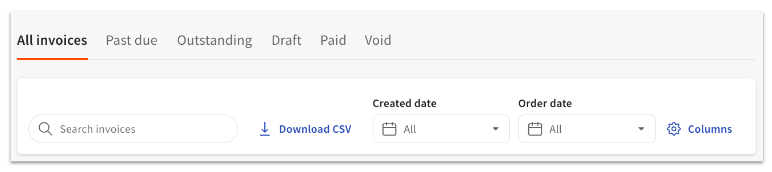
Expected outcome: The invoice details page opens, where you can view payment status, send a reminder, void items, or void the full invoice.
Send a Reminder for an Overdue Invoice
If your guest has not paid yet, you can send a manual reminder, or enable automatic overdue reminders.
To send a manual reminder:
- Open the invoice from Toast Web > Finance > Payments > Customer invoices.
- Select Send reminder at the top of the invoice details page.
Expected outcome: Your guest receives a reminder email with a fresh pay link.
To enable automatic overdue reminders:
- From Toast Web > Finance > Payments > Customer invoices, select Settings from the left-hand menu.
- In the Notifications section, toggle Send overdue invoice reminders on.
Expected outcome: Toast Invoicing automatically emails the customer when an invoice becomes overdue, then sends a recurring reminder every three days until the invoice is paid. To learn more, see Adjust Your Invoice Settings.
Void an Item on a Sent Invoice
To remove a single item from an invoice you have already sent, void the item from the invoice. The voided item still appears on the invoice with a line through it, and its value is not included in the invoice total.
- Open the invoice from Toast Web > Finance > Payments > Customer invoices.
- Locate the line item you want to remove and hit the 3 dots to the right side of the item.
- Void the item.
Expected outcome: The line item is struck through on the invoice and removed from the invoice total. Your guest sees the voided item when they open the invoice.
Void an Entire Invoice
If a customer cancels their order, you can void the entire invoice from the invoice details page.
- Open the invoice from Toast Web > Finance > Payments > Customer invoices.
- Select More options > Void invoice.
Expected outcome: The invoice moves to the Void tab on the Customer invoices page. The customer cannot pay a voided invoice. If the customer already paid before you voided the invoice, see Issue a Refund for the refund flow.
Note: Toast Invoicing uses the same Toast refund workflows as the POS. You cannot reverse a void—you create a new invoice if needed.
Variations: Catering, Events, and House Accounts
Toast Invoicing is the free customer-invoicing feature available to all Toast POS customers. Two related products handle adjacent workflows.
Toast Catering & Events
Toast Catering & Events is a paid module built specifically for restaurants that do a lot of catering and events. Some customers use Toast Invoicing to invoice catering orders, but Toast Catering & Events has more robust features (lead capture, BEO workflow, calendar integration).
If you are invoicing a catering or event order:
- For a one-time event deposit: Use the steps above and add a deposit in the Payment schedule section, or see Send Deposit Requests With Toast Invoicing for the full deposit flow.
- For an event where the menu is not finalized yet: See Send an Invoice for Event Deposits—Option #2 walks through sending a deposit-only invoice now and resending the full invoice once items are known.
- For an existing booked event in Catering & Events: Use the Catering & Events module. See Get Help With Toast Catering & Events.
House Accounts
House accounts let your guests charge orders to a running balance and pay later. House account invoices are managed from a different page than standard Toast Invoicing.
To create or manage an invoice for a house account:
- Navigate to Toast Web > Finance > Payments > House accounts > Accounts.
- Search or select the house account, then select Create invoice on the account profile page—or use the Bulk invoice option in the left-hand menu to invoice every house account in a date range at once.
Expected outcome: The invoice appears in the house account's activity log and is emailed to the address on file. For the full house account setup and invoicing flow, see Get Started With House Accounts.
Manage Invoice Settings
You can change the settings for all invoices—default due date, default memo, branding, tip percentages, overdue reminders, and more—from the Settings page.
- Navigate to Toast Web > Finance > Payments > Customer invoices.
- Select Settings from the left-hand menu.
Expected outcome: The Invoice settings page opens. To learn more about each setting, see Adjust Your Invoice Settings.
Frequently Asked Questions
Where do paid invoices show up in reporting?
Paid invoices appear in reporting based on the fulfillment date of the order, not the date the invoice was sent or paid. On the day the guest pays, a Paid in Total and Credit Card Payment entry appears in the Sales Summary report. On the day the order is fulfilled, sales, tax, and tips appear under Net Sales, Tax Amount, and Tips. Invoices in draft status do not appear in reporting. For the full reporting breakdown, see Reporting for Toast Invoicing.
Can a guest add a tip to an invoice?
A guest can add a tip when paying an invoice only if you enable Allow customers to add a tip on the invoice Details section before sending it. If that setting was off, the guest can still add a tip in person by paying cash or by re-swiping their card on the POS.
How do I delete an invoice?
Toast Invoicing does not have a hard delete. Voiding is the correct action—see Void an Entire Invoice above. Voided invoices stay in the Void tab for your records but cannot be paid by the customer. If an invoice has been stuck in processing for an extended period and you cannot void it, contact Customer Care.
My guest says the payment link is not working—what do I do?
First, confirm that Allow customers to pay with a credit card is enabled on the invoice Details section. If it is not, the guest cannot pay online. If the setting is enabled and the link still fails, void the existing invoice and create a new one to refresh the pay link. If the new invoice also fails, contact Customer Care—the issue may require account-level review that the article cannot resolve.
Can I edit an invoice after I have already sent it?
You can still edit an invoice after sending it. After you make changes, the Send reminder button changes to a Send update button. Select it to email the guest the revised invoice. To learn more, see Send Deposit Requests With Toast Invoicing.
Why is my invoice in draft when my event is confirmed?
A Toast Invoicing invoice stays in Draft until you select Send invoice. The "confirmed" status in Toast Catering & Events is separate from invoice status—confirming an event does not automatically send the related invoice. Open the invoice, review it, and select Send invoice to move it out of draft.
Can a guest pay an invoice by check?
Yes—if you accept check payments, see Apply a Check Payment With Toast Invoicing for how to record a check payment against an open invoice.
Related Articles
- Get Started With Toast Invoicing
- Adjust Your Invoice Settings
- Reporting for Toast Invoicing
- Send Deposit Requests With Toast Invoicing
- Apply a Check Payment With Toast Invoicing