Set Up a Discount Code for Online Orders
Last updated: Sep 17, 2026, 6:46 PM
Creating a discount code for your Toast Online Ordering page and the Toast Local app is simple, but there are a few restrictions to keep in mind.
Log in to Toast Web and select the button below for a step-by-step walkthrough of the discount and promo code setup in your Toast account. Or, use the written instructions below to create discounts manually.
- Guidelines for Discounts and Promo Codes in Online Ordering
- Create an Online Ordering Discount or Promo Code
- Promo Guests Will See on Online Ordering
Guidelines for Discounts and Promo Codes in Online Ordering
Here are a few basic guidelines for creating and applying discounts for online ordering:
- Requires a promo code to apply a discount
- No manager permission settings
- No auto-apply or open discounts
Check out Supported Discounts for Online Ordering for more information.
Create an Online Ordering Discount or Promo Code
Once you've created your discount in Toast Web, you'll need to create a promo code for it to be applied to online orders. For a refresher on creating discounts in Toast, check out this Support Center article: Get Started With Discounts.
To create an Online Ordering Discount Code, follow the steps below.
- Navigate to Finance > Related > Settings > Discounts & promo codes in Toast Web.
- Select the discount you'd like to add a promo code to, or start by creating a new discount first (Get Started With Discounts).
- On the discount settings page, scroll down to the Promo Codes section and select + Add Promo Code.
- Enter the promo code into the Code field using letters and/or numerical digits. If you intend to use a barcode scanner to activate a discount, simply enter the barcode into the Code field instead.
- Next, add a description of your promo code.
- Check off Single-use if this promo code can only be used once per guest.
- You have the option to add a Start Date and End Date to your promo code if applicable. This would allow you to set an eligible time period for the promo code to be used but is not required.
- Note: Both a Start Date and End Date must be selected for the eligibility period to apply. If all promo codes on a discount are ineligible based on their Start Date and End Date, the discount cannot be applied.
- When adding promo codes on a discount, be sure your Start Date and End Date do not conflict with the discount's scheduled availability dates. In addition, if you would like your promo code to be eligible for one day only, make sure the Start Date and End Date have the same date selected.
- To remove the Start Date and End Date for a promo code, select Clear Date. The status of the promo code will also be displayed to keep track of which promo codes are Expired, Upcoming, or Active based on the date range selected.
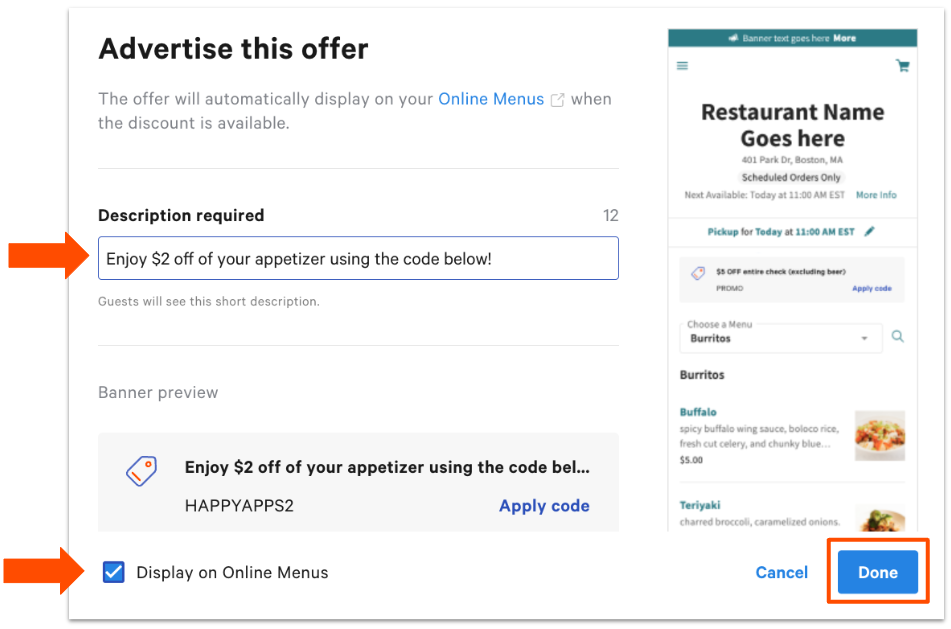
- Next, you can select Display on Menus under the Advertise column to display the promotion on your online ordering menu.
- A pop-up window will appear where you will enter the following information:
- Description required - guest-facing Online Ordering menu description of the promotion
- Select Display on Online Menus
- Then select Done
- Once you are finished entering the corresponding information for your promo code, save and publish your changes.


Promos Guests Will See on Online Ordering
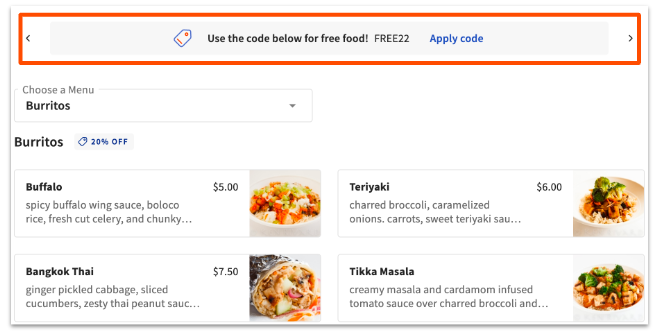
If Display on Online Menus was selected during the set-up process, guests will see the promotion displayed online or on their mobile device as below:
In addition, to help make your guests aware of available offers, any item- or group-level discounts you choose to advertise will be displayed as a badge on your online ordering menu and on the item details pop-up (as shown below). These specific promo codes (item/group-specific codes) will auto-apply in the background, and your guests will see the discount on their checkout screen if they have ordered eligible menu items.