Import a Previous System’s Reservations and Guest Lists
Last updated: Oct 22, 2026, 11:03 AM
Question
How do I import reservations and guest lists from our previous system (POS) into Toast Tables?
Answer
Note: If you are importing from another service, please download the import reservation and guest list templates as described below. Currently, Toast can only support importing guest names, phone numbers, email addresses, VIP tags, customer tags (up to 15 tags per guest), internal guest notes, and total past booking count. Toast cannot import guest emails for guests who have opted out of marketing.
Follow these steps to import a previous system's reservation and guest data into Toast Tables:
- Log into Toast Web.
- From the left-hand navigation, select Waitlist & Reservations.
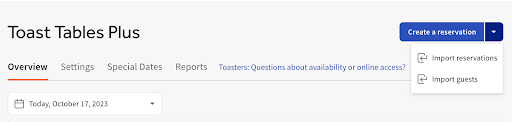
- In the Overview tab, select the blue drop-down arrow in the top right.
- Select Import reservations or Import guests.
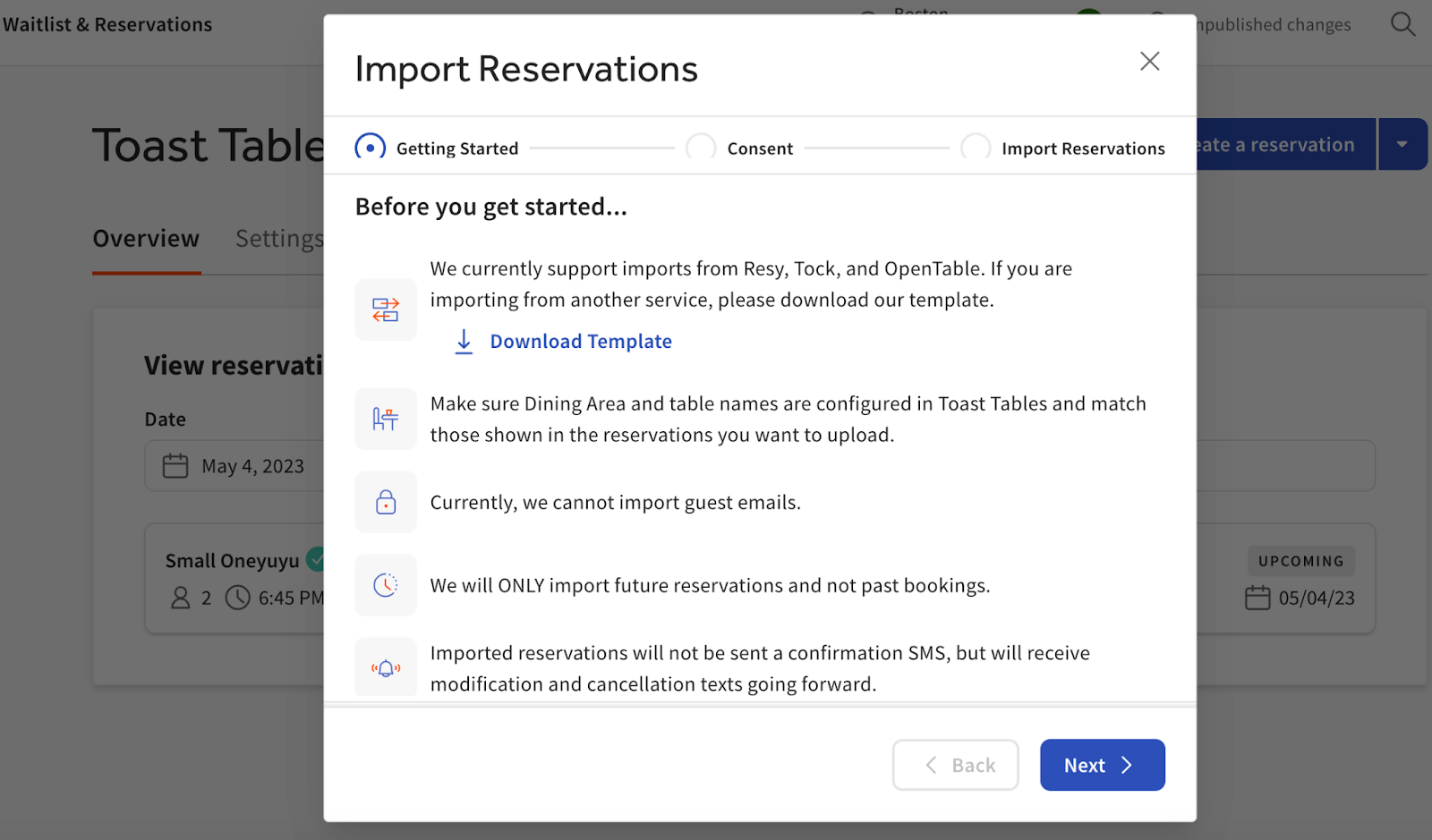
- If you are importing from a different provider, Toast provides a template for you to download where reservations can be added in the allotted format, saved, and uploaded. You should ensure that the dining area and table names match those shown in the reservations you want to upload. You'll see the screen below if you're looking to import reservations.
- Note: Headers will need to be an exact match and in the exact order as seen in the template.
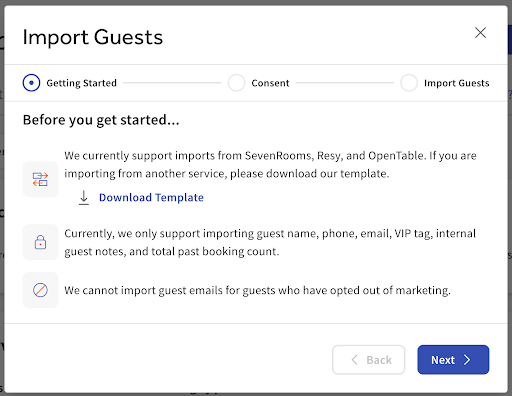
- If you are looking to import guests, you'll see this screen:
- Note: Headers will need to be an exact match and in the exact order as seen in the template.
- Select Download template and follow the instructions.
- After completing the template, save the file as an Excel or .CSV file, and return to Toast Web.
- Select Next.
- Read and agree to the consent form and select Next.
- On the next page, select the plus sign (+) to open your computer files.
- Select your completed template from your files list. Select Open.
- On the next page, confirm the header row is selected and if correct, select Next.
- Review the column mapping to ensure it all aligns correctly and select Next again.
- Select Import in the bottom right corner.
- You will be returned to Waitlist & Reservations > Overview, and will see a notification confirming the success of your import.
If you need further assistance, please contact Customer Care so we can walk you through the process of importing your reservation and guest lists.
Importing from outside the US (Australia, Canada, Ireland, and UK)
Our import tools are designed around standard US phone and date formats. Before you upload your files, run through this quick checklist to make sure all of your guest data imports smoothly.
Phone numbers
- The phone number links your Guests file to your Reservations file, so it must be formatted identically in both files.
- Enter every phone number in international format using its full country code: start with a + sign, add the country code, drop any leading 0, and leave out spaces, brackets, or dashes.
- UK: 07700 900123 → +447700900123
- Ireland: 087 123 4567 → +353871234567
- Australia: 0412 345 678 → +61412345678
- Numbers entered without a country code may automatically default to a US country code (+1).
- In Excel, set the phone column format to Text before pasting your data. This prevents Excel from removing the + symbol, dropping leading zeros, or converting numbers into scientific notation.
- Toast Tables stores one phone number per guest. If a guest has additional numbers, you can add them to the Internal guest notes field.
Dates and other formatting
- Confirm your dates match the format shown in the template. System exports from the UK, Ireland, and Australia frequently use the DD/MM/YYYY format.
- Clean up your file before importing by removing duplicate guests and any rows missing contact details.
Before you import
- Test run: Start by uploading a small test file of 4–5 records first. Once imported, review them in your Guestbook to confirm phone country codes, tags, and notes display correctly.
- File size limits: Keep each file under 7,000–8,000 rows. For larger guest lists, simply split your data into multiple import files.
- Import sequence: If your go-live date is coming up quickly, import your future reservations first to get them on your books. If you have a bit more time, import your guest list first and give it a quick review.
- Table matching: If a reservation party size is larger than any available table, Toast Tables will assign it to the next best available dining area or leave it unassigned for you to arrange. Be sure to review these table assignments after your import finishes.
Data supported outside standard import
- Deposits and prepayments: Toast Tables does not import active monetary balances directly. Instead, list deposit amounts in your reservation notes and manually apply or adjust them on the guest check in the Toast POS.
- Multiple phone numbers: Toast stores one primary phone number per profile. Add any secondary numbers directly to the internal notes section so your team always has them on hand.
Note: Your restaurant team will complete these imports using our downloadable templates. Toast is unable to process or reformat third-party provider export files on your behalf.
If you need further assistance, please contact Customer Care so we can walk you through the process of importing your reservation and guest lists.
Additional Information
A current reservation system contains future reservations and guest data that you'd like to pull into and manage in Toast Tables.