Gift Cards for Australia, Canada, Ireland, and the UK
Last updated: May 28, 2026, 6:41 AM
Learn how to complete transactions for physical and eGift cards for Australia, Canada, Ireland, and the UK.
- Sell Physical and eGift Cards
- Take Payments Using a Gift Card
- Set up Gift Cards for Online Purchases
- eGift Cards - Guest Purchase Experience
- Recipient and Guest eGift Card View
- Discounting Gift Cards
Sell Physical and eGift Cards in Australia, Canada, Ireland, and the UK
Gift cards allow guests to support your restaurant and drive cash flow. Digital and physical gift cards are easy to sell, track, and use. If you have gift cards from another provider you wish to import to Toast, please follow the steps in Import Gift Cards.
You can sell both physical gift cards and eGift cards directly from your POS. To learn more, check out this Support Center article: Manage Gift Card Sales.
If you're selling eGift cards on the POS, note that SMS text messaging capabilities are only available in Canada at this time. Email delivery is supported in Australia, Canada, Ireland, and the UK.
If you want to purchase new physical gift cards, see Order New Gift Cards.
Take Payments Using a Gift Card in Australia, Canada, Ireland, and the UK
You can use a gift card as a payment method on your POS by following these steps:
- Navigate to the check for which you want to process a gift card payment.
- Select Pay ($) from the ordering screen.
- On the payments screen, select the Gift card payment method button on the right-hand side.
- On the Enter Gift Card Number window, you can key in the number or swipe the card on your V400m or P400 card reader. Similarly, selecting Scan will activate the front-facing camera on the tablet or handheld to read the QR code on the gift card (if applicable).
- When the payment is complete, select the Receipt Type to close the order.
Set up eGift Cards for Online Purchases for Australia, Canada, Ireland, and the UK
eGift Card Auto-fire Device Settings for Australia, Canada, Ireland, and the UK
Before selling gift cards, you must ensure you have an auto-fire device enabled to receive Toast eGift card orders. If you do not have an auto-fire device configured, eGift card orders may appear in the Pending Orders mode. To avoid this, ensure that an auto-fire device is configured. For more information, see Set Up Order Auto-firing.
Back to top
eGift Card POS Notifications for Australia, Canada, Ireland, and the UK
A notification will appear on all POS devices when you receive a new eGift card purchase. To enable or disable POS notifications, follow the steps below.
- Log in to Toast Web and navigate to Front of house > POS notifications > Notification setup.
- In the Enable Notifications section, check or uncheck New online orders. Note: Disabling New online orders will also disable Toast Online Orders or partner orders.
- Save and publish your changes.
eGift Card Configuration for Australia, Canada, Ireland, and the UK
When selling eGift cards online, you first want to ensure you have configured an image for the eGift card itself and located the URL to your eGift card ordering site.
- In Toast Web, navigate to the Takeout & delivery page and select Restaurant info at the bottom of the Toast Online Ordering section.
- Scroll down until you see the eGift Card Image tool.
- Select Choose E-Gift Card Image and upload an image you want to display on the eGift card. If nothing is uploaded for an eGift card image, Toast will default to using the Restaurant Logo (located on the same page).
- Depending on whether you've uploaded an eGC image and a logo, only a logo, or neither, your eGift cards will look like this.
eGift Card with Logo only eGift Card with image & logo eGift Card with no image or logo - Depending on whether you've uploaded an eGC image and a logo, only a logo, or neither, your eGift cards will look like this.
- The Restaurant Logo image displayed on this page will also appear on the e-gift card.
- Select Save if you make any changes to the images.
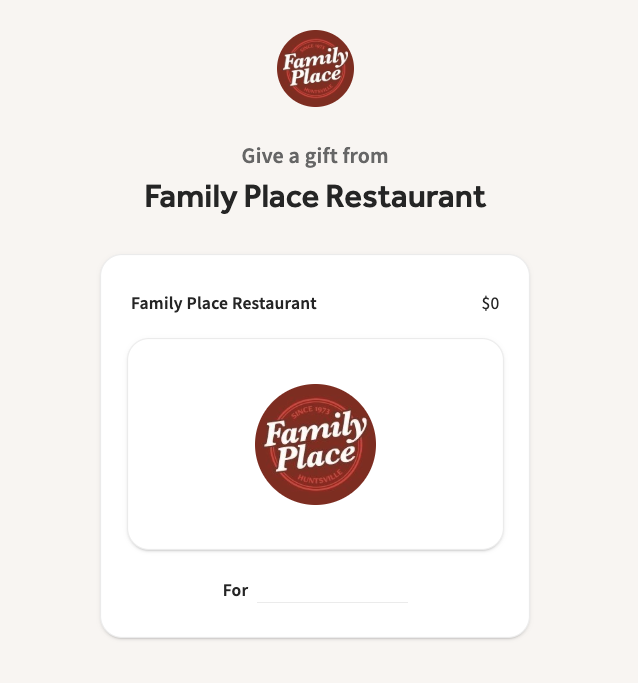
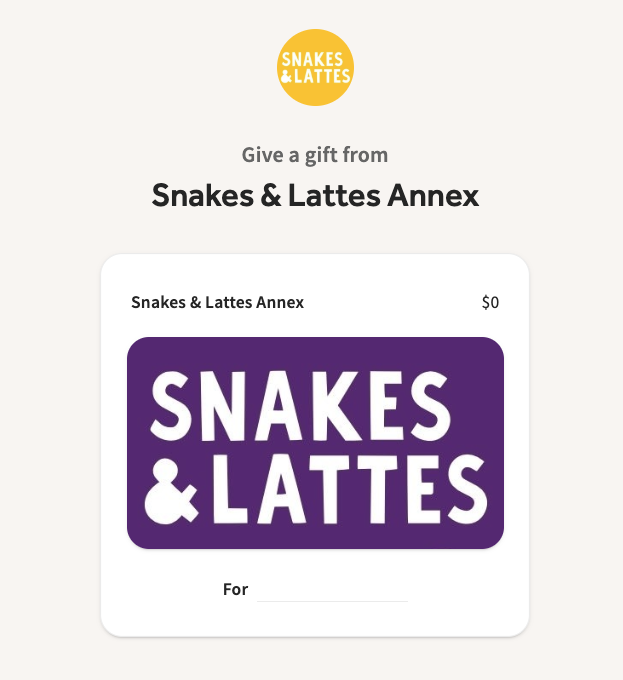
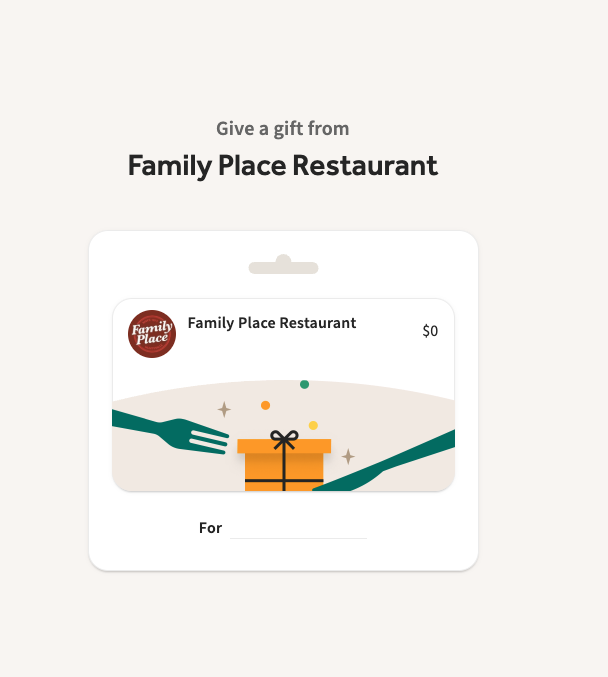
Note: Make sure your eGC image is properly cropped and centered on your digital gift card. For the best display, upload a 300×300 px (1:1) square logo and a 343×193 px (16:9) eGC image. You can upload new logos and eGC images in your Restaurant Info page in Toast Web Admin. If you make any changes to the images, you will need to select Save on the top right corner of the page. You will also need to select Unpublished Changes in the top navigation bar of Toast Web to publish these changes and set them live.
Copy and share the Buy E-Gift Cards and E-Gift Lookup links with your guests. They are located on the right side of the screen, in the Share Your Public Links section. You can also find these links by navigating to the Payments section in Toast Web and selecting Gift cards > Gift card setup.
Back to top
Restaurant Name Simplification
To enhance clarity, especially for multi-location brands, the "Location Name (optional)" field will no longer be displayed within the eGC shop's restaurant name. This ensures customers are not confused about gift card redemption. Please note that this change does not affect other Toast features, such as Online Ordering, where the "Location Name (optional)" will continue to be used as specified.
eGift Cards - Guest Purchase Experience for Australia, Canada, Ireland, and the UK
Your guests will follow the following steps to buy an eGift card online:
- Your guests will navigate to your eGift card ordering site.
- They will be prompted to enter:
- Amount - Note: By default, the gift card purchase limit is set to $150 max per transaction to help protect your restaurant from incurring increased chargebacks and fraud.
- Who is the gift for?
- Who is this gift from?
- Recipient’s Email
- Sender’s Email
- Send now or on a deliver on a scheduled date
- Add a custom message (optional)
- At the bottom, they will select Continue to Payment to be brought to the checkout page.
eGift Card limitations for Australia, Canada, Ireland, and the UK:
|
Recipient and Guest eGift Card View for Australia, Canada, Ireland, and the UK
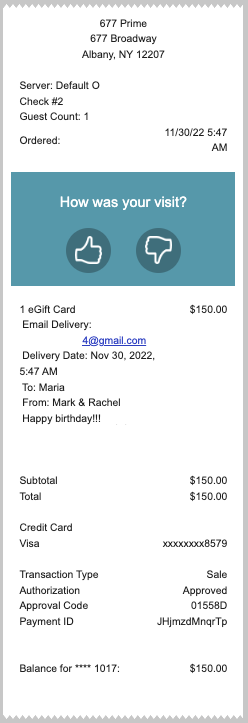
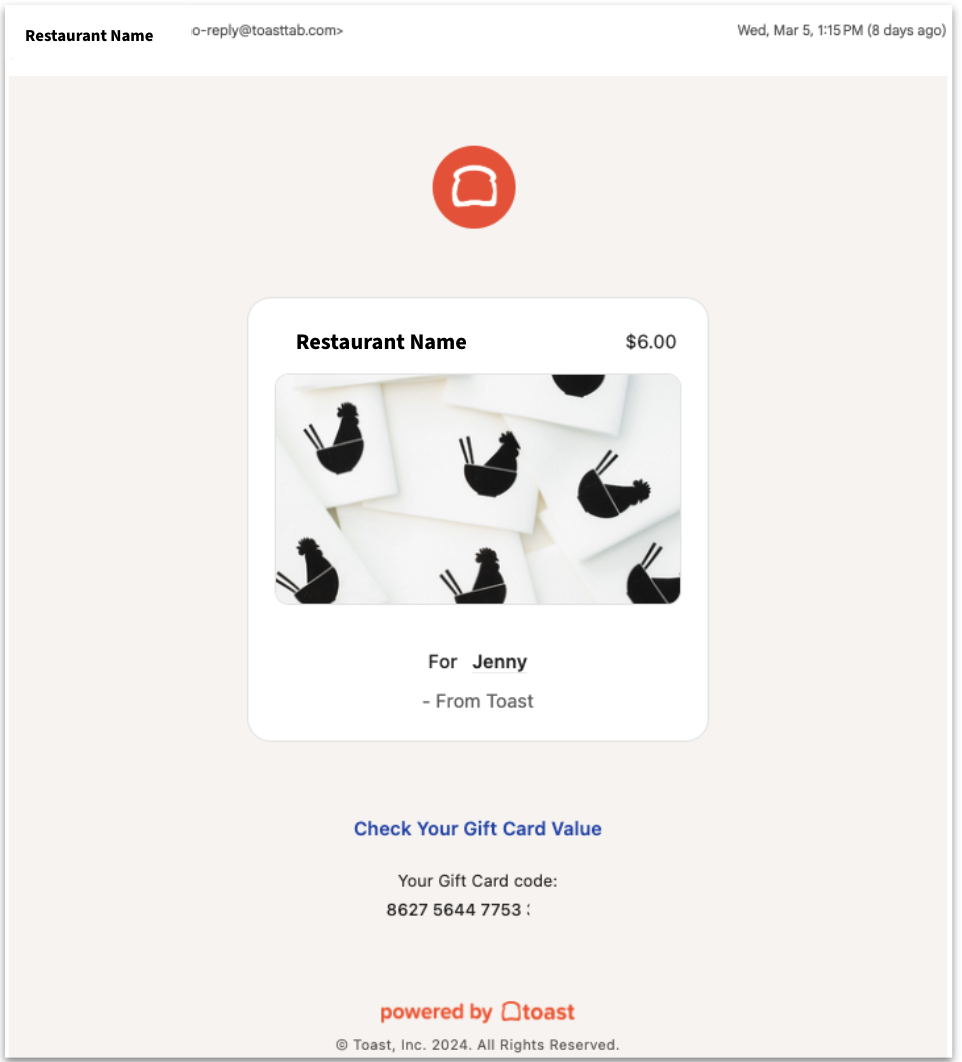
Guest eGift Card Email View for Australia, Canada, Ireland, and the UK
Below is an example of the email guests receive after purchasing an eGC reflects your shop's branding, including your restaurant logo and eGC image, ensuring a consistent and professional communication.
Discount Gift Cards for Australia, Canada, Ireland, and the UK
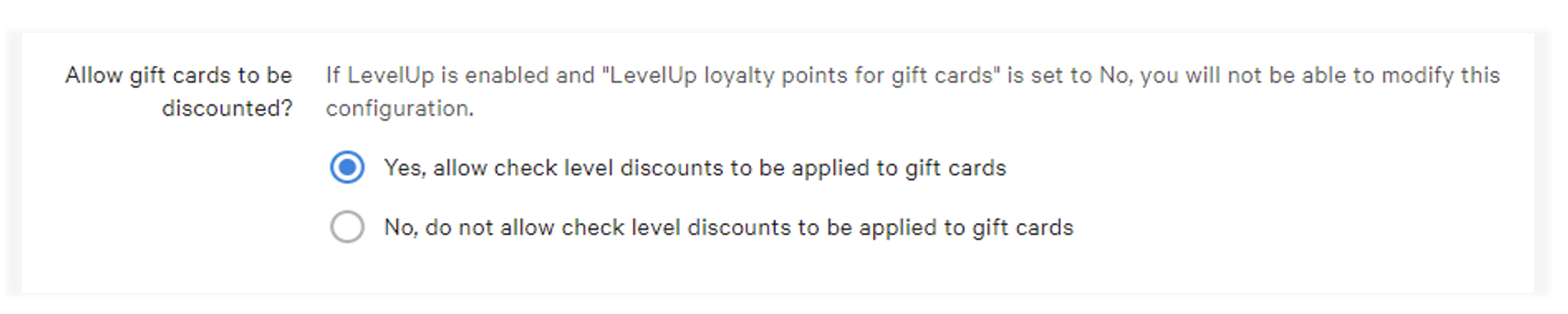
To allow check-level discounts to be applied to gift cards, begin by navigating to Finance > Related > Settings > Payment options in Toast Web.
Navigate to Allow gift cards to be discounted?, and select Yes, in the Gift Cards section of the page. Be sure to Save and publish your changes!
Toast also recommends creating a specific item-level discount for discounted gift cards. For example, if you frequently donate gift cards, you will want to create an item-level discount called Gift Cards - Donation so you can better track it in reporting, as it won't be included in the sales reports. Learn more about how to create a discount here.
You will need to use the Discounts report to track these discounted cards. You can find more information on that report here.
Back to top