Get Started With KDS All Day View Display
Last updated: Sep 17, 2026, 1:43 PM
- All Day View Overview
- Toast Web Configuration
- KDS Configuration
- Include Held Tickets in All Day View
- Modifier Display Settings
- Consolidate Modifiers
All Day View Overview
High-volume kitchens will want to be able to churn out orders quickly. The All Day Display option on Toast KDS devices shows your kitchen a list of similar items totaled so they can be made all at once. For example, there are 18 burgers on order. With All Day Display activated, the number of burgers will total in one box to prevent having to manually count all tickets. This is especially helpful for quick-service restaurants with smaller menus and high volume - it allows your kitchen to see more details than ever before!
Configure Your All Day View Settings
To configure your All Day View Display settings, follow these steps:
- In Toast Web, navigate to Kitchen > Printers, tickets, & KDS devices > Kitchen.
- In the Ticket Screens section, scroll down to the All Day Display setting and select your desired configuration.
- Yes, enable All Day Display, grouped by item only: Toast will default to this setting. Even if one item has additional modifiers, the All Day Display will show the total number per item (e.g. 10 Cheeseburgers, even if one has an "extra pickles" modifier)
- Yes, enable All Day Display, grouped by item and sub-grouped by modifiers: This is the updated option for All Day Display that offers the most robust features.
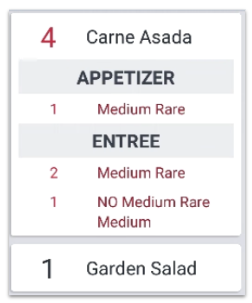
- A total number of orders will show for each item at the top.
- Regular items without modifiers will be listed next.
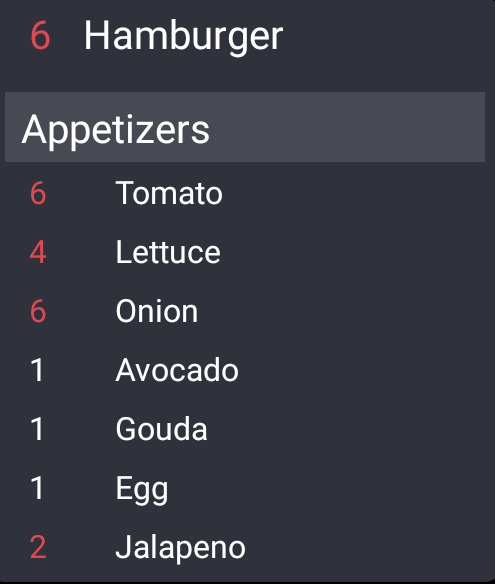
- Items will be broken down into subgroups by similar modifiers. The number at the top shows the total number of orders placed for that item and the numbers to the left of each modifier indicate the number of orders for that specific regular or modified item.
- If all items are ordered as they are (without modifiers), "regular" will not appear. It'll just show the number and course.
- Modifier subgroups are sorted into course sections. If the modifiers subgroup has no course, it falls under "-- No Course specified --".
- Items that are listed as different courses will separate by course.
- No, do not enable All Day Display: Tickets will appear normally on the KDS. There will be no All Day Display button on your device.
- Save and publish your changes.
Enabling All Day View
To see the All Day Display view on your KDS device, select All Day View at the top of the screen as seen in the image below. Items will appear in a more consolidated view. To return to the previous view, select the same button again.

Include Held Tickets in All Day View
By default, any held tickets are not included in All Day View. However, you can easily change your settings so tickets that are held via automated and expediter course firing are included in All Day Mode in addition to production item count (to learn more, visit these Support Center articles: Automated and Expediter Course Firing and Production Item Count).
Note: This feature will only be available when the KDS module is enabled and will not include any items marked as "hold" on the POS device.
- In Toast Web, navigate to Kitchen > Pacing > Meal pacing.
- In the Course Pacing section, for the Course Pacing setting, check off the option to Enable course pacing.
- For the Sending Course setting, select Send all courses to kitchen immediately.
- For the Held Tickets setting, select Show at both expediter and prep stations.
- Now you'll see a setting called All day view with held items. Select the checkbox to Include held items in all day view and production item counts.
- Save and publish your changes.
Modifier Display Settings
To update your modifier display settings, follow these steps:
- In Toast Web, navigate to Front of house > Order screen setup > UI options.
- In the Order Screen section, scroll down to the Modifier Display Mode setting to specify how you'd like to display your modifiers (vertical, horizontal, legacy, or legacy - flatten). KDS All Day Display will respect the setting you choose here. To learn more about the different display modes, visit this Support Center article: Configure Modifier Display Options.
- Save and publish your changes.
Consolidate Modifiers
You can consolidate modifiers to group together any identical modifiers that are listed under the same item. To learn how to set this up, see the Consolidate Modifiers section of this Support Center article, Configure Modifier Display Options. Once enabled, it will affect the display of modifiers for your All Day Display. Note that the legacy display mode will disregard this setting.