Labor Cost Breakdown Report Overview
Last updated: Jun 23, 2026, 11:11 AM
The Labor Cost Breakdown report shows your hourly labor spending so you can make staffing and scheduling decisions based on labor cost. Use it to break down labor costs by job title, employee, hour, day, and week, and to track labor percent (labor %) and sales per labor hour (SPLH) for any date range. If you have more than one location, you can view a breakdown of labor costs by location.
To open the report in Toast Web, go to Reports > Labor > Labor cost breakdown.
Note: To view this report, you must have these permissions: 4.1 Sales Reports, 4.3 Labor Reports, and 4.10 Employee Jobs & Wages. To learn more, see Permissions Reference Guide.
- Open the Labor Cost Breakdown report
- Filter and display options
- Report settings
- Understand the data
- Export the report
- Troubleshooting: no data or missing employees
- Related articles
Open the Labor Cost Breakdown Report
In Toast Web, go to Reports > Labor > Labor cost breakdown.
Filter and Display Options
At the top of the report, you'll see date and location filters. Use the date drop-down to select a pre-set range (yesterday, today, this week, and so on), or select Custom date to choose a specific range. There is no date range limit for this report.
The report updates automatically for pre-set date filters. If you choose a custom date range, select Apply to update the report.
Next to the date and location drop-downs, select More filters to open a filter menu on the right side of the screen. There, you can adjust the report to filter by custom hours, day of the week, job title, revenue center, and sales categories.

Note: A Customer Care representative can set the first day of your reporting week to Sunday or Monday, and can confirm your current start-of-week setting if you're unsure of what it is set to.
Report Settings
Select the gear icon in the top-right corner of the page to open Report settings.
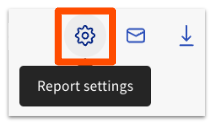
Report settings let you adjust:
- The metric used for the labor calculation (Net sales or Gross sales)
- Whether the data chart is shown or hidden
- The labor hours display format (Decimals (5.5) or Hours and minutes (5h 30m))
- Whether to hide hours, days, or weeks with no data (in the chart, the table, or both)
The report updates automatically to reflect changes you make in Report settings.
Understand the Data
The report displays data in three sections: an overview header, a labor cost chart, and a detailed data table.

The header shows four key metrics for your selected location and date range:
- Labor cost — the total of all labor costs for the selected range
- Net sales or gross sales — depending on your Report settings selection
- Labor % — labor cost divided by net sales or gross sales (depending on your Report settings selection)
- SPLH — sales per labor hour (net sales or gross sales divided by total labor hours)
Note: Labor cost calculations do not include salaried jobs. See the troubleshooting section below for a workaround.
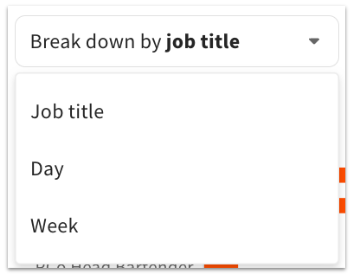
The labor cost chart can break down labor costs by job title, hour, day, or week. Switch between these using the Breakdown by drop-down. The time options available depend on the date range you selected:
- Viewing 1 day of data: break down by hour
- Viewing 2 to 13 days of data: break down by day
- Viewing 14 or more days of data: break down by day or week
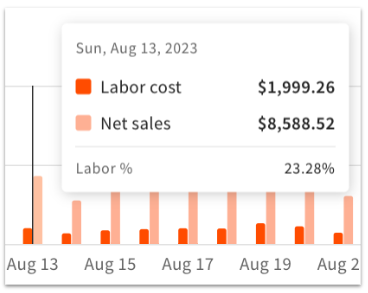
Hover over any bar on the chart to see detailed data for that segment.
Below the chart is a data table for the selected location and date range. The table updates to reflect your breakdown by selection. When Break down by job title is selected, select any job title in the table to open labor cost details by individual employee.
Use the Columns button above the table to select or deselect the fields shown. Depending on your Break down by selection, available columns can include: day of week, regular hours, overtime hours, total hours, regular cost, overtime cost, total cost, net sales, labor %, and SPLH.
Select any column title to sort the table in ascending or descending order.
Note: If overtime cost or labor cost on this report differs from the Labor Summary or Location Overview report, contact Toast Customer Care to review the discrepancy.
Export the Report
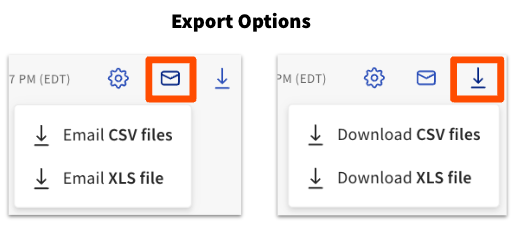
You can export the Labor Cost Breakdown report by email or download it as a CSV or XLS file. Select the email icon or the download icon (down arrow) in the top-right corner of the report, then choose your file type.
Troubleshooting: No Data or Missing Employees
If the report shows no data, or an employee is missing from the report, check the following:
- Job titles are set up, and employee wages are entered. If wages aren't set for a job role, that employee's labor cost won't display. See Create and Edit Jobs (Roles) for Toast POS.
- The selected date range has no data. On a day the restaurant was closed, or a future date, will return no data.
- There are sales and labor data for the selected day.
- You don't have the 4.3 Labor Reports permission required to view sales and labor data.
- The job title does not have the Include hours and pay under this job in the restaurant labor summary reporting selected.
Salaried employees: Labor cost calculations do not include salaried jobs, so salaried employees won't contribute to labor cost on this report. As a workaround, assign the employee an approximate hourly rate equivalent to their salary and have them clock in. Their hours will then appear in labor reports. See Create and Edit Jobs (Roles) for Toast POS.
If you've confirmed the above and an employee or their overtime still isn't appearing as expected, contact Toast Customer Care.
Related Articles
- Labor Reports Overview
- Can I filter labor reports by department?
- Can Labor reports take salaries into consideration?
- Create and Edit Jobs (Roles) for Toast POS
- Get Started With Analytics and Reports