Look Up Guest Profiles and Guestbook Data on the POS
Last updated: Sep 10, 2026, 3:53 PM
Look up guest profiles, tags, notes, and past orders on your Toast POS, and search the Guest Directory from Manager Activities.
| Guestbook data on the Toast POS is currently in limited release and is being enabled for restaurants in stages. Check back soon for updates! |
- Before You Begin
- Look Up a Guest on a Takeout or Delivery Order
- Search by Phone, Name, Email, or House Account Number
- What Appears on a Matched Guest Profile
- Add or Edit Guest Notes on the POS
- Search the Guest Directory
- Change the Customer on an Open Check
- Frequently Asked Questions
- Related Articles
Before You Begin
Applies to: Toast POS
Permissions needed:
- At least one 3. Manager permission, which makes the Manager Activities section visible on your Toast POS device
- 4.13 Customer Credits & Reports, to view guest information in Guestbook in Toast Web
What you'll accomplish: Find a guest's profile from your Toast POS device and see their tags, notes, and past orders while you take an order or look up a guest.
Note: Guest data on the POS reads from Guestbook, your restaurant management group's master guest list in Toast Web. To learn how guest profiles are created and what they contain, see Access Your Guest Data With Guestbook.
Look Up a Guest on a Takeout or Delivery Order
When you select a takeout or delivery dining option, your Toast POS device opens the guest lookup screen so you can attach a guest to the check.
- Start an order on your Toast POS device and select either a Takeout or Delivery dining option.
- On the guest lookup screen, enter the guest's information in the search field.
- Select the guest from the results list to attach them to the check. If no result matches, select + New customer and enter their contact information.
Note: Phone number is required to add a new customer to your Guestbook. - Select Done at the top of the screen to return to the order.
Expected outcome: The guest is attached to the check, and their profile information appears on the lookup screen whenever you open it again for this order.
To leave the guest lookup screen without attaching a guest and choose a different dining option, select the X in the top left corner. You can also select Continue without customer to proceed with the takeout or delivery order.
Search by Phone, Name, Email, or House Account Number
The search field has a drop-down that controls which field you are searching.
- On the guest lookup screen, select the search drop-down arrow as seen in the image below.
- Select Phone, Name, Email, or House account number depending on your search preference.
- Enter your search text.
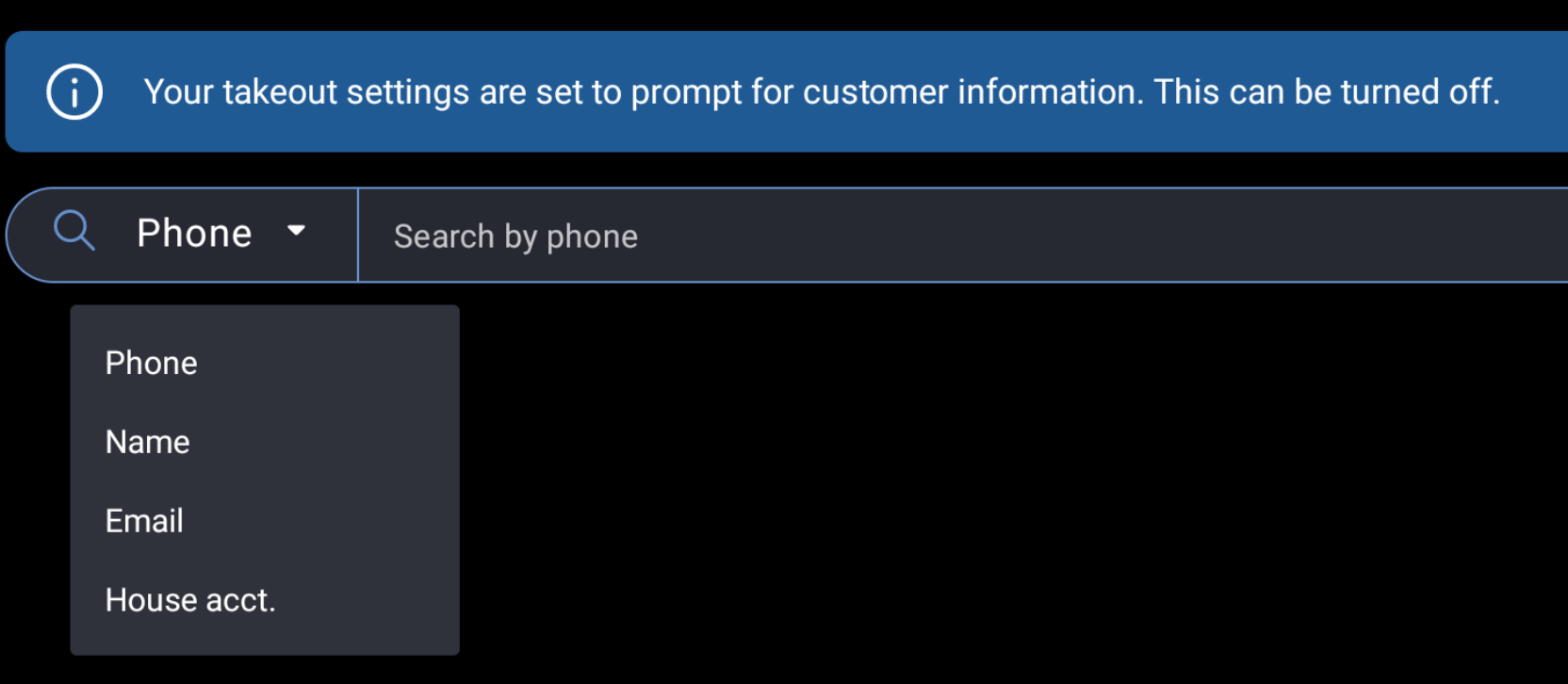
Results are filtered to the field you selected. Your Toast POS device remembers the field you chose and uses it the next time you open guest lookup to allow for efficient searching.
What Appears on a Matched Guest Profile
A guest matches a Guestbook profile when their phone number and email address both match an existing profile, or when their phone number matches a profile that has no email address on it. When the guest you look up matches a guest profile in Guestbook, the profile in your search results includes:
- Guest tags, such as VIP, subscription plan tags, or any custom tags your restaurant has created
- Saved address, if applicable
- Guest notes
- Past orders
- Order summary including: Last order date, number of orders, total amount spent, and average spend per order
Guests with no Guestbook match still attach to the check normally. They appear with the contact information entered on the order, and no tags, notes, or past orders.
Add or Edit Guest Notes on the POS
You can add or change a guest's notes from your Toast POS device when that guest has a Guestbook profile.
- Look up the guest as described above, then open their guest profile.
- Select the pencil icon in the notes field.
- Enter or revise the note, then select Save.
Expected outcome: The note is saved to the guest's Guestbook profile and is visible to your staff on the POS and in Guestbook in Toast Web.
Note: Notes can only be edited for guests who have a Guestbook profile. Guests with no Guestbook match do not have an editable notes field. Your guests cannot see the notes you leave on their profile. If you are looking to change the guest name or phone number, select the Edit customer button.
Search the Guest Directory
Guest Directory is a mode on your Toast POS device that searches Guestbook directly, so you can look up a guest without starting an order.
- On your Toast POS device, select Manager Activities > Guest Directory.
- Select the search drop-down and choose the field you want to search.
- Enter your search text and select the guest from the results.
Expected outcome: The guest's profile opens so you can review their tags, notes, and past orders.
Note: Guest Directory is view only. You can search for and review guest profiles, but you cannot attach a guest to a check, issue credits, or take any other action from this mode.
Change the Customer on an Open Check
The Change customer action on an open check uses the same guest lookup screen, so the guest's tags, notes, and past orders appear when there is a Guestbook match.
- On your Toast POS device, open the check you would like to edit.
- Select the overflow menu (three vertical dots).
- Select Customer info.
- Select Change customer.
- Search for the guest and select them from the results.
- Select Done at the top of the screen.
Expected outcome: The check is updated with the guest you selected, and their profile information appears on the lookup screen.
For the full list of actions available on a check, see Manage Orders With Toast POS.
Frequently Asked Questions
Why do only some guests have tags and notes?
Only some guests have tags and notes because tags and notes come from Guestbook, and they appear only when the guest on the order matches a Guestbook profile. Toast matches on phone number and email address together, or on phone number alone when the profile has no email address. A guest with no Guestbook profile attaches to the check normally but has no tags, notes, or past orders to show.
What happened to Lookup Customer under Manager Activities?
Lookup Customer is now called Customer Credits. The name changed because adjusting customer credits was the only action available from that screen. Its functionality did not change. To issue or adjust credits, select Manager Activities > Customer Credits and see Manage Customer (Guest) Credits. To browse and review guest profiles instead, use Guest Directory.
Why does the POS ask for a phone number on takeout orders?
The POS asks for a phone number on takeout orders because takeout dining options are set to require customer information. A banner on the guest lookup screen points this out. The requirement comes from the Takeout customer information setting which you can review in Toast Web > Takeout & delivery > Ordering setup > Takeout/delivery.
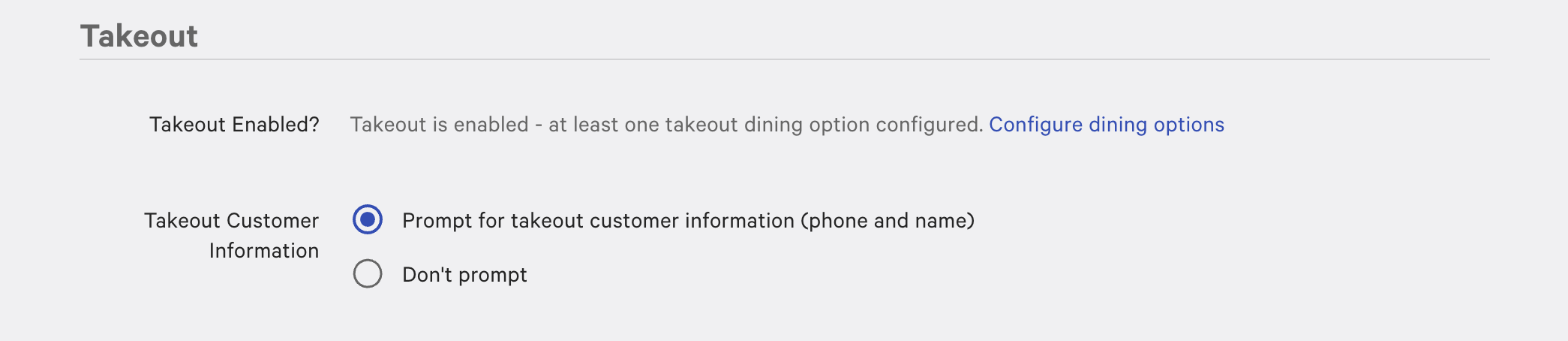
Note: Delivery dining options always require customer and delivery information. This has not changed and cannot be disabled.
Can I see the full Guestbook report on my POS?
You cannot see the full Guestbook report on your POS. Guestbook reporting, segments, filters, exports, and profile merging are all in Toast Web. What the POS provides is guest lookup and Guest Directory, which read guest profiles from Guestbook so your staff can see tags, notes, and past orders while serving the guest.
Why don't I see Guest Directory under Manager Activities?
Guest Directory appears only after your restaurant receives the update and the employee signed in to the device has a 3. Manager permission.
-
- If Manager Activities is not visible at all: Grant the employee's job at least one 3. Manager permission in Toast Web, then publish the change. See Permissions Reference Guide.
- If Manager Activities is visible but Guest Directory is not listed in it: Your restaurant has not received the update yet. It is being enabled for restaurants in stages and turns on for you automatically, so there is nothing you need to do.
Why aren't a guest's most recent orders showing on their profile?
A guest's most recent orders may not show on their profile because Guestbook data can take 24–48 hours to refresh. An order placed today may not appear in the guest's past orders until the following day.
Related Articles
- Access Your Guest Data With Guestbook
- Manage Customer (Guest) Credits
- Manage Orders With Toast POS
- Permissions Reference Guide