Loyalty Lookup and Redemption Workflows
Last updated: Oct 1, 2026, 12:09 PM
Toast Loyalty lookup lets your staff find a guest's rewards account by name, phone, email, account number, card swipe, or scan, so that guests can earn and redeem rewards quickly. This article covers enabling lookup, the lookup and redemption workflows on the Order and Payment screens, birthday reward redemption, setting redemption limits, voiding rewards, and fixing the most common reason a reward redeems for $0.
- Before you contact Customer Care
- Set up loyalty account lookup
- Look up a guest on the Order screen
- Look up a guest on the Payment screen
- Use the Rewards button, not the Gift Card button
- Switch between guests during redemption
- Redeem birthday rewards
- Redeem rewards across multiple accounts on one order
- Set loyalty redemption limits
- Void a redeemed reward
- Fix a reward that redeems for $0
- Related articles
Before you contact Customer Care
Most loyalty redemption problems are caused by settings you can fix yourself, and the most common one — a reward that redeems for $0 — is almost always a menu item that isn't set to be discountable. Work through Fix a Reward That Redeems for $0 below before reaching out.
Contact Toast Customer Care only when the issue requires account-level correction you can't make yourself, such as points that still won't deduct after you've confirmed the item is discountable and resynced your devices, a balance that needs manual adjustment and you don't have the required permissions, or rewards that continue to apply after you've fully disabled your program.
Set up loyalty account lookup
Lookup controls whether your staff can search for a guest's rewards account. If lookup is disabled, guests must present a physical rewards card or type in the rewards account number to earn or redeem points. If lookup is enabled, employees can search by email, phone, or name.
- In Toast Web, navigate to Marketing > Loyalty > Loyalty settings.
- Select the Channels tab.
- Enable Lookup.
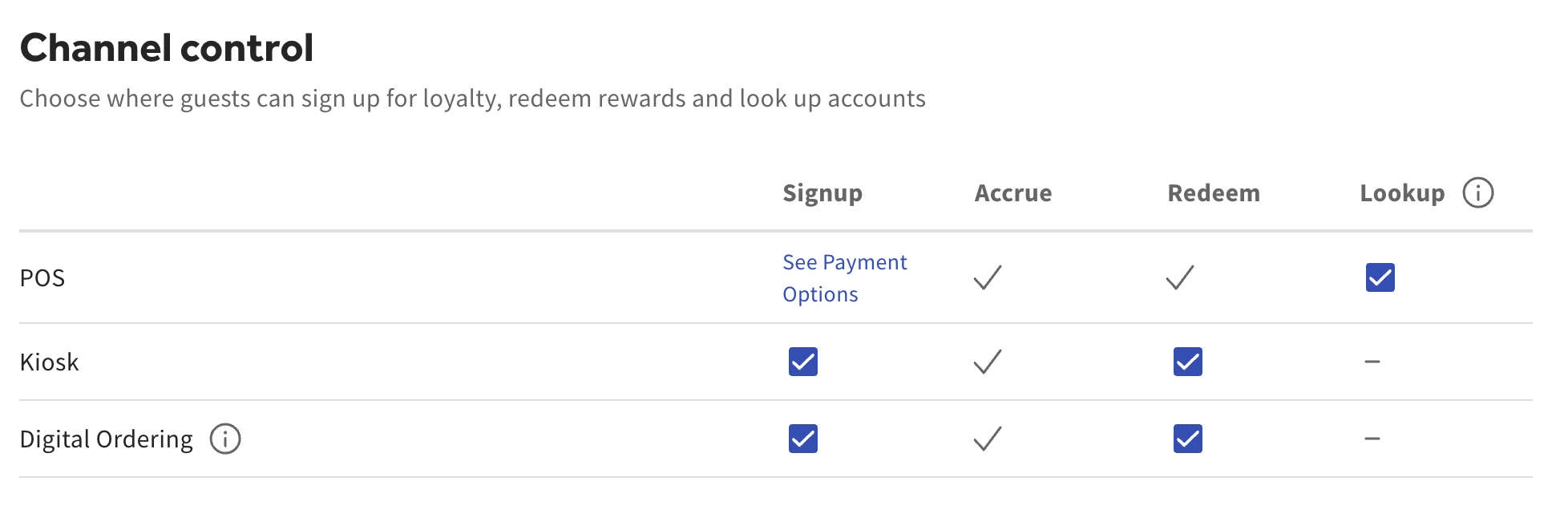
Note: Customer lookup functions are inaccessible when the loyalty program is disabled. In order to reenable loyalty, your program needs at least one reward configured before it can be turned back on.
Look up a guest on the Order screen
You can look up a loyalty account on the Order screen so points and rewards are ready before payment.
- On the Order screen, select the Rewards button.
- Select Look Up Customer.
- Search by email, phone, name, account number, or scan.
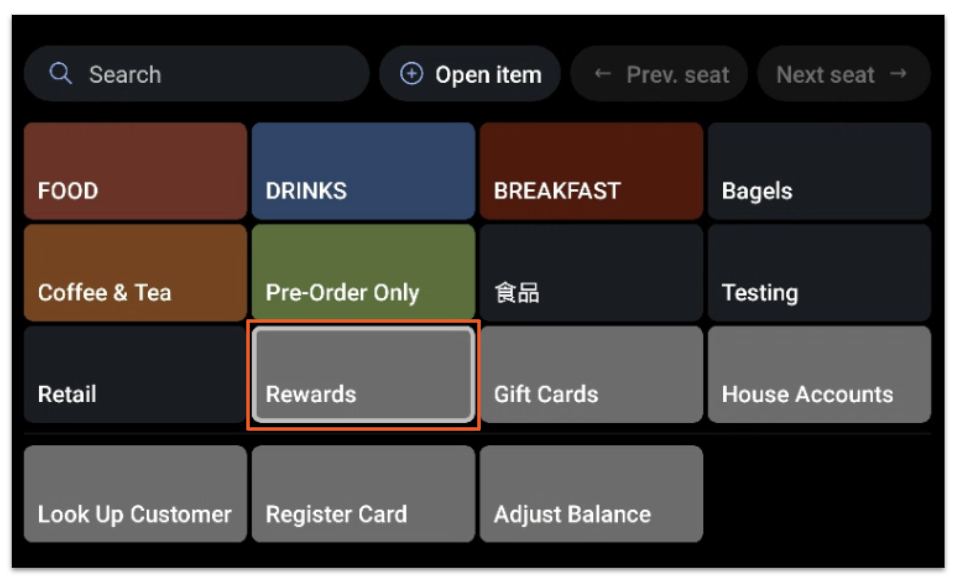
Note: When looking up loyalty with a physical card, use the same method that was used when the card was first linked to the account.
Look up a guest on the Payment screen
You can also look up a loyalty account at payment.
- On the Payment screen, select the Rewards button at the bottom.
- Search by email, phone, name, or account number.
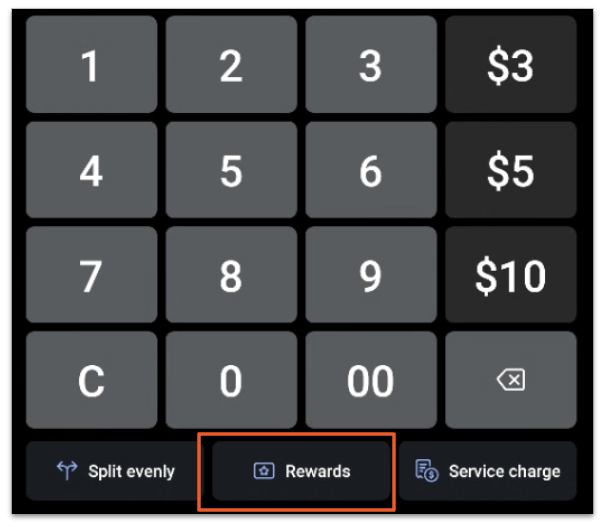
Note: When looking up loyalty with a physical card, use the same method that was used when the card was first linked to the account.
Use the Rewards button, not the Gift Card button
Always use the Rewards button on the Payment screen to redeem loyalty rewards. Using the Gift Card button instead will prevent the reward from applying correctly. Gift cards and loyalty are stored on the same card, so it's easy to select the wrong button — confirm you've selected Rewards before redeeming.
Switch between guests during redemption
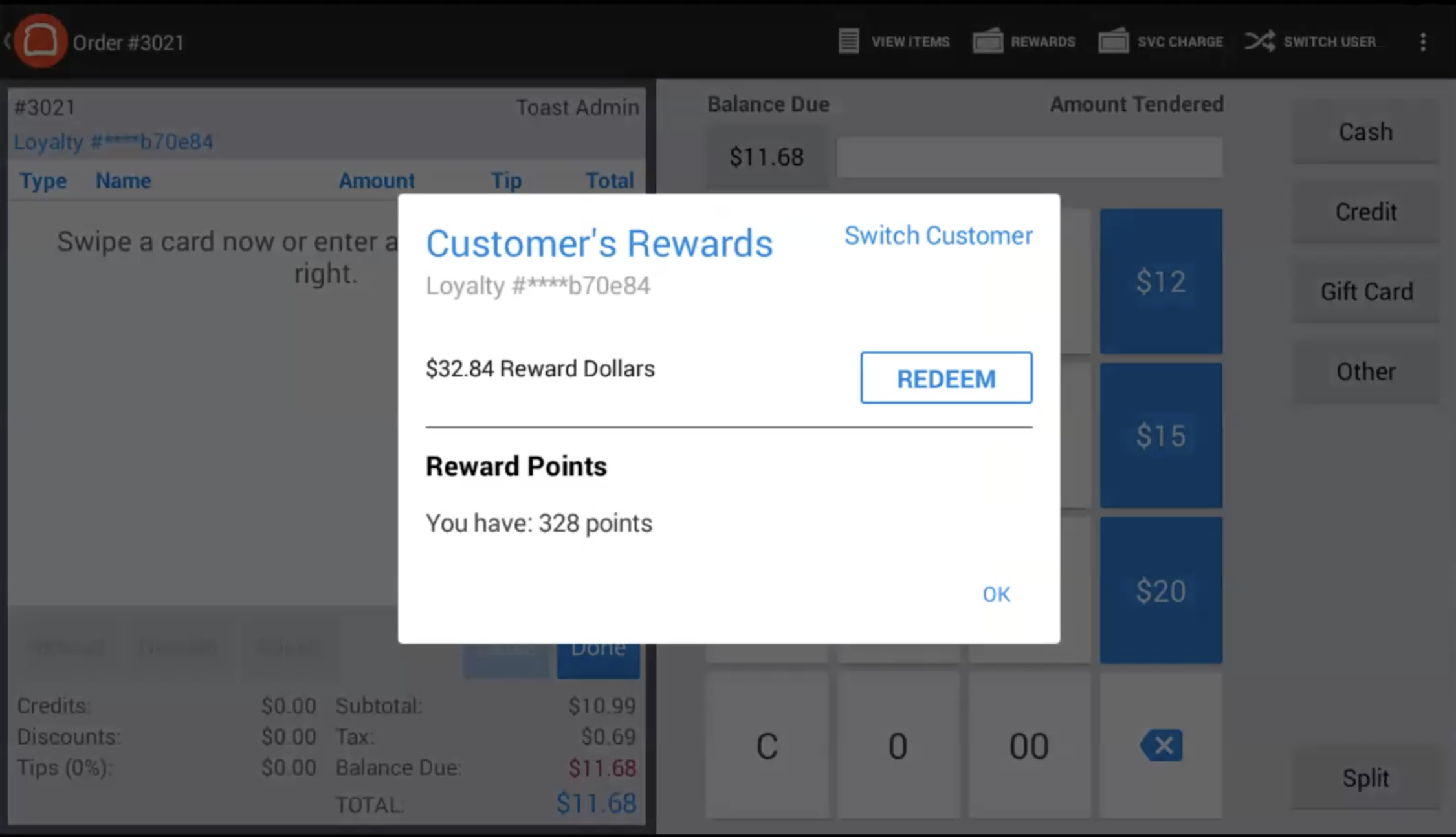
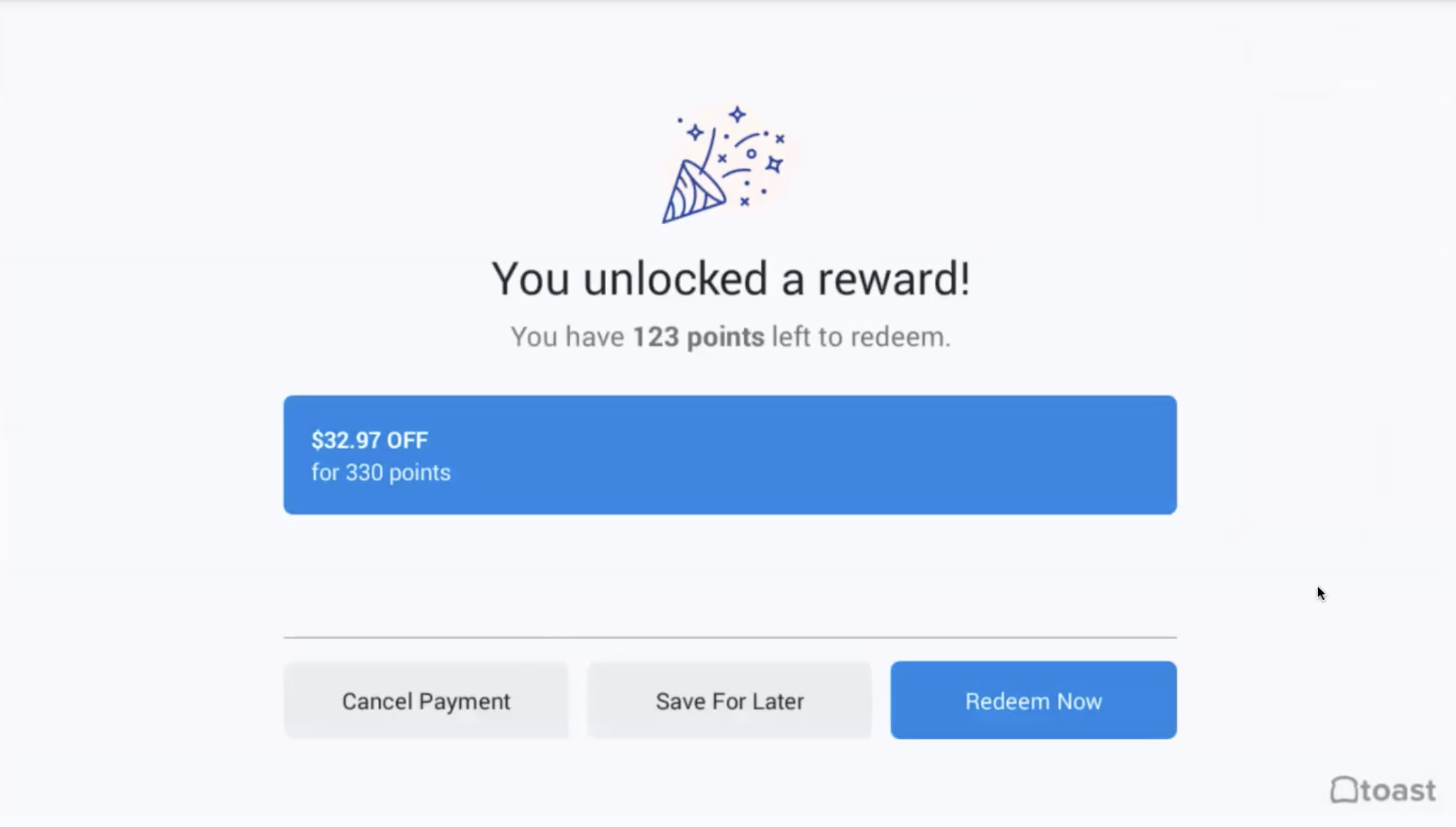
If you're looking up a guest and need a different account, you can switch to another guest from the redemption dialog without starting the lookup over. You can attach an account through lookup or through the guest's linked credit card.
Redeem birthday rewards
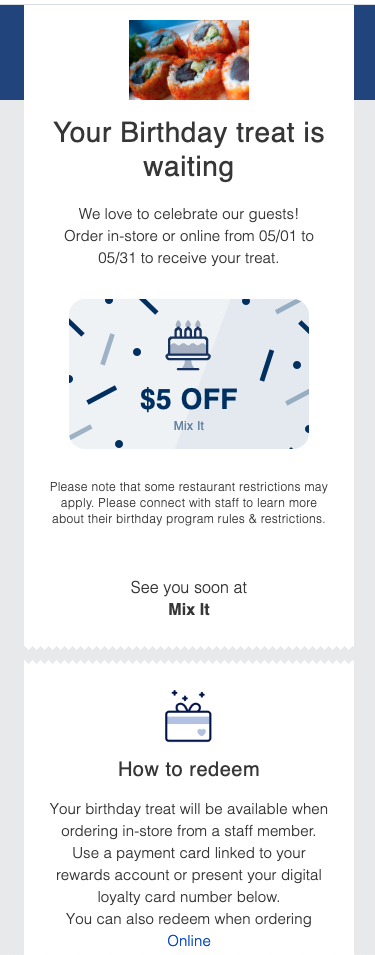
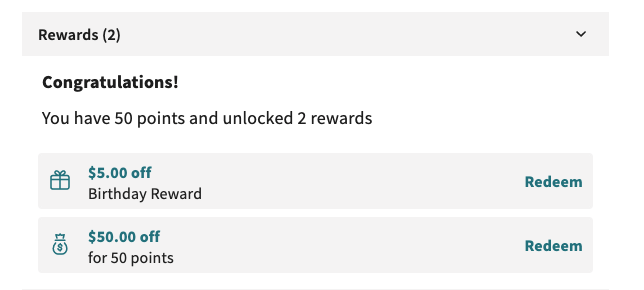
When you add a rewards account through lookup, an available birthday reward applies to the guest's check automatically. When the account is added through a linked credit card, a prompt asks the guest whether they want to redeem their birthday reward. If the guest also has a standard loyalty reward available, the prompt lets them apply both.
Guests can redeem a birthday reward through Online Ordering and Kiosk in addition to in-store at the POS. When a birthday reward is available, the guest receives an email noting they can redeem it through Online Ordering. Birthday rewards are included in the rewards program menu item exclusion.
For more on configuring birthday rewards, see Manage Birthday Rewards for Toast Loyalty.
Note: When looking up loyalty with a physical card, use the same method that was used when the card was first linked to the account.
Redeem rewards across multiple accounts on one order
To redeem rewards on more than one loyalty account on the same order, split the check before payment. Splitting the check gives each guest their own check, so each reward applies cleanly.
If the check is not split, each guest can still attach their account through lookup or a linked credit card, but two limits apply:
- Only one guest can redeem a reward on an unsplit check, regardless of linked credit cards or lookups.
- Any unclaimed points on the check are credited to the last loyalty account attached to it. For example, on a $15 check where Guest A pays $5 with their loyalty account, Guest B pays $7 with their loyalty account, and Guest C pays $3 with no loyalty account, Guest B receives the unclaimed $3 in rewards.
Note: If a check was split but only one guest received reward points, points can't be transferred directly between accounts. You can manually add the missing points to the second guest's account and deduct them from the first. See Toast Loyalty FAQ for the balance adjustment steps.
Set loyalty redemption limits
The maximum discount amount for this reward, regardless of modifiers or sizes selected by the guest.
- In Toast Web, navigate to Marketing > Loyalty > Loyalty settings.
- Scroll to the Rewards tile, locate the reward, and select Edit.
- Add or update the Limit reward amount.
- Select Save.
This limit applies to item rewards to prevent covering cost increases from modifiers or size pricing — it does not create partial credit. If your program still uses an older progressive (cashback) reward, a guest can use part of their available rewards and save the rest; for example, if you limit redemption to $5 in a single order and a guest's order is $3, the guest will only use $3 of their rewards, and the remaining $2 stays in their account. Fixed cash rewards and item rewards redeem as a single reward at their set point level — there is no leftover balance.
Note: Using Publish Now on the Gift Cards, Loyalty, or Guest Data page publishes changes only to the location you're currently logged into. To publish to all locations, navigate to Publish Config.
Void a redeemed reward
To void a redeemed reward, void the entire check or the specific discount so the rewards are returned to the guest. Voiding only the payment does not return the reward. For a refresher on voiding, see Void Items, Payments, and Checks.
Fix a reward that redeems for $0
If a guest's reward appears available but redeems for $0 — leaving an open balance on the check after you select Redeem — the cause is almost always that the item being discounted isn't eligible. Work through these checks:
- In Toast Web, confirm the item is set to Can be discounted? Yes under the item's Advanced Properties.
- Confirm the item isn't excluded from your rewards program under Marketing > Loyalty > Loyalty settings, in the rewards eligible-items configuration.
- Publish your changes at each location.
- Start a new check and redeem again. Existing checks keep the configuration they were opened with, so the change only applies to new checks.
If the reward is still redeemed for $0 after the item is discountable and you've started a fresh check, resync your devices and try once more. If it still fails, contact Toast Customer Care.
Related articles
- Toast Loyalty FAQ
- Manage Birthday Rewards for Toast Loyalty
- Missing Toast Loyalty Account
- Manager Approval for Loyalty Redemption
- Void Items, Payments, and Checks
- Get Started with Toast Loyalty