Order Activity Log and Item Owner Metrics Overview
Last updated: Nov 20, 2026, 11:05 AM
Discover how restaurant managers track staff order actions on Toast POS and analyze item owner sales metrics in Toast Web Custom Reports.
- About the Order Activity Log
- How It Works
- View Order Activity Log
- Filter the Activity Log
- View Order Activity on the KDS
- Build a Custom Report
- Known Limitations
- Related Articles
About the Order Activity Log
The Order Activity Log and item owner metrics track which staff members interact with an order and when each action occurs. Existing sales metrics attribute all items to the order owner based on when the order was opened. The item owner metrics account for multiple servers working on the same order, improving visibility for item timing and staff attribution.
How It Works
This feature introduces three categories across your devices and reporting dashboard:
- Order Activity Log: View a chronological record of key order actions on the POS, including opening an order, sending items to the kitchen, updating or voiding items, applying or removing discounts, processing or voiding payments, applying service charges, and closing an order
- Sent by details on the Kitchen Display System (KDS): View the name of the staff member who most recently sent an item from the POS directly on the KDS ticket view
- Item owner sales metrics: Track Gross item amount (by item owner), Net item amount (by item owner), and Item quantity (by item owner) in Toast Web reporting based on the logged-in user who added each item on the POS
View the Order Activity Log
To open the log on a POS device:
- Navigate to an order from the Order Manager (Payment Terminal), Quick Order, or Table Service screen.
- Open the overflow menu and select Activity Log.
The Order activity screen lists events in reverse chronological order so the most recent action appears at the top. Use the All staff and All actions drop-down menus at the top of the screen to filter the log by a specific employee or action type.
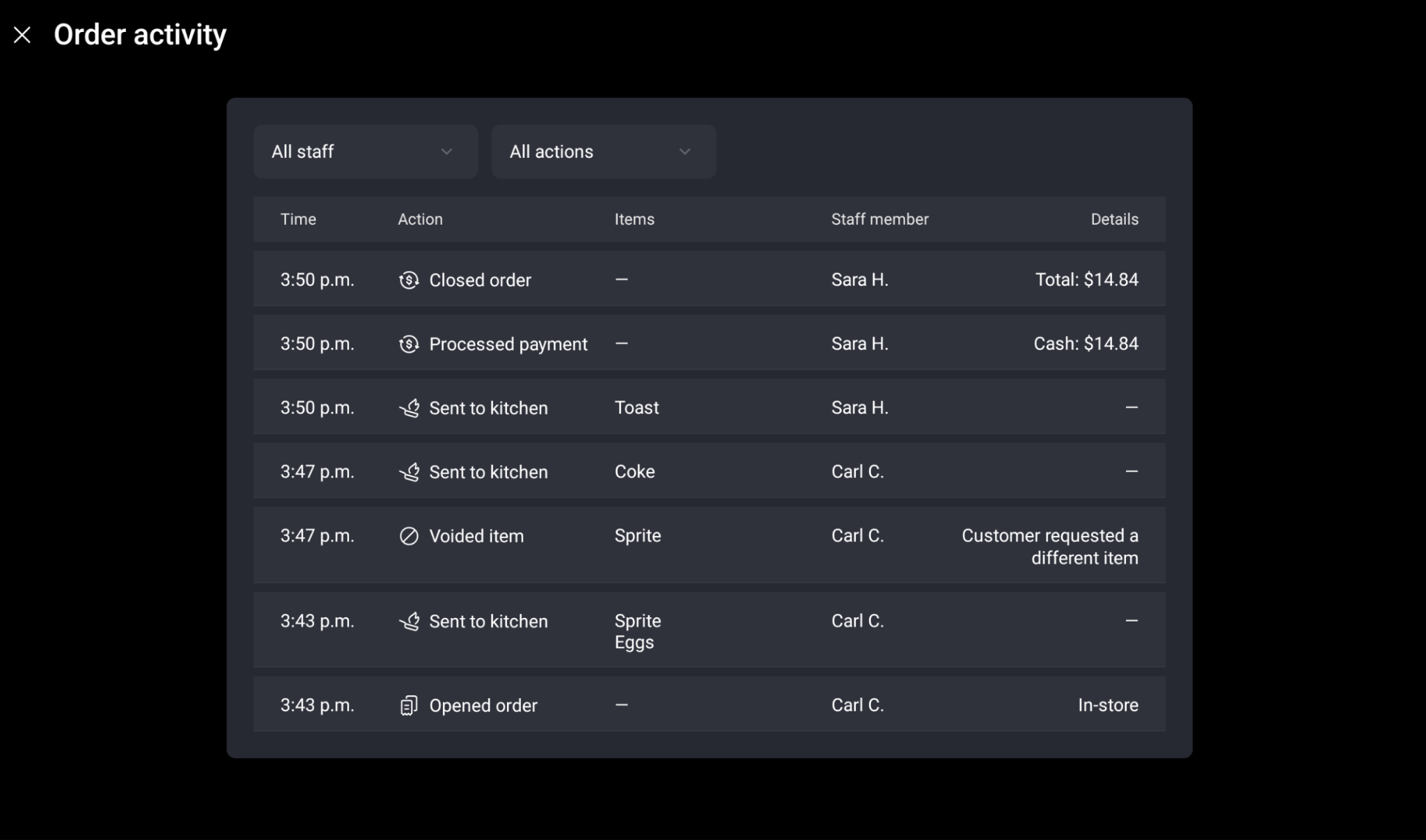
Each entry displays five columns of information:
- Time: Shows when the action occurred
- Action: Identifies the event, such as opening an order, sending items to the kitchen, voiding an item, processing a payment, or closing an order
- Items: Lists the specific menu items affected by the action
- Staff member: Displays the logged-in employee who performed the action
- Details: Shows additional context when available, such as the order type, a void reason, the payment method, or the order total
Filter the Order Activity Log
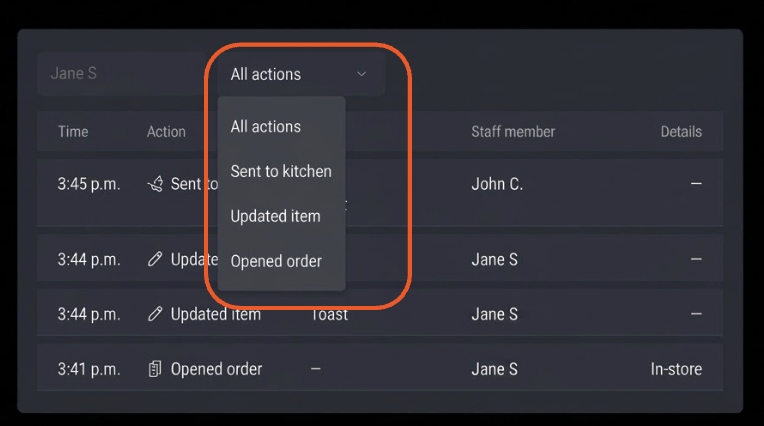
Use the two drop-down menus at the top of the Order activity screen to narrow down events on that order:
- All staff: Filter the log to show actions performed by a specific employee.
- All actions: View All actions or filter by the action types recorded on the order, such as Sent to kitchen, Updated item, and Opened order. Depending on the order's history, other logged actions include voided item, processed payment, closed order, applied or removed discounts, voided payments, and applied service charges.
View Order Activity on KDS
Item attribution on the Kitchen Display System (KDS) is disabled by default. To enable it in Toast Web:
- Navigate to Toast Web > Kitchen and Ticket Setup.
- Scroll to the Ticket Screens section and enable Per Selection Attribution.
Once enabled, you can view item attribution on a KDS device:
- Select a ticket on the KDS screen to open its ticket detail view.
- Select any item on the ticket to highlight it and view Sent by or Updated by next to the staff member's name on the right side of the row.
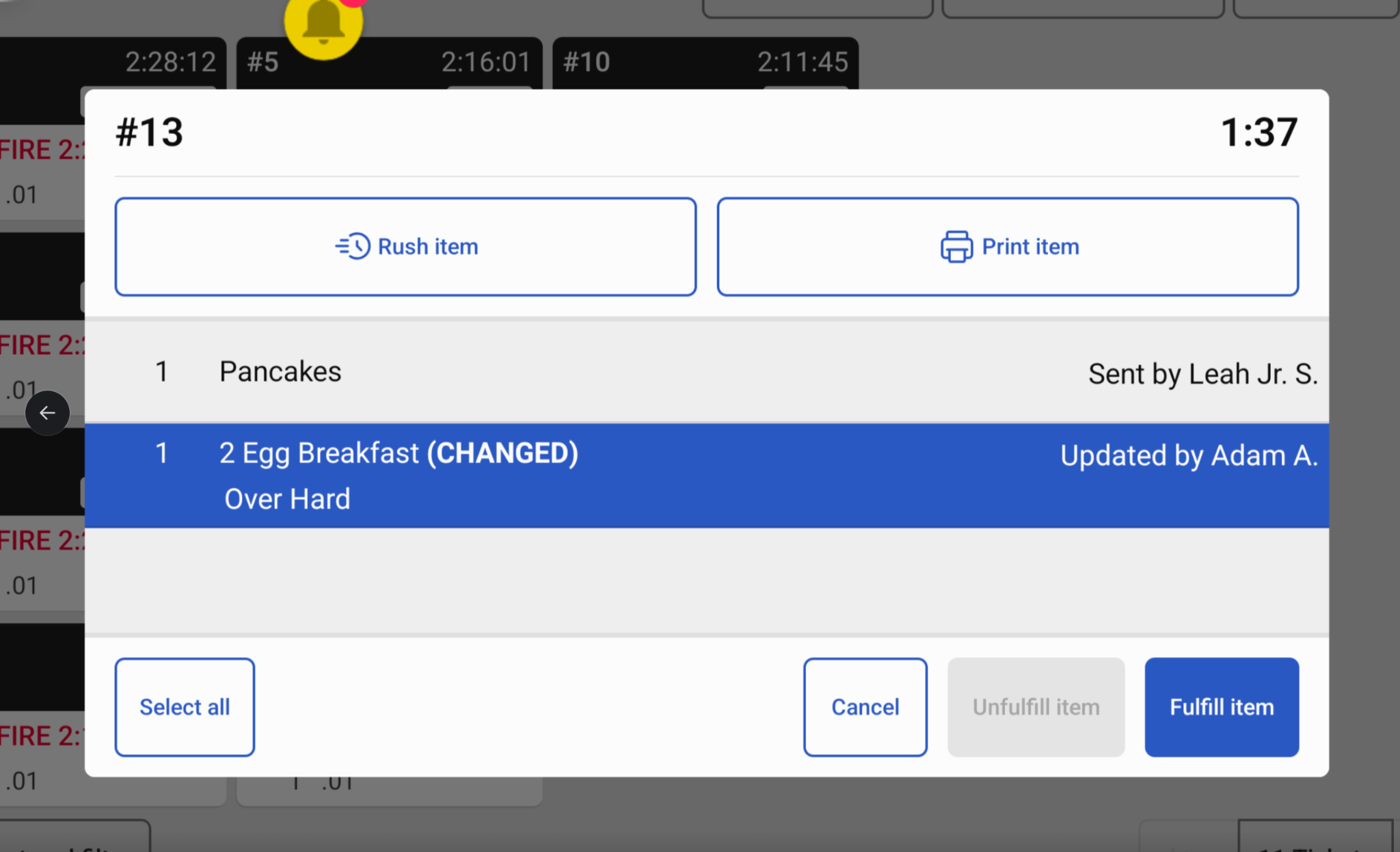
Note: The name shown is who most recently sent the items from POS, if you use the “Hold” functionality or coursing, this could be different to the person who added the item to the order
Build a Custom Report
You need Restaurant Admin Access permissions to build custom reports in Toast Web. The data that is accessible to you when building these reports will be dependent on your accounts specific permissions. To learn more and customize to your needs, see Permissions Reference Guide.
- Navigate to Toast Web > Reports > Custom reports.
- Select Create new report, and then select Start from scratch.
- Add a Table widget to your report.
- Enter a Table name and choose a Primary breakdown to group your data (for example, by employee, menu item, or hour).
- Optionally, add a Secondary breakdown for deeper grouping, such as viewing specific menu items sold per employee.
- Under Metrics, select Gross item amount (by item owner), Net item amount (by item owner), or Item quantity (by item owner).
- Select Filters to narrow your results by criteria such as day of week, revenue center, or employees.
- Select Save to view your finalized report, filter by date, or compare time periods.
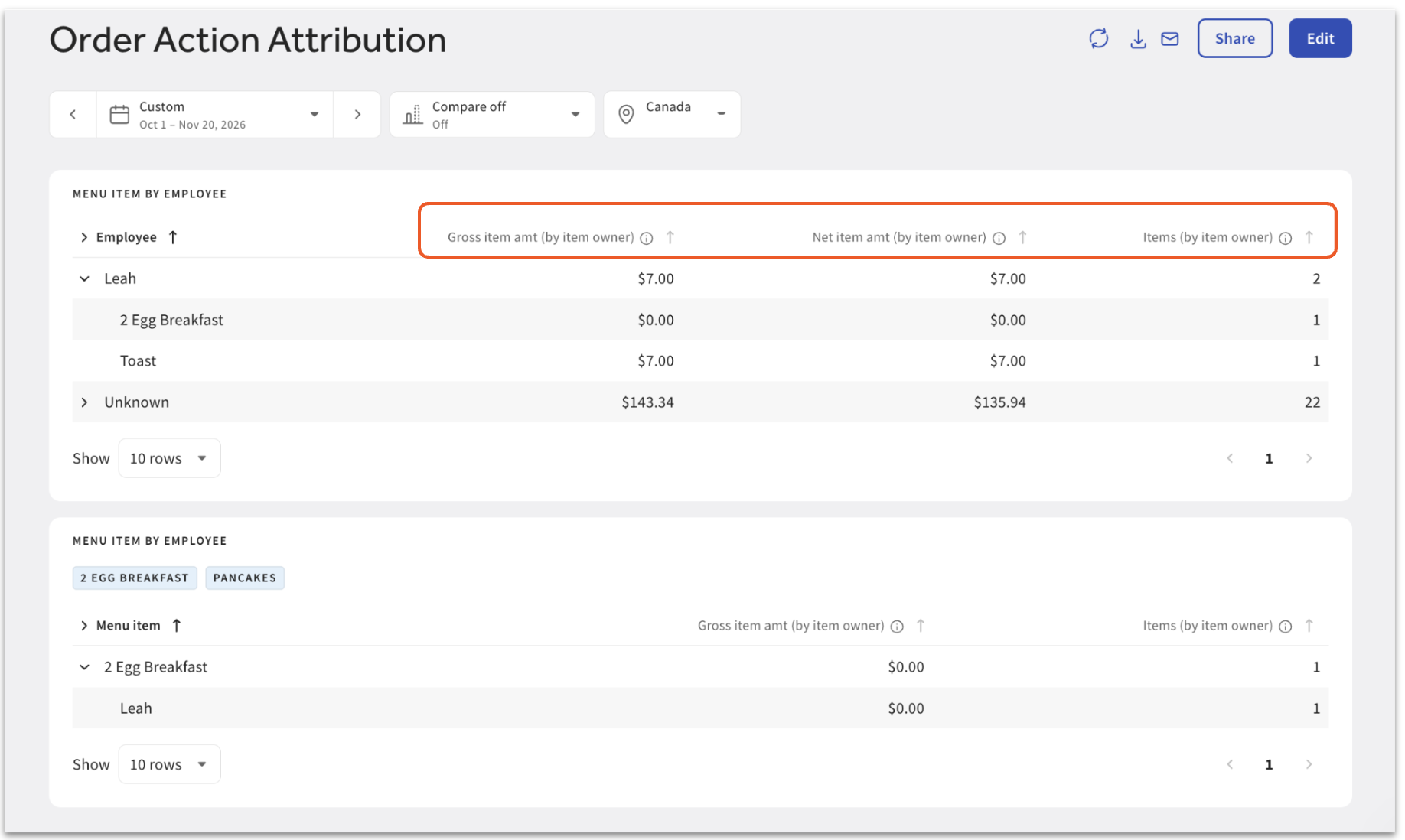
Note: You can apply up to three filter types at a time to a widget.
Known Limitations
- Data is only populated by POS devices running version 2.114 or greater. To learn more see Find Your Toast App Version.
- Viewing item attribution on the Kitchen Display System (KDS) requires version 2.118 or greater.
- Item owner attribution is only captured for items added directly on the POS and excludes items from Online Ordering or third-party integrations.
- Item owner metrics may not sum to the same total as existing order owner item sales metrics because they do not account for all items sold.
Related Articles