Get Started With Orders Hub
Last updated: Aug 20, 2026, 9:14 AM
Discover what Orders Hub can do for you! Explore its key features.
Orders Hub is a mode on your Toast POS that brings all of your takeout and delivery orders onto one screen. From a single view you can approve, fire, ready, and complete orders, send guests an Order Ready text, manage online ordering volume, and search past checks. This article explains what each part of Orders Hub does so you can start using it confidently. For step-by-step instructions on running orders, see Manage Off-Premise Orders With Orders Hub.
- What Orders Hub is and which orders appear
- Before you begin
- The five stages of Orders Hub
- Order details
- Additional features and functionality
- Sending Order Ready texts to guests
- Frequently asked questions
- Related articles
What Orders Hub Is and Which Orders Appear
Orders Hub consolidates every takeout and delivery order on one screen in the Toast POS app so you can manage them without switching modes. Orders with a takeout or delivery dining behavior appear in Orders Hub, including Toast Online Ordering orders, Toast Delivery Services® orders, integrated third-party delivery orders (DoorDash, Uber Eats, Grubhub), and manually entered takeout or delivery phone orders. Dine-in orders do not appear by default.
Orders Hub is a capability of the Toast POS and is available at no additional cost. It is live for all customers, and you do not need to activate it. Your existing modes still work, so your current workflows are not disrupted while your team learns Orders Hub.
To open Orders Hub, select the Toast logo in the top-left corner of the POS to open the Mode menu, then select Orders Hub.
Before You Begin
Applies to: Toast POS
Permissions needed:
- 1.5 Pending Orders / Orders Hub Mode — required to access Orders Hub at all
- 3.29 Throttle Online Orders — required to use Manage Online Orders
- 2.2 Update All Delivery Orders (or be assigned as the driver) — required to complete first-party delivery orders
Permissions are managed on the Jobs page in Toast Web. For details, see Permissions Reference Guide.
Note: At least one Toast POS device in your restaurant must be configured to auto-fire so that scheduled orders move into the Active tab. Orders Hub can run on a device that is not the auto-fire device, but without an auto-fire device assigned, scheduled orders never move into Active. To set this up, see Set Up Order Auto-Firing.
Note: Orders Hub is supported on most Toast tablets. It is not available on Elo V1 devices. It is available on Elo V2 or newer.
The Five Stages of Orders Hub
Orders Hub organizes orders into five tabs that follow an order from arrival to completion. The number of orders in each tab appears next to the tab name. When a new order arrives, a blue dot appears on the tab and next to the order entry to show that no action has been taken yet. The blue dot disappears once you select the order.
The five stages are Needs Approval, Scheduled, Active, Order Ready, and Completed. For a deeper, per-tab breakdown of fields and actions, see Orders Hub: Status Breakdown.
Needs Approval
The Needs Approval tab displays orders that must be manually approved before they are sent to the kitchen. This tab appears when your restaurant uses manual approval mode for online orders. Orders placed through Toast Online Ordering or the Local by Toast app land here; third-party orders are approved automatically and skip this tab.
To approve an order, select it in the Needs Approval tab and then select Approve. Approved ASAP orders move to the Active tab to be prepared right away. Approved future orders move to the Scheduled tab and become active when it is time to start preparation. To set up or change manual approval mode, see Approve Online Orders Manually.
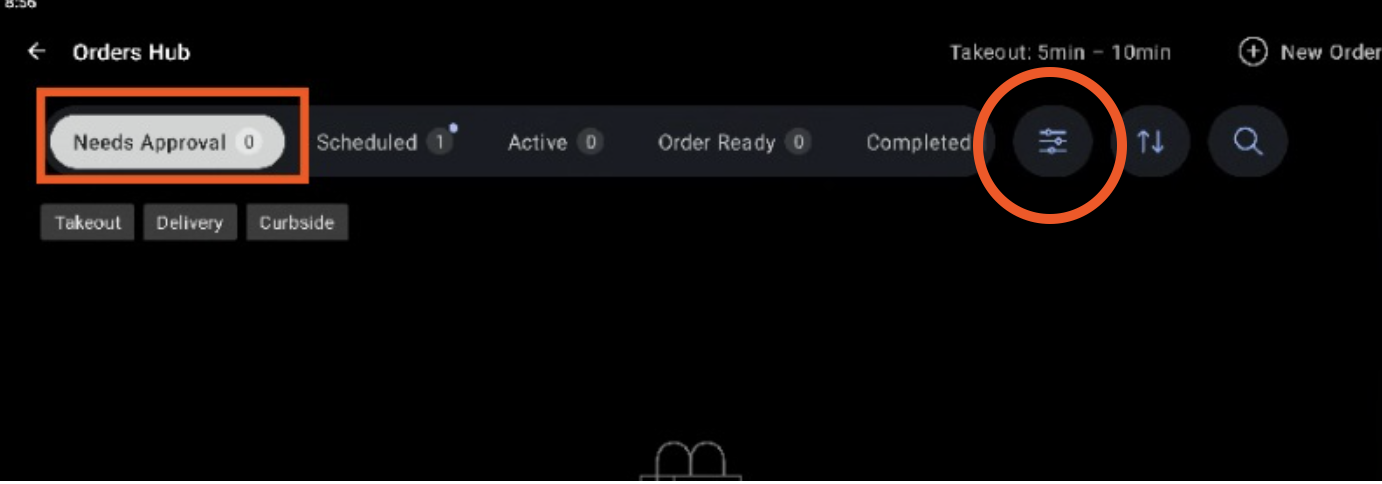
You can use the filter button to filter orders by order date, paid status, dining options, and dining behaviors.
Scheduled
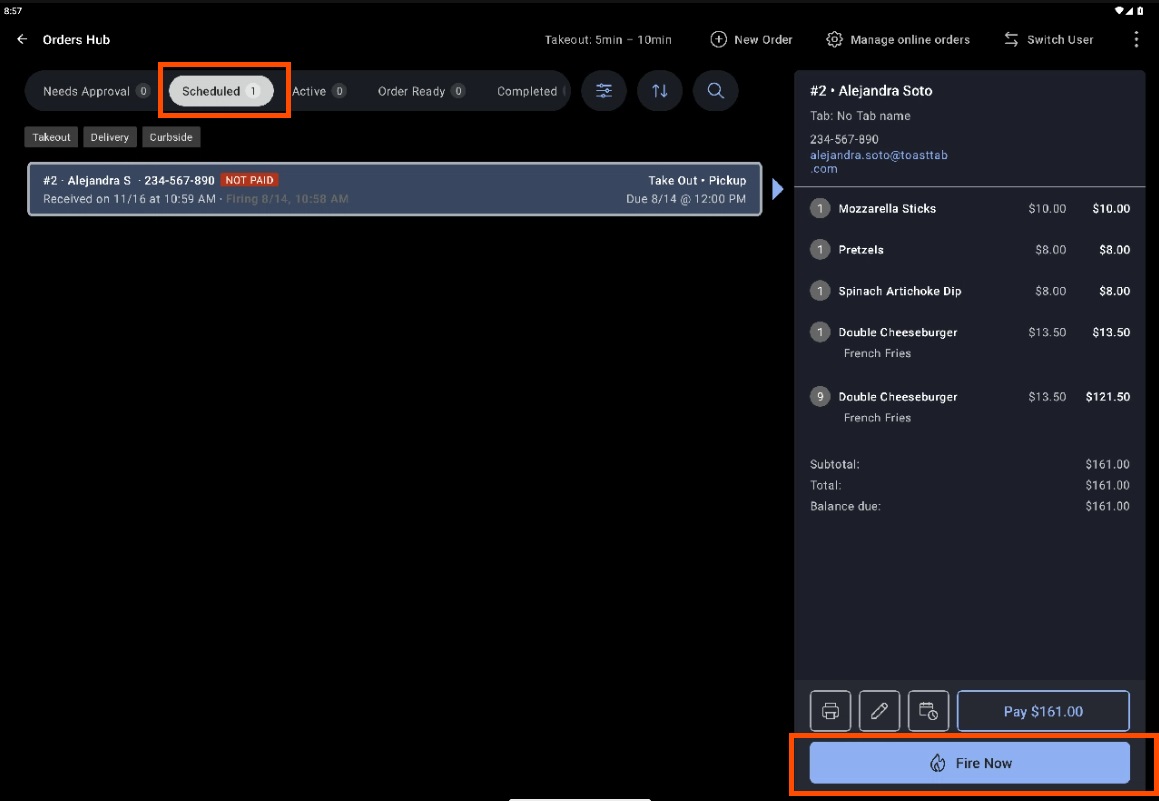
The Scheduled tab lists future orders that have been accepted but are not yet due for the kitchen, so you can see what is coming. A scheduled order moves to the Active tab automatically when a device is configured to auto-fire and the order's prep time clock begins, based on your kitchen's prep settings and the requested fulfillment time.
You can also start any scheduled order immediately using the Fire Now button on the order's detail screen. Fire Now is only available on a device configured to auto-fire, and it only appears on scheduled orders that have not yet fired. Once an order fires, the button no longer appears.
Active
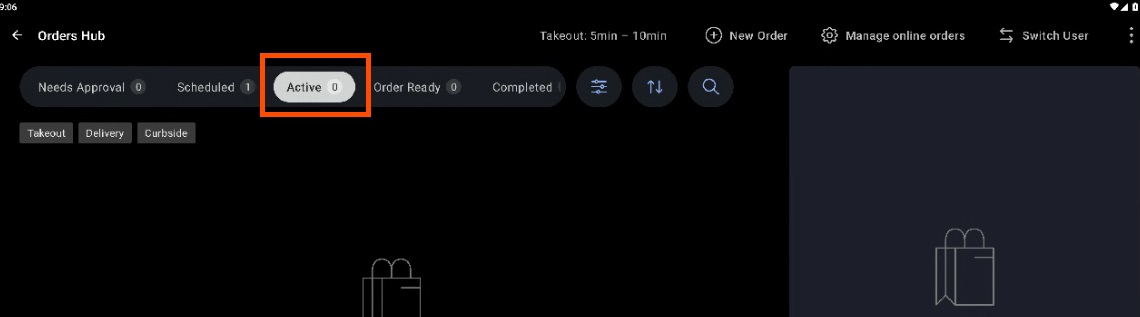
When an order moves into the Active tab — either automatically via auto-fire or manually using Fire Now — it fires to your kitchen the same way a dine-in order does, following the same prep station and Kitchen Display Screen (KDS) routing already set up for your menu items. If an order hasn't reached Active yet (it's still in Needs Approval or Scheduled), it hasn't fired and won't appear on your KDS.
The Active tab is the default view when you open Orders Hub. It shows current orders that have been sent to your kitchen and are being prepared. When an order is prepared, select the Order Ready button to move it to the Order Ready tab. This signals that the order is ready to be picked up by your guest or handed to a driver.
Order Ready
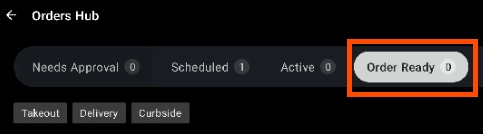
The Order Ready tab shows orders that are fully prepared and waiting for pickup or delivery, so you can quickly see what needs to go out. Once the guest has their order, select the Complete button to finalize it.
You can only mark an order as Complete if any payment due has been settled. If an order is unpaid, select Pay to take payment first.
When an order moves from Active to Order Ready, Orders Hub can send an Order Ready text to the guest. This works only for certain order types and requires the order to be fulfilled at a prep station or expediter. See Sending Order Ready texts to guests below for the requirements.
Completed
The Completed tab keeps a record of orders that have been fully paid and picked up or delivered. To make changes to a completed order, select Reopen to send it back to the Active tab so it can be worked on again, or select Update to adjust the order details. If an update creates a new balance due, the order automatically moves back to the Active tab for payment.
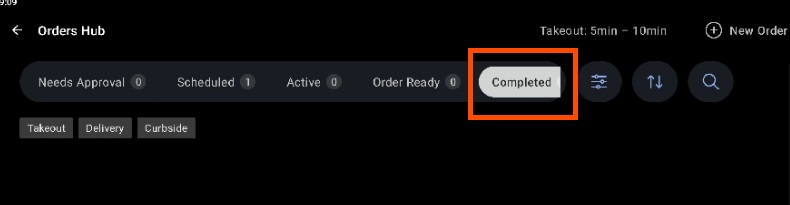
Note: A completed order is different from a closed order. Closed orders are no longer shown in Orders Hub. Older completed orders may also stop appearing once a device's order threshold is reached. See "Why did my completed orders disappear from Orders Hub?" in the frequently asked questions below.
Order Details
From any tab, select an order to display its details on the right side of the screen. The fields shown are consistent across all five tabs.
The order detail view shows customer information, including the guest's name, tab name, phone number, and address if available. It also shows order information, including the server, items, prices, discounts and service charges, tax, total, and any remaining balance.
The order detail window also offers several actions:
- Print prints the takeout or delivery receipt for the order.
- Update opens the Quick Order screen, where you can add or remove items or add discounts or service charges. Orders Hub supports updates to third-party orders, but those changes are reflected on Toast only and are not pushed to the third-party provider.
- Pay appears when the order has a balance due and takes you to the payment screen.
- Reopen appears on completed orders and returns the order to the Active state.
Additional Features and Functionality
Orders Hub includes several tools to help you find and manage orders quickly.
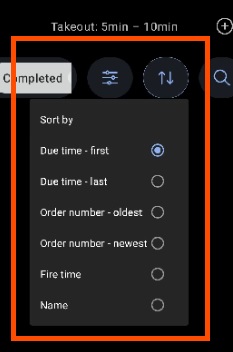
The Sort by button sets the sort order for any Orders Hub tab. You can sort by due time (first or last) or by order number (oldest or newest).
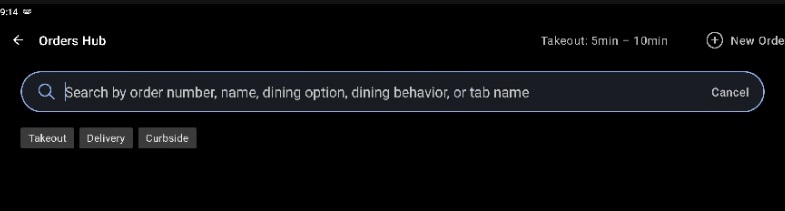
The Search button opens a search field where you can find specific orders. You can search by order number, guest name, guest email address, guest phone number, and dining option. Dine-in orders do not appear in search results.
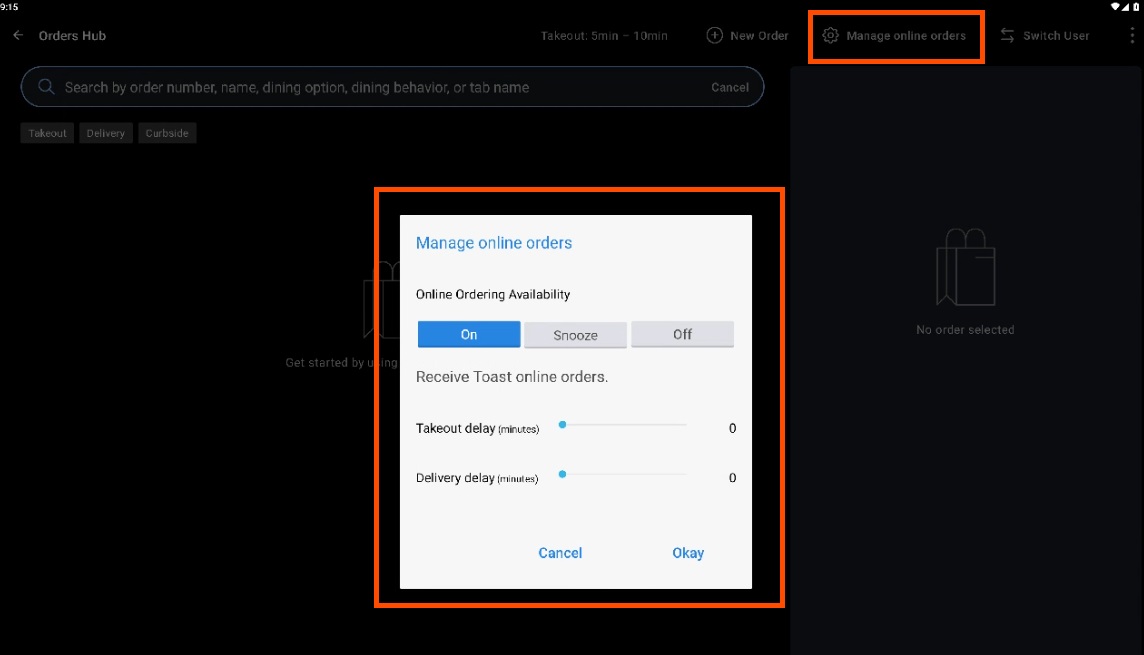
The Manage Online Orders button lets you turn online ordering on, snooze it, or turn it off, and manage throttle times for takeout and delivery orders. Throttle time is added to your set prep or delivery times and appears at the top of Orders Hub after you reload the mode. This button requires the 3.29 Throttle Online Orders permission. For more on throttling, see Manage Online Order Volume (Delaying/Snoozing Orders).
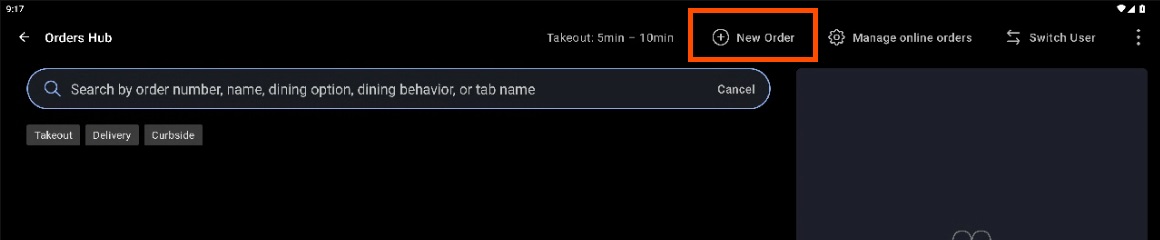
The + New Order button lets you create a new quick order directly from Orders Hub. This is handy for a terminal dedicated to off-premise orders, so you can create and manage orders while staying in one mode.
The Find Checks & Issue Refunds option in the overflow menu opens the advanced check search page. Use it to view a check from a previous day or to issue a refund on a previous check.

Sending Order Ready Texts to Guests
Orders Hub can text guests automatically when their order moves from Active to Order Ready, but the text only sends under specific conditions. Knowing these conditions prevents the most common surprise: a guest who never receives a text.
Order Ready texts are sent only for orders placed through Toast Online Ordering, the Local by Toast app, or Curbside dining behavior. They are not sent for in-store POS orders, kiosk orders, first-party delivery orders, or third-party orders (DoorDash, Uber Eats, Grubhub).
The order must also be fulfilled at a prep station or expediter for the text to send. An item that is set to label-only or "No Print," or that routes only to a printer with no kitchen display screen, is never marked fulfilled, so no text is sent even if you mark the order ready.
The Order Ready Guest Messaging setting must be turned on in Toast Web > Takeout & delivery > Orders Hub. Order Ready texts are not available for the following area codes: 684, 268, 246, 441, 345, 767, 809, 473, 671, 876, 664, 670, 787, 869, 758, 784, 868, and 649.
For full setup and troubleshooting, see Manage Order Ready Texts From the Orders Hub.
Frequently Asked Questions
Why isn't my Order Ready text being sent to the guest?
Your Order Ready text may not be sending because the order type or fulfillment setup does not meet the requirements. Order Ready texts send only for orders placed through Toast Online Ordering, the Local by Toast app, or Curbside — not for in-store POS, kiosk, first-party delivery, or third-party orders. The order must also be fulfilled at a prep station or expediter, and the item cannot be label-only, "No Print," or printer-only with no kitchen display screen. Confirm that Order Ready Guest Messaging is turned on in Toast Web > Takeout & delivery > Orders Hub, and that the guest's area code is not on the unsupported list above. For full troubleshooting, see Manage Order Ready Texts From the Orders Hub.
Why is my guest getting two Order Ready texts?
Your guest gets two texts when both the kitchen fulfillment text and the Orders Hub Order Ready Guest Messaging text are enabled at the same time. To send only one, turn off whichever Order Ready message you do not want in Toast Web > Takeout & delivery > Orders Hub. For setup details, see Manage Order Ready Texts From the Orders Hub.
Why don't I see a Fire Now button on my order?
You don't see a Fire Now button because the button only appears on scheduled orders that have not yet fired, and only on a device configured to auto-fire. Once an order fires to the kitchen, the button no longer appears, which is expected. If no Fire Now button appears on any scheduled order, confirm that a device in your restaurant is set to auto-fire. See Set Up Order Auto-Firing.
Why did my completed orders disappear from Orders Hub?
Completed orders disappear from Orders Hub for two common reasons. First, a completed order is different from a closed order, and closed orders are no longer shown in Orders Hub. Second, each device has an order threshold, and once the number of orders reaches that threshold, older orders are removed from the view. To find an order that is no longer showing, use Find Checks & Issue Refunds in the overflow menu to search past checks.
Can scheduled orders move to Active on their own?
Scheduled orders move to Active on their own only when a device in your restaurant is configured to auto-fire and the order's prep time begins. If no device is set to auto-fire, scheduled orders stay in the Scheduled tab and do not fire. You can also fire a scheduled order yourself using Fire Now on an auto-fire device. See Set Up Order Auto-Firing.
Do I need an auto-fire device to use Orders Hub?
You do not need to use the auto-fire device itself to work in Orders Hub, but at least one Toast POS device in your restaurant must be configured to auto-fire. The auto-fire device is what moves scheduled orders into the Active tab and prints tickets to the kitchen. To configure one, see Set Up Order Auto-Firing.
Related Articles
- Manage Off-Premise Orders With Orders Hub
- Orders Hub: Status Breakdown
- Get Help With Orders Hub
- Manage Order Ready Texts From the Orders Hub
- Set Up Order Auto-Firing
- Approve Online Orders Manually
- Optimize Toast Delivery Services® POS Order Tracking Workflow