Get Help With Orders Hub
Last updated: Sep 24, 2026, 11:44 AM
Explore our Orders Hub FAQs to find the information you need.
Find quick answers to the most common questions about the Orders Hub on your Toast POS. Orders Hub displays all of your takeout and delivery orders on one screen, including Toast Online Ordering, Toast Delivery Services, third-party integrations (DoorDash, Uber Eats, Grubhub), and manually entered takeout or delivery phone orders. The questions below cover how Orders Hub works, the actions you can take on an order, device and auto-fire requirements, permissions, Order Ready texts, and common troubleshooting.
- Orders Hub basics
- Working with orders
- Devices and auto-fire
- Permissions
- Takeout and delivery quote times
- Delivery dispatch
- Order Ready text messages
- Troubleshooting
- Related articles
Orders Hub basics
What is the Orders Hub?
The Orders Hub is a mode in the Toast POS app that displays all of your takeout and delivery orders on one screen. It is built to be the central place to manage off-premise orders, and the sections below describe its features and functions. To open Orders Hub, select the Toast logo in the top left of the POS, then select Mode > Orders Hub.
Which orders appear in the Orders Hub?
All orders with a takeout or delivery dining behavior appear in the Orders Hub. This includes Toast Online Ordering orders, Toast Delivery Services orders, integrated third-party delivery orders (DoorDash, Uber Eats, Grubhub), and manually entered takeout or delivery phone orders. Dine-in orders do not appear in the Orders Hub.
Is there a cost to use the Orders Hub?
There is no cost to use the Orders Hub. It is a capability of the Toast POS and is available at no additional charge.
When does the Orders Hub go live on my POS?
The Orders Hub is already live for all customers. You do not need to do anything to activate it on your POS.
How will the Orders Hub affect my current workflows?
The Orders Hub is a mode built for takeout and delivery orders, and the other modes you use today still exist. Your existing workflows are not disrupted while you learn to use the Orders Hub.
What do the statuses at the top of the Orders Hub mean?
The top navigation displays orders across five statuses: Needs Approval (orders that must be manually approved before they can be fulfilled), Scheduled (orders set to be fulfilled at a future date and time), Active (the default view, showing orders currently being prepared), Order Ready (orders that have been fulfilled and are waiting for pickup or delivery), and Completed (orders that have been picked up or delivered). The number of orders in each status appears next to the status name. For a full breakdown of each status and the actions available in it, see Orders Hub: Status Breakdown.
Note: When a new order arrives, a blue dot appears on the tab and next to the order entry to show that the order is unread and no action has been taken. The blue dot disappears once the order is selected.
What is in the overflow menu?
The overflow menu (the ⋮ icon at the top right of the screen) contains Find Checks & Issue Refund, which opens the Advanced Check Search screen, and Device Status, which displays device status information. The options shown can vary depending on the device size and orientation.
Can I switch the Orders Hub to dark mode?
You can switch the Orders Hub to dark mode in Device Setup on your device.
Working with orders
Can I switch users in the Orders Hub?
You can switch users in the Orders Hub by selecting the Switch User button, which returns you to the passcode screen.
How do I create a new order from the Orders Hub?
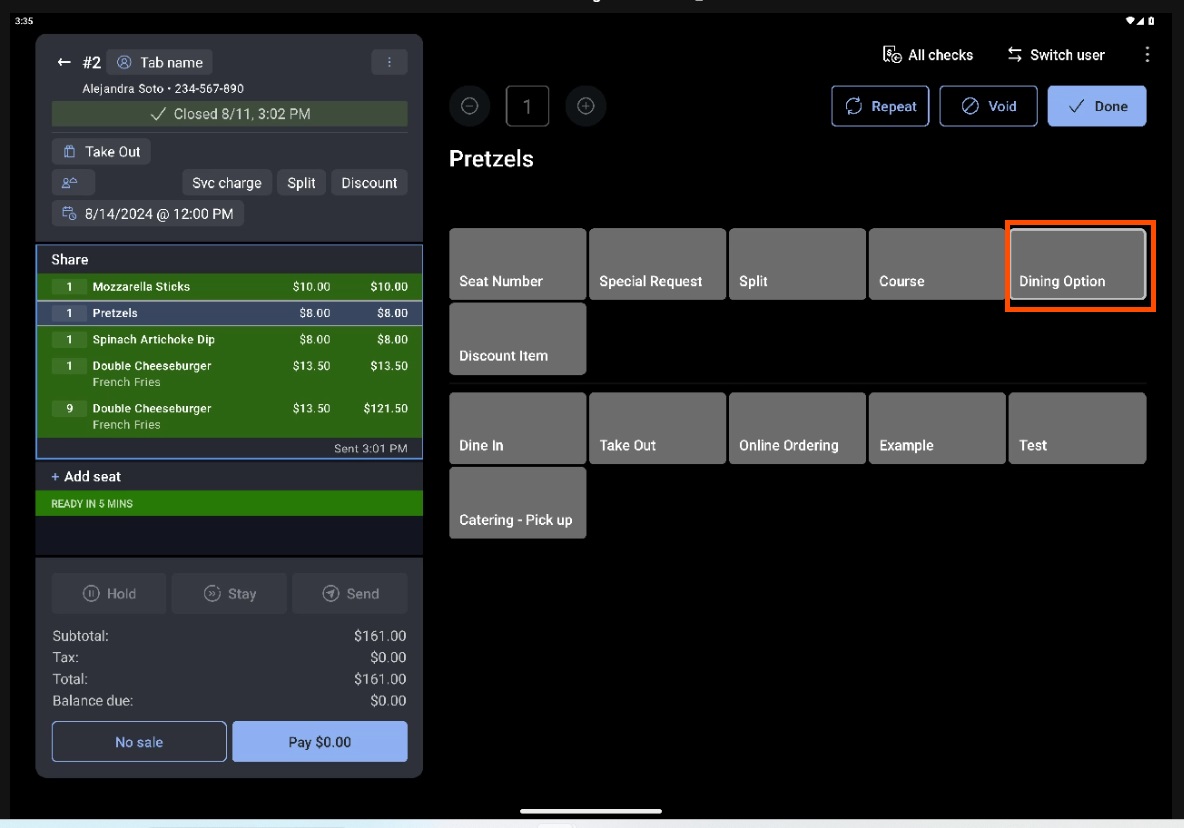
You can create a new order from the Orders Hub by selecting the New Order button at the top right, which opens the Quick Order screen. On the Quick Order screen, select the Dining button at the bottom left, next to the Discount button, and choose an off-premise dining option. Do not use the Dining Option button in the menu selection area, because it does not affect off-premise orders.
Note: To use the New Order button, you need the Quick Edit Mode and 1.5 Pending Orders Mode permissions. Permissions are managed on the Jobs page in Toast Web. For details, see Permissions Reference Guide.
How do I manage online orders from the Orders Hub?
You can manage online orders by selecting the Manage Online Orders button at the top right, which opens a dialog box with the same functionality as the Manage Online Orders prompt on the Pending Orders screen. From the dialog box, you can turn on, snooze, or turn off online ordering availability and adjust takeout and delivery delays. Select OK to save your changes or Cancel to exit. For more on delaying or snoozing orders, see Manage Online Order Volume (Delaying/Snoozing Orders).
Note: To use the Manage Online Orders prompt, you need the 1.5 Pending Orders Mode permission. For more on permissions, see Permissions Reference Guide.
Can I sort orders in the Orders Hub?
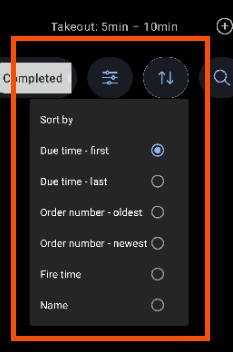
You can sort orders in the Orders Hub by selecting the dual arrows icon, which opens a menu of sorting options. You can sort by due time (first or last) or by order number (oldest or newest).
Can I search for an order in the Orders Hub?
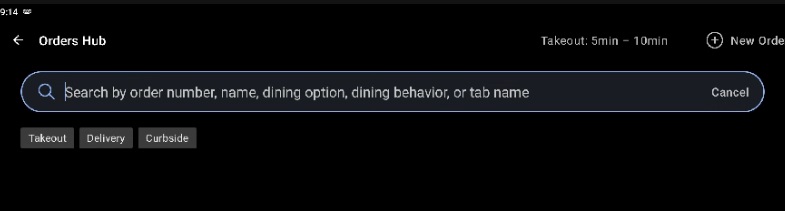
You can search for an order by selecting the magnifying glass and typing your search criteria. You can search by order number, guest name, guest email, guest address, guest phone number, or dining option. As you type, the Orders Hub automatically filters to orders that match the characters entered.
Note: Dine-in dining option orders do not appear in search results.
Can I void an item or an order in the Orders Hub?
You can void items and orders in the Orders Hub. Select the Update button on the order entry to open the Quick Order screen, then follow the steps in Void Items, Payments, and Checks. The result depends on whether the order has been paid:
- For an unpaid order, voiding an item crosses out the item and the order stays in the Active tab. To void the whole unpaid order, select Update, open the overflow menu at the top right of the Quick Order screen, select Void Order, and choose a void reason. The order is then removed from the Orders Hub.
- For a paid order, voiding an item crosses out the item and the order stays in the Active tab, and the Pay $ button shows the negative amount owed back to the guest. To void the whole paid order, select Update, open the overflow menu, select Void Order, void the payment, then confirm the amount to be voided. The order is then removed from the Orders Hub.
- For an order with only one item, void the order rather than the single item. Voiding the order removes it from the Orders Hub, while voiding only the item leaves the order in the Active tab until you take a Print, Update, or Complete action.
Can I manually fire a scheduled order in the Orders Hub?
You can manually fire a scheduled order in the Orders Hub by selecting the Fire Now button on the order detail screen. Fire Now is only available on a device that is configured to auto-fire. For auto-fire setup, see Set Up Order Auto-Firing.
Devices and auto-fire
Which devices support the Orders Hub?
The Orders Hub is supported on most Toast tablets. It is not available on Elo V1 devices.
Can multiple devices use the Orders Hub at the same time?
Multiple devices can use the Orders Hub at the same time. To avoid duplicate kitchen tickets, make sure only one device is set to auto-fire.
Do I need an auto-fire device to use the Orders Hub?
You need at least one Toast POS device in the restaurant configured to auto-fire. The Orders Hub itself can run on a non-auto-fire device, but an auto-fire device is what moves orders from Scheduled into Active and readies them for the kitchen.
What happens with different auto-fire device setups?
Toast recommends enabling auto-fire on only one device per restaurant, but a few setups are possible:
- With one auto-fire device and one non-auto-fire device, scheduled orders appear on both, but Fire Now is only available on the auto-fire device. When an order is ready to prep, it moves to the Active tab on both devices, and the kitchen or prep-station printer prints the ticket from the auto-fire device.
- With two auto-fire devices, scheduled orders appear on both and both can use Fire Now. The kitchen or prep-station printer prints from one of the devices, but you cannot control which. Because of the risk of double printing, Toast strongly recommends configuring only one device to auto-fire.
- With no auto-fire device, scheduled orders appear but Fire Now is inactive, orders stay in the Scheduled tab, and the kitchen or prep-station printer does not print automatically. Once you enable auto-fire on a device, scheduled orders move to the Active tab, print, and receive new delivery times.
What happens to scheduled orders if my auto-fire device stops working?
If your auto-fire device becomes inoperable, scheduled orders stay in the Scheduled tab. To move them into the Active tab and ready them for KDS fulfillment, turn your auto-fire device back on, or configure a different device to auto-fire. Once auto-fire is enabled, all scheduled orders automatically move to the Active tab and receive new delivery times.
If an order is completed on a KDS, does it move to Order Ready or Completed automatically?
An order completed on a KDS does not automatically move to the Order Ready or Completed tab unless the Mark KDS-fulfilled orders as Order Ready setting is enabled in Toast Web. Toast recommends dedicating a device to the Orders Hub to manage all off-premise orders. For details on this setting, see Orders Hub: Status Breakdown.
Permissions
What permission do I need to use the Orders Hub?
You need the 1.5 Pending Orders Mode / Orders Hub Mode permission to use the Orders Hub. Without this permission, employees cannot access the Orders Hub at all. Permissions are managed on the Jobs page in Toast Web. For details, see Permissions Reference Guide.
What permission do I need to use the Manage Online Orders prompt?
You need the 3.29 Throttle Online Orders permission to use the Manage Online Orders prompt, in addition to the 1.5 Pending Orders Mode permission required to access the Orders Hub. Without access to Pending Orders Mode, you will see an error when you try to open the online ordering prompt. For more on this mode, see Get Help with Pending Orders Mode, and for permission setup, see Permissions Reference Guide.
What permission lets staff complete first-party delivery orders?
Staff need the 2.1 Delivery Mode permission to dispatch a driver and complete a first-party delivery order. First-party delivery orders cannot be marked complete in the Orders Hub until a driver is assigned, so any employee who completes these orders needs this permission.
Takeout and delivery quote times
How are takeout and delivery quote times shown in the Orders Hub?
Current takeout and delivery quote times appear at the top of the Orders Hub screen. These times affect online orders and orders placed through the POS, but they do not apply to third-party orders. You can configure them in the Quote time strategy section of the Takeout & Delivery page in Toast Web.
Note: If you use the order price quote time strategy, the quote times shown are those associated with the first price interval.
Why do I only see the quote time for takeout or only for delivery?
The quote time for a dining option only appears when both conditions are met: you have selected that dining option (Delivery or Takeout) on the Online Ordering page in Toast Web, and you have turned on the matching Delivery or Takeout toggle in the Toast Online Ordering section of the Takeout & Delivery page. If either is missing, that dining option's quote time does not display.
Delivery dispatch
Can I dispatch delivery drivers from the Orders Hub?
You can dispatch first-party delivery drivers from the Orders Hub. A first-party delivery order cannot be marked complete until a driver is assigned. If you try to complete one without a driver, the Orders Hub prompts you to dispatch a driver through Delivery Mode first.
How do I dispatch a driver and complete a first-party delivery order?
To dispatch a driver and complete a first-party delivery order, use the Order Ready tab:
-
- On the order in the Order Ready tab, select Complete. If no driver is assigned yet, a dialog box prompts you to select Dispatch Driver or Cancel.
- Select Dispatch Driver to open the Delivery Mode screen, then select the Dispatch Driver button in the top-right corner. For details, see Get Help With Delivery Mode, and Dispatch Drivers.
- Choose the driver you are dispatching to and select OK. The order moves to the En Route tab in Delivery Mode.
- Back on the Orders Hub screen, mark the order complete. This moves it to the Completed tab in the Orders Hub and the Delivered tab in Delivery Mode.
Note: Staff need the 2.1 Delivery Mode permission (and possibly more) to complete delivery orders. If an order has not been paid, select the Pay $ button on the Order Ready tab to take payment first, then dispatch a driver and mark the order complete. Toast Delivery Mode uses your own drivers and is different from Toast Delivery Services, which is an on-demand delivery service.
Why does only one driver name appear when I dispatch a delivery?
If only one driver name appears when you dispatch a delivery, confirm the order is using the correct dining option. Toast Delivery Services orders must use the Toast Delivery Services dining option, not the generic Delivery option. Using the wrong dining option can cause the driver list to display incorrectly.
Order Ready text messages
Can I text guests from the Orders Hub?
You can text guests from the Orders Hub when an order moves from Active to Order Ready, using Order Ready Messaging. To set it up, see Manage Order Ready Texts From the Orders Hub.
Note: The Orders Hub cannot currently send text messages to these area codes: 684, 268, 246, 441, 345, 767, 809, 473, 671, 876, 664, 670, 787, 869, 758, 784, 868, and 649.
Which orders can receive an Order Ready text?
Order Ready texts are sent only for orders placed through Toast Online Ordering, the Local by Toast app, or Curbside dining behavior. They are not sent for in-store POS orders, first-party delivery orders, or third-party orders (DoorDash, Uber Eats, Grubhub). The guest must also have a phone number on the order. For setup and full details, see Manage Order Ready Texts From the Orders Hub.
Why isn't my Order Ready text being sent to the guest?
If your Order Ready text is not being sent, check each of the following: the order must be one of the eligible types (Toast Online Ordering, Local by Toast, or Curbside), the Order Ready Messaging toggle must be enabled in Toast Web under Takeout & delivery > Orders Hub > Order ready guest messaging, the order must move from Active to Order Ready, and the guest's area code must not be on the unsupported list above. If you need to resend a text, move the order back to Active and then to Order Ready again. For full setup and troubleshooting, see Manage Order Ready Texts From the Orders Hub.
Troubleshooting
Why aren't my orders showing in the Orders Hub?
If your orders are not showing in the Orders Hub, check your filters first. Select the filter button on the Orders Hub and confirm that the relevant dining options are selected, and that the order-date filter is set to the correct day (for example, Today). Remember that only takeout, delivery, and curbside orders appear in the Orders Hub, so dine-in orders will not show. If orders are still missing after adjusting filters, contact Toast Customer Care.
Why did my completed orders disappear from the Orders Hub?
Completed orders may no longer appear in the Orders Hub because orders in the Needs Approval, Active, Order Ready, and Completed tabs are purged at the end of the business day. Scheduled orders are the exception and remain until they are fired or cancelled. To review past orders, use Find Checks & Issue Refund in the overflow menu to open the Advanced Check Search screen. If you expected orders to still be visible and they are not, contact Toast Customer Care.
Why is an order stuck in Active instead of moving to Order Ready automatically?
An order may stay in the Active tab because it does not move to Order Ready on its own unless the Mark KDS-fulfilled orders as Order Ready setting is enabled in Toast Web and your KDS is set up as an expediter. Otherwise, you mark an order ready manually by selecting the Order Ready button in the Active tab. If you expect orders to advance automatically and they do not after confirming this setting, contact Toast Customer Care.
Why aren't my orders firing to the kitchen automatically?
If orders appear in the Orders Hub but do not fire to the kitchen on their own, confirm that at least one device is configured to auto-fire and that the auto-fire device is online. On a device that is not configured to auto-fire, you must select Fire Now manually, and Fire Now is unavailable entirely if no device in the restaurant is set to auto-fire. For setup steps, see Set Up Order Auto-Firing. If auto-firing still does not work after confirming your settings, contact Toast Customer Care.
Why are in-store orders incorrectly appearing in the Active tab?
If in-store orders are appearing in the Active tab when they should be counter service only, check the order settings in the Orders Hub and confirm the order is not configured as a scheduled order. If your device is set to auto-fire, that can move orders into the Active tab, so check the order details page and confirm the order fulfillment type is set to counter service.
Does a new order in the Orders Hub make a sound or notification?
When a new order arrives in the Orders Hub, a blue dot appears on the tab and next to the order entry to flag it as unread, so you do not have to watch the screen constantly. The blue dot disappears once you select the order.
Related articles
- Get Started With Orders Hub
- Orders Hub: Status Breakdown
- Manage Order Ready Texts From the Orders Hub
- Manage Off-Premise Orders With Orders Hub
- View Future Orders on the POS
- Permissions Reference Guide