Configure Size Pricing for Menu Groups and Menu Items
Last updated: Oct 2, 2026, 5:34 PM
Size Pricing Overview
Large side of fries. Small iced vanilla latte. 20 oz draught beer. What do all these have in common? Sizes!
Do you offer specific sizes for menu groups or items? If so, you can create size prices for a menu group or item on the corresponding group or item's details page.
Note: For more information on using size prices for modifiers, see Configure Size Pricing for Modifier Groups and Modifier Options.
After you've created size prices for a menu item, you can view them in the Items table that appears on the details page for any of the item's parent menu groups (pictured below).

However, the size prices are not editable from this table. Follow the steps below to configure size pricing for menu groups or items at your restaurant.
Back to top
Configure Size Pricing
To enable size pricing on a menu group or item:
- In Toast Web, navigate to the menu group or menu item for which you'd like to use size pricing.
- Scroll down to the Pricing section of the menu group or item's details page, and select Size Price for the Pricing Strategy setting.
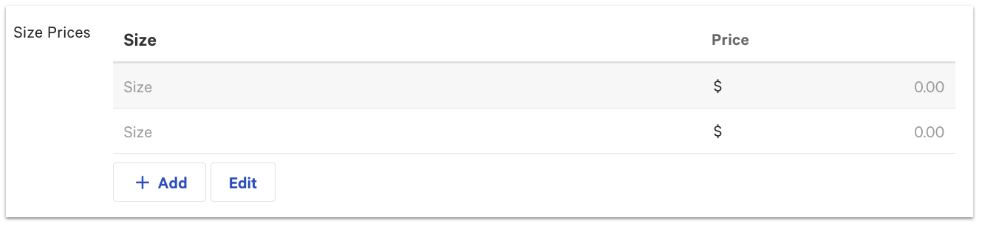
- Once selected, the Size Prices grid will appear. Each row in the grid represents a size.
- Enter a name for each size in the Size field, and enter its corresponding Price. You must add a price for every size in your table.
- To create additional sizes, select + Add at the bottom of the table.
- To reorder sizes, select the Edit button at the bottom of the table. Select the six dot (⋮⋮) icon next to a size and drag it up or down to rearrange. Select Done to confirm your changes.
- To delete sizes, select the Edit button. Select the trash can icon to the right of the size you wish to delete. Select Done to confirm your changes.
- Save and publish when you're finished making changes.