Use Quick Edit Mode on the POS
Last updated: Sep 22, 2026, 12:21 PM
- Before You Begin
- Enter Quick Edit Mode
- What You Can and Can't Edit in Quick Edit Mode
- Make Changes to Items and Modifiers
- Troubleshoot Quick Edit Mode
- Frequently Asked Questions
- Related Articles
Quick Edit mode lets you add, rename, reprice, reorder, and 86 menu items and modifiers directly on your POS, without opening Toast Web.
Before You Begin
Applies to: Toast POS
Permissions needed:
- All Quick Edit Access permissions (see the Permissions Reference Guide)
What you'll accomplish: Make instant changes to your menu items and modifiers on a POS device, and have those changes sync to your other devices and Toast Web.
Note: Quick Edit mode is not well suited to restaurants that use Toast Multilocation Management (MLM) because, as a general rule, you must be an owner of a menu entity in order to edit it.
Enter Quick Edit Mode
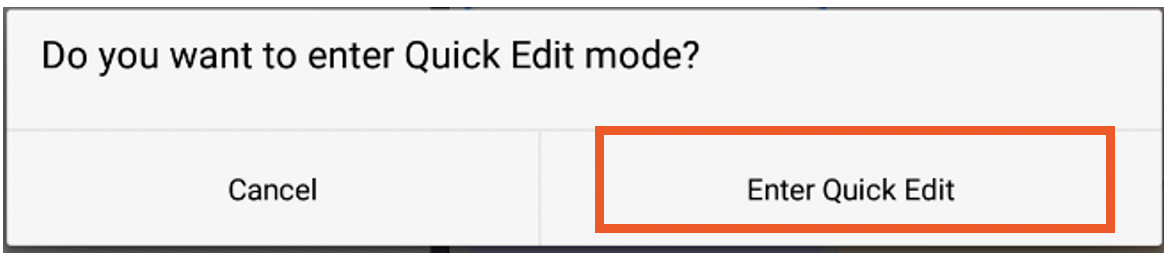
Using Quick Edit mode on the POS.
To enter Quick Edit mode, press and hold any menu button, such as Appetizers. When you are asked if you want to enter Quick Edit mode, select Enter Quick Edit.
You can also enter Quick Edit mode by pressing and holding a menu item in your search results, in addition to items on the main ordering screen.
Expected outcome: The Quick Edit pop-up screen appears for the item or modifier you selected.
Because Toast is a cloud-based system, any change you make on one device appears on all your other devices and in Toast Web.
What You Can and Can't Edit in Quick Edit Mode
In Quick Edit mode, you can:
- Add new and existing items and modifier options
- Delete items and modifier options
- Arrange items and modifier options
- Change the price of items and modifier options
- Change a button color
- Change the name and POS name for menus, groups, subgroups, items, modifier groups, and modifier options
- Set inventory: in stock, out of stock, or how much stock is left for items and modifier options
- Add a SKU to items and modifier options
In Quick Edit mode, you can't:
- Add new or existing menus, groups, subgroups, or modifier groups
- Delete menus, groups, subgroups, or modifier groups
- Arrange menus, groups, subgroups, or modifier groups
Any change that can't be made in Quick Edit mode can be made in Toast Web. For more on editing menus in Toast Web, see Get Started With Menus.
Make Changes to Items and Modifiers
After you enter Quick Edit mode, select the item or modifier option you want to change and edit the field you need, such as the name, price, button color, inventory count, or SKU. When you are finished, select Done.
To edit modifiers when you can't reach them at the menu, group, or item level, select an item that has a modifier group on it, then press and hold the modifier to open Quick Edit for the modifiers.
To add a SKU with a barcode scanner, enter Quick Edit mode on the item, then enter the SKU number in the SKU field or scan the barcode to populate the number. In Toast, SKU and barcode are interchangeable terms. For full steps, see Add a SKU to a Menu Item in Quick Edit Mode.
Expected outcome: Your change is saved and syncs to your other devices and to Toast Web.
Troubleshoot Quick Edit Mode
If you're having difficulty accessing or using Quick Edit mode, try the following:
- Make sure your menu is up to date in Toast Web and that any changes made to your menus have been published to your devices.
- Confirm you have the employee permissions required to perform the action. See the Access Permissions Reference for more information.
- If you can't reach modifiers at the menu, group, or item level, select an item that has a modifier group on it, then press and hold the modifier to open Quick Edit for the modifiers.
- Quick Edit mode depends on your network connection. If changes are slow to save or a barcode won't scan, confirm the device has a stable connection before retrying.
If a change still won't save after publishing your pending changes and confirming your connection, contact Toast Customer Care.
Frequently Asked Questions
Does Quick Edit mode publish changes to my other devices and Toast Web?
Quick Edit mode does publish your changes to your other devices and Toast Web. Because Toast is a cloud-based system, a change you make on one device appears on all other devices in the restaurant as well as in Toast Web.
Also asked as:
-
- When I use Quick Edit mode on the POS, does it publish the changes too?
- Do Quick Edit changes sync to Toast Web?
Why can't I add or delete a menu, group, or modifier group in Quick Edit mode?
You can't add, delete, or arrange menus, groups, subgroups, or modifier groups in Quick Edit mode, because that feature only edits items and modifier options. Make those changes in Toast Web instead. See Get Started With Menus.
Also asked as:
-
- Why can't I rearrange my menus in Quick Edit mode?
- Can I delete a menu group from the POS?
Can I use a barcode scanner in Quick Edit mode?
You can use a barcode scanner in Quick Edit mode to add a SKU to an item. Enter Quick Edit mode on the item, then scan the barcode to populate the SKU field. In Toast, SKU and barcode are interchangeable terms. For full steps, see Add a SKU to a Menu Item in Quick Edit Mode.
Also asked as:
-
- How do I scan an item barcode into Quick Edit mode?
- Can I add a SKU from the POS?
Why can't I edit my menu in Quick Edit mode with Multilocation Management?
You may not be able to edit your menu in Quick Edit mode if your restaurant uses Toast Multilocation Management (MLM) because, as a general rule, you must be an owner of a menu entity in order to edit it.
Also asked as:
-
- Why is Quick Edit mode locked at my MLM location?
Related Articles