Recipe View on Kitchen Display Systems (KDS)
Last updated: Jul 16, 2026, 12:48 PM
Learn how to view recipes on your KDS.
- Before You Begin
- Add a Recipe to a Menu Item
- Activate or Deactivate a Recipe
- View a Recipe on the KDS
- Troubleshoot a Recipe That Is Not Showing
- Frequently Asked Questions
- Related Articles
Before You Begin
Applies to: Toast Web, Kitchen Display System (KDS) — The new KDS experience only
Permissions needed:
- 4.5 Edit Full Menu — required at every location or location group you want to update
- 6.4 Publishing and 6.7 Change sets — required only if you plan to schedule changes for a future date
What you'll accomplish: Add a recipe image to a menu item so your kitchen staff can view the recipe on the KDS.
Recipe View displays recipes — ingredients, prep steps, and plating instructions — directly on the KDS. This removes the need for printed guides, PDFs, or separate devices, helping staff work faster, reduce errors, and cut down on food waste.
Note: Recipe View is available only on the new KDS experience. It is not available on the previous KDS experience or on the POS.
Add a Recipe to a Menu Item
Recipes are uploaded as images, so you can format the information however works best for your kitchen. A quick way to get started is to take a clear photo or screenshot of a page from your existing recipe book.
To add a recipe to a menu item:
- In Toast Web, navigate to Menu Manager and select the menu item you want to add a recipe to.
- Find the section called Recipe View.
- Enter a recipe name.
- Select an image to upload. The image must be a JPG or PNG file, up to 5 MB.
- Select Upload Recipe.
- Publish your Toast Web changes.
Expected outcome: Once your changes are published, the recipe is available on your KDS.
Note: Consider your KDS screen orientation — landscape or portrait — when formatting or cropping your recipe images so they stay easy to read.
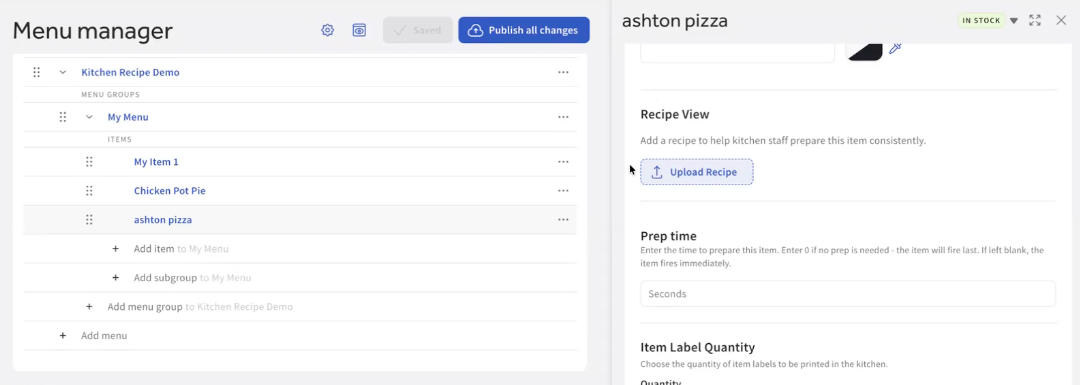
Activate or Deactivate a Recipe
After a recipe is added, you can set it to active or inactive on the KDS from the Recipe View section of that menu item in Toast Web. Set the recipe to active to display it on the KDS, or inactive to hide it, then publish your Toast Web changes.
Setting a recipe to inactive is useful when you need to update a recipe but the new materials are not ready yet. This keeps outdated or incorrect information from showing on the KDS while you prepare the new version.
Expected outcome: An active recipe displays on the KDS after publishing. An inactive recipe is hidden until you set it back to active and publish again.
View a Recipe on the KDS
To view a recipe:
- On your KDS, open the ticket details view.
- Find the recipe icon displayed next to an item.
- Select the recipe icon to view the recipe. You can see an example of this to the right of Irish Boss Burger in the image below.
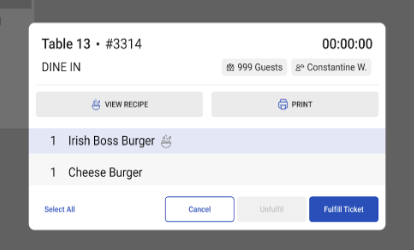
Expected outcome: The recipe image opens on the KDS. Recipe View supports both dark mode and light mode, so recipes stay easy to read in any kitchen environment.
Troubleshoot a Recipe That Is Not Showing
If you added a recipe but it does not appear on the KDS, check the following:
- If your changes are not published: return to the menu item in Toast Web and publish your Toast Web changes.
- If the recipe is set to inactive: open the Recipe View section for the menu item, set the recipe to active, and publish.
- If the device is not on the new KDS experience: Recipe View works only on the new KDS experience. Confirm the KDS device is set to the new KDS experience.
- If the recipe icon still does not appear: confirm your KDS device software is up to date.
If the recipe still does not show after these checks, contact Toast Customer Care.
Frequently Asked Questions
Which KDS does Recipe View work on?
Recipe View works only on the new KDS experience. It is not available on the previous KDS experience.
Also asked as:
-
- Does Recipe View work on the old KDS?
- What KDS do I need to see recipes?
What image file types and sizes are supported?
Recipe images must be a JPG or PNG file, up to 5 MB. You can upload a clear photo or screenshot of an existing recipe page.
Also asked as:
-
- What file type can I upload for a recipe?
- How big can a recipe image be?
Can I hide a recipe while I update it?
Yes, you can hide a recipe while you update it by setting it to inactive in the Recipe View section of the menu item. The recipe stops displaying on the KDS until you set it back to active and publish your updated image.
Also asked as:
-
- How do I temporarily hide a recipe?
- Can I take a recipe off the KDS while I change it?
Can I view a recipe on the POS?
No, you cannot view a recipe on the POS. Recipe View is available only on the new KDS experience.
Also asked as:
-
- Do recipes show on the POS?
- Where can I see recipes besides the KDS?
Why don't I see Recipe View when editing a menu item?
If you do not see Recipe View when editing a menu item, first confirm you are in Menu Manager and have selected a specific menu item, since the Recipe View section appears within an individual item. If the section still does not appear, contact Toast Customer Care.
Also asked as:
-
- I don't see the Recipe View option in Toast Web
- Where is the Recipe View setting?
Can I zoom in on a recipe?
Pinch-to-zoom for recipes is planned for a future release. Until then, format and crop your recipe images so the text is easy to read on your KDS screen orientation.
Also asked as:
-
- Can I make a recipe bigger on the KDS?
- Is there pinch-to-zoom for recipes?
Related Articles
- New KDS Experience Overview
- Get Started With the Kitchen Display System
- Get Started With Kitchen Configuration