Schedule Future Orders
Last updated: Sep 15, 2026, 2:52 PM
- Before You Begin
- Set Up Future Ordering
- Schedule a POS Order for a Future Date or Time
- Find and Manage Future Orders
- Fire a Future Order Early
- Print Multiple Future Orders to the Kitchen
- Fix Scheduled Orders That Aren't Firing Correctly
- Frequently Asked Questions
- Related Articles
Before You Begin
Applies to: Toast Web, Toast POS, Toast Online Ordering, Local by Toast
Permissions needed:
- Manager-level access to Toast Web to set future order limits and Online Ordering scheduling settings
What you'll accomplish: Allow guests and staff to place orders for a future date or time, control how far ahead orders can be scheduled, and make sure scheduled orders fire to the kitchen at the right time.
Note: Throughout this article, "future orders" and "scheduled orders" mean the same thing: an order placed now for a date or time in the future.
Set Up Future Ordering
Toast lets a manager set the maximum number of days in the future for which an order can be scheduled. You set this separately for POS orders and for Online Ordering.
Set the future order limit for POS orders
- In Toast Web, navigate to Front of house > Order screen setup > UI options.
- Scroll down to the POS Scheduling Settings section.
- Enter the desired number for the Max days in future to schedule orders setting.
- Select Save, then Publish your changes.
Expected outcome: Staff can schedule POS orders up to the number of days you entered.
Note: This is a store-level setting, so an enterprise can set different lengths of time for individual stores. The default is 365 days, but it can be set to any value greater than zero.
Set the future order limit for Online Ordering
- In Toast Web, navigate to Takeout & delivery, then select Online ordering setup, which appears at the bottom of the Toast Online Ordering section under Related Settings.
- Scroll down to the Online Ordering Scheduling Settings section.
- To let guests schedule an online order for a future date or time, choose Yes, guests may schedule orders for the Enable Scheduling setting.
- To change the default date range of 14 days, select Custom Date Range for the Max Future Scheduled Order Date setting and enter your desired number of days. To allow guests to order ahead only through the end of the current day, enter 0 in the Custom Date Range field.
- Select Save when finished.
Expected outcome: When scheduling is enabled, guests see an option to choose a pickup or delivery date and time when they place an online order.
| Online Ordering Page | Toast Local app |
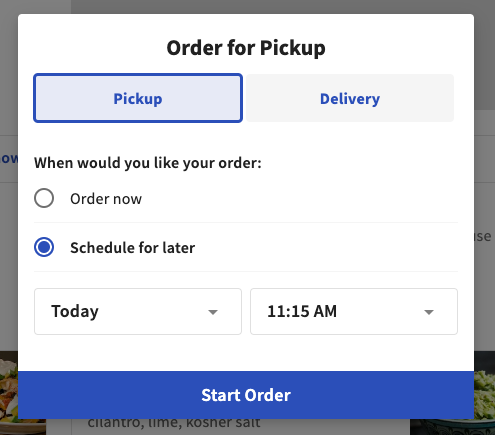 | 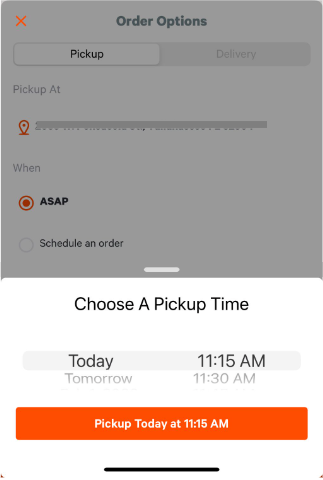 |
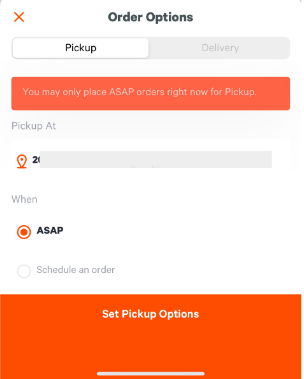
If you select No, all orders will be fulfilled as soon as possible, guests do not see an option to choose a date or time and all orders come in for as soon as possible.
| Online Ordering Page | Toast Local app |
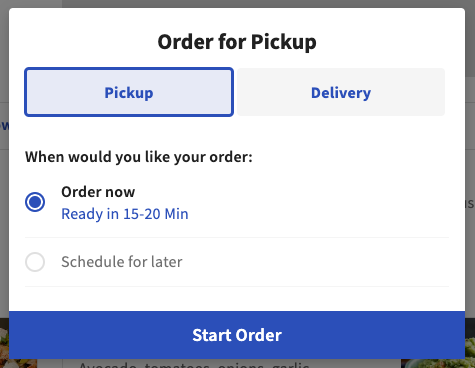 |  |
Note: Guests who place a future order scheduled for more than 48 hours in advance on Online Ordering, Online Ordering Pro, or Toast Local receive a reminder email 24 hours before their order is ready for pickup or delivery.
If you only want to accept future orders and turn off same-day ordering, or you want to stop accepting future orders entirely, adjust the Enable Scheduling and Max Future Scheduled Order Date settings above. For schedule overrides, cut-off times, and minimum lead time, see Manage Your Takeout and Delivery Schedule.
Schedule a POS Order for a Future Date or Time
To schedule a POS order for a future date or time, follow these steps:
- Enter the guest's order.
- Open the overflow menu (three dots) from the check details, then select Schedule.
- Set the preparation time, then select Next. The preparation time is relative to the order's scheduled time. For example, a preparation time of 4 hours and 30 minutes means the order fires to the kitchen 4 hours and 30 minutes before the scheduled time.
- Select a date and time for pickup, then select Select.
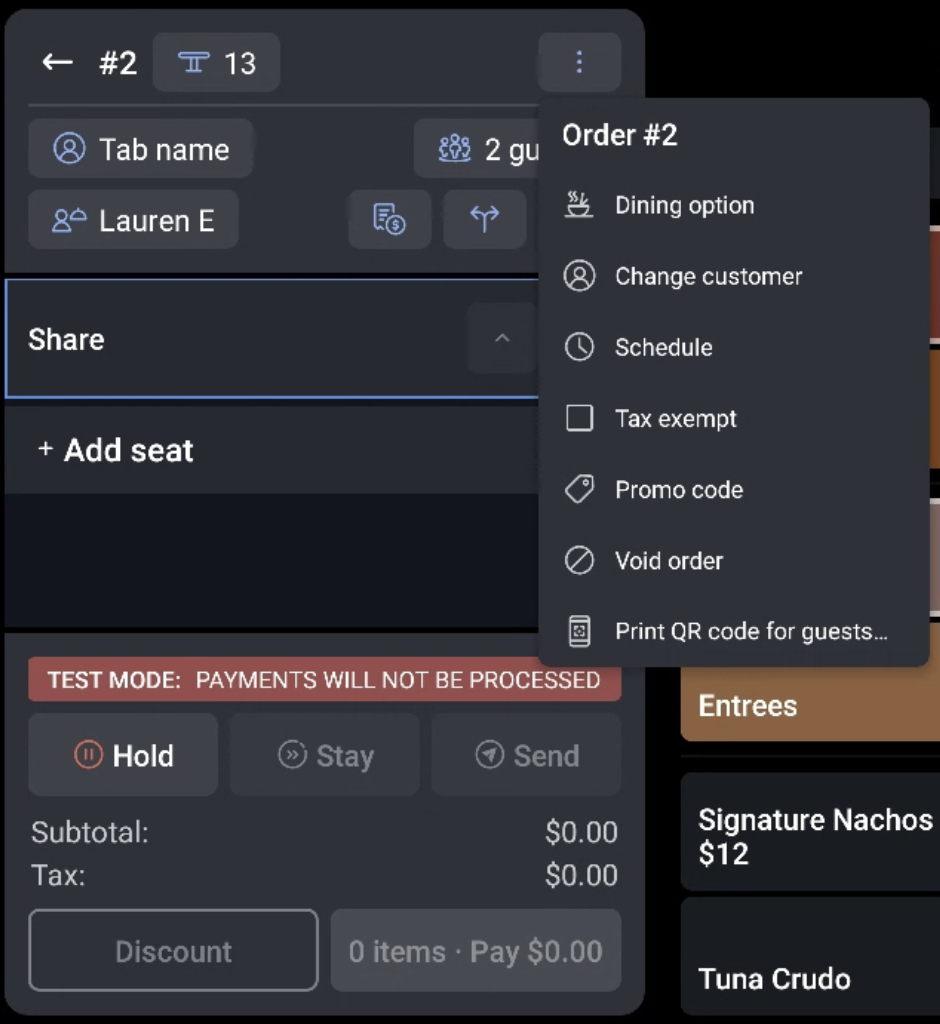
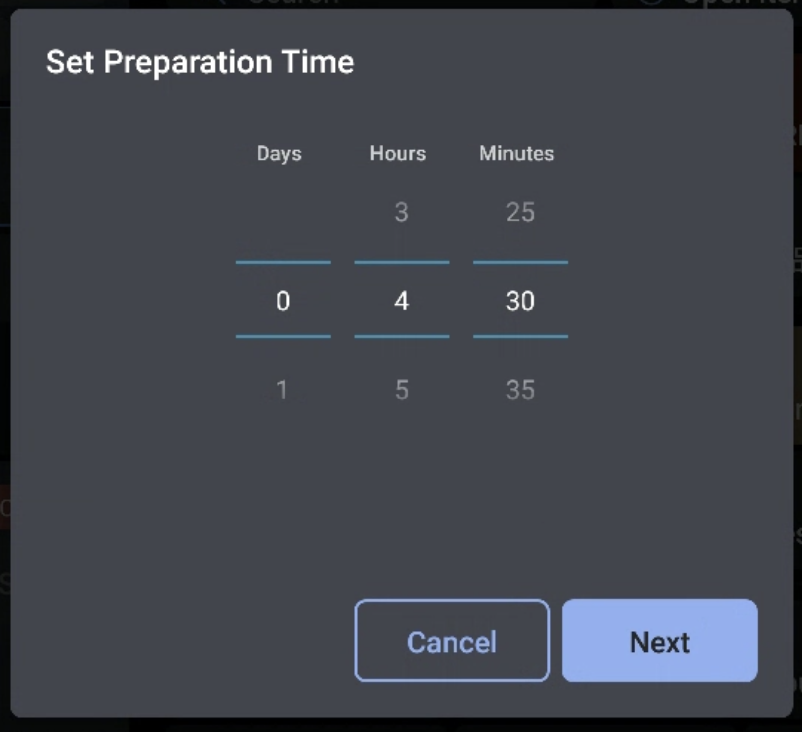
Expected outcome: The order's scheduled date appears at the top of the check details on the order screen. You can collect the guest's payment in advance or select Send to collect payment when the guest picks up the order.
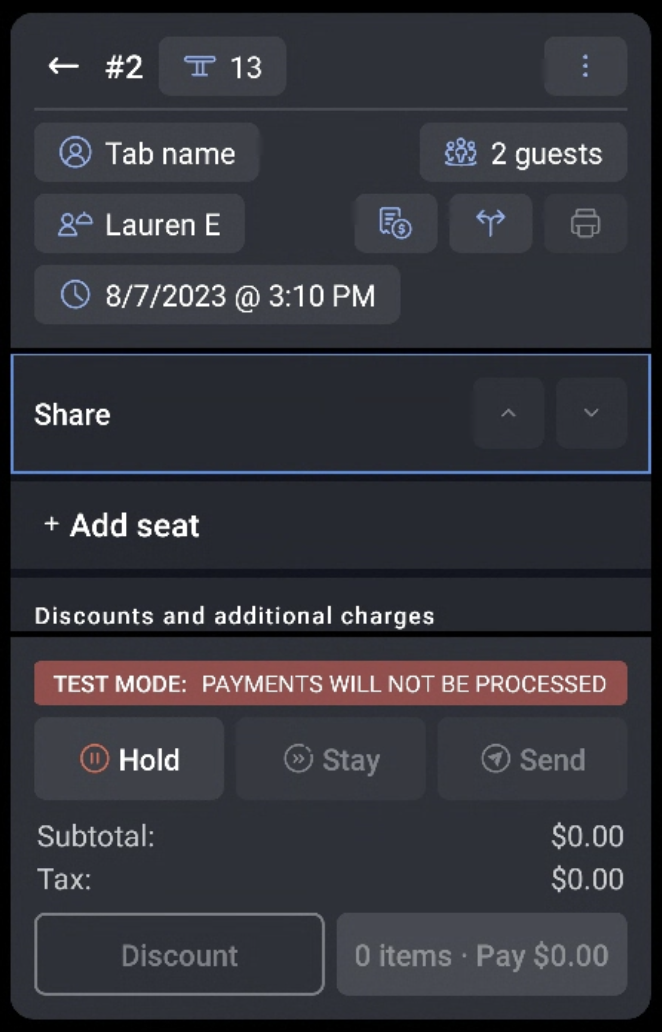
Note: If a guest's payment is collected in advance and they want to add items to the order, the guest will need to provide payment again to bring the balance back to $0, because Toast does not save payment information. For more on when payment is taken, see Payment Timing for Future/Scheduled Toast Orders.
Find and Manage Future Orders
Future orders placed through Toast are stored in Pending Orders mode, which you open from the main menu dashboard on the POS. This is where you go to see orders scheduled for tomorrow, next week, or any future date.
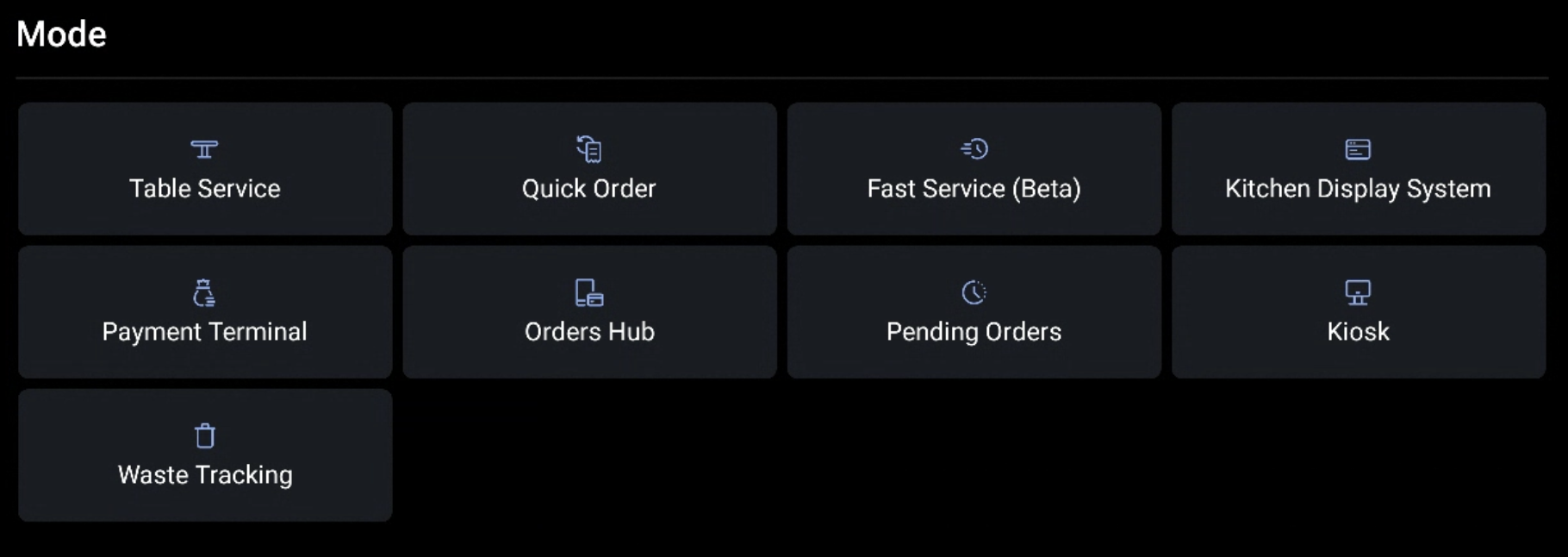
The Pending Orders screen has two sections:
- Needs Approval: If Toast Online Ordering is in use, this holds orders that do not meet automatic approval rules. In the rare case that an order does not automatically approve and fire to the kitchen due to network issues, the order is stored here.
- Future Checks: If an order is placed for a future date or time, this holds the order until it is scheduled to fire to the kitchen.
The Future Checks tab also gives you these order management tools:
- New Order: A shortcut to Quick Order mode to place a new order.
- View Dates: Edit the range of dates for which future orders are shown.
- Reschedule: Edit the existing future date, time, and prep time for the selected order.
- Update: Open the order in ordering mode to make changes, such as adding or removing items and editing modifiers.
- Pay ($): Enter the payment mode of the order to take payment, edit an existing payment, or void a payment.
To filter future orders by order type or dining option, or to change the date range shown to this month, this week, next week, or tomorrow, see View Future Orders on the POS.
To change the date or time on an order a guest already placed, see Change the Date on a Future Order.
.
Fire a Future Order Early
If a future order needs to be prepared earlier than its scheduled time, you can fire it to the kitchen ahead of time, as long as the order has already been approved.
- Open Pending Orders mode and confirm the order is not in the Needs Approval tab. If the order is in Needs Approval, select the order, then select Approve at the top of the screen.
- Select the Future Checks tab.
- Select the check, then select Fire Now.

Expected outcome: The order fires to the kitchen immediately.
Note: The Fire Now button only appears for scheduled or future orders that have not yet fired to the kitchen. If an order has already fired, the button does not appear.
Print Multiple Future Orders to the Kitchen
Bulk printing lets you manually send or print multiple future orders to the kitchen at once.
- Navigate to Pending Orders and select Future Checks.
- Long press on any order, then choose multiple tickets or select Select All. With a group of tickets selected, choose Print to Kitchen to print all tickets to the appropriate Expo or prep station.
Expected outcome: The selected tickets print to the kitchen.
Note: Bulk printing does not change the fire time of an order. The order still fires at its configured time based on the requested fulfillment date and the prep time. If an order was previously sent using this feature, a printed ticket will not print again at the fire time, and a Kitchen Display System (KDS) ticket updates to the "Fired" state at the fire time.
For more options for when future orders are visible to the kitchen, see Get Started With Future Order Setup: Pickup Mode and Auto Send.
Fix Scheduled Orders That Aren't Firing Correctly
If scheduled orders are not firing to the kitchen on time, are firing immediately, or are not printing, work through these steps:
- Confirm that the order appears on your POS under Pending Orders. Scheduled orders are not sent to the kitchen when they are created. They fire based on the configured prep time, calculated as the scheduled time minus the prep time.
- Confirm that exactly one device has Order Auto-Firing enabled. In the Device menu, select Device Setup, then select Yes for Order Auto-Firing. Review your other devices to make sure no other device has this setting enabled.
- Check for non-printing prep stations on your auto-firing device. In Device Setup, select Non-Printing Prep Stations and de-select any prep stations that you want online orders to be able to send to.
- If you use the Kitchen Display System (KDS), verify your ticket filters. In Device Setup, select Ticket Display Options and confirm that all of the dining options and courses used for your online orders are selected to display.
Expected outcome: Scheduled orders fire to the kitchen at the correct time, based on the scheduled time minus the prep time.
If scheduled orders are still firing immediately or far ahead of time after these steps, the issue is usually a scheduling or prep time setting. See Get Started With Future Order Setup: Pickup Mode and Auto Send for firing and pickup-mode options. If the issue continues, contact Toast Customer Care.
Frequently Asked Questions
Why are my scheduled orders firing immediately instead of at the scheduled time?
Scheduled orders fire based on the prep time, not when they are created, so an order that fires immediately usually points to a prep time or firing setting. Confirm the order is in Pending Orders > Future Checks, confirm exactly one device has Order Auto-Firing enabled, and review your scheduling and prep time settings. For firing and pickup-mode options, see Get Started With Future Order Setup: Pickup Mode and Auto Send.
Also asked as:
-
- "Why are my scheduled orders coming immediately instead of the assigned time?"
- "Why did my future order fire early?"
- "Where's the setting to control when scheduled orders fire?"
Why are my third-party DoorDash or Uber Eats scheduled orders firing instantly?
Third-party scheduled orders from DoorDash or Uber Eats fire based on the prep time you configure for those orders, so an order firing instantly usually means the prep time is not set as expected. Confirm the prep time for your integration orders and confirm that Order Auto-Firing is enabled on exactly one device. If future-dated third-party orders are not being picked up or scheduled as expected, contact Toast Customer Care.
Also asked as:
-
- "How do I make DoorDash orders honor the prep time?"
- "Why are Uber Eats scheduled orders firing right away?"
Where do I see my scheduled and future orders?
You see your scheduled and future orders in Pending Orders mode on the POS, opened from the main menu dashboard. Orders placed for a future date appear under the Future Checks tab. To filter or change the range of dates shown, such as this week, next week, or tomorrow, see View Future Orders on the POS.
Also asked as:
-
- "Can I see orders scheduled for tomorrow?"
- "How do I look at all scheduled orders for a certain day?"
- "Where do future orders go?"
How do I change the pickup time on a scheduled order?
To change the pickup time on a scheduled order, open Pending Orders > Future Checks, select the order, and select Reschedule to edit the date, time, and prep time. For a guest's online order, see Change the Date on a Future Order.
.
Also asked as:
-
- "How do I change the pickup time on a scheduled online order?"
- "How do I reschedule a future order?"
Can I stop guests from placing orders for future dates?
Yes, you can stop guests from placing orders for future dates by adjusting your Online Ordering scheduling settings. In Toast Web, navigate to Takeout & delivery > Online ordering setup > Online Ordering Scheduling Settings and either select No, all orders will be fulfilled as soon as possible for Enable Scheduling, or set the Max Future Scheduled Order Date to 0 to allow ordering only through the end of the current day.
Also asked as:
-
- "How do I restrict online orders to same-day pickup only?"
- "Can I turn off future ordering?"
When is payment collected for a future or scheduled order?
For a future or scheduled order, you can collect the guest's payment in advance or send the order to collect payment when the guest picks it up. If payment is collected in advance and the guest adds items, they will need to pay again to bring the balance back to $0, because Toast does not save payment information. For more detail, see Payment Timing for Future/Scheduled Toast Orders.
Also asked as:
-
- "Do I have to take payment up front for scheduled orders?"
- "When does Toast charge for a future order?"
Related Articles
- View Future Orders on the POS
- Get Started With Future Order Setup: Pickup Mode and Auto Send
- Change the Date on a Future Order
- Payment Timing for Future/Scheduled Toast Orders
- Future Orders/Invoices Reporting