Set Up a Replacement Device by Copying Settings
Last updated: Jul 29, 2026, 9:24 AM
Question
How do I copy a device setup configuration from a device being replaced or updated to a new device?
Answer
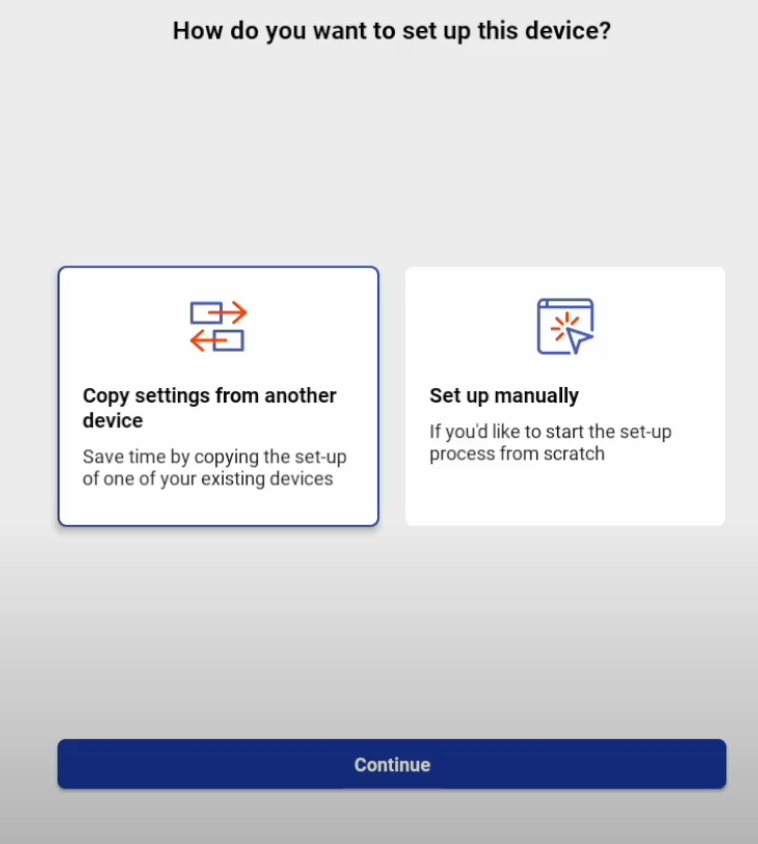
When you receive a new Toast device, you have the option to set it up manually from scratch or use the same exact settings from one of your existing devices. The device replacement workflow described here will help you replace or update a Toast device quickly and easily by copying an identical device configuration.
Follow these steps:
- Open the Toast app on your new Toast device and sign in with your email address and password.
- Select Copy settings from another device.
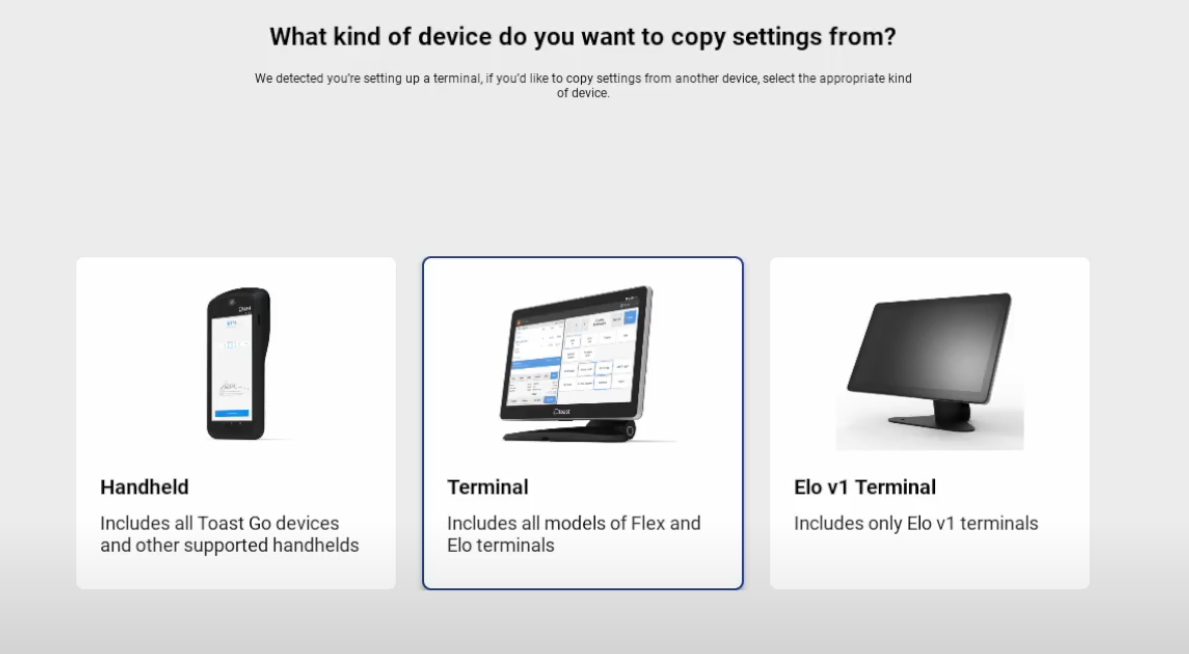
- Select whether this is a Handheld, Terminal, or Elo device.
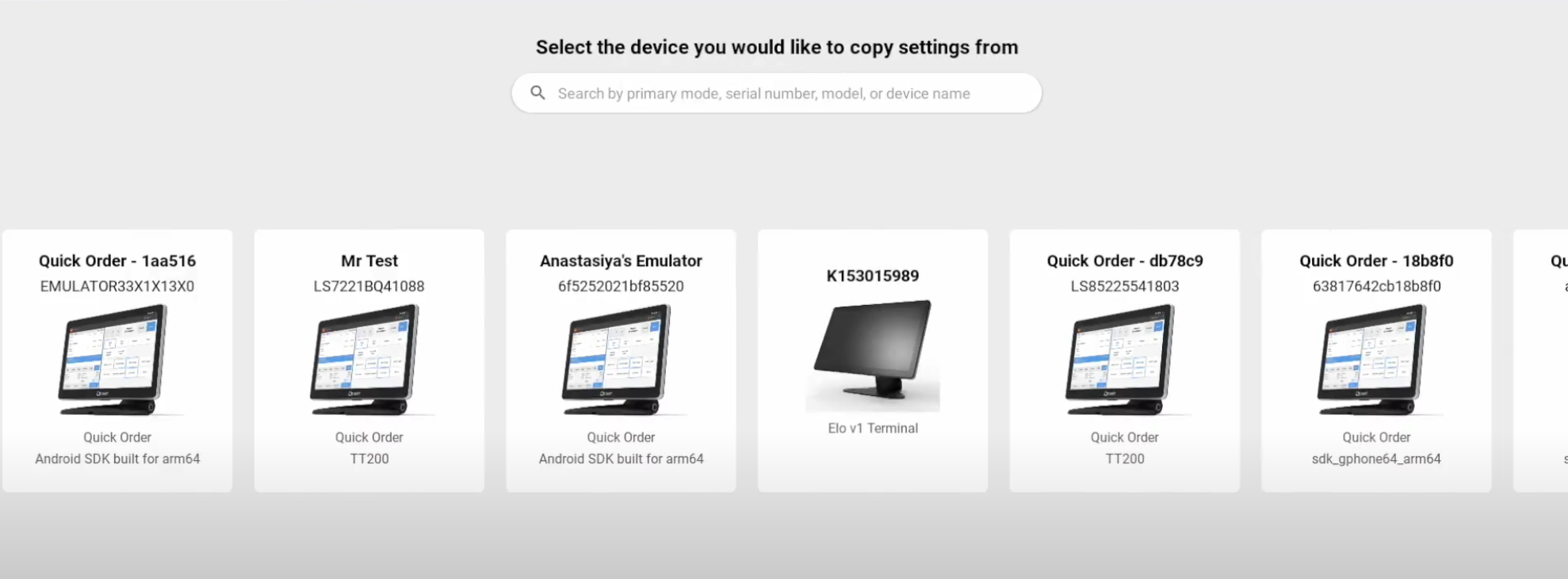
- Select the device you want to copy settings from. (Note: You can search by Primary Mode, Serial Number, Model, or Device Name). If you're unsure which device has the configuration you want, you can check a device's current settings remotely in Device Hub before choosing.
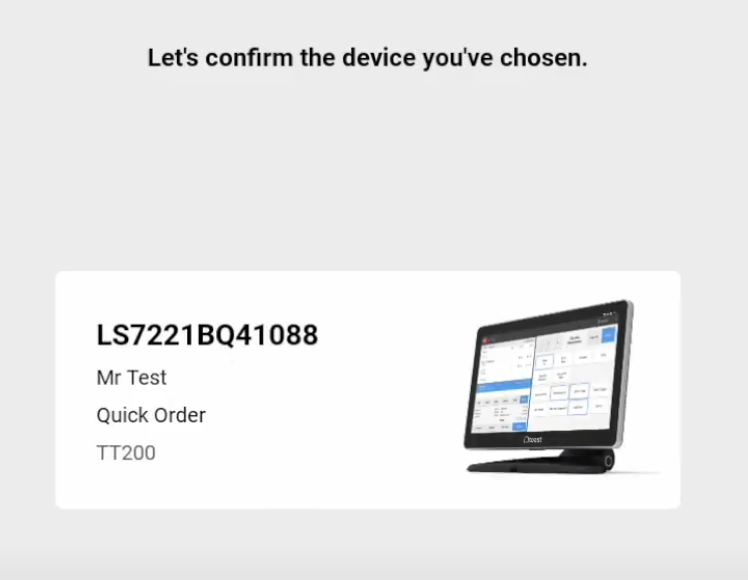
- Confirm the device you have selected for copying.
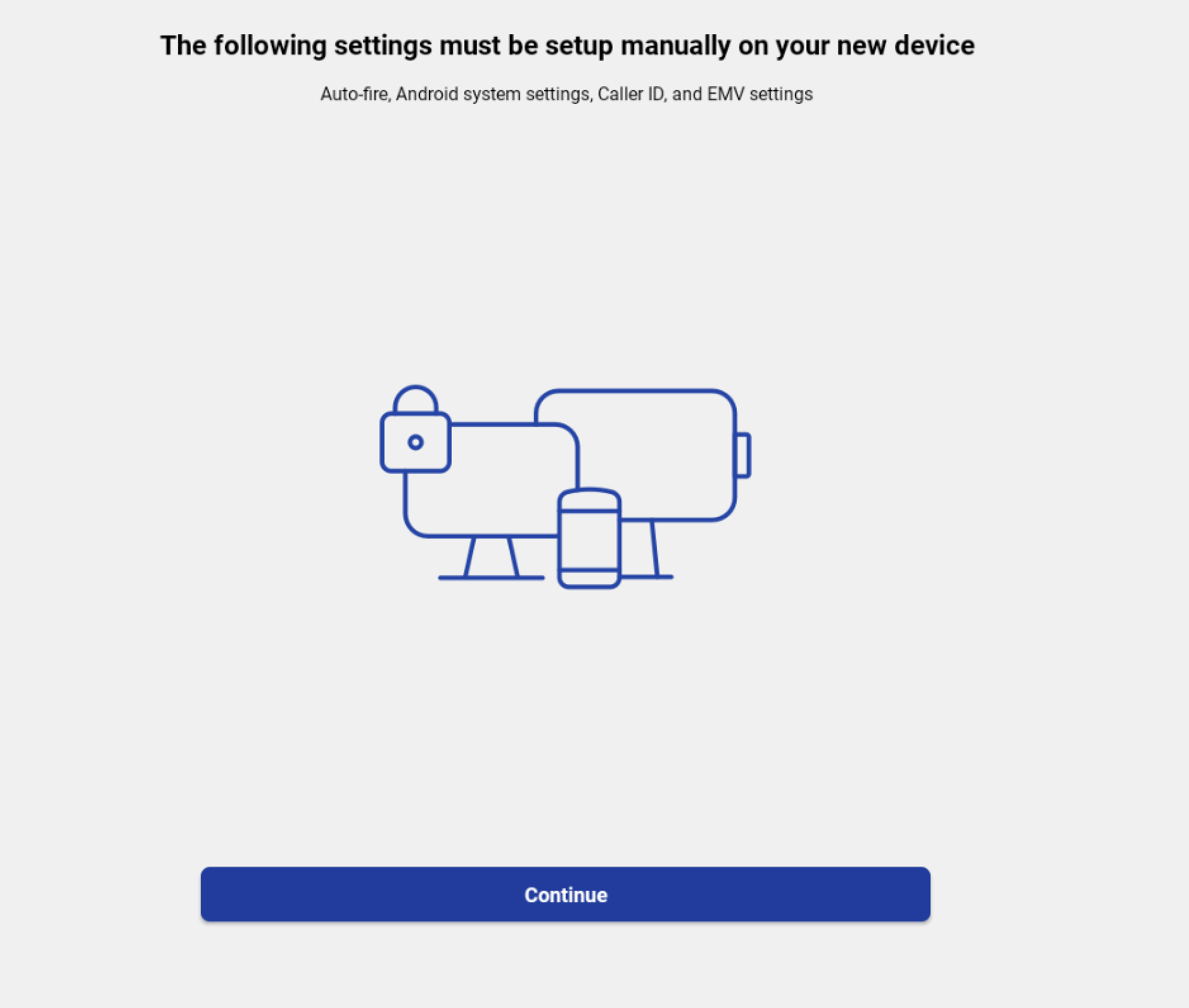
- You may still need to adjust some settings at the device level, like Auto-Fire Device setup or enabling EMV for terminals that take payment. Learn more about using the Device Setup tool to finish configuring these settings in the POS Device Setup Overview article. You can also confirm a device's current settings remotely — without walking up to it — via the Settings tab in Device Hub.
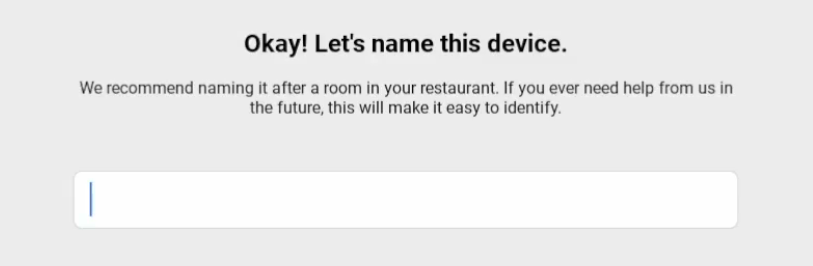
- Name the new device.
- That's it! Time to start using your replacement device.