Set Up Your Brecknell Scale With Toast
Last updated: Mar 25, 2026, 1:50 PM
Learn how to set up a Brecknell scale to work with your Toast POS.
Follow the steps below to set up your Brecknell scale, and then go to Use a Scale With Toast for additional item and POS configuration.
Set Up Your Brecknell 6710U Scale
- Unpack the scale and all components from the shipping box. Check that you have all the parts using the provided packing list.
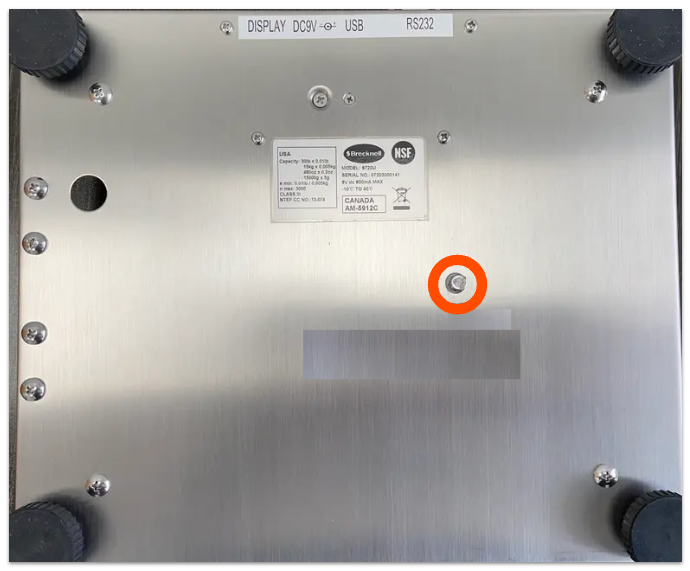
- Remove the shipping screw from the bottom of the scale base (pictured below).
- Connect all necessary cables to the proper connectors. Refer to the section below on how to connect the scale to your Toast device.
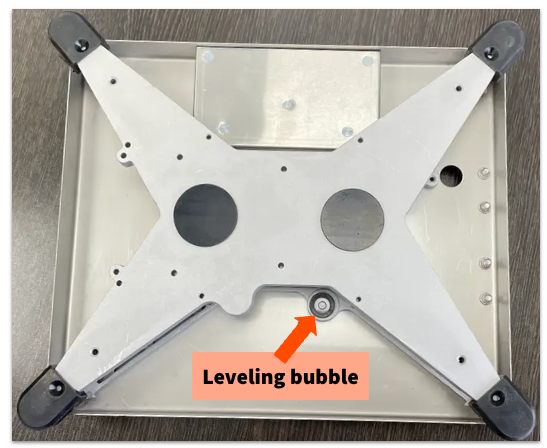
- Level the scale base using the four leveling feet. View the level bubble located under the platform top. A top-down view with the platter plate off is shown below:
Brecknell Scale: Mount the Display to the Scale Base
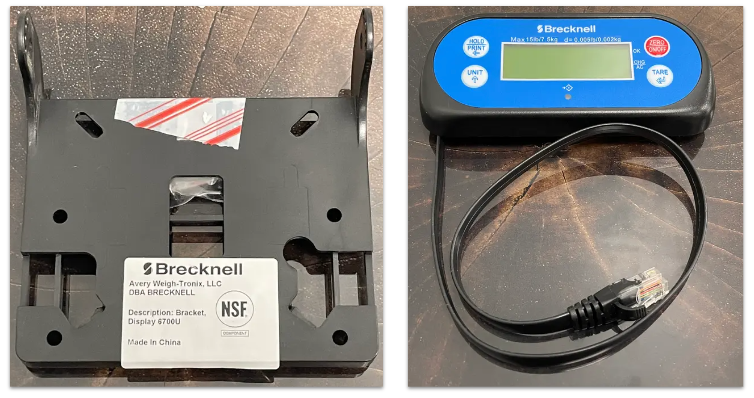
- Gather display components.
- Pull the remote display cable through the rectangle cut out in the display bracket. The bracket mounts the remote display to the scale base. The display cable routing is shown below.
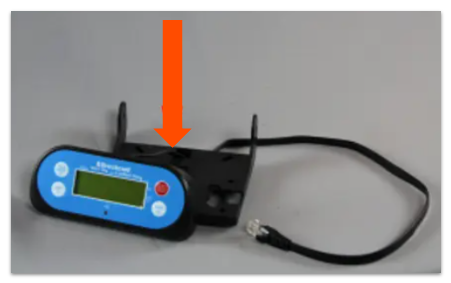
- Clip the display to the bracket.
- Pull the cable all the way through.
- Wrap the display cable around the four corners of the bracket. Pull the cable through the center holes.
- Remove the top shroud and turn the scale base over to expose the underside. If the shipping screw is still installed, it must be removed (see setup instructions for details).
- Line up the holes of the bracket with the holes on the scale base. Fasten the bracket down with the 4 provided screws.
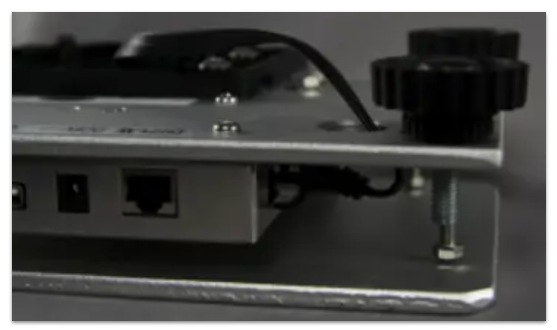
- Route the display cable through the opening of the scale base and plug the display cable into the Display port underneath.
- Turn the scale upright.
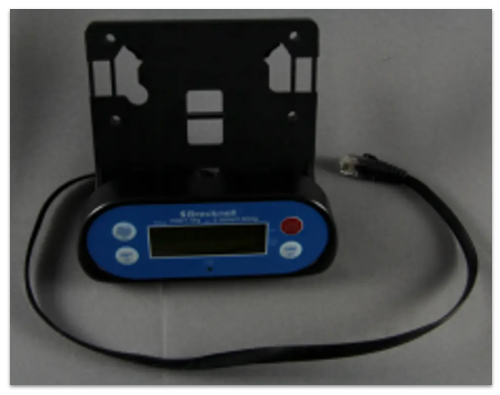
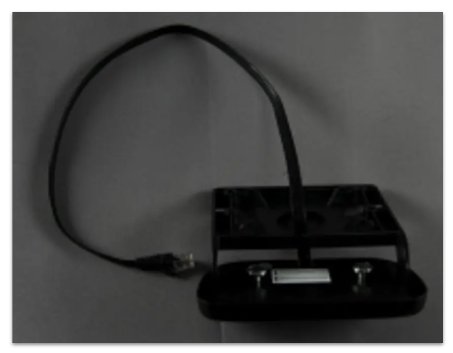
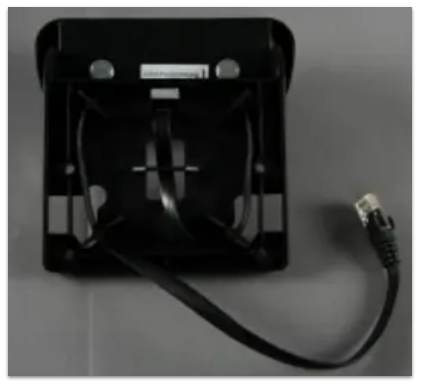
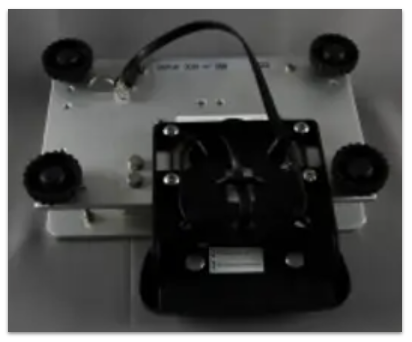
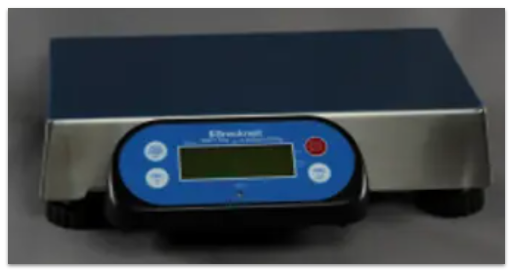
Brecknell Scale: Desktop and Wall Display Mounting
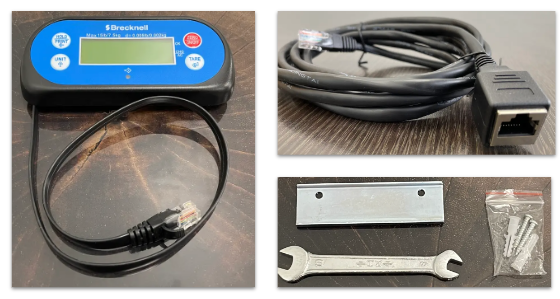
- Gather the display components.
- The image on the top right shows an optional scale display extension: instead of plugging the display directly into the side of the scale, plug the display into this extension, and then plug the extension into the scale.
- The image on the bottom right shows an optional wall/surface mounting kit for the scale display.
- Connect the display to the extension cord.
- Connect the extension cord to the Display port on the scale.
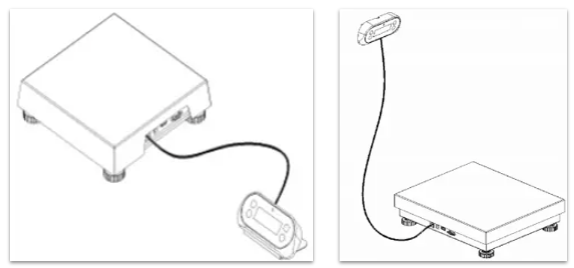
- The final display should look like this (desk mount or wall mount):
- After setting up your display and scale, make sure your scale is inspected and certified before use. The government requires scales used in retail to be inspected and certified as "legal for trade". This scale certification is to ensure that the vendor is fairly representing the amount of product during a sale, and that your scale is properly calibrated and reading correctly. Learn more about scale seals and certifications in this Support Center article, Scale Seals and Certifications.
Brecknell Scale: Connect to Your Toast Device
- Make sure that the Toast device and the scale are both turned off.
- This next step depends on if you have an Elo terminal or a Toast Flex device. Use Identify Your Toast Hardware to determine which device you have.
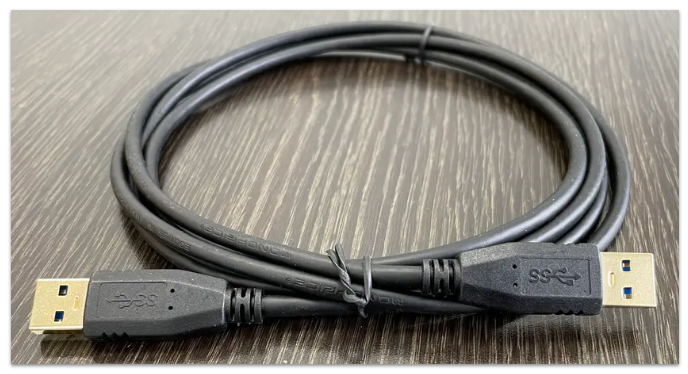
- If you have an Elo terminal, use a USB cable (as shown below) to connect the scale to the terminal. Plug the other end into the side of the scale.
- If you have a Toast Flex device, you'll plug into the TP-200 printer or Toast Smart Hub. Plug the other end into the side of the scale.
- Note: Printer and hub need to be plugged into the terminal in order for the scale to work.
- Note: Printer and hub need to be plugged into the terminal in order for the scale to work.
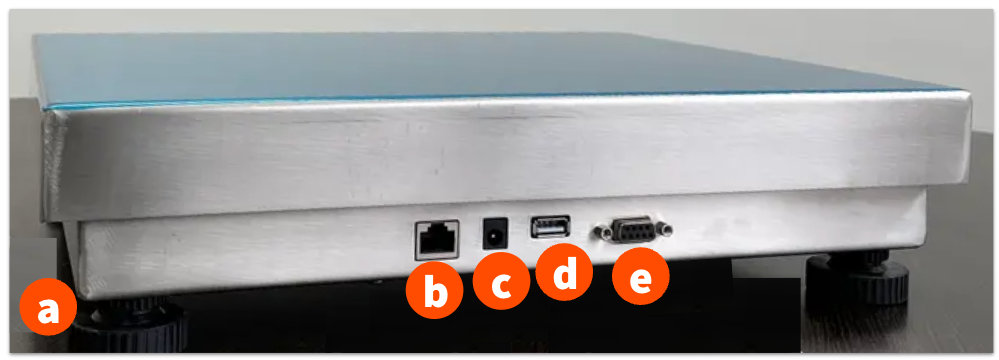
- After connecting the USB cable to the terminal, ensure other parts of the scale are plugged into the proper ports (shown below).
- The feet of the scale can be rotated to level the device. Lift off the top cover of the scale to see the leveling bubble underneath.
- RJ45 for plugging in the display
- Power
- USB to terminal, printer, or hub
- VGA, not used by Toast
- Turn on the Toast device.
- When the prompt to use the attached USB by default comes up ("Allow the app Toast POS to access the USB device?"), make sure that you select the Use by default for this UBS device checkbox.
- Select OK.
- Proceed by following the steps in Configure Weighed Item.
Brecknell Scale: Configure the Scale for a 15 lb. Limit
- Power on Brecknell scale.
- Hold down on the Hold/Print and Zero/On/Off buttons, until you see CONFG on the screen.
- Press the Tare button once. You will see No. ***, then CF.ON.
- Press the Tare button once. You should see rESET on the screen.
- Press the Unit button twice. You should see Pr inN on the screen.
- Select, by pressing the Tare button once. 03000 will be on the screen.
- Change the number to 01500 by pressing the Unit button to change the value of the digit, and Hold to toggle through the digits.
- Once the number is correct, press Tare.
- You should see Pr inN on the screen.
- Press the Zero/On/Off button four times, and it will restart your scale.