Use a Scale With Toast
Last updated: Oct 21, 2026, 9:35 AM
Use this article to set up a scale and configure Toast for weighed items.
Do you have items with prices determined by their weight? Toast supports several scale models to measure the weight of an item and quickly determine the price on your POS screen. See Set Up Your Scale below for the full list of supported scales.
Already have your own deli scale? Toast can scan the barcode labels produced by any scale vendor that follows the GS1 spec for variable measure items (external link).
- Set Up Your Scale
- Configure Weighed Items
- Prompt for Quantity
- Use Your Scale with Kiosk
- Scale Troubleshooting
- Error Message: Units of Measure Don't Match
- Price Not Transferring From Scale to Toast POS
- Brecknell: Error Message: Invalid Data
- Brecknell: "0____" Appears on the Screen
- Scale Showing Incorrect Weight Measurement
- Screen Showing "Weighted Item" When an Item Is Selected, But There's No Value for the Weight
Set Up Your Scale
There are several types of scales that are supported with Toast POS. Follow the setup instructions for your scale:
- Set Up Your Brecknell Scale With Toast
- Set Up Your CAS Scale With Toast
- Set Up Your Datalogic Magellan Scanner/Scale With Toast
- Zebra scales: Upon purchase, a representative from Truno will visit you on site to help set up your scale. For troubleshooting, check out Get Help With Zebra MP7000 Grocery Scanner Scale.
Then, continue following the steps in this article to configure the weighed items you'll be selling and set up your POS terminals to work with the scales.
Configure Weighed Items
Before you can sell items by weight, Toast Customer Care must turn on weighed item configuration for your restaurant. Until this is turned on, the Unit of Measure setting won't appear on your Advanced Properties page. Contact Customer Care to have it turned on. After it's turned on, follow the steps in Prompt for Quantity below to set the Unit of Measure and Tare Weight for each weighed item. To set a price per pound or other unit, see Configure Items Priced by Weight.
Prompt for Quantity
Make sure all items that need to be weighed have Prompt for Quantity enabled. Once this feature is turned on, the POS will automatically read the weight listed on the scale and multiply it by the price per unit when the item is selected.
- In Toast Web, navigate to Menus > Bulk management > Advanced properties, and select the item that needs to have this setting enabled.
- On the item details page, scroll down to the Properties settings under Advanced Properties.
- Select Yes for the Prompt for Quantity setting.
- Scroll down to the Weighing settings, and adjust the Tare Weight and Unit of Measure settings accordingly.
- Save and publish your changes.
Note: If you have many items that need to have Prompt for Quantity enabled, you can also use the Show/Hide dropdown from the Advanced Properties page (Menus > Bulk management > Advanced properties) to apply this setting to multiple items at once. You can also show Unit of Measure and Tare Weight on Advanced Properties.
Any menu Item that has been set up using the steps above will automatically require a scale if one is attached. When ringing in an item, select the item button and place the item on the scale.
The weight will not appear on the Toast device until the scale settles and registers a consistent weight. You'll then select Done on your POS to add the item to the check.
Note: You cannot manually adjust an item's weight or change the cost on the check without editing the price of the item itself in Quick Edit Mode or in Toast Web.
Use Your Scale with Kiosk
Your scale can also be used while the POS is in Kiosk Mode, allowing guests to purchase weighed items quickly and efficiently.
After selecting an item that has a unit of measure configured for it, a notification will prompt the guest to place their items on the scale and the price will change automatically on the kiosk. Guests can then select Continue to add the item to their cart and proceed with checkout.
Scale Troubleshooting
Error Message: Units of Measure Don't Match
If the unit of measure on your scale does not match the item's configuration, you'll receive an error message that says "Configure Scale", and describes the unit of measure that should be used for that particular item.
If this occurs, simply toggle the weight on your scale to match the item's unit of measure
Price Not Transferring From Scale to Toast POS
If your terminal is having trouble receiving any information from a scale, follow the steps below:
- Unplug your scale's USB connection from the Toast device and from power.
- Navigate to the device's Android settings.
- Open the Apps section of Android settings.
- Select the Toast POS app.
- Clear defaults.
- Power down the Toast device.
- After everything is plugged in, turn on the device.
- When the prompt to use attached USB by default comes up, make sure that you check the box to Use by default for this USB device,
- Select OK.
Brecknell: Error Message: Invalid Data
If you encounter an "Invalid Data" error on your Brecknell Scales, follow these steps to ensure its accurate weighing and smooth operation:
- Power on your Brecknell Scale.
- Hold down on the Hold/Print and Zero/On/Off buttons, until you see CONFG on the screen.
- Press the Unit button once. You should see USER on the screen.
- Press the Tare button, once. RESET will be on the screen.
- Press the Unit button once. You should see Con1 on the screen.
- Select, by pressing the Tare button, once. The bUd.rt will be on the screen.
- Toggle through each option in this menu by pressing Unit. Options are LyoUt, bUd.rt, oUt.nd, and Bt.Fnt.
- Select the LyoUt option by pressing the Tare button. This will give you a series of options you can select.
- Once it says SCP02 press tare to select.
- It should move back to LyoUt, if it does not go back to this, select the Zero/On/Off button to go back to the Con1 menu options.
- Once it says SCP02 press tare to select.
- The correct settings for each menu option are the following:
- LyoUt = SCP02
- bUd.rt = 9600
- oUt.nd = Prt.Cd
- Bt.Fnt = 8n1
- When the process is complete, press the Zero/On/Off button four times, and it will restart your scale.
- From here, you can choose a Unit until it is on the unit you prefer (lbs, oz, kg, etc).
Brecknell: "0____" Appears on the Screen
If your scale isn't weighing accurately, you can easily recalibrate it by following these steps:
- With the scale turned on, press and hold the HOLD/PRINT and ZERO/ON/OFF buttons at the same time until the display shows CONFG.
- Press the UNIT button twice. The display will show CAL.
- Press the TARE button to select it.
- The screen will briefly flash a number before displaying CAL.ON. Press the TARE button to confirm.
- The display will now show ZEro. Press the TARE button one last time.
- Your scale is now calibrated and ready to use!
Scale Showing Incorrect Weight Measurement
Brecknell scale
- Power on Brecknell scale.
- Hold down on the HOLD/PRINT and ZERO/ON/Off buttons until CONFG appears on the screen.
- Press UNIT twice.
- You will see CAL on the screen.
- Press TARE to select.
- You will see "No." and a number on the screen, briefly, then you will see CAL.ON
- Press TARE to select.
- You will see ZEro on screen.
- Press UNIT.
- You will see LinE on the screen.
- Press TARE to select.
- Wait for the device to show 0.00.
- Press TARE to select. It will show the maximum weight (usually 15 or 30).
- Place an item with a known weight, between three and 30lbs, on the scale.
- Adjust the digits to match the weight of the item on the scale. UNIT moves the digit up in value, and HOLD moves to the next digit.
- When the correct weight is adjusted and shown on the screen, press TARE twice.
- After the system resets, remove the item from the scale, and let the scale zero out.
- Place something on the scale with a known weight.
Screen Showing "Weighted Item" When an Item Is Selected, But There's No Value for the Weight
This applies to CAS scales.
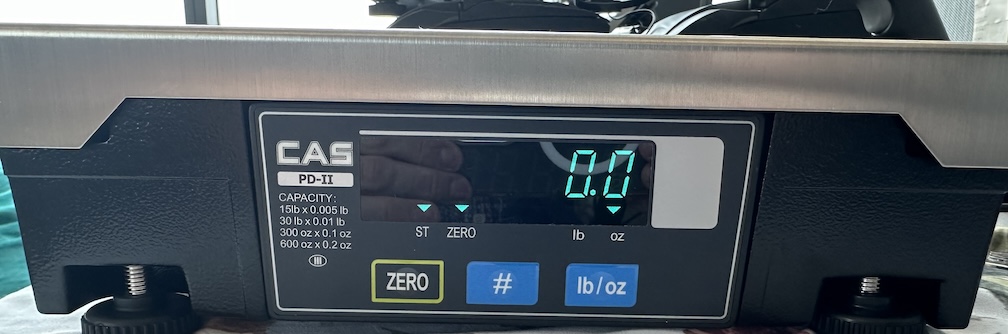
- Hold down the # key while powering on the scale. Scale should show Electronic Cash Register (ECR) set, and then the type setting.
- Press the LB/OZ or * key to change the type to Type 5.
- Press the ZERO key, and the scale should restart.
- Power scale off again.
- Hold LB/OZ or * key and power back on.
- Toggle LB and OZ by pressing the LB/OZ or * key (0.0 = OZ and 0.000 = LB).
A small amount of CAS scales will show LB on the faceplate and have a * button, instead of LB/OZ.
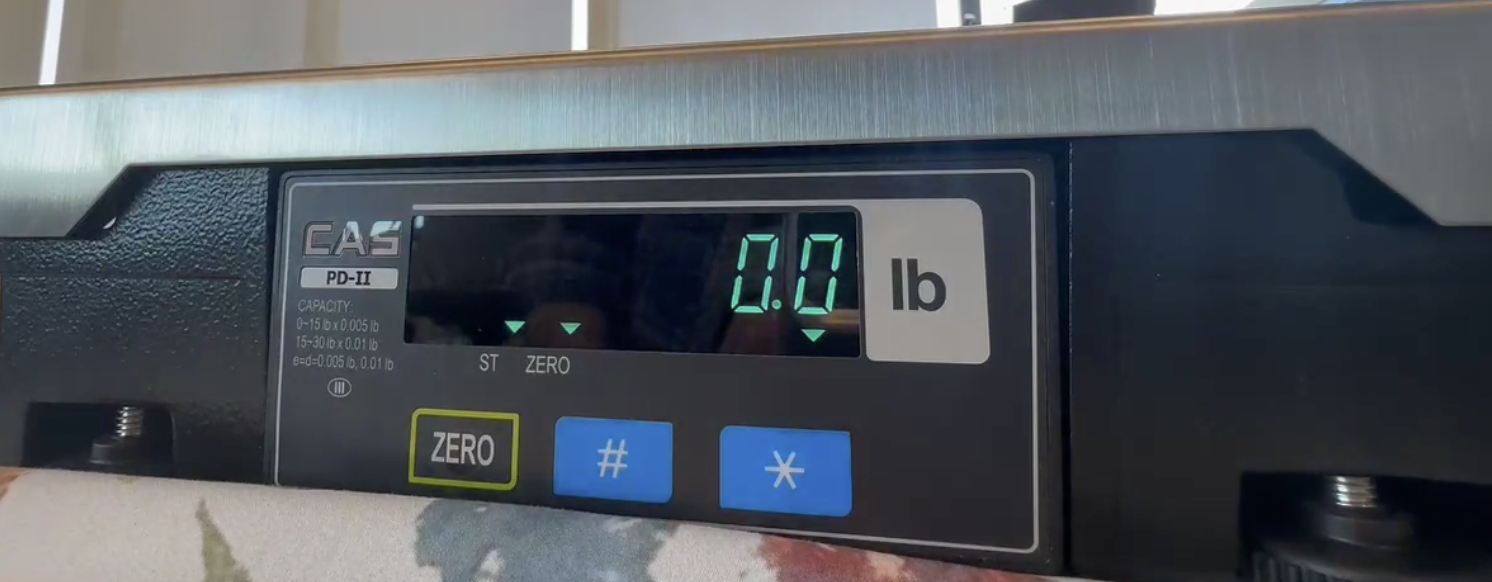
The majority of CAS Scales will look like this: